Category: Visual Studio

.NETDevelopmentVisual Studio

Centralizing NuGet Package Versions with Central Package Management

In my Running and Building Azure Functions with Modern .NET talk this week at the Mississauga .NET User Group, one of the topics that consistently gets a reaction from the audience is Central Package Management (CPM). Once I show people what it does, the reaction is almost always the same: “I didn’t know this existed — I need to go add this to all my solutions.”

This post is the written companion to that section of the talk. If you’ve ever dealt with the pain of keeping NuGet package versions in sync across a large solution, CPM is going to be immediately relevant to you.

What is Central Package Management?

Central Package Management is a built-in .NET feature that lets you define all NuGet package versions in a single place — a Directory.Packages.props file at the solution root — rather than scattering Version attributes across individual .csproj files.

Here’s a simple example of what that file looks like:

<Project>
<PropertyGroup>
<ManagePackageVersionsCentrally>true</ManagePackageVersionsCentrally>
</PropertyGroup>
<ItemGroup>
<PackageVersion Include="Microsoft.Azure.Functions.Worker" Version="2.0.0" />
<PackageVersion Include="Microsoft.Azure.Functions.Worker.Extensions.Http" Version="3.3.0" />
<PackageVersion Include="Newtonsoft.Json" Version="13.0.3" />
</ItemGroup>
</Project>

And in your individual .csproj files, you simply reference the package without a version:

<ItemGroup>
<PackageReference Include="Microsoft.Azure.Functions.Worker" />
<PackageReference Include="Newtonsoft.Json" />
</ItemGroup>

The version is automatically resolved from the central file. Clean, simple, and immediately obvious what version you’re on when you look at the central file.

Why This Matters

In a solution with many projects, keeping package versions in sync manually is error-prone. You end up with Project A on Newtonsoft.Json 13.0.1 and Project B on 13.0.3 without anyone really noticing until a subtle runtime difference bites you. CPM solves this by making version drift impossible — there’s one place to look and one place to change.

Benefits at a glance:

  • Single source of truth for all package versions in the solution
  • Eliminates version drift across projects
  • Cleaner .csproj files — no version attributes cluttering your package references
  • Supports both direct and transitive dependency version control

Manually Migrate an Existing Solution to CPM

If you already have a solution with a bunch of projects, migrating to CPM is straightforward but can be tedious to do by hand across many .csproj files. Here’s the approach:

Step 1: Create Directory.Packages.props

At the root of your solution, create a Directory.Packages.props file with ManagePackageVersionsCentrally set to true and consolidate all your package versions as <PackageVersion> entries:

<Project>
<PropertyGroup>
<ManagePackageVersionsCentrally>true</ManagePackageVersionsCentrally>
</PropertyGroup>
<ItemGroup>
<PackageVersion Include="PackageName" Version="x.y.z" />
<!-- add all packages here -->
</ItemGroup>
</Project>

Step 2: Remove Versions from Project Files

Strip the Version attribute from every <PackageReference> in your .csproj files. If you have many projects, do this with the CentralisedPackageConverter CLI tool (covered below) — don’t do it by hand.

Step 3: Validate and Build

Build your solution and confirm everything resolves correctly. Pay attention to any packages that may have conflicting versions across projects — those will need a conscious decision about which version to standardize on.

This is great, but there must be a better way. Let’s take a look at a community tool that automates this process.

Using the CentralisedPackageConverter CLI Tool

The best way to handle the migration for an existing solution is the CentralisedPackageConverter CLI tool, which automates the tedious parts:

# Install the tool globally
dotnet tool install CentralisedPackageConverter --global
# Run the conversion against your solution folder
central-pkg-converter /path/to/your/solution/folder

The tool will:

  • Scan all .csproj files in the solution
  • Generate a Directory.Packages.props with all discovered versions
  • Remove version attributes from individual project files

I highly recommend using this over a manual migration. It’s fast and reduces the chance of missing something.

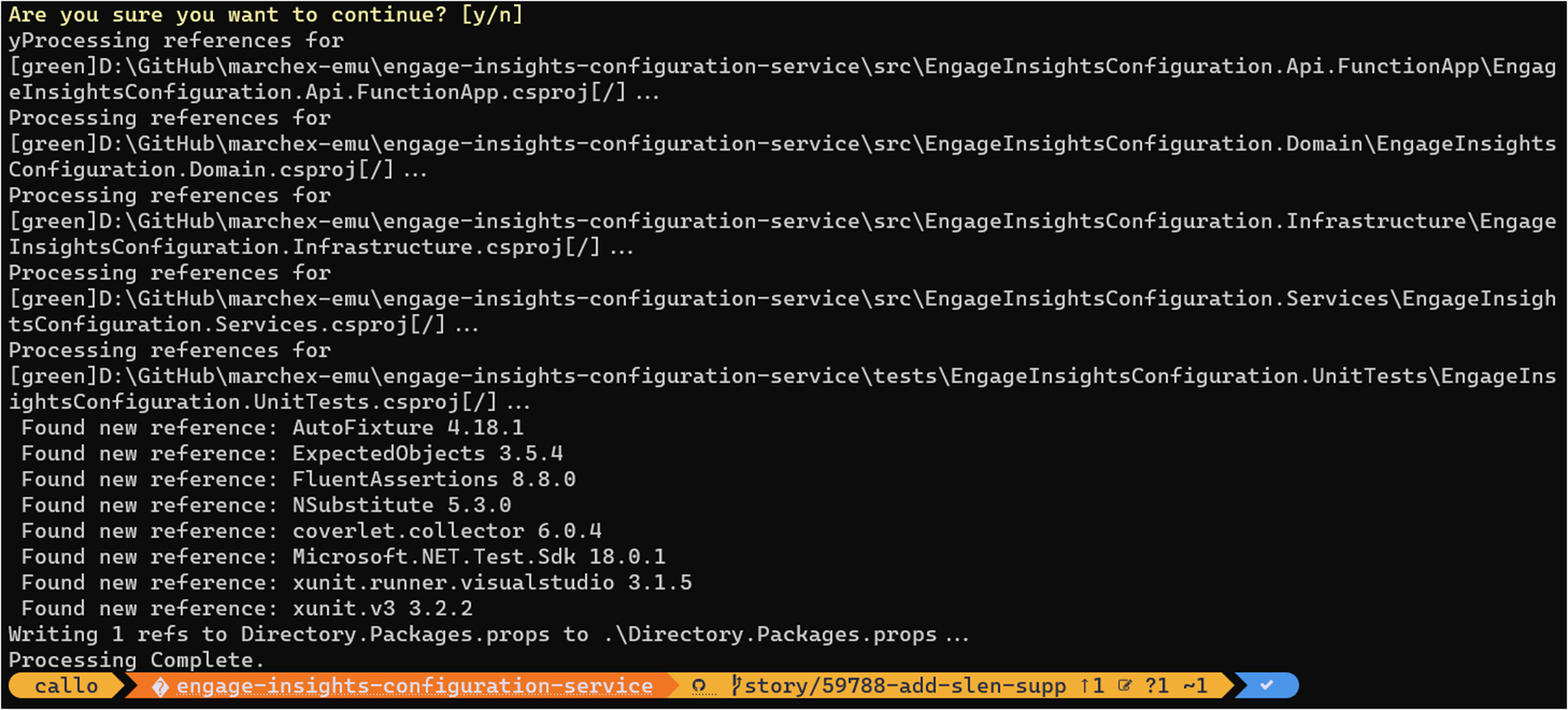
Let’s try this out.
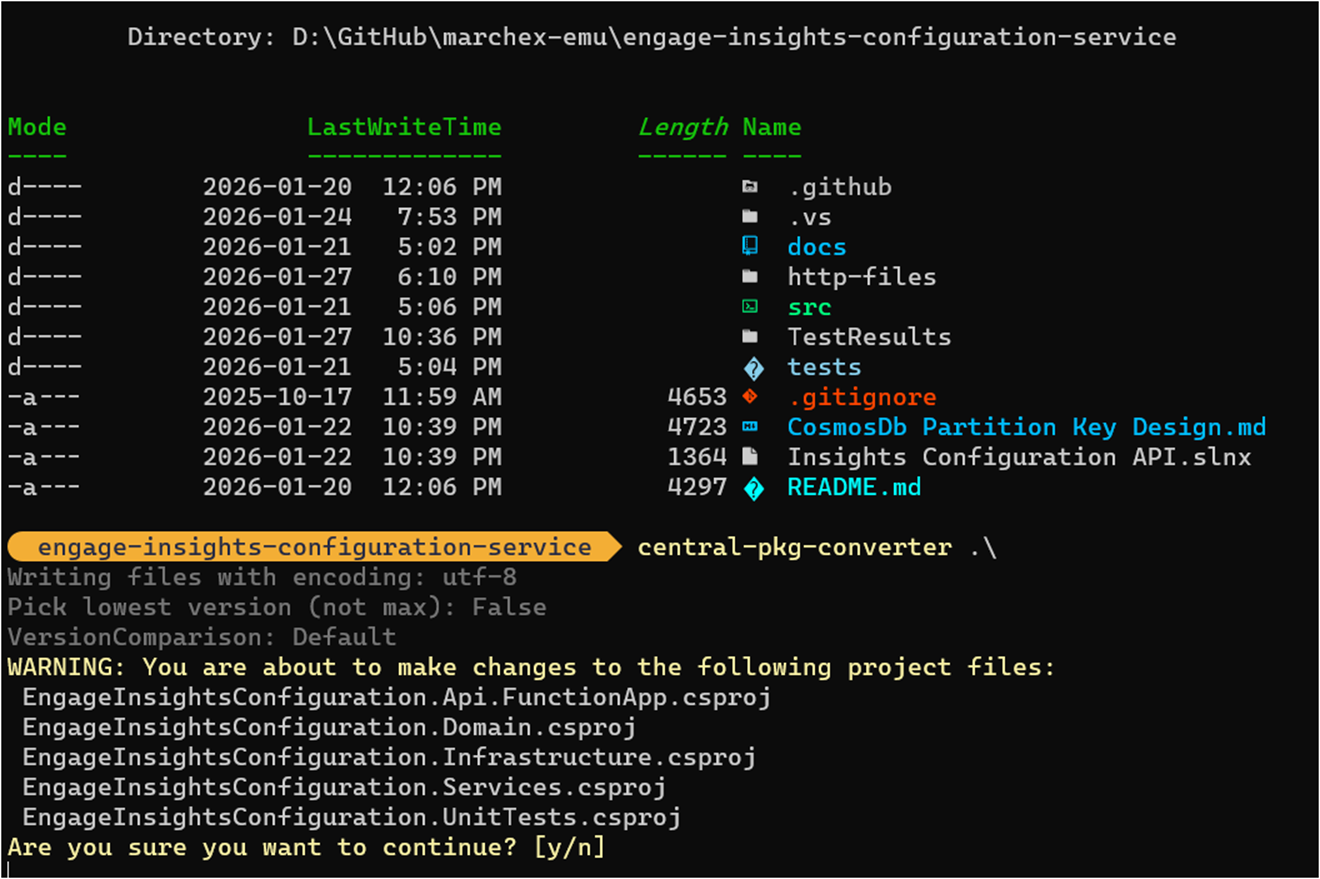
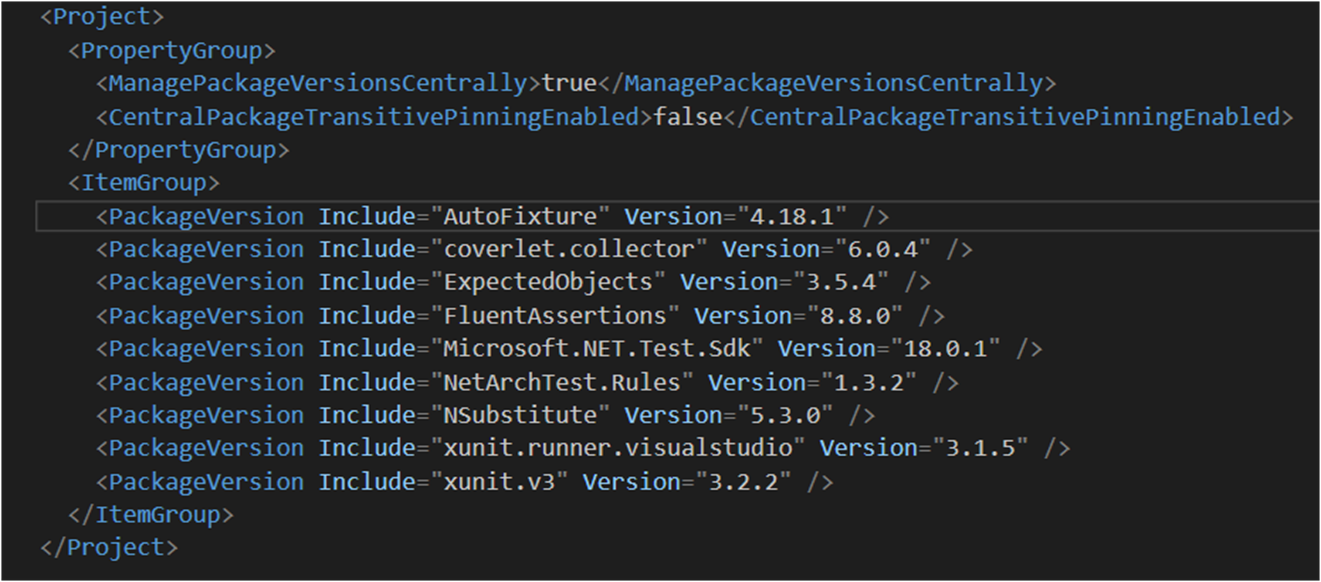
We now have a Directory.Packages.props with all discovered versions:
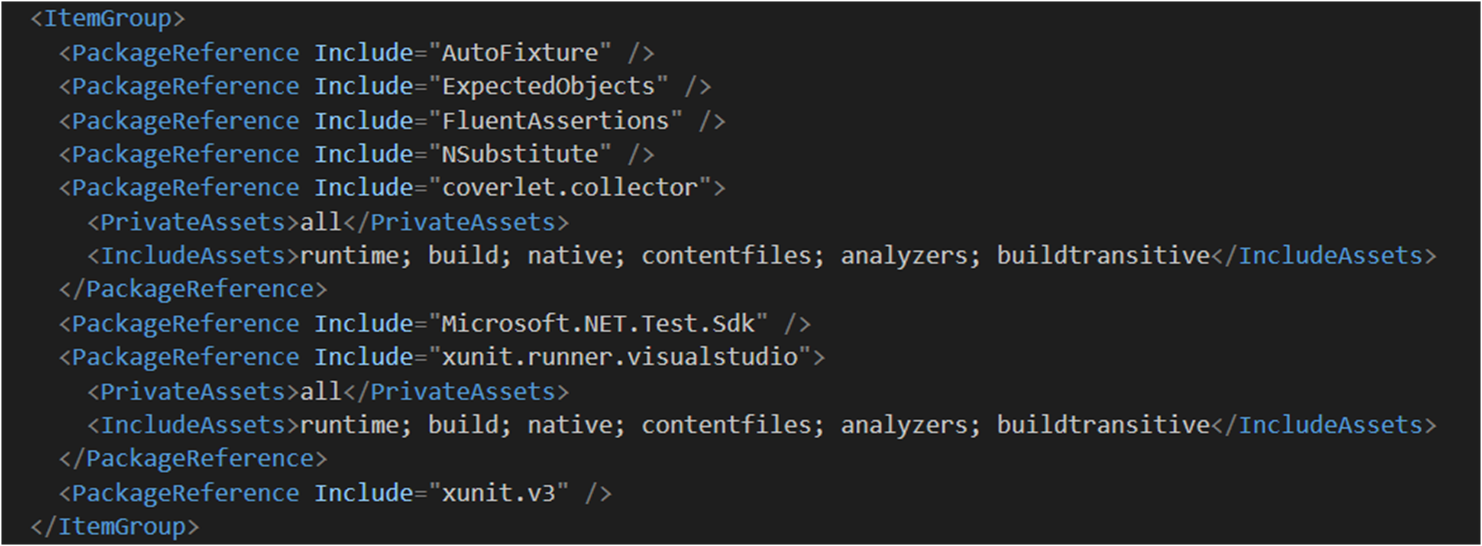
And if we look in our project files, the versions are removed:
Advanced Features


Once you’re on CPM, there are a few additional capabilities worth knowing about.

Overriding Versions per Project

There are situations where a specific project needs a different version of a package than the rest of the solution — say, a legacy integration that can’t move to the latest version yet. CPM handles this with VersionOverride in the individual project file:

<PackageReference Include="SomePackage" VersionOverride="1.2.3" />

Use this sparingly. Its presence in a project file is a signal that something needs attention.

Different Versions per Target Framework

If you have a multi-targeted project, you can conditionally apply different versions by target framework using standard MSBuild conditions within Directory.Packages.props:

<PackageVersion Include="SomePackage" Version="2.0.0" Condition="'$(TargetFramework)' == 'net10.0'" />
<PackageVersion Include="SomePackage" Version="1.5.0" Condition="'$(TargetFramework)' == 'net8.0'" />

Transitive Pinning

This one quietly solves a very real problem. Version drift caused by transitive dependencies — packages your packages depend on — is easy to miss and can cause subtle compatibility issues. CPM supports pinning transitive dependencies centrally, so you stay in control of the full dependency graph, not just the packages you reference directly.

Summary

Central Package Management is one of those features that makes you wonder how you managed without it once you adopt it. If you’re running a multi-project .NET solution, this is a straightforward improvement with immediate payoff — consistent package versions, cleaner project files, and a single place to make dependency updates.

Enjoy!

References

.NETDevelopmentVisual Studio

The New .slnx Solution File Format — A Better Way to Manage Visual Studio Solutions

In my Running and Building Azure Functions with Modern .NET talk this week at the Mississauga .NET User Group, I closed out the .NET tooling section with a quick look at the new .slnx solution file format. It’s one of those changes that doesn’t get a lot of attention but makes day-to-day .NET development noticeably more pleasant — especially if you’ve ever dealt with a gnarly merge conflict in a .sln file.

This post walks through what .slnx is, why it’s better than the traditional .sln format, and how to migrate.

What’s Wrong with .sln?

If you’ve worked with Visual Studio solutions for any length of time, you’ve almost certainly encountered the pain points with .sln files. They’ve been around since the early 2000s and they work — but they come with a set of frustrations that have never really been addressed:

  • They’re nearly unreadable — the format uses GUIDs and magic identifiers that aren’t intuitive at all
  • Merging is painful — a .sln file being touched by two developers at the same time is a merge conflict waiting to happen
  • Tooling struggles with them — custom scripts or CI tooling that needs to parse a .sln file often resorts to fragile string manipulation

Here’s a snippet of a traditional .sln to illustrate:

Project("{FAE04EC0-301F-11D3-BF4B-00C04F79EFBC}") = "MyFunctions", "src\MyFunctions\MyFunctions.csproj", "{A1B2C3D4-E5F6-1234-ABCD-EF0123456789}"
EndProject
Global
GlobalSection(SolutionConfigurationPlatforms) = preSolution
Debug|Any CPU = Debug|Any CPU
Release|Any CPU = Release|Any CPU
EndGlobalSection
EndGlobal

Not exactly something you want to review in a pull request.

Introducing .slnx

The .slnx format is a new, XML-based solution file format introduced in the .NET 9.0.200 SDK. It addresses all of the above problems:

<Solution>
<Project Path="src/MyFunctions/MyFunctions.csproj" />
<Project Path="src/MyFunctions.Tests/MyFunctions.Tests.csproj" />
</Solution>

That’s it. No GUIDs. No magic identifiers. No indecipherable global sections. Just a clean XML file that clearly describes what’s in the solution.

Why It’s Better

Better readability — the XML structure is immediately understandable. Any developer can open a .slnx file and know exactly what’s in the solution without reverse-engineering the format.

Simplified merging — because it’s XML with simple, meaningful elements rather than a blob of GUIDs and platform strings, merge conflicts in .slnx files are much easier to resolve. In most cases, merging two developers’ changes to the solution file becomes a trivial diff.

Easier parsing — if you write build scripts, CI automation, or any tooling that needs to know what projects are in a solution, parsing a .slnx file is now just standard XML parsing. Reliable and straightforward.

Converting from .sln to .slnx

The .NET CLI makes the migration trivially easy. From your solution folder, run:

dotnet sln migrate

From Visual Studio 2022

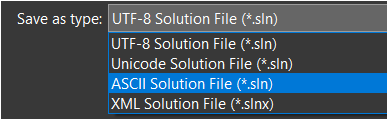
Go to File and save your solution file as…and select the XML Solution File format.

Before You Migrate

A few things to check before running the migration:

Commit your existing .sln file to source control before converting — gives you a clean rollback point if anything looks off.

Make sure your entire team is on a compatible toolchain — .NET SDK 9.0.200 or later, and a recent version of Visual Studio 2022 or Visual Studio 2026. Anyone still on an older setup won’t be able to open the solution until they update.

If you have CI/CD pipelines that parse or manipulate the .sln file directly (not uncommon in larger teams), update those to handle .slnx before you switch over.

Should You Migrate?

My honest take is yes, especially for new solutions. For existing solutions, there’s no urgency — your .sln files aren’t going anywhere — but if you’re already bumping into merge conflict pain or your solution file is getting unwieldy, the migration is trivially easy, and the payoff is immediate.

For new projects, I’d start with .slnx from day one. In fact if you’ve migrated over to Visual Studio 2026 it’s now the default options. It’s the better format, it’s supported by all current tooling, and you’ll thank yourself later.

Summary

The .slnx solution file format is a small change with a noticeably positive impact on day-to-day .NET development. XML-based, human-readable, merge-friendly, and trivially easy to adopt — there’s very little reason not to switch. Combined with Central Package Management and the new Azure Functions FunctionsApplication builder, these three improvements together represent a meaningfully cleaner modern .NET development experience.

Enjoy!

References

Azure FunctionsVisual Studio

Azurite emulator cannot be started

After installing Visual Studio 2022 and working with Azure Functions I noticed that a new storage emulator is being used called Azurite.

Azurite is an open source Azure Storage API compatible server (emulator). Based on Node.js, Azurite provides cross platform experiences for customers wanting to try Azure Storage easily in a local environment. Azurite simulates most of the commands supported by Azure Storage with minimal dependencies.

https://github.com/Azure/Azurite

This seemed to replace the old Azure Storage Emulator you would run previously when doing local development. I quickly came across an issue where the Azurite emulator cannot be started because port 10000 is already in use. This is also applied to ports 10001 and 10002 which it uses. Here are the contents of the Service Dependencies from the Visual Studio 2022 Output pane:

Ensuring Azure Functions Core Tools are up to date. This may take a few minutes...
Azure Functions Core Tools are up to date.
DotNetCore31-FunctionApp: Azurite emulator cannot be started because port 10000 is already in use. Another instance of the Azurite emulator or Azure Storage emulator might be already running on your machine.
DotNetCore31-FunctionApp: We detected that Azure Storage emulator is running on your machine. The Azure Storage emulator is now deprecated. Microsoft recommends that you use the Azurite emulator for local development with Azure Storage. Follow the directions in the link 'https://go.microsoft.com/fwlink/?LinkID=2167087' to install and run Azurite emulator.
Unable to start dependency 'functions.storage1'.
Ensuring Azure Functions Core Tools are up to date. This may take a few minutes...
Azure Functions Core Tools are up to date.
Ensuring Azure Functions Core Tools are up to date. This may take a few minutes...
Azure Functions Core Tools are up to date.
DotNetCore31-FunctionApp: Azurite emulator cannot be started because port 10000 is already in use. Another instance of the Azurite emulator or Azure Storage emulator might be already running on your machine.
DotNetCore31-FunctionApp: We detected that Azure Storage emulator is running on your machine. The Azure Storage emulator is now deprecated. Microsoft recommends that you use the Azurite emulator for local development with Azure Storage. Follow the directions in the link 'https://go.microsoft.com/fwlink/?LinkID=2167087' to install and run Azurite emulator.
Unable to start dependency 'storage1'.
DotNetCore31-FunctionApp: Azurite emulator cannot be started because port 10000 is already in use. Another instance of the Azurite emulator or Azure Storage emulator might be already running on your machine.
DotNetCore31-FunctionApp: We detected that Azure Storage emulator is running on your machine. The Azure Storage emulator is now deprecated. Microsoft recommends that you use the Azurite emulator for local development with Azure Storage. Follow the directions in the link 'https://go.microsoft.com/fwlink/?LinkID=2167087' to install and run Azurite emulator.
Unable to start dependency 'storage1'.

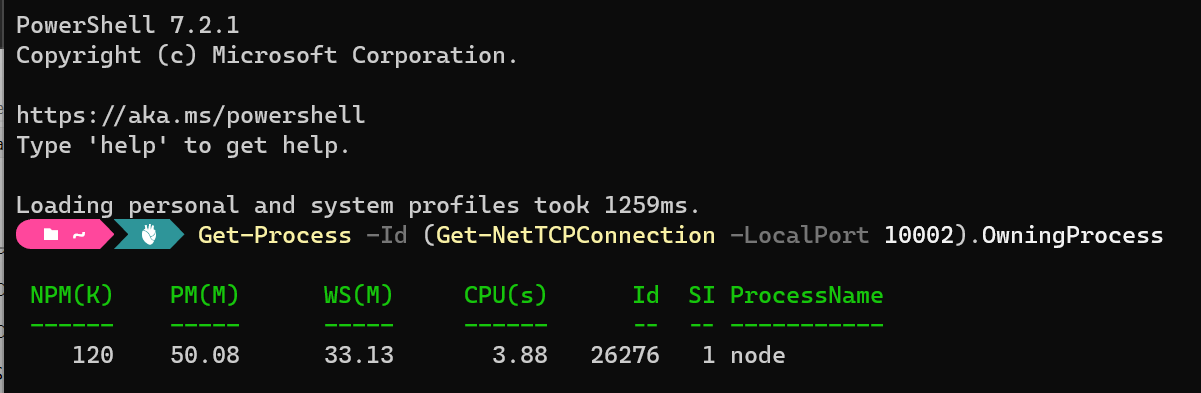
Let’s drop into Windows Terminal and take a look at what process is using that port:

Get-Process -Id (Get-NetTCPConnection -LocalPort 10002).OwningProcess

After stopping the Node process and re-running Azurite (I restarted Visual Studio) we can see everything starts up as expected:

Ensuring Azure Functions Core Tools are up to date. This may take a few minutes...
Azure Functions Core Tools are up to date.
DotNetCore31-FunctionApp: azurite.cmd --location "C:\Users\ccampbell\AppData\Local\Temp\Azurite" --debug "C:\Users\ccampbell\AppData\Local\Temp\Azurite\debug.log"
DotNetCore31-FunctionApp: Azurite Blob service is starting at http://127.0.0.1:10000
DotNetCore31-FunctionApp: Azurite Blob service is successfully listening at http://127.0.0.1:10000
DotNetCore31-FunctionApp: Azurite Queue service is starting at http://127.0.0.1:10001
DotNetCore31-FunctionApp: Azurite Queue service is successfully listening at http://127.0.0.1:10001
DotNetCore31-FunctionApp: Azurite Table service is starting at http://127.0.0.1:10002
DotNetCore31-FunctionApp: Azurite Table service is successfully listening at http://127.0.0.1:10002

This was not a great experience on the first day I started to use Visual Studio 2022 with Azure Functions as I had to go off and figure out why the Azure emulator could not be started instead of just working on my application. You can go and change the default ports ft you like which is mentioned in the documentation. For more information on Azurite check out the docs on their GitHub repository.

I hope this helps with anyone new to the Azurite emulator in Visual Studio 2022.

Enjoy!

References

https://docs.microsoft.com/en-us/azure/storage/common/storage-use-azurite?tabs=visual-studio

https://github.com/Azure/Azurite