Category: Analytics

AnalyticsAviationMicrosoft Fabric

Bringing Real‑Time Intelligence to Airport Data Streams (Type-B Messages) – Part 2: Setting It Up in Microsoft Fabric

In Part 1, I covered the architecture, the event model, and why airport baggage tracking makes such a compelling real-time analytics scenario. In this post, I want to get hands-on and walk through actually setting this up inside Microsoft Fabric — from creating the workspace artifacts all the way through to running the simulator and querying live events.

Let’s get into it.

Prerequisites

Before you start, you’ll need:

  • Microsoft Fabric workspace with the Real-Time Intelligence workload enabled (F2 or higher capacity, or a Fabric trial)
  • An Azure Event Hubs namespace with a hub (or you can use Fabric’s built-in custom endpoint in Eventstream — more on that below)
  • The Baggage Handling Simulator cloned locally, and Python 3.10+ was installed

If you want to follow along with Azure Event Hubs as the source, a Basic-tier namespace is fine for dev/test. If you’re going direct to Fabric Eventstream, you won’t need Event Hubs at all.

Architecture Overview
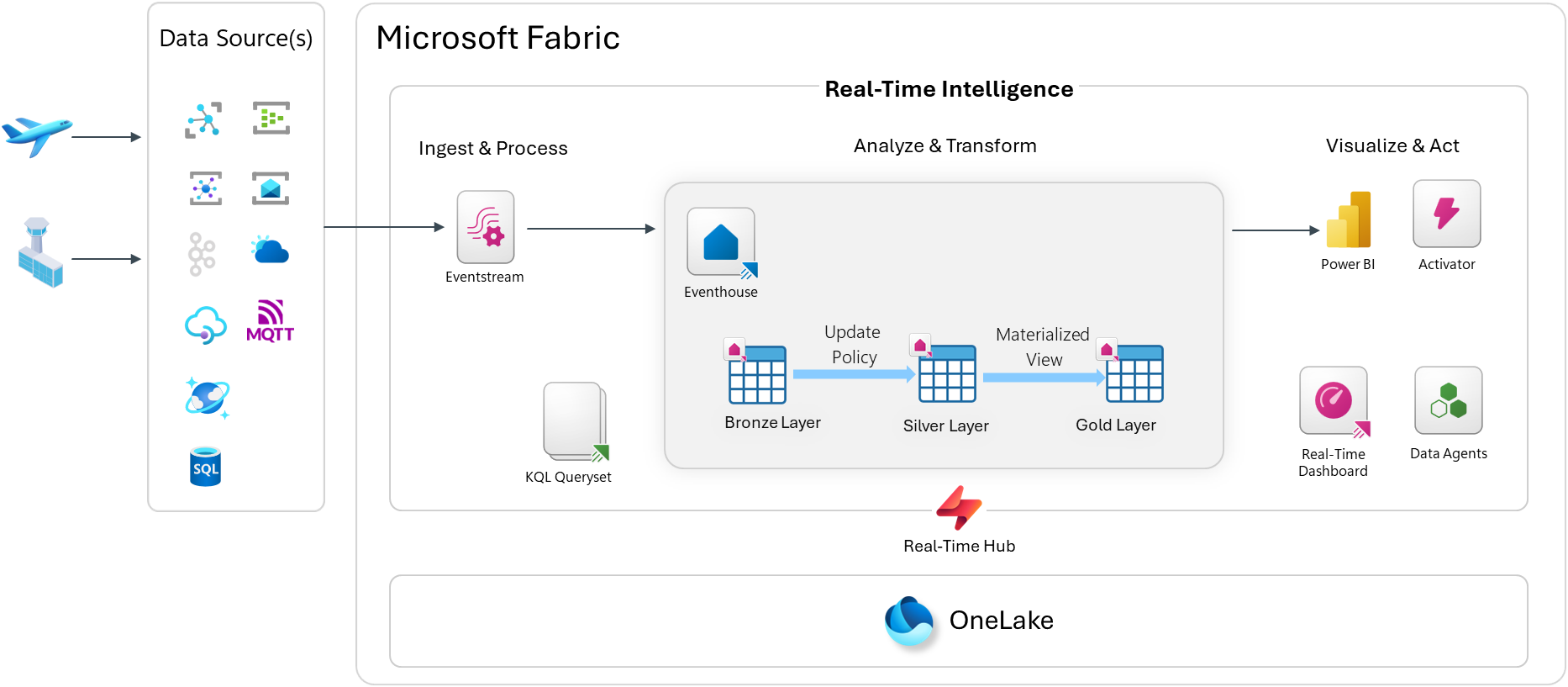
Step 1: Create the Fabric Workspace Artifacts

Start by creating a new workspace if you don’t already have one. I created on called “Airport Operations Demo”. Open up your Fabric workspace, and you’ll need to create four main artifacts:

  1. Eventhouse (your KQL database)
  2. Eventstream (ingestion and routing)
  3. KQL Queryset (ad-hoc queries and saved analytics)
  4. Real-Time Dashboard (live visualization)

Create the Eventhouse

From the Fabric workspace, click New → Eventhouse. Give it a name like Airport-Eventhouse. This creates an Eventhouse and a default KQL database inside it.

Once provisioned, open the Eventhouse and navigate to the KQL database. This is where we’ll define the table schemas.

Step 2: Create the Table Schema

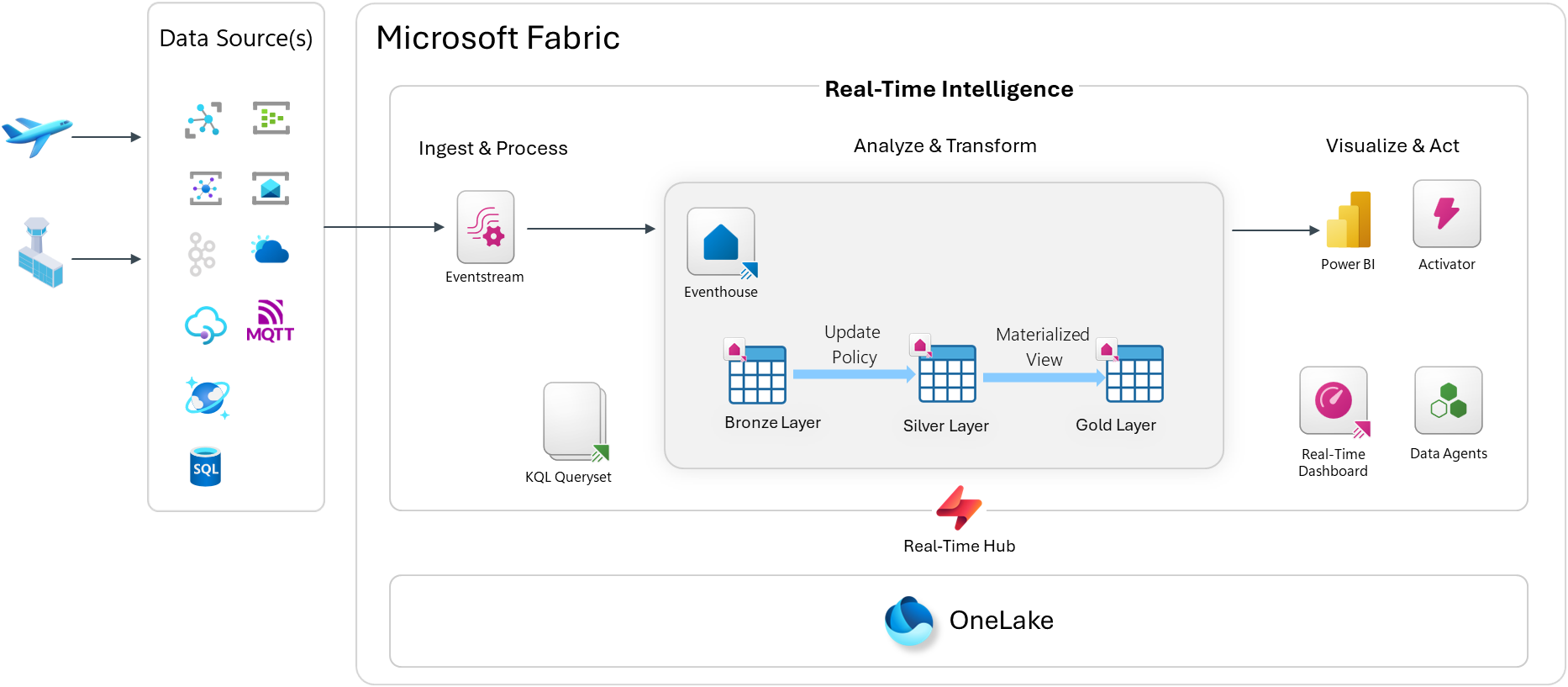
We’ll use a Bronze / Silver / Gold medallion structure inside the KQL database. Bronze tables hold raw events exactly as ingested. Silver tables hold cleaned and enriched data. Gold tables hold pre-aggregated views.

NOTE: Due to the number of schema objects, I’m going to be showing a subset across each section below. Please go here to see the rest of the KQL scripts to be applied: https://github.com/calloncampbell/BaggageHandling-TypeB-Simulator/blob/main/kql
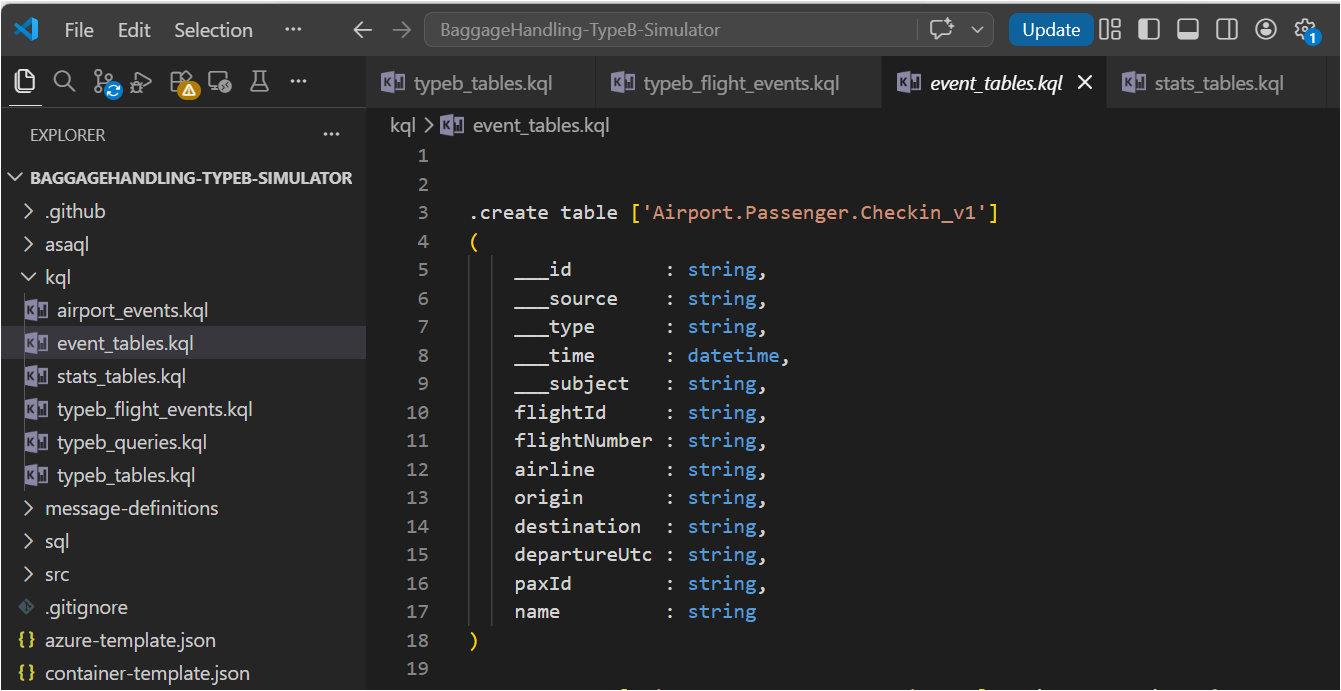
Open the Explore your data pane in the KQL database and run the following to create the Bronze tables:

// Bronze: raw airport events
.create table airport_events (
id: string,
source: string,
specversion: string,
type: string,
datacontenttype: string,
dataschema: string,
subject: string,
['time']: datetime,
data: dynamic,
seriesclock: datetime
)
.alter table airport_events policy streamingingestion enable
// Bronze: raw flight operational events
.create table typeb_flight_events (
id: string,
source: string,
specversion: string,
type: string,
datacontenttype: string,
dataschema: string,
subject: string,
['time']: datetime,
data: dynamic,
seriesclock: datetime
)
.alter table typeb_flight_events policy streamingingestion enable
// Bronze: event tables
.create table ['Airport.Passenger.Checkin_v1']
(
___id : string,
___source : string,
___type : string,
___time : datetime,
___subject : string,
flightId : string,
flightNumber : string,
airline : string,
origin : string,
destination : string,
departureUtc : string,
paxId : string,
name : string
)

Ingestion Mapping

When events arrive as JSON via Eventstream, you’ll want an ingestion mapping so the raw JSON gets parsed correctly into the table columns:

// Ingestion mapping for airport events
.create-or-alter table airport_events ingestion json mapping "airport_events_mapping"
```
[
{
"column": "id",
"path": "$.id",
"datatype": "string",
"transform": null
},
{
"column": "source",
"path": "$.source",
"datatype": "string",
"transform": null
},
{
"column": "specversion",
"path": "$.specversion",
"datatype": "string",
"transform": null
},
{
"column": "type",
"path": "$.type",
"datatype": "string",
"transform": null
},
{
"column": "datacontenttype",
"path": "$.datacontenttype",
"datatype": "string",
"transform": null
},
{
"column": "dataschema",
"path": "$.dataschema",
"datatype": "string",
"transform": null
},
{
"column": "subject",
"path": "$.subject",
"datatype": "string",
"transform": null
},
{
"column": "time",
"path": "$.time",
"datatype": "datetime",
"transform": null
},
{
"column": "data",
"path": "$.data",
"datatype": "dynamic",
"transform": null
}
]
```
// Ingestion mapping for flight events
.create-or-alter table typeb_flight_events ingestion json mapping "typeb_flight_events_mapping"
```
[
{
"column": "id",
"path": "$.id",
"datatype": "string",
"transform": null
},
{
"column": "source",
"path": "$.source",
"datatype": "string",
"transform": null
},
{
"column": "specversion",
"path": "$.specversion",
"datatype": "string",
"transform": null
},
{
"column": "type",
"path": "$.type",
"datatype": "string",
"transform": null
},
{
"column": "datacontenttype",
"path": "$.datacontenttype",
"datatype": "string",
"transform": null
},
{
"column": "dataschema",
"path": "$.dataschema",
"datatype": "string",
"transform": null
},
{
"column": "subject",
"path": "$.subject",
"datatype": "string",
"transform": null
},
{
"column": "time",
"path": "$.time",
"datatype": "datetime",
"transform": null
},
{
"column": "data",
"path": "$.data",
"datatype": "dynamic",
"transform": null
}
]
```

Silver Layer via Update Policy

Rather than running a scheduled job to promote Bronze to Silver, Update Policies do this automatically at ingest time. Define a function that transforms the raw event, then attach it as a policy. In the following example I’ve embedded my KQL query directly in the policy. You could instead create a KQL function for this query and then reference it here instead.

.alter table ['Airport.Passenger.Checkin_v1'] policy update
```
[
{
"IsEnabled": true,
"Source": "airport_events",
"Query": "let bags = airport_events
| where type == 'Airport.Passenger.Checkin' and isnull(array_length(data))==true;
let arrays = airport_events
| where type == 'Airport.Passenger.Checkin' and isnull(array_length(data))==false
| mv-expand data;
bags
| union arrays
| project
___id = tostring(id),
___source = tostring(source),
___type = tostring(type),
___time = todatetime(['time']),
___subject = tostring(subject),
flightId = tostring(data.flightId),
flightNumber = tostring(data.flightNumber),
airline = tostring(data.airline),
origin = tostring(data.origin),
destination = tostring(data.destination),
departureUtc = tostring(data.departureUtc),
paxId = tostring(data.paxId),
name = tostring(data.name)",
"IsTransactional": false,
"PropagateIngestionProperties": false
}
]
```
// Legacy table name aliases (functions for backward compatibility)
.create-or-alter function airport_passenger_checkin() {
['Airport.Passenger.Checkin_v1']
}

Every event that lands in BaggageEvents_Bronze is automatically transformed and inserted into BaggageEvents_Silver — no pipelines, no orchestration.

Gold Layer via Materialized Views

Materialized Views pre-aggregate data so your dashboard queries are fast, even against billions of rows. Here is a sample useful ones for this use case:

// Gold: latest status per flight
.create materialized-view flights_current on table flights {
flights
| summarize arg_max(updated, *) by flightId
}

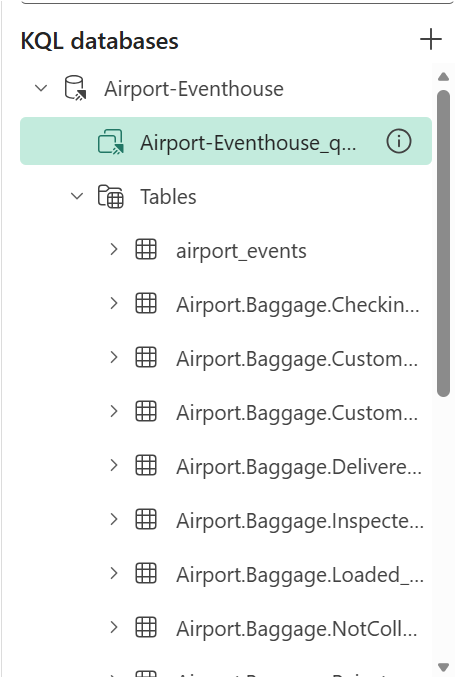
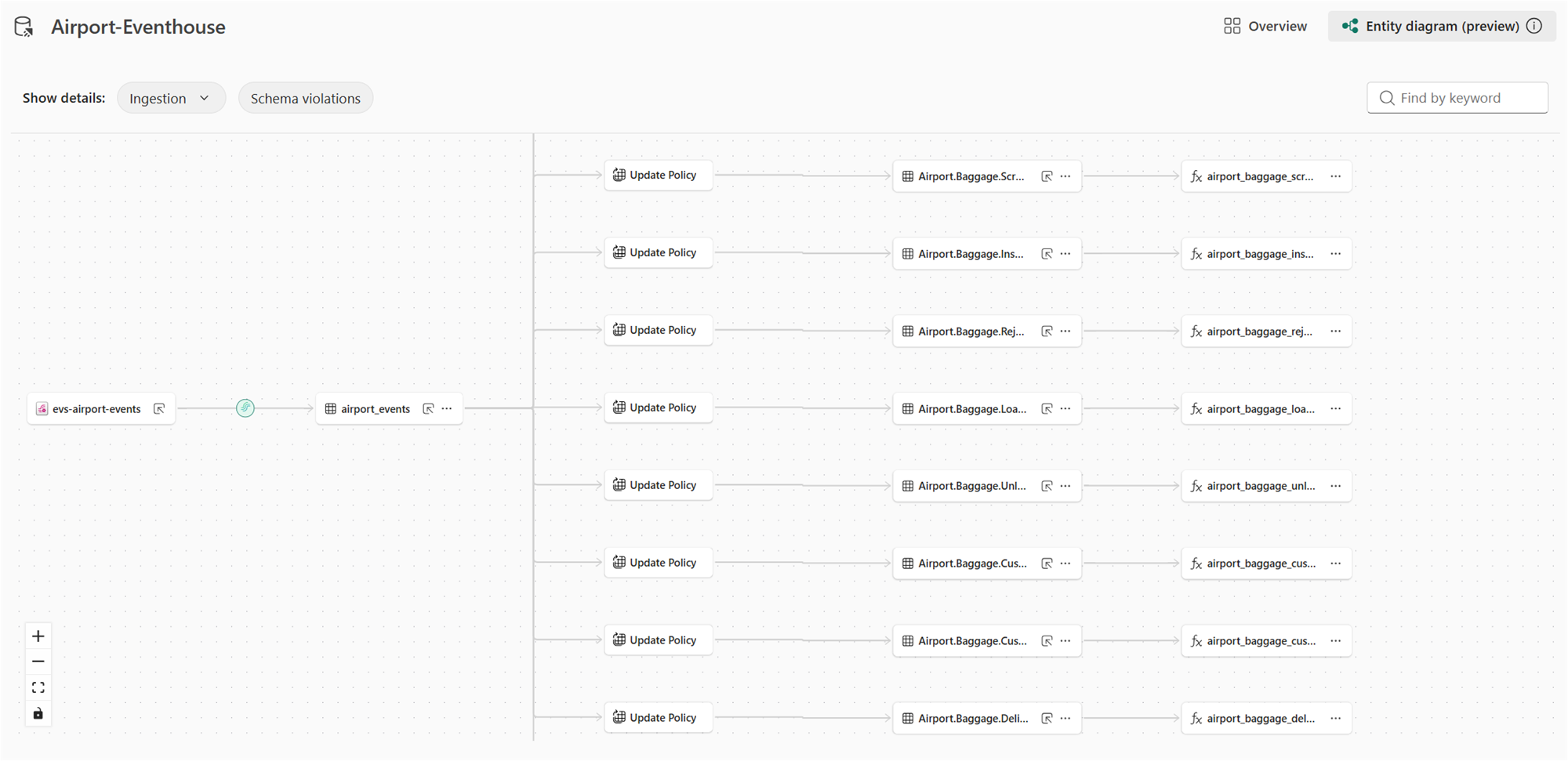
When we’re done, we should see our database schema of tables, materialized views, and functions:
Step 3: Configure the Eventstream

Now wire up the ingestion pipeline. In your Fabric workspace, click New → Eventstream and name it evs-airport-events.

Option A: Azure Event Hubs as Source (what I’m doing)

If you’re publishing events from the Baggage Handling Simulator to Azure Event Hubs:

  1. In the Eventstream canvas, click Add source → Azure Event Hubs
  2. Enter your Event Hubs namespace, hub name, and connection string (or use a Fabric connection)
  3. Set the consumer group — use $Default for dev/test
  4. Set the data format — use json

Option B: Custom Endpoint (no Event Hubs needed)

Fabric Eventstream also exposes a custom endpoint — an HTTPS or AMQP ingest URL you can publish CloudEvents directly to, without needing an external Event Hubs namespace. This is great for demos and local testing.

  1. Click Add source → Custom endpoint
  2. Copy the connection string — you’ll use this in the simulator config

Add the Eventhouse Destination

  1. Click Add destination → Eventhouse
  2. Select the Airport-Eventhouse Eventhouse and the KQL database
  3. Select the airport_events table and the airport_events_mapping ingestion mapping

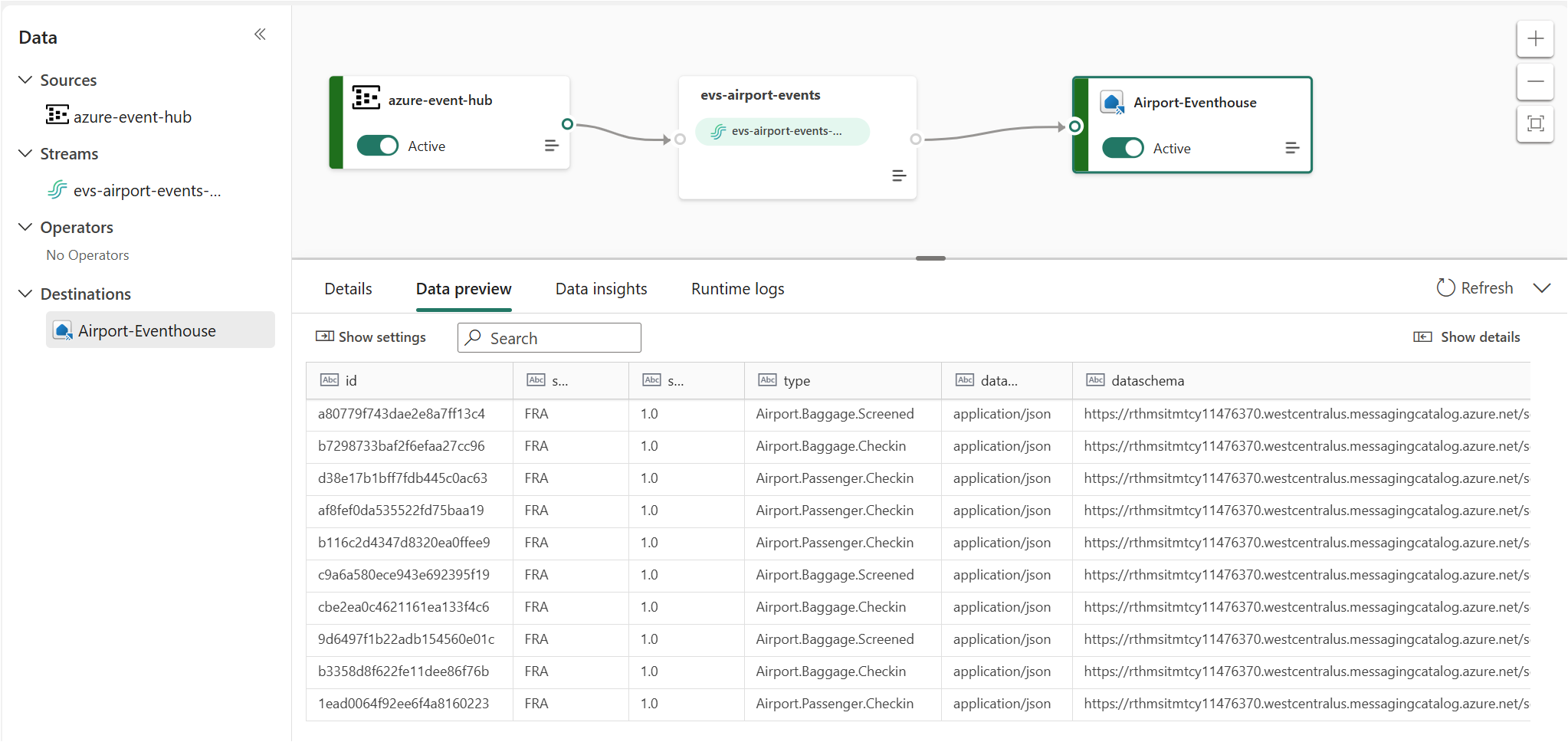
Once everything is setup, this is what we should see:
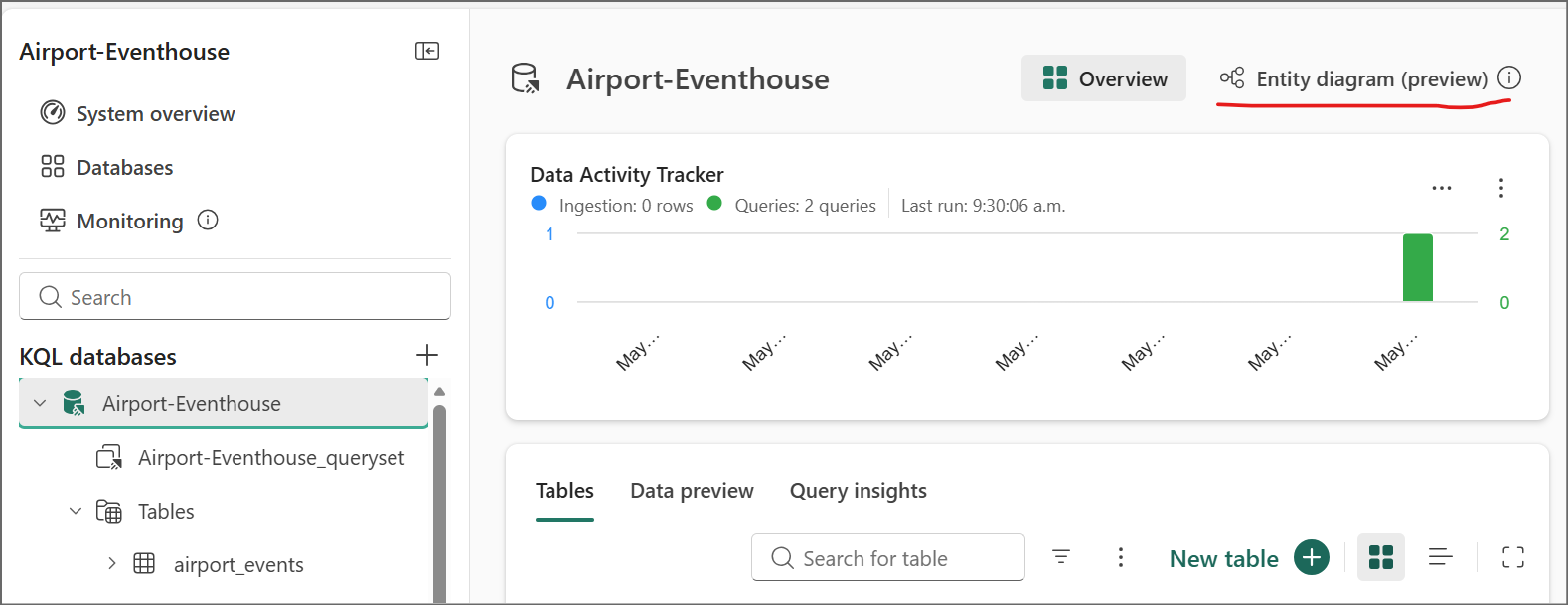
One of the nice features in Fabric Eventhouse that we don’t see in Azure Data Explorer is the Entity Diagram, which is currently in preview. Go back to your KQL database main view and click on the entity diagram button:
Step 4: Run the Baggage Handling Simulator

Clone the simulator and install dependencies:

git clone https://github.com/calloncampbell/BaggageHandling-TypeB-Simulator.git
cd BaggageHandlingSimulator
pip install -r requirements.txt

Configure the connection string for your Event Hubs namespace or Fabric custom endpoint in config.json (or as environment variables — check the repo README for the exact format).

Run the simulator:

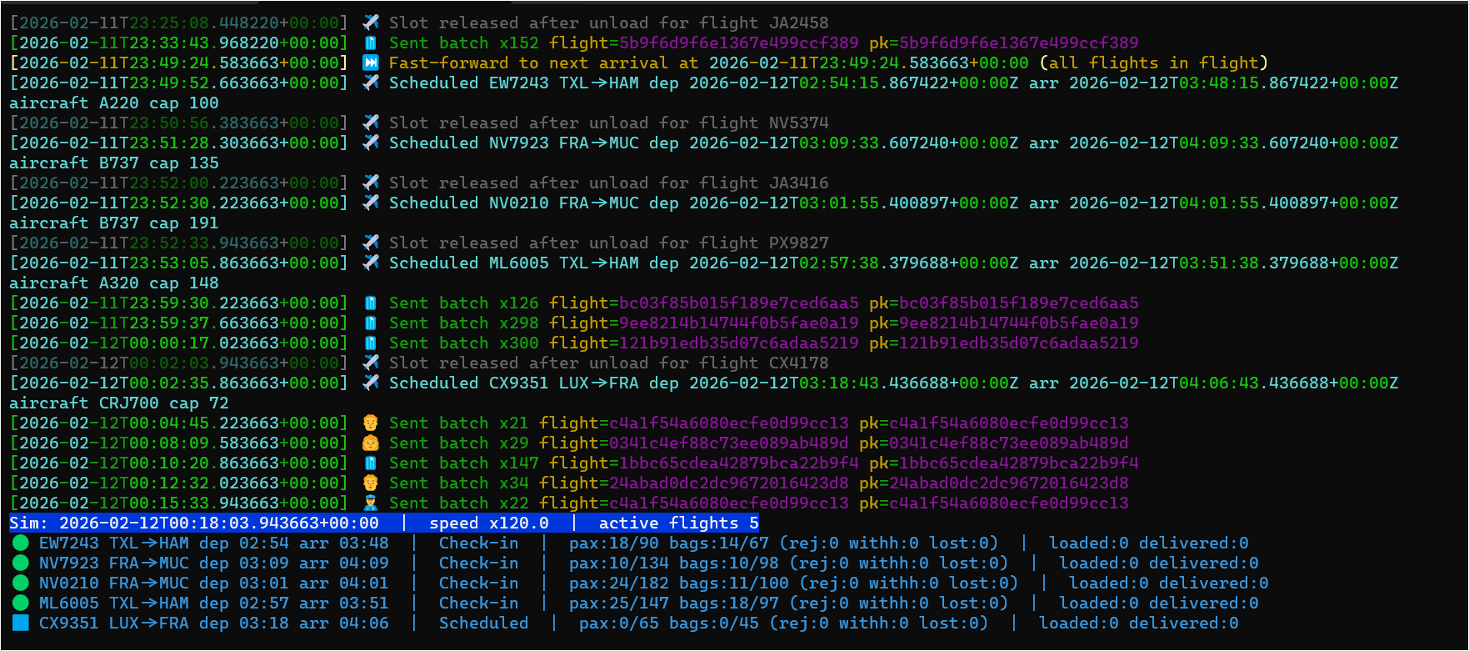
python -m baggage_simulator.cli --verbose --clock-speed 120 --flight-interval-minutes 5 --max-active-flights 5 --eventhub-conn "**********************" --eventhub-name "airport-events-evh"

The --speed multiplier lets you fast-forward simulation time so you don’t have to wait hours for bags to travel through their lifecycle. With --clock-speed 120, a full flight’s baggage cycle completes in minutes.

Within seconds, you should see events flowing into the Eventstream and landing in the Eventhouse Bronze tables.
Step 5: Query the Data

Open a KQL Queryset in your workspace and start exploring. Here are a few queries I find useful:

Track a specific bag end-to-end

BaggageEvents_Silver
| where BagTagNumber == "0014567891234"
| order by Timestamp asc
| project Timestamp, EventCategory, Location, FlightNumber

Find bags that haven’t been delivered (potential mishandles)

BagLatestStatus
| where EventCategory != "Delivered" and EventCategory != "Lost"
| where Timestamp < ago(2h)
| project BagTagNumber, FlightNumber, EventCategory, Location, Timestamp
| order by Timestamp asc

Baggage throughput by event type over the last hour

BaggageEventsByHour
| where Timestamp > ago(1h)
| summarize Total = sum(EventCount) by EventType
| order by Total desc
| render barchart

Average bag journey time (check-in to delivery) per flight

let CheckIn = BaggageEvents_Silver | where EventCategory == "CheckedIn" | project BagTagNumber, CheckInTime = Timestamp;
let Delivered = BaggageEvents_Silver | where EventCategory == "Delivered" | project BagTagNumber, DeliveredTime = Timestamp;
CheckIn
| join kind=inner Delivered on BagTagNumber
| extend JourneyMinutes = datetime_diff('minute', DeliveredTime, CheckInTime)
| summarize AvgJourneyMinutes = avg(JourneyMinutes), BagCount = count() by bin(CheckInTime, 1h)
| order by CheckInTime desc

Step 6: Build the Real-Time Dashboard

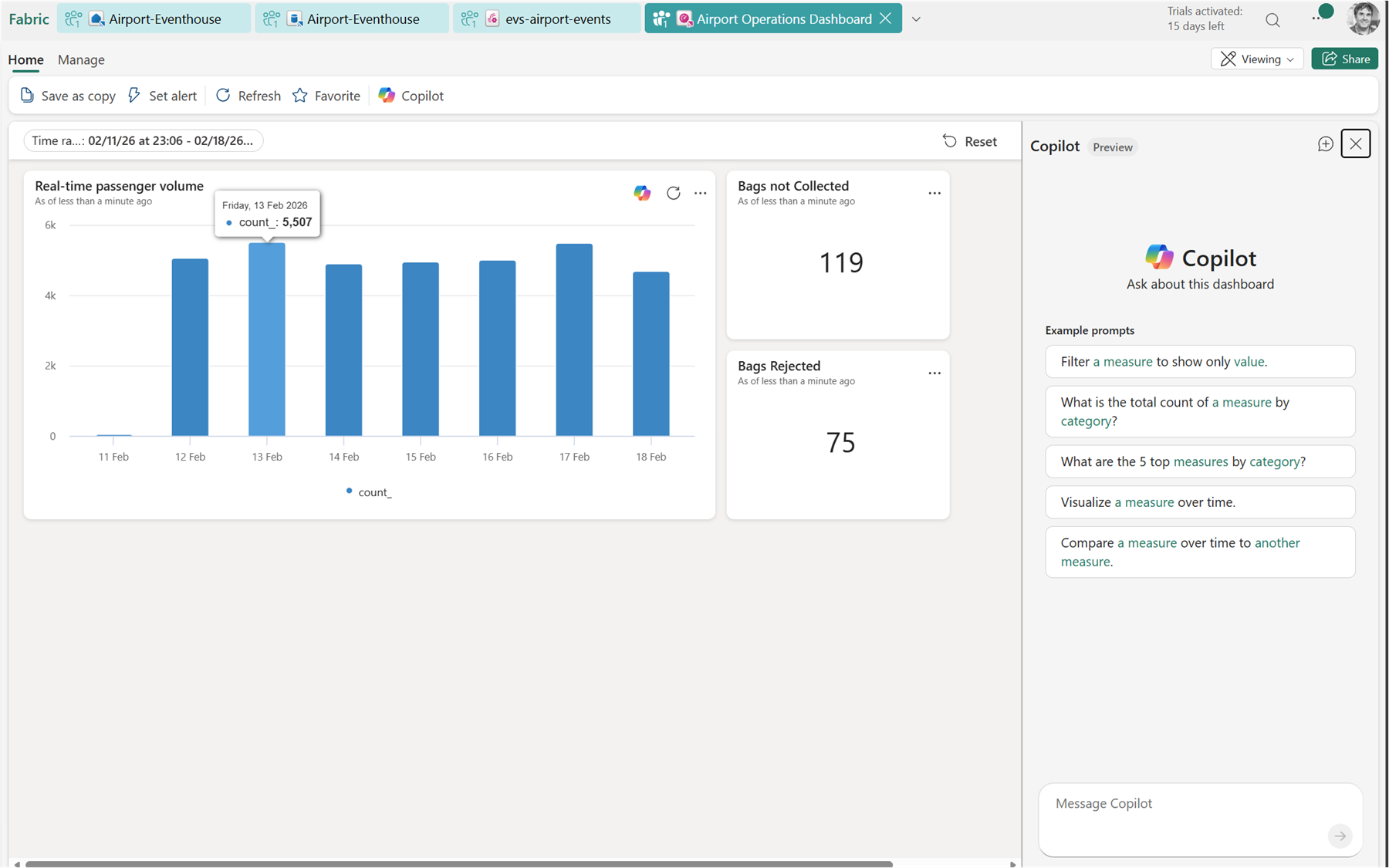
Create a Real-Time Dashboard in your workspace. Add tiles by writing KQL queries directly in the dashboard editor — no separate report tool needed.
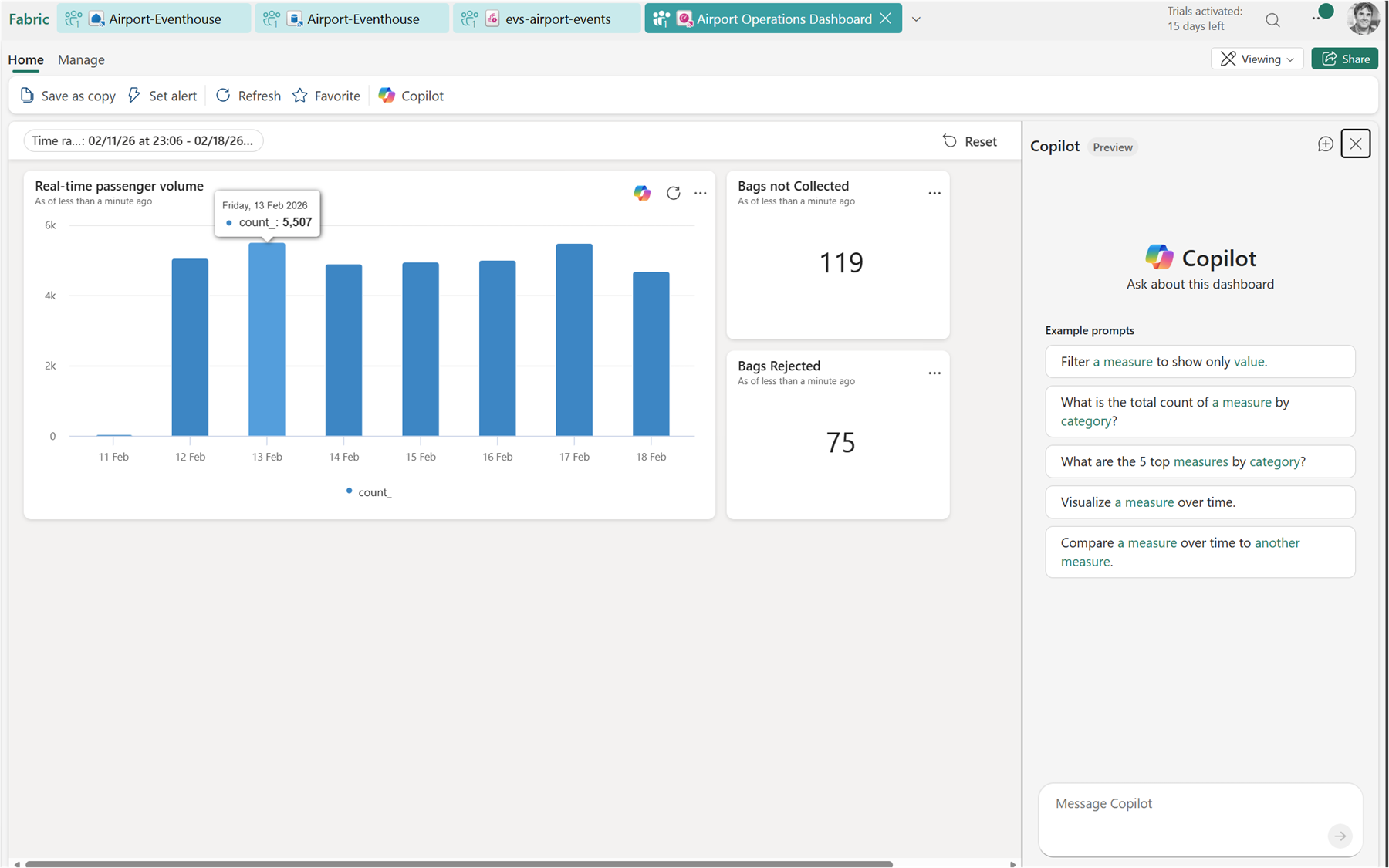
You can always view the query for each of the tiles by clicking on the … menu and then view query:
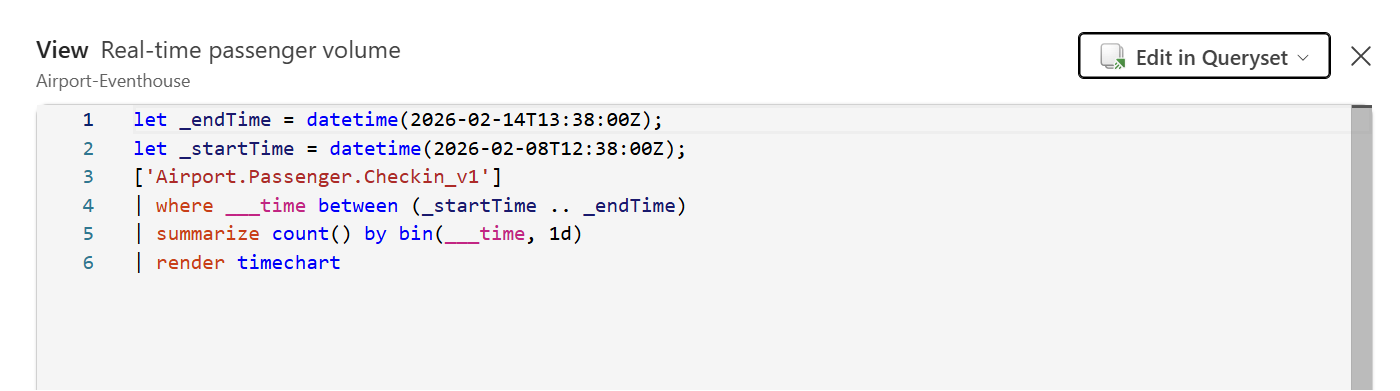
Useful tiles for this scenario:

  • Bags in-flight right now — count of bags with a status other than Delivered or Lost
  • Events per minute — a time chart showing ingestion rate
  • Lost or rejected bags — a table filtered to EventCategory in ("Lost", "Rejected")
  • Baggage throughput by hour — bar or area chart of event volume over time

Set the dashboard auto-refresh to 30 seconds for a live operations feel.

Step 7: Set Up an Activator Alert

Activator is Fabric’s alerting engine, and this is where things get genuinely useful. You can define a rule that watches a KQL query result and triggers an action when a condition is met.

From the Real-Time Dashboard, click Set alert on the “Lost or rejected bags” tile. Configure:

  • Condition: row count > 0
  • Action: send an email, Teams message, or trigger a Power Automate flow
  • Check frequency: every 5 minutes

You can also create Activator items directly from the Eventhouse using Data Activator and write your own detection query — useful for more complex conditions like “bag hasn’t progressed in 45 minutes”:

BagLatestStatus
| where EventCategory !in ("Delivered", "Lost")
| where Timestamp < ago(45m)

Putting It All Together

Here’s the full flow end-to-end:

  1. Simulator generates CloudEvents and publishes to Event Hubs / Eventstream endpoint
  2. Eventstream ingests, routes by event type, and writes to Bronze tables in Eventhouse
  3. Update Policies automatically promote Bronze → Silver on ingest
  4. Materialized Views continuously aggregate Silver → Gold
  5. KQL Querysets power ad-hoc investigation
  6. Real-Time Dashboard shows live operations at a glance
  7. Activator fires alerts when something goes wrong

The whole pipeline is serverless from the Eventstream inward — there’s no infrastructure to manage, no Spark jobs to schedule, and no orchestration to babysit.

That’s what I find most impressive about Fabric RTI for this kind of scenario. The time from “event published” to “insight on a dashboard with an alert configured” is measured in minutes, not weeks.

Enjoy!

References

AnalyticsMicrosoft Fabric

Bringing Real‑Time Intelligence to Airport Data Streams (Type-B Messages) – Part 1

If you’ve ever wondered what happens to your bag after you drop it off at the check-in counter, you’re not alone. There’s an entire world of events firing beneath the surface of every airport, and it turns out it makes for a pretty compelling real-time data scenario.

I recently put together a use case walkthrough on Bringing Real-Time Intelligence to Airport Data Streams using Microsoft Fabric. In this post, I want to break down the architecture, explain the data model, and show how you can build a real-time observability pipeline over something as relatable as baggage tracking.

Why Airports?

Airports are a great analogy for event-driven systems because every action generates a traceable event:

  • You book a flight → event
  • You check in → event
  • You drop off your bag → event

And that bag doesn’t just teleport to the carousel. It travels through a complex network of baggage belts, ramps, weigh stations, scanners, and machinery. It gets loaded onto the plane, unloaded at the destination, sent through customs (maybe), and eventually delivered to the baggage belt — or it gets lost.

Every step is a state change. Every state change is an opportunity to capture data and act on it in real time.

The Event Model

For this use case, I modelled three categories of events published to the stream:

Baggage Events

  • Airport.Baggage.CheckedIn
  • Airport.Baggage.Screened
  • Airport.Baggage.Inspected
  • Airport.Baggage.Rejected
  • Airport.Baggage.Loaded
  • Airport.Baggage.Unloaded
  • Airport.Baggage.CustomsCleared
  • Airport.Baggage.Withheld
  • Airport.Baggage.ArrivedAtBelt
  • Airport.Baggage.Delivered
  • Airport.Baggage.Lost

Flight Operational Events

  • Airport.Flight.Closed
  • Airport.Flight.Departed
  • Airport.Flight.Arrived

Passenger Events

  • Airport.Passenger.CheckedIn

This structure follows a clean domain-driven naming convention that maps naturally to a topic-per-domain strategy in Event Hubs or Fabric Eventstream.

Real Airports Use Type-B Messages

In the real world, airports and airlines don’t talk to each other over REST APIs or CloudEvents — they use Aviation Type-B messages, a fixed-format ASCII text messaging standard that’s been in use since the 1960s. These messages are transmitted over dedicated aviation networks operated by SITA (Société Internationale de Télécommunications Aéronautiques) and ARINC (now part of Collins Aerospace), and they remain the backbone of operational messaging across the global aviation industry today.

The key Type-B message types that map directly to this use case are:

MessageNameDescription
BSMBaggage Source MessageGenerated at check-in; carries the bag tag number, passenger details, and routing
BTMBaggage Transfer MessageUsed for interline transfer bags moving between airlines
BPMBaggage Processed MessageConfirmation that a bag has been processed at a handling point
BUMBaggage Unload MessageSignals that bags have been removed from an aircraft
MVTMovement MessageCommunicates flight departure (AD), arrival (AA), and estimated times (ET)
LDMLoad Distribution MessageDescribes how cargo and baggage are distributed across the aircraft
CPMContainer/Pallet Distribution MessageDetails the ULD (Unit Load Device) positioning on the aircraft

IATA Resolution 753

IATA Resolution 753 mandates that airlines track every bag at a minimum of four key touchpoints:

  1. Passenger handover at check-in
  2. Loading onto the aircraft
  3. Delivery to the transfer area (for connecting flights)
  4. Return to the passenger at arrival

Resolution 753 exists because lost and mishandled bags cost the industry hundreds of millions of dollars annually, and real-time tracking directly reduces that. It came into effect in 2018 and drove significant investment in baggage scanning infrastructure and data exchange across airlines and ground handlers.

Bridging Type-B to Modern Streaming

Here’s where it gets interesting from a platform perspective. Type-B messages carry all the right information — they’re just locked inside a legacy fixed-format protocol on a private network. The modernization opportunity is to parse and bridge those messages into a modern event stream.

In practice, that means something like:

  1. A SITA or ARINC Type-B feed gets received by a gateway or middleware layer
  2. Each message is parsed and mapped to a structured event (e.g., a BSM becomes an Airport.Baggage.CheckedIn CloudEvent)
  3. That event is published to Azure Event Hubs or a Fabric Eventstream endpoint
  4. From there, the full Fabric RTI pipeline takes over

The Baggage Handling Simulator in this demo effectively plays the role of that gateway — it generates CloudEvents that mirror what you’d produce by parsing a real Type-B feed. If you were building this for production, the simulator would be replaced by a Type-B parser wired up to a live SITA or ARINC connection.

Architecture Overview

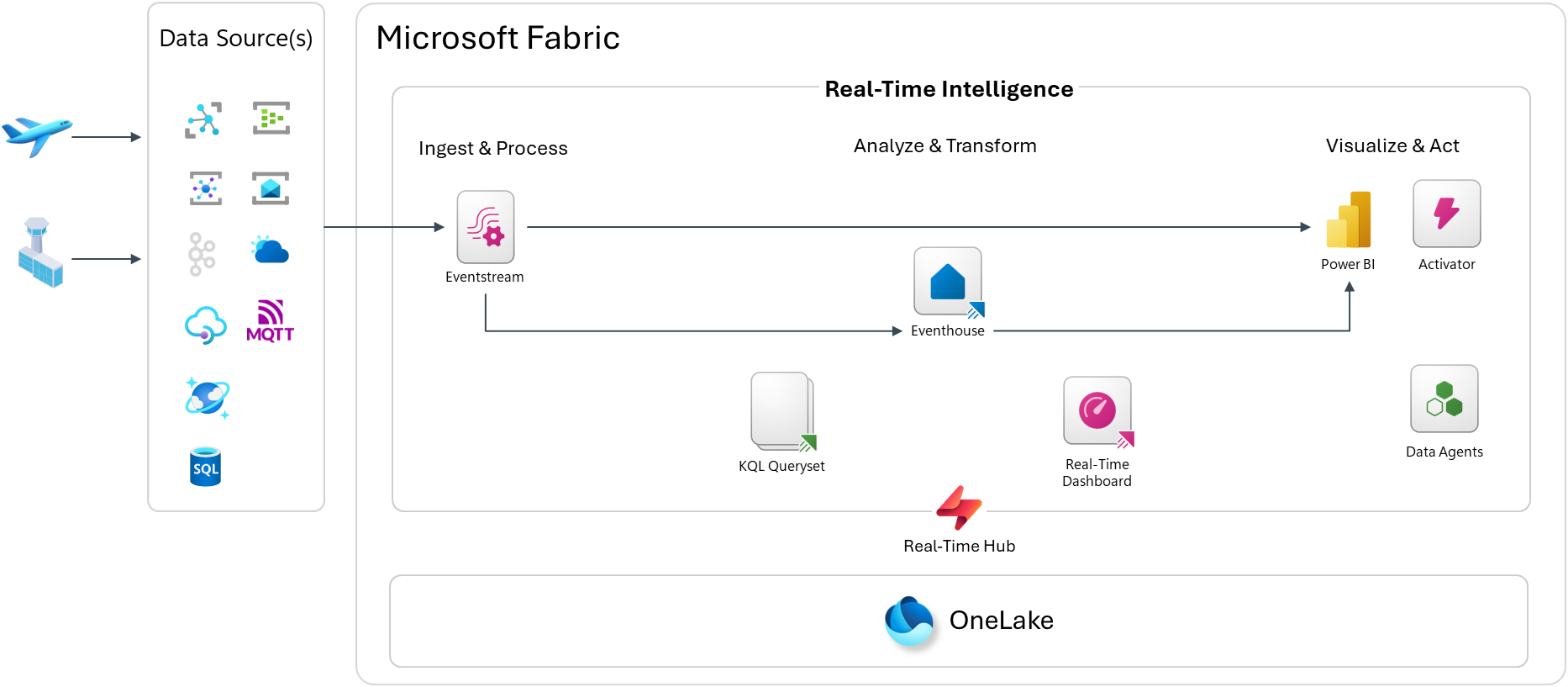
Here is an overview of the architecture in Microsoft Fabric Real-Time Intelligence:

The pipeline follows a standard Ingest → Analyze → Act pattern inside Microsoft Fabric Real-Time Intelligence:

Ingest & Process

Events are published to Azure Event Hubs or directly to a Microsoft Fabric Eventstream endpoint as CloudEvents. The Real-Time Hub acts as the central discovery and governance point for all streaming sources in the workspace.

Eventstream picks up those events and routes them into the Eventhouse — Fabric’s purpose-built KQL database engine optimized for high-throughput, time-series, and log-style workloads.

Inside the Eventhouse, I use a classic Bronze / Silver / Gold medallion layering approach:

  • Bronze — raw ingested events, exactly as received
  • Silver — cleaned and enriched data via Update Policies (KQL-based transformation rules that fire automatically on ingest)
  • Gold — aggregated and pre-computed views via Materialized Views for fast querying

Analyze & Transform

KQL Querysets sit on top of the Eventhouse and let you write ad-hoc and saved queries in Kusto Query Language. KQL is incredibly expressive for time-series data — you can window events, calculate SLAs, detect anomalies, and join across streams with just a few lines.

Visualize & Act

From there, you have a few options:

  • Real-Time Dashboard — a native Fabric dashboard that auto-refreshes on a schedule or on data change, built directly from KQL queries
  • Power BI — for richer semantic model-based reporting or executive dashboards
  • Activator — Fabric’s alerting and automation engine; you can define rules like “if a bag hasn’t moved in 30 minutes, fire an alert”
  • Data Agents — AI-powered agents that can answer natural language questions over your KQL data

Data can also land in OneLake, so it’s available for downstream batch analytics and data science workloads. This is not enabled by default, so it’s something you would need to turn on.

The Baggage Handling Simulator

To drive the demo, I used the Baggage Handling Simulator — a Python CLI built by Clemens Vasters that simulates realistic airport baggage operations. I forked the repository and then adjusted it for Type-B messaging. You can find my fork on GitHub: calloncampbell/BaggageHandling-TypeB-Simulator at feature/type-b-messages

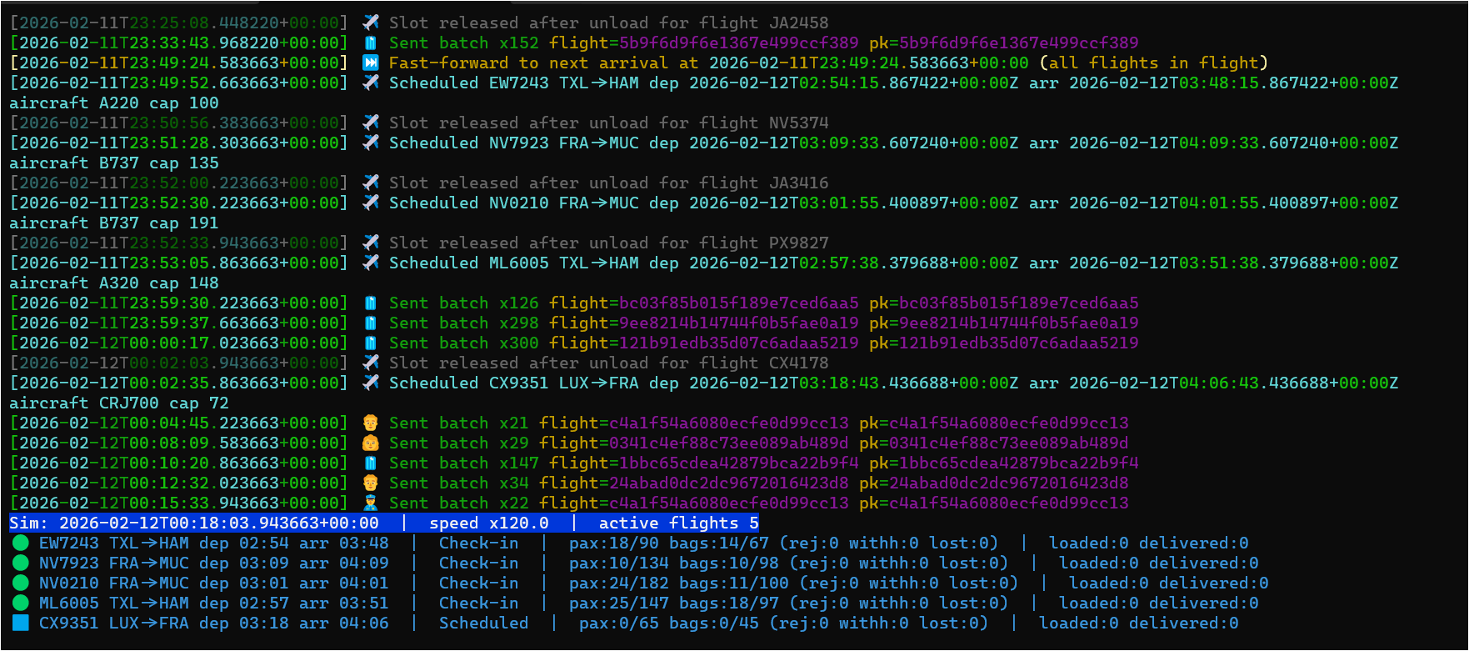
The simulator generates:

  • Baggage tracking events (check-in, screening, loading, unloading, delivery)
  • Passenger events (check-in, boarding)
  • Flight lifecycle events (scheduled, closed, departed, arrived)

Events are published as CloudEvents to either Azure Event Hubs or a Fabric Eventstream endpoint. Flight schedules are also persisted to SQL Server, which gives you a relational anchor to join against your streaming data if needed.

This is a great reference simulator if you want to explore real-time analytics without having to stand up your own IoT or event infrastructure.

Let’s look at the simulator…

Now let’s look at a basic Real-Time Dashboard:

What I Took Away

What I find compelling about this use case is how approachable it is. Most people have been through an airport. Most people have waited anxiously at a baggage belt. That shared experience makes the data model immediately intuitive — and that makes it a great teaching scenario for real-time streaming concepts.

From a Fabric RTI perspective, this use case demonstrates a few things I think are really powerful:

  1. The medallion pattern works in streaming too. Update Policies and Materialized Views give you that Bronze/Silver/Gold structure without a separate transformation job or orchestration layer.
  2. KQL is a first-class citizen. It’s not just a query language — it’s the transformation layer, the alerting layer, and the visualization layer.
  3. Activator closes the loop. Moving from insight to action inside the same platform — without building custom workflows — is genuinely useful.

If you’re interested in exploring Microsoft Fabric Real-Time Intelligence, this airport scenario is a solid and fun way to get started. In Part 2 of this post, I’ll dig into the Fabric Real-Time Intelligence setup.

Enjoy!

References

AnalyticsMicrosoft Fabric

Data Agent conversations with real-time telemetry with Microsoft Fabric RTI

AnalyticsAzure

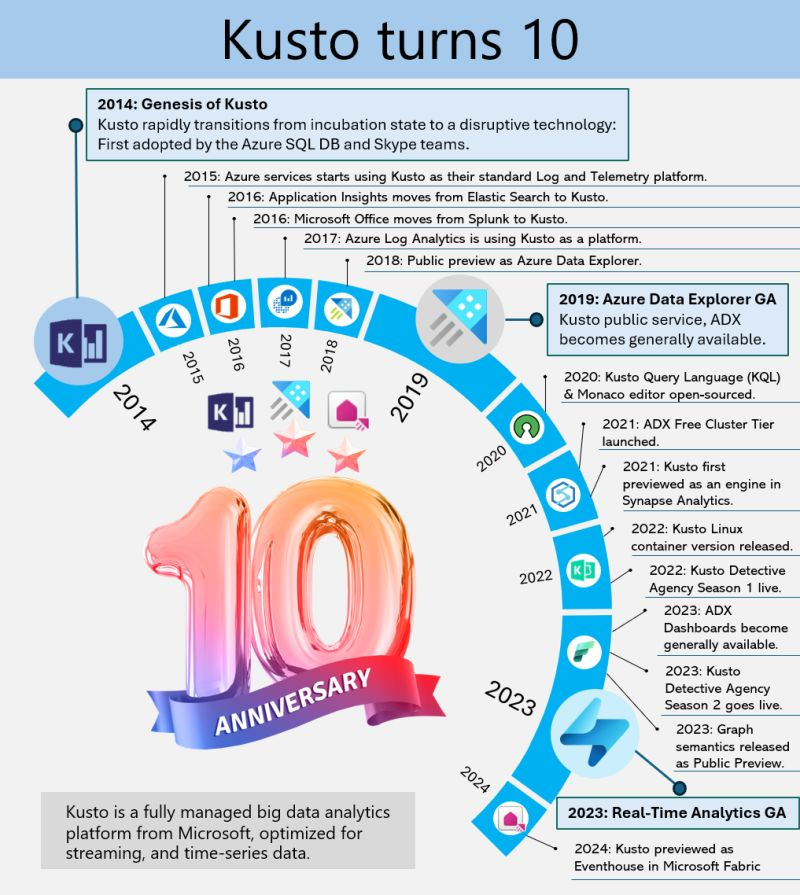
Kusto’s 10-Year Evolution at Microsoft

Kusto, the internal service driving Microsoft’s telemetry and several key services, recently marked its 10-year milestone. Over the decade, Kusto has evolved significantly, becoming the backbone for crucial applications such as Sentinel, Application Insights, Azure Data Explorer, and more recently, Eventhouse in Microsoft Fabric. This journey highlights its pivotal role in enhancing data processing, monitoring, and analytics across Microsoft’s ecosystem.

This powerful service has continually adapted to meet the growing demands of Microsoft’s internal and external data needs, underscoring its importance in the company’s broader strategy for data management and analysis.

A Dive into Azure Data Explorer’s Origins

Azure Data Explorer (ADX), initially code-named “Kusto,” has a fascinating backstory. In 2014, it began as a grassroots initiative at Microsoft’s Israel R&D center. The team wanted a name that resonated with their mission of exploring vast data oceans, drawing inspiration from oceanographer Jacques Cousteau. Kusto was designed to tackle the challenges of rapid and scalable log and telemetry analytics, much like Cousteau’s deep-sea explorations.

By 2018, ADX was officially unveiled at the Microsoft Ignite conference, evolving into a fully-managed big data analytics platform. It efficiently handles structured, semi-structured (like JSON), and unstructured data (like free-text). With its powerful querying capabilities and minimal latency, ADX allows users to swiftly explore and analyze data. Remembering its oceanic roots, ADX symbolizes a tribute to the spirit of discovery.

Enjoy!

References

AnalyticsAzureAzure Data Explorer

Discovering Insights with Azure Data Explorer

For the past few months, I’ve been diving into learning Azure Data Explorer (ADX) and using it for a few projects. What is Azure Data Explorer, and what would I use it for? Great questions. Azure Data Explorer is like your data’s best friend when it comes to real-time, heavy-duty analytics. It’s built to handle massive amounts of data—whether it’s structured, semi-structured, or all over the place—and turn it into actionable insights. With its star feature, the Kusto Query Language (KQL), you can dive deep into the data for tasks like spotting trends, detecting anomalies, or analyzing logs, all with ease. It’s perfect for high-speed data streams, making it a go-to for IoT and time-series data. Plus, it’s secure, scalable, and does the hard work fast so you can focus on making more intelligent decisions.

When to use Azure Data Explorer

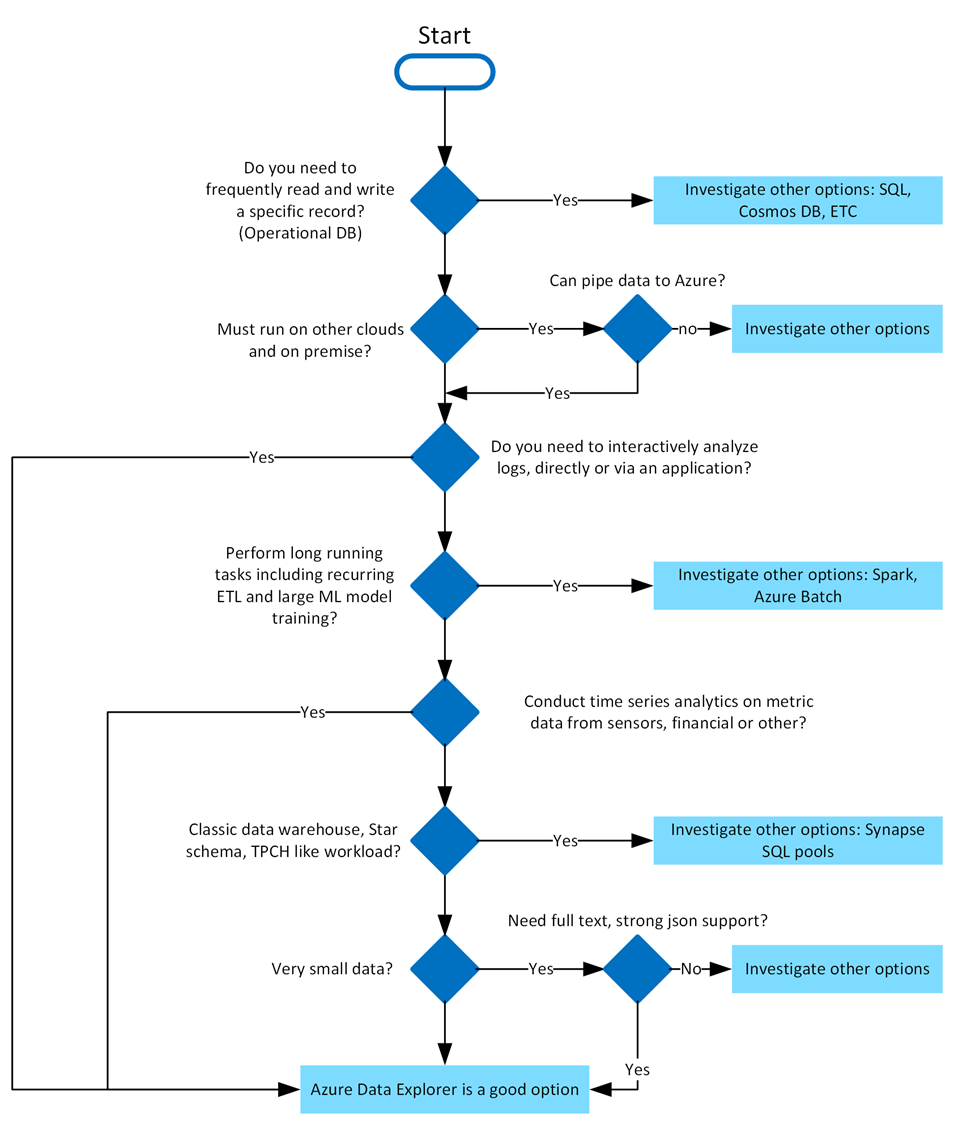
Azure Data Explorer is ideal for enabling interactive analytics capabilities over high-velocity, diverse raw data. Use the following decision tree to help you decide if Azure Data Explorer is right for you:

What makes Azure Data Explorer unique

Azure Data Explorer stands out due to its exceptional capabilities in handling vast amounts of diverse data quickly and efficiently. It supports high-speed data ingestion (terabytes in minutes) and querying of petabytes with millisecond-level results. Its Kusto Query Language (KQL) is intuitive yet powerful, enabling advanced analytics and seamless integration with Python and T-SQL. With specialized features for time series analysis, anomaly detection, and geospatial insights, it’s tailored for deep data exploration. The platform simplifies data ingestion with its user-friendly wizard, while built-in visualization tools and integrations with Power BI, Grafana, Tableau, and more make insights accessible. It also automates data ingestion, transformation, and export, ensuring a smooth, end-to-end analytics experience.

Writing Kusto queries

In Azure Data Explorer, we use the Kusto Query Language (KQL) to write queries. KQL is also used in other Azure services like Azure Monitor Log AnalyticsAzure Sentinel, and many more. 

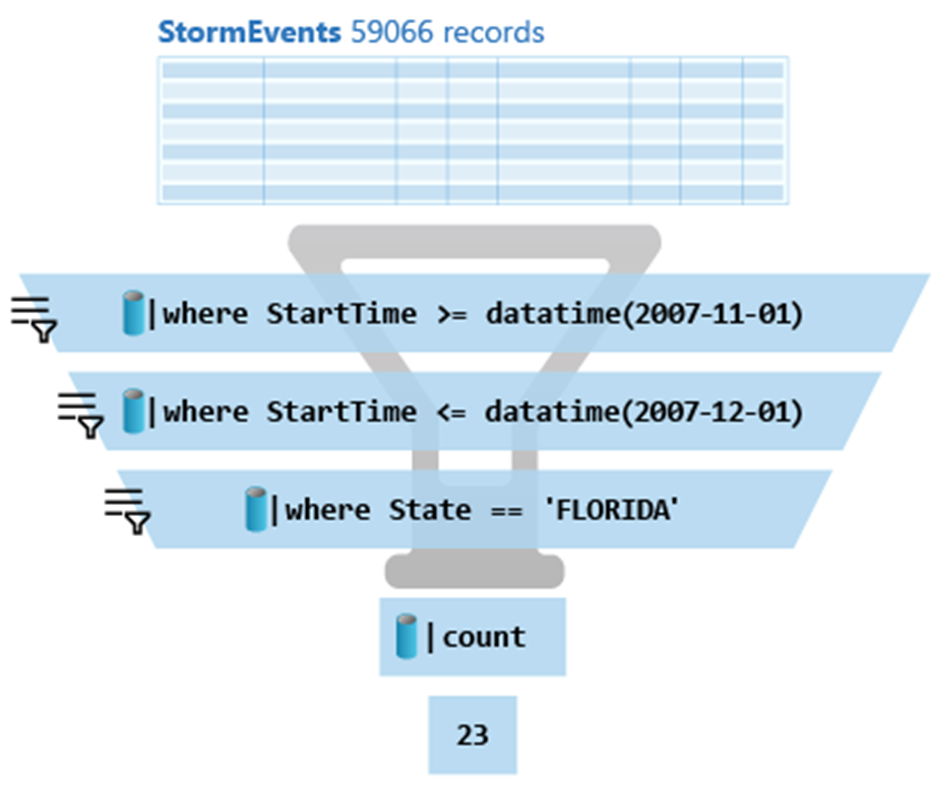
  • A Kusto query is a read-only request to process data and return results.
  • Has one or more query statements and returns data in a tabular or graph format.
  • Statements are sequenced by a pipe (|).
  • Data flows, or is piped, from one operator to the next.
  • The data is filtered/manipulated at each step and then fed into the following step.
  • Each time the data passes through another operator, it’s filtered, rearranged, or summarized.

Here is the above query:

StormEvents
| where StartTime >= datetime(2007-11-01)
| where StartTime <= datetime(2007-12-01)
| where State == 'FLORIDA'
| count

Azure Data Explorer query editor also supports the use of T-SQL in addition to its primary query language, Kusto query language (KQL). While KQL is the recommended query language, T-SQL can be useful for tools that are unable to use KQL. For more details, check out how to query data with T-SQL.

Using commands to manage Azure Data Explorer tables

When it comes to writing commands for managing tables, the first character of the text of a request determines if the request is a management command or a query. Management commands must start with the dot (.) character, and no query may start with that character.

Here are some examples of management commands:

  • .create table
  • .create-merge table
  • .drop table
  • .alter table
  • .rename column

Getting started

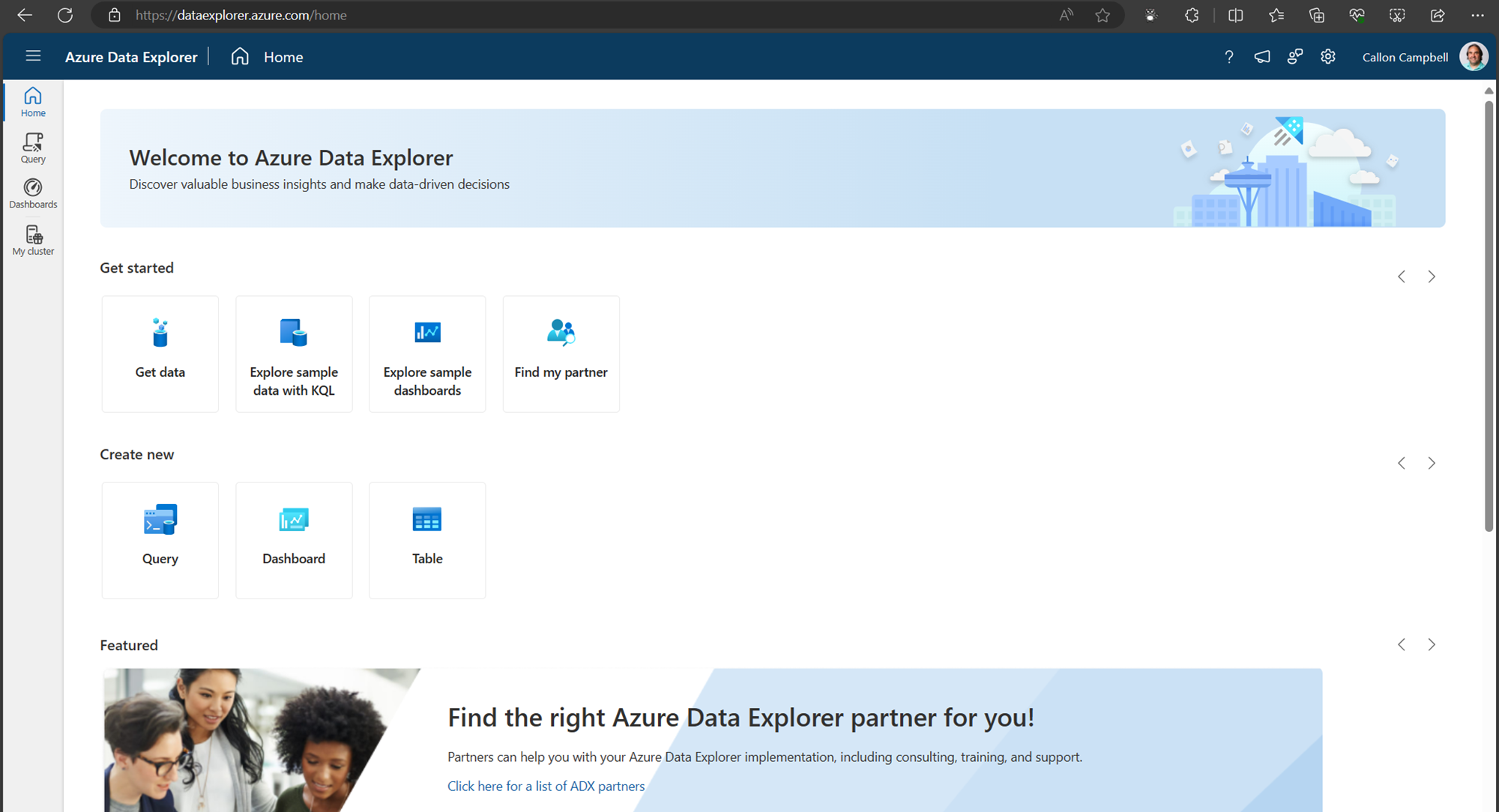
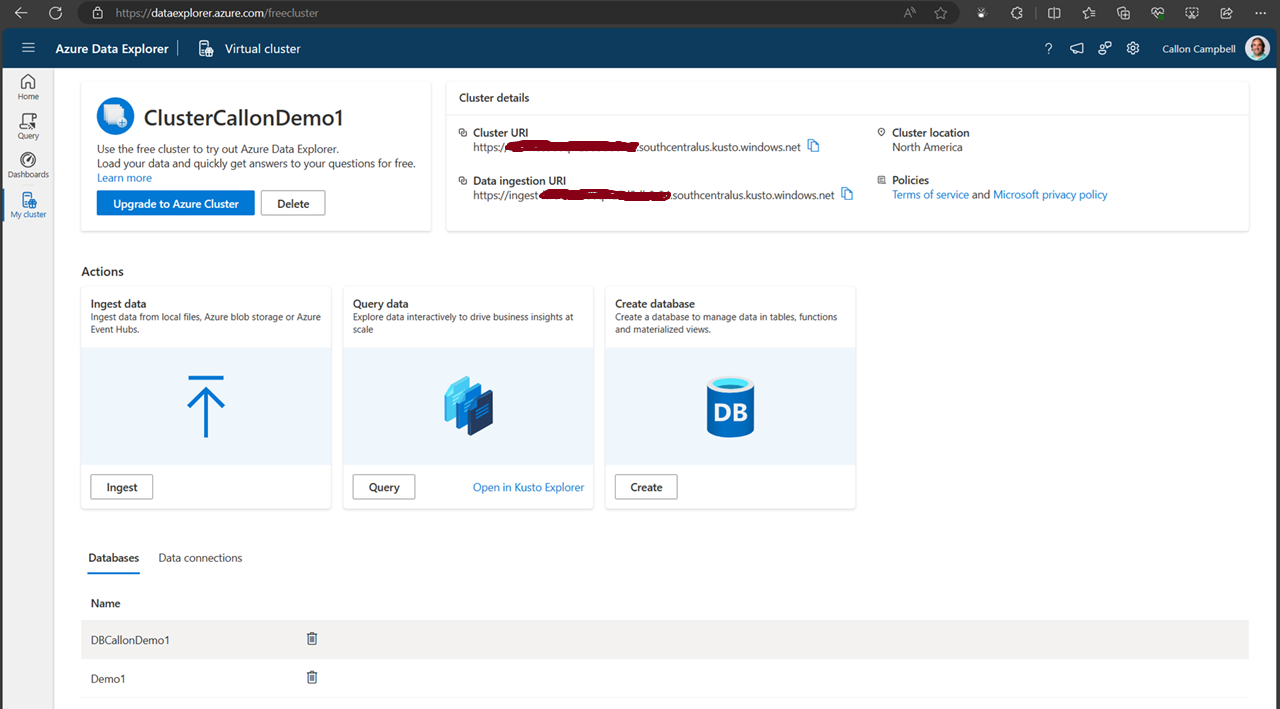
You can try Azure Data Explorer for free using the free cluster. Head over to https://dataexplorer.azure.com/ and log in with any Microsoft Account.

Navigate to the My cluster tab on the left to get access to your cluster URI.

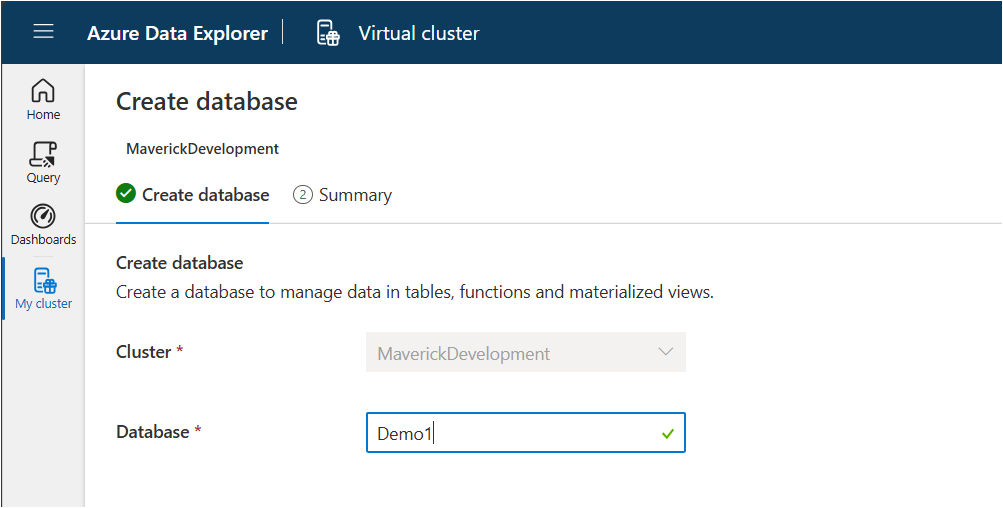
Next, let’s create a new database. While on the My cluster tab, click on the create database button. Give your database a name. In this case, I’m using ‘Demo1’ and then click on the ‘NextCreateDatebase’ button.

Now navigate over to the Query table and lets create our first table, insert some data and run some queries.

Creating a table

.create-merge table customers
(
    FullName: string, 
    LastOrderDate: datetime,
    YtdSales: decimal,
    YtdExpenses: decimal,
    City: string,
    PostalCode: string
)

If we run the .show table customers command, we can see the table definition:

.show table customers

Ingesting data

There are several ways we can ingest data into our table. Here are a few options:

  • Ingest from Azure Storage
  • Ingest from a Query
  • Streaming Ingestion
  • Ingest Inline
  • Ingest from an application

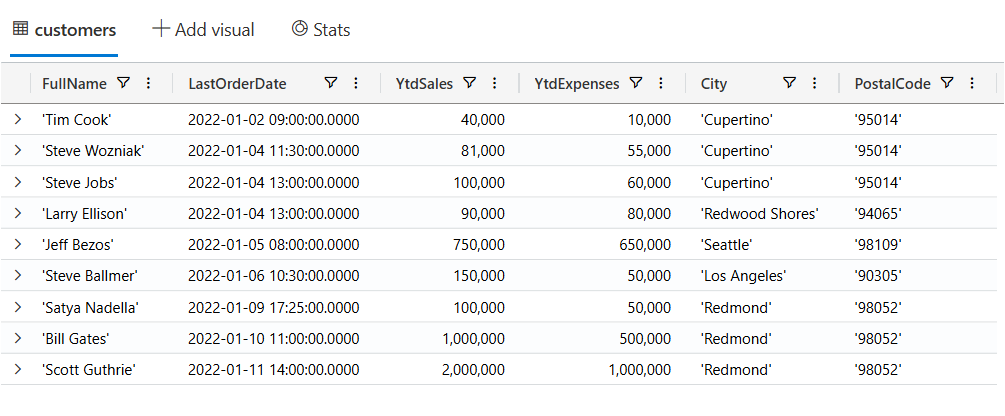
Today we’re going to be using the inline ingestion, which goes as follows:

.ingest inline into table customers <| 
'Bill Gates', datetime(2022-01-10 11:00:00), 1000000, 500000, 'Redmond', '98052'
'Steve Ballmer', datetime(2022-01-06 10:30:00), 150000, 50000, 'Los Angeles', '90305'
'Satya Nadella', datetime(2022-01-09 17:25:00), 100000, 50000, 'Redmond', '98052'
'Steve Jobs', datetime(2022-01-04 13:00:00), 100000, 60000, 'Cupertino', '95014'
'Larry Ellison', datetime(2022-01-04 13:00:00), 90000, 80000, 'Redwood Shores', '94065'
'Jeff Bezos', datetime(2022-01-05 08:00:00), 750000, 650000, 'Seattle', '98109'
'Tim Cook', datetime(2022-01-02 09:00:00), 40000, 10000, 'Cupertino', '95014'
'Steve Wozniak', datetime(2022-01-04 11:30:00), 81000, 55000, 'Cupertino', '95014'
'Scott Guthrie', datetime(2022-01-11 14:00:00), 2000000, 1000000, 'Redmond', '98052'

Querying data

Now, let’s start writing KQL queries against our data. In the following query I’m just using the name of the table with no where clause. This is similar to the “SELECT * FROM Customers” in SQL.

customers

Now let’s filter our data looking for customers where the YtdSales is less than $100,000:

customers
| where YtdSales < 100000

SQL to KQL

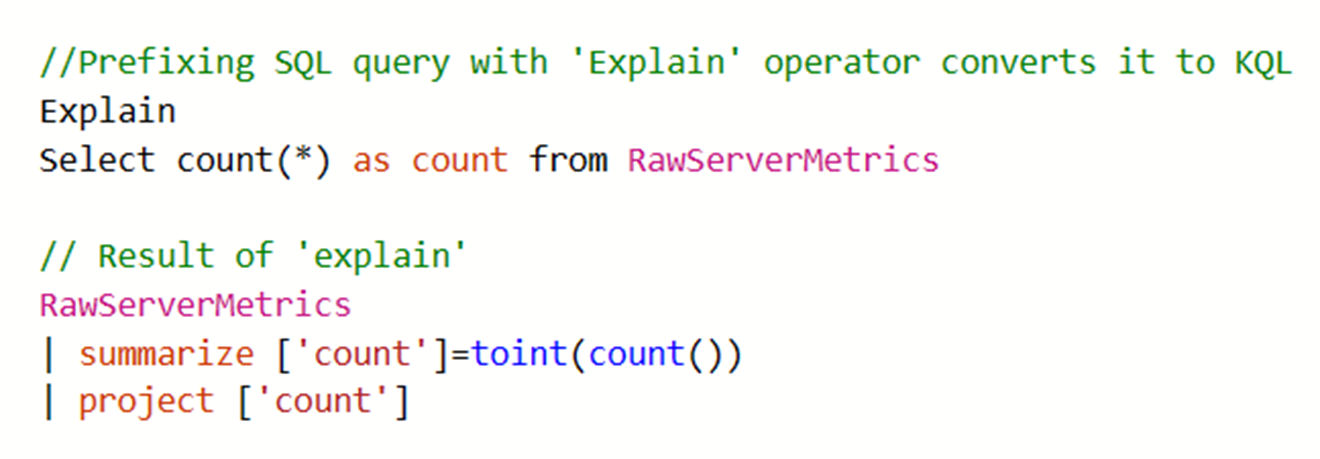
If you’re unfamiliar with KQL but are familiar with SQL and want to learn KQL, you can translate your SQL queries into KQL by prefacing the SQL query with a comment line, --, and the keyword explain. The output shows the KQL version of the query, which can help you understand the KQL syntax and concepts. Here is an example of the ‘EXPLAIN’ operator as follows:

Try the SQL to Kusto Query Language cheat sheet.

Wrapping up

In this post we looked at what Azure Data Explorer is, when it should be used, how to use the free personal cluster to create a sample database and ingest data and the run some queries. I hope this was insightful and I look forward to my next post where I’ll go deeper on ingesting data in real-time and running more complicated queries and how we can access this data from dashboards and APIs.

Enjoy!

References

AIAnalyticsAzureDeveloperDevOps

Highlights from Microsoft Build 2021 | Digital Event

I’m happy to announce a Highlights from Microsoft Build 2021 digital event next Thursday, July 15. Please join me and other local experts as we look to provide key insights from the event that will help you expand your skillset, find technical solutions, and innovate for the challenges of tomorrow.

Here are the topics that will be covered:

  • .NET 6 and ASP.NET Core 6 and C#10
  • Internet of Things
  • DevOps
  • Kubernetes
  • Power Platform
  • Artificial Intelligence
  • Azure Functions
  • Entity Framework
  • Power BI

For more details about this event, please visit https://www.meetup.com/CTTDNUG/events/279130746/

Enjoy!

AnalyticsAzure

Monitoring and Scaling your Azure Functions

Everybody loves Azure Functions. My team recently deployed a production service using Azure Functions as the back end backbone. I’d like to share some lessons and tips we learned along the way. We’re using Azure functions in consumption plan – which basically means the platform scales in and out as required without our intervention. But […]

via Monitoring and Scaling Azure Functions — 4pp1n51ght5

AnalyticsDevelopment

Sad to hear that MarkedUp is Shutting Down

I just received an email that MarkedUp is Shutting Down. That is sad to hear, it was a great service.