
In my Running and Building Azure Functions with Modern .NET talk this week at the Mississauga .NET User Group, one of the topics that consistently gets a reaction from the audience is Central Package Management (CPM). Once I show people what it does, the reaction is almost always the same: “I didn’t know this existed — I need to go add this to all my solutions.”
This post is the written companion to that section of the talk. If you’ve ever dealt with the pain of keeping NuGet package versions in sync across a large solution, CPM is going to be immediately relevant to you.
What is Central Package Management?
Central Package Management is a built-in .NET feature that lets you define all NuGet package versions in a single place — a Directory.Packages.props file at the solution root — rather than scattering Version attributes across individual .csproj files.
Here’s a simple example of what that file looks like:
<Project> <PropertyGroup> <ManagePackageVersionsCentrally>true</ManagePackageVersionsCentrally> </PropertyGroup> <ItemGroup> <PackageVersion Include="Microsoft.Azure.Functions.Worker" Version="2.0.0" /> <PackageVersion Include="Microsoft.Azure.Functions.Worker.Extensions.Http" Version="3.3.0" /> <PackageVersion Include="Newtonsoft.Json" Version="13.0.3" /> </ItemGroup></Project>
And in your individual .csproj files, you simply reference the package without a version:
<ItemGroup> <PackageReference Include="Microsoft.Azure.Functions.Worker" /> <PackageReference Include="Newtonsoft.Json" /></ItemGroup>
The version is automatically resolved from the central file. Clean, simple, and immediately obvious what version you’re on when you look at the central file.
Why This Matters
In a solution with many projects, keeping package versions in sync manually is error-prone. You end up with Project A on Newtonsoft.Json 13.0.1 and Project B on 13.0.3 without anyone really noticing until a subtle runtime difference bites you. CPM solves this by making version drift impossible — there’s one place to look and one place to change.
Benefits at a glance:
- Single source of truth for all package versions in the solution
- Eliminates version drift across projects
- Cleaner
.csprojfiles — no version attributes cluttering your package references - Supports both direct and transitive dependency version control
Manually Migrate an Existing Solution to CPM
If you already have a solution with a bunch of projects, migrating to CPM is straightforward but can be tedious to do by hand across many .csproj files. Here’s the approach:
Step 1: Create Directory.Packages.props
At the root of your solution, create a Directory.Packages.props file with ManagePackageVersionsCentrally set to true and consolidate all your package versions as <PackageVersion> entries:
<Project> <PropertyGroup> <ManagePackageVersionsCentrally>true</ManagePackageVersionsCentrally> </PropertyGroup> <ItemGroup> <PackageVersion Include="PackageName" Version="x.y.z" /> <!-- add all packages here --> </ItemGroup></Project>
Step 2: Remove Versions from Project Files
Strip the Version attribute from every <PackageReference> in your .csproj files. If you have many projects, do this with the CentralisedPackageConverter CLI tool (covered below) — don’t do it by hand.
Step 3: Validate and Build
Build your solution and confirm everything resolves correctly. Pay attention to any packages that may have conflicting versions across projects — those will need a conscious decision about which version to standardize on.
This is great, but there must be a better way. Let’s take a look at a community tool that automates this process.
Using the CentralisedPackageConverter CLI Tool
The best way to handle the migration for an existing solution is the CentralisedPackageConverter CLI tool, which automates the tedious parts:
# Install the tool globallydotnet tool install CentralisedPackageConverter --global# Run the conversion against your solution foldercentral-pkg-converter /path/to/your/solution/folder
The tool will:
- Scan all
.csprojfiles in the solution - Generate a
Directory.Packages.propswith all discovered versions - Remove version attributes from individual project files
I highly recommend using this over a manual migration. It’s fast and reduces the chance of missing something.
Let’s try this out.
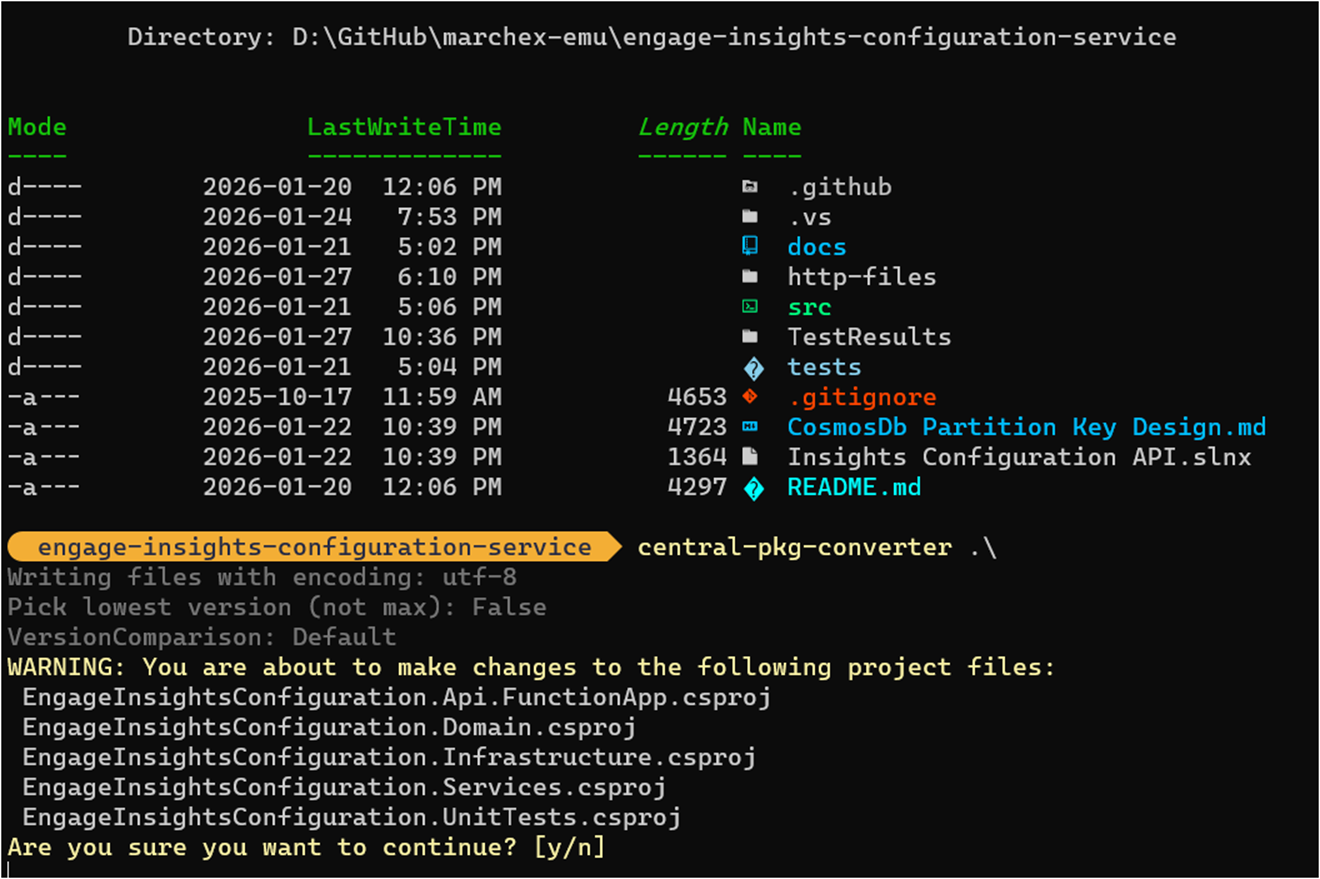
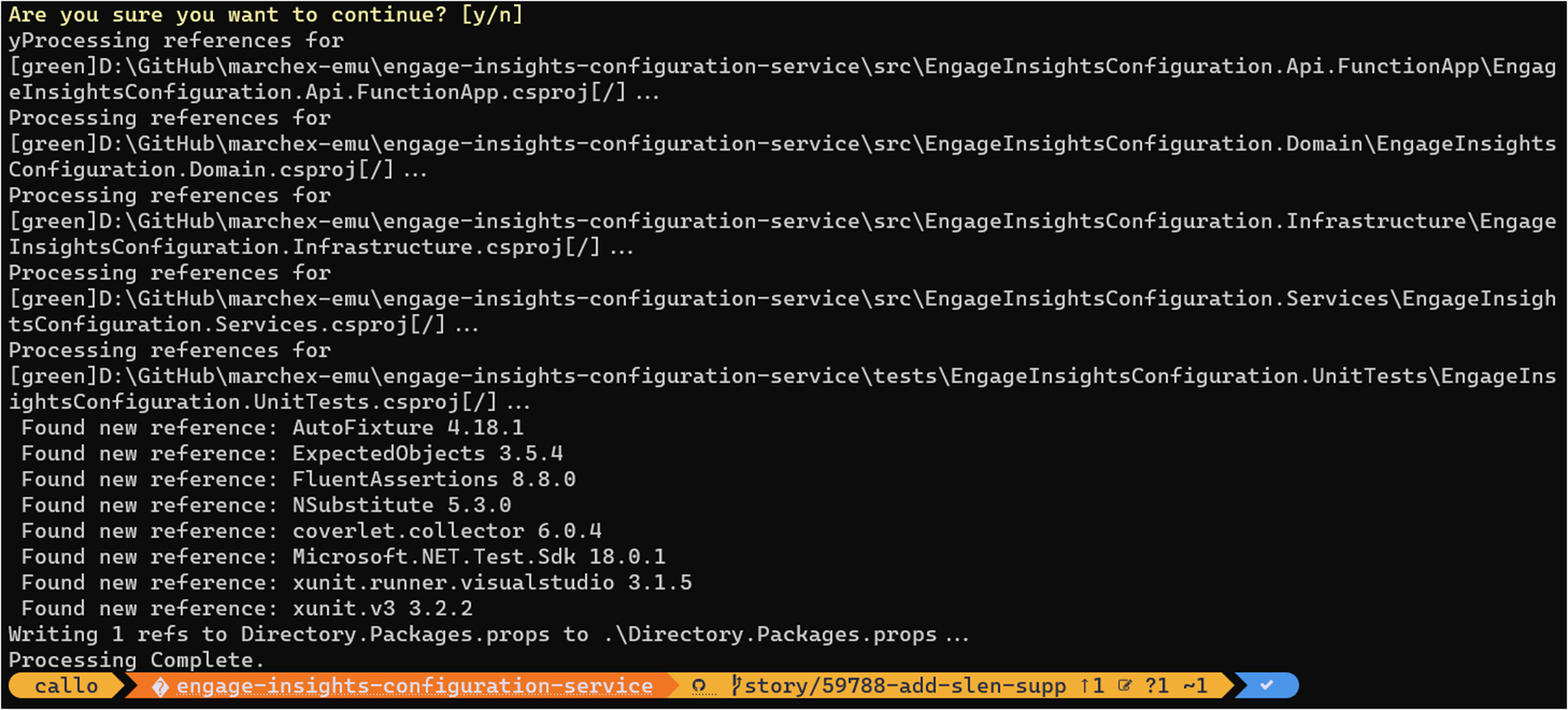
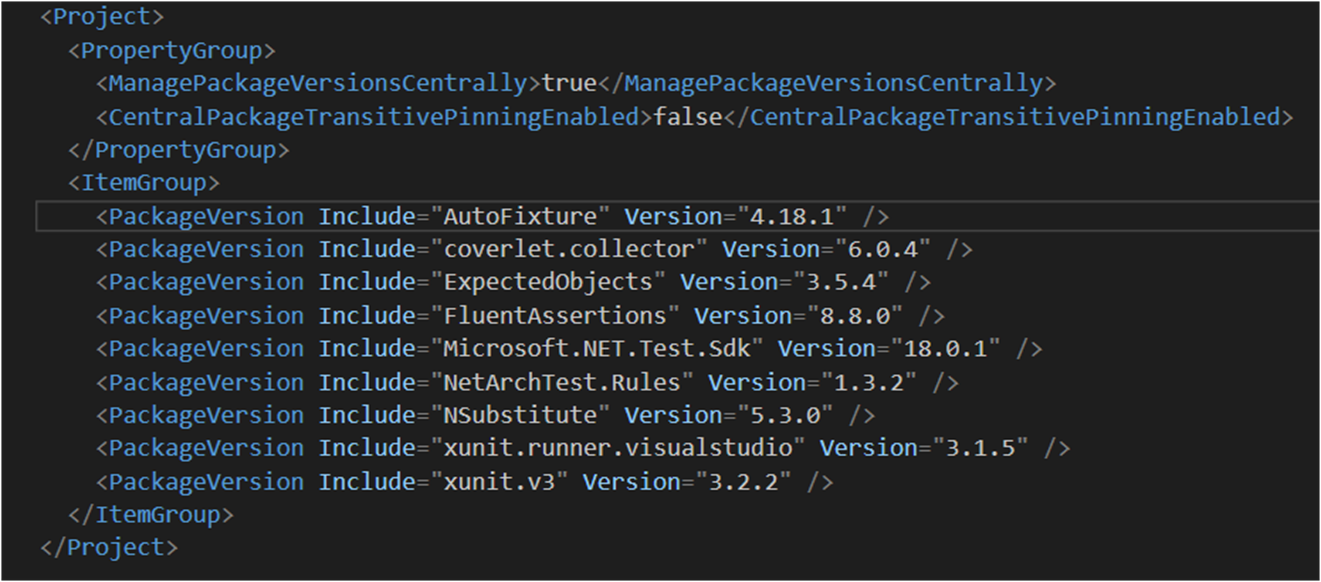
We now have a Directory.Packages.props with all discovered versions:
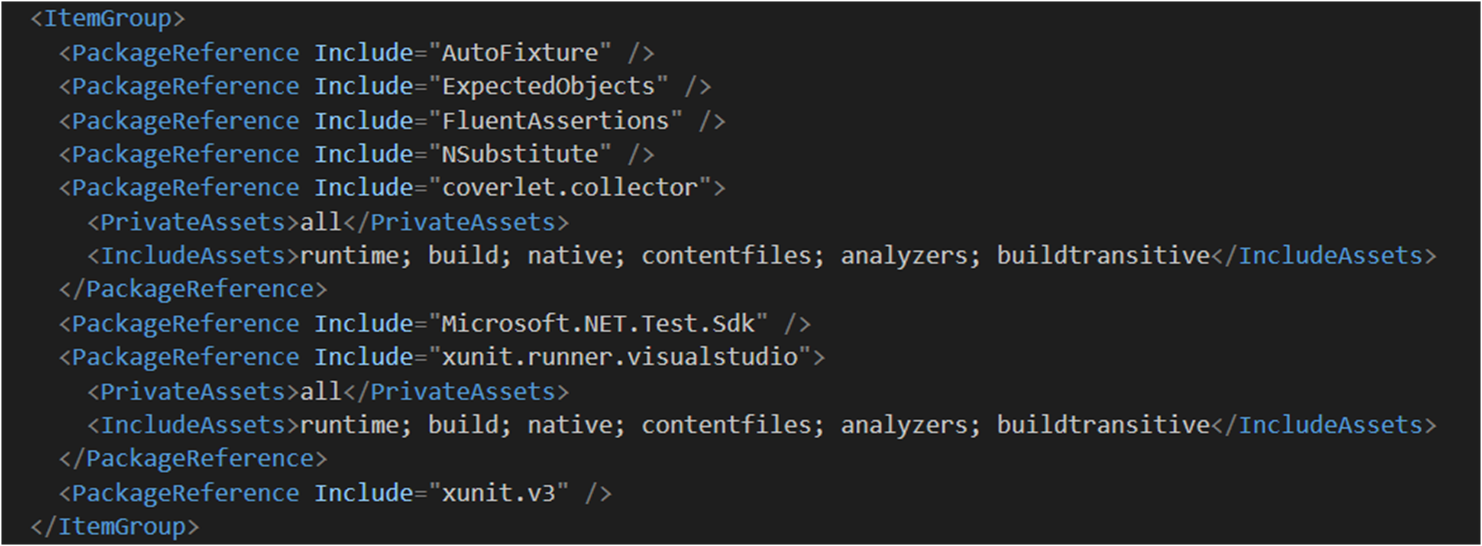
And if we look in our project files, the versions are removed:
Advanced Features
Once you’re on CPM, there are a few additional capabilities worth knowing about.
Overriding Versions per Project
There are situations where a specific project needs a different version of a package than the rest of the solution — say, a legacy integration that can’t move to the latest version yet. CPM handles this with VersionOverride in the individual project file:
<PackageReference Include="SomePackage" VersionOverride="1.2.3" />
Use this sparingly. Its presence in a project file is a signal that something needs attention.
Different Versions per Target Framework
If you have a multi-targeted project, you can conditionally apply different versions by target framework using standard MSBuild conditions within Directory.Packages.props:
<PackageVersion Include="SomePackage" Version="2.0.0" Condition="'$(TargetFramework)' == 'net10.0'" /><PackageVersion Include="SomePackage" Version="1.5.0" Condition="'$(TargetFramework)' == 'net8.0'" />
Transitive Pinning
This one quietly solves a very real problem. Version drift caused by transitive dependencies — packages your packages depend on — is easy to miss and can cause subtle compatibility issues. CPM supports pinning transitive dependencies centrally, so you stay in control of the full dependency graph, not just the packages you reference directly.
Summary
Central Package Management is one of those features that makes you wonder how you managed without it once you adopt it. If you’re running a multi-project .NET solution, this is a straightforward improvement with immediate payoff — consistent package versions, cleaner project files, and a single place to make dependency updates.
Enjoy!
References
- Central Package Management — NuGet documentation — Official docs and full feature reference
- CentralisedPackageConverter on NuGet — CLI tool for automated migration
- Directory.Packages.props reference — Enabling and configuring CPM
- Mississauga .NET User Group — Meetup group where this was presented
 The Flying Maverick