Category: Development

AzureDevelopment

How to: Build and deploy an Angular app to Azure using Visual Studio Team Services

This post will guide you on how to build an Angular 4 app using Visual Studio Team Services and then deploy it to an Azure App Service instance.

So let’s review what we’ll need before we begin:

  1. You will be required to have an active Visual Studio Team Services account. If you don’t have one you can signup for free here.
  2. You will also need to have an active Azure subscription. If you don’t have one you can signup for a free trial here.

Now that we have met the requirements, let’s get started.

Create a new build definition

We will start by signing into your Visual Studio Team Services account and then navigating to the Build & Release tab from the top navigation links to create a build. From here we will click on the New button to define a new build definition.

image

Next you will choose a template to use for your build. There are a lot of build templates so take a look at what’s available and choose what is most appropriate for your needs. If you don’t see what you want, you can always choose the empty template which is what I’m going to do now and then add the necessary build tasks that make sense for you.

image

After selecting the empty template you will want to name your build definition, connect your source code repository (Github, Visual Studio Team Services, other) and then start adding build tasks:

image

Click on the Get sources link on the left side to wire up your source code for the build. In this demo I’m connecting to my personal Github repository:

image

Now that we have our source code wired up, you’re ready to start defining your build tasks.

Defining your build process tasks

Now that we have our build definition configured to our source repository, it’s time to start adding build process tasks. To do this we click on the Add Task button from the left which will then present a listing of available build tasks (some of which are in preview):

image

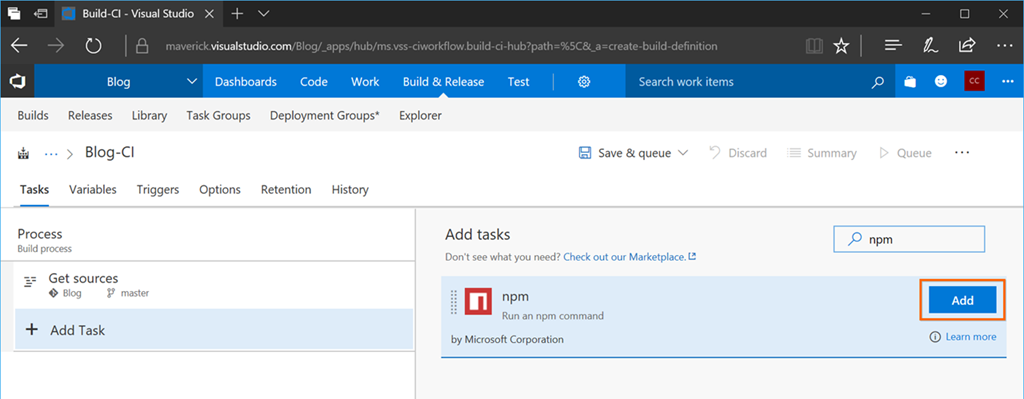
In this post I want to build an Angular app, so I will need to use an npm build task. Using the search box I will type in npm and the listing will then filter out to only show me any npm build tasks. At this time there is one, so I will click on it and then the Add button to add it to my build process:
image

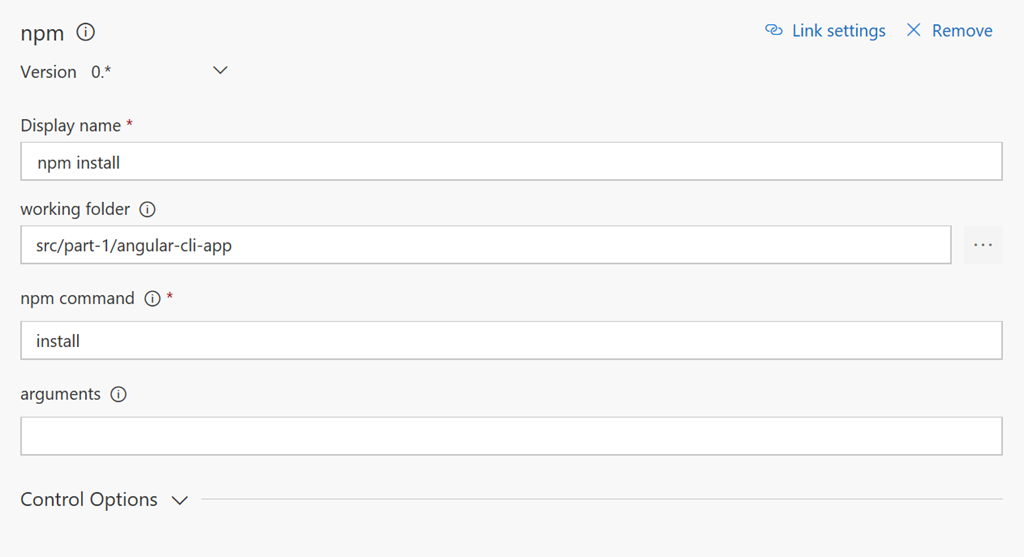
This will be the configuration for our npm install task:
image

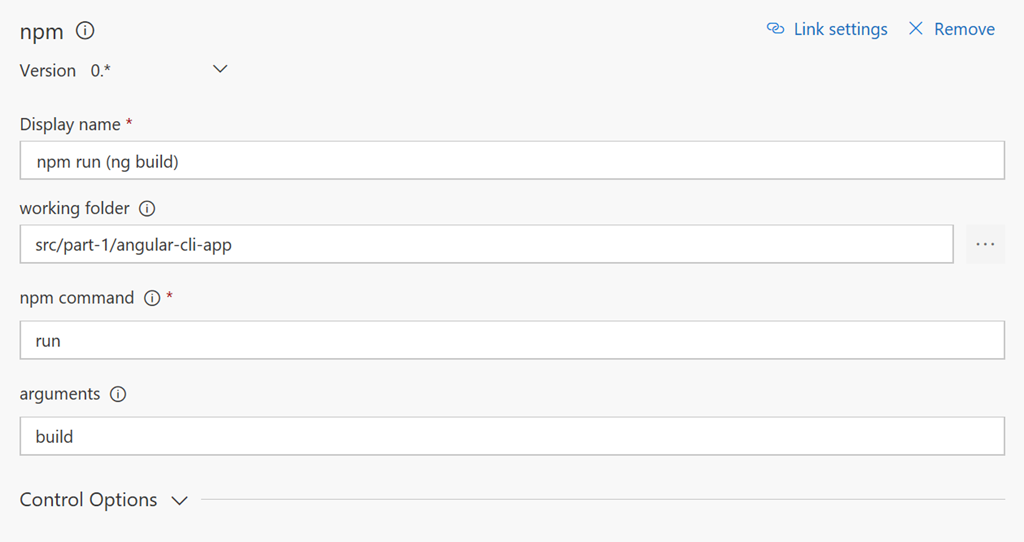
Next we will need to add another npm build task for running the Angular CLI build command ng build. This will be the configuration for our npm run task:
image

At this point our build is installing all necessary npm packages and then running an npm command to build the Angular app. Once the app is built, I like to archive the build artifacts in a ZIP file. This will be our configuration for our archive files build task:

image

Finally we will deploy our app to an Azure App Service instance. To do this you will want to have your Azure App Service already pre-configured. You can checkout this post for details on creating an Azure App Service.

This will be our configuration for our Azure App Service Deployment build task. There are 3 settings you need to set:

  1. Select you Azure subscription
  2. Select your App Service name
  3. Select the package or folder you wish to deploy

image

Here is a review of the build tasks we created above:

image

Queue a new build

Once we have our build process defined we can kick off a new build by clicking on the Queue button on the top toolbar:
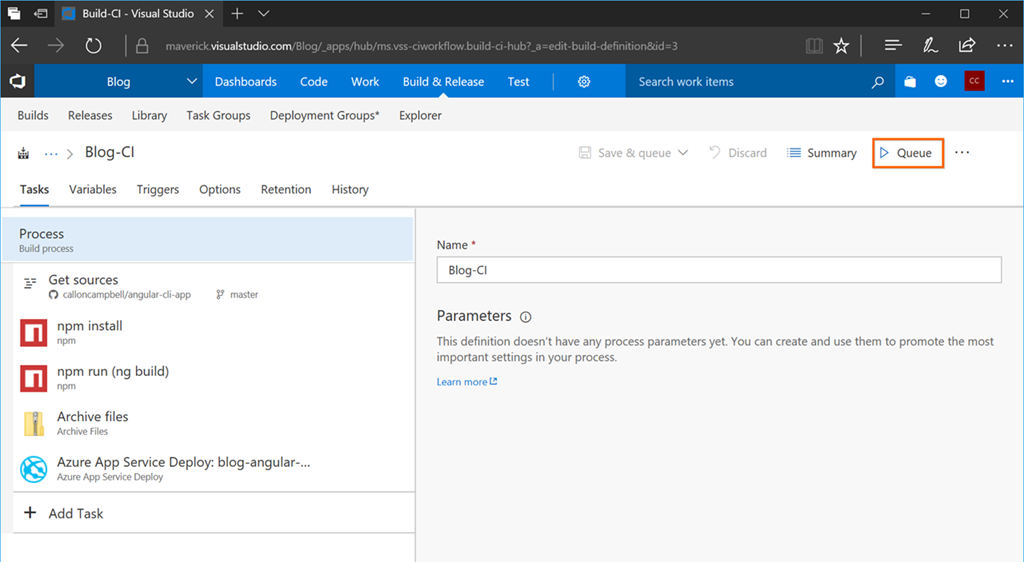
image

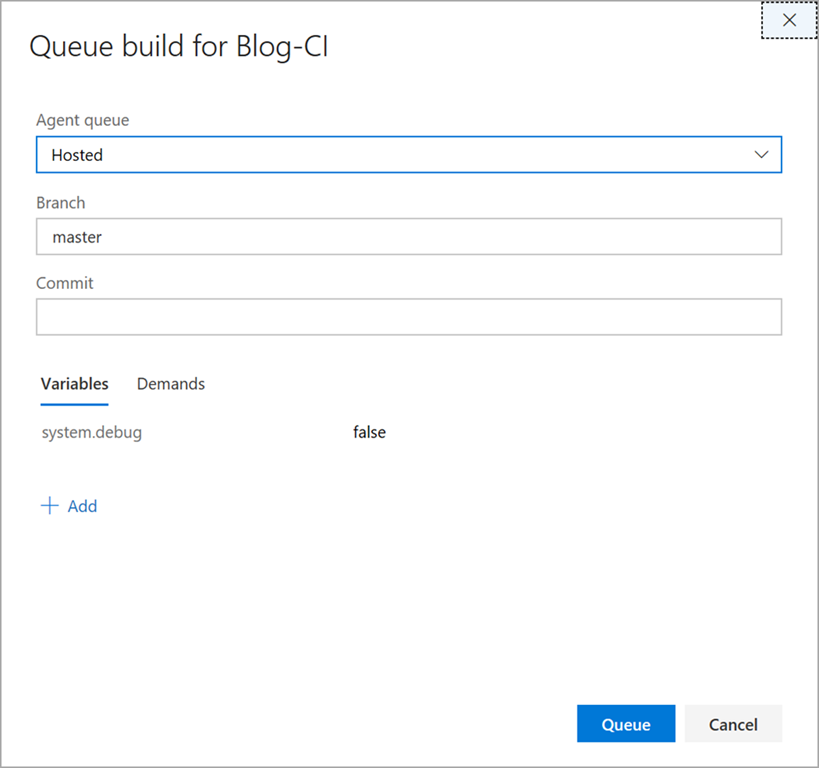
This will being up the queue build modal where you can define the agent queue to use, the branch to build or a specific commit along with defining build variables, etc. I will select the Hosted agent queue and my master branch. I will then click on the Queue button to initiate the build:
image

For more information on the differences between the hosted agents, checkout this link for further details.

You should now notice that your build is now queued:

image

Viewing your build process

You can click on your build at anytime and see detailed output for what is happening during the build process along with view and/or download detailed log files:

image

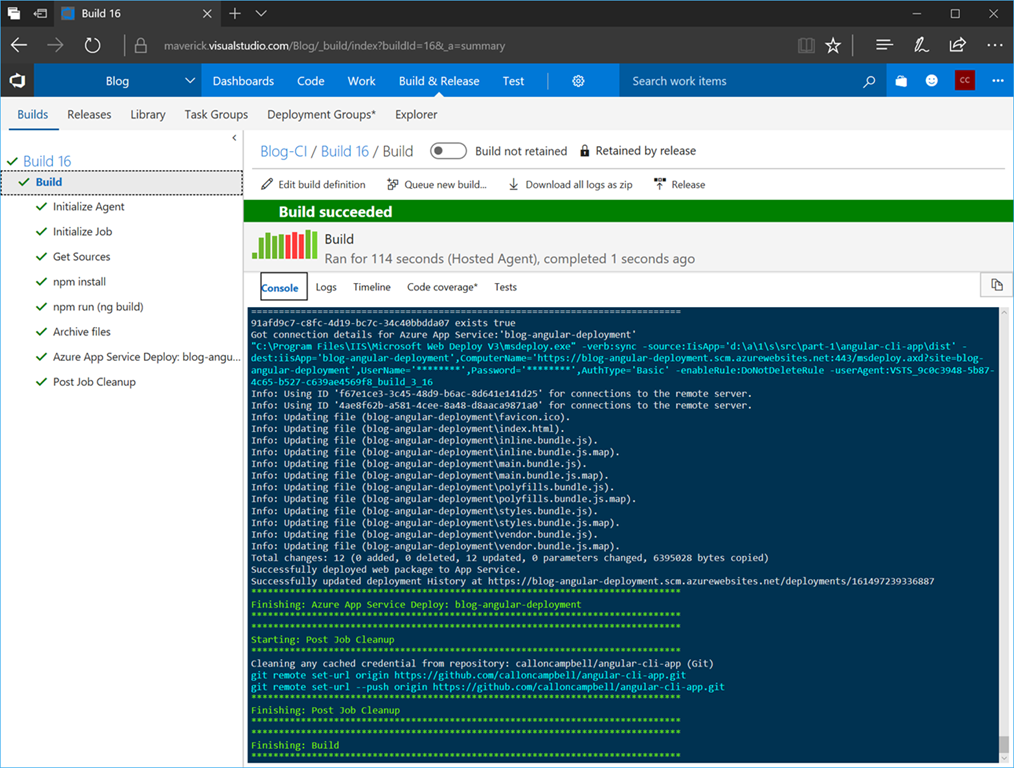
Voila, our build is now finished:

image

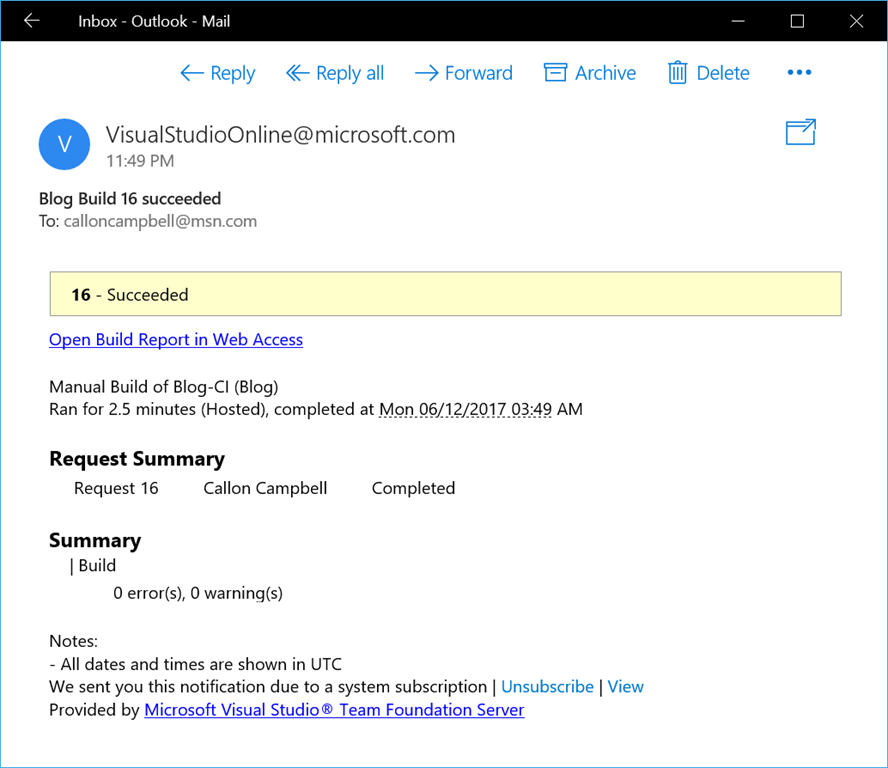
Visual Studio Team Services build can also be configured to send out an email when builds succeed and/or fail:
image 

Now that I have a successful build, lets browse and take a look at our deployed Angular app: http://blog-angular-deployment.azurewebsites.net/ .

Wrap up

I hope this post helps your build and deploy your Angular apps to Azure. As you can see it’s very straight forward to setup and requires no build infrastructure on your end to make it happen.

Enjoy!
References

Azure free trial

Visual Studio Team Services

Build and release tasks

Hosted agents

Angular

Angular CLI

DatabaseDevelopment

SQL Server Management Studio 17.0

There is a new release of SQL Server Management Studio (SSMS) now available – version 17.0. It feels like yesterday when SSMS 16 was released (June 2016). I’m not going to complain as it’s refreshing to see such the constant updates to SSMS now that it’s not tied in with the database engine installer.

To get the latest version, head to the download page and install the web-installer. SSMS 17 will install side-by side with previous versions of SSMS.

This latest release includes a lot of new functionality, namely with support for connecting to SQL Server on Linux. Please see the full SSMS changelog for a complete listing of enhancements and bug fixes. Sadly this release still doesn’t support the Dark theme. Hopefully this is something they add in a future release.

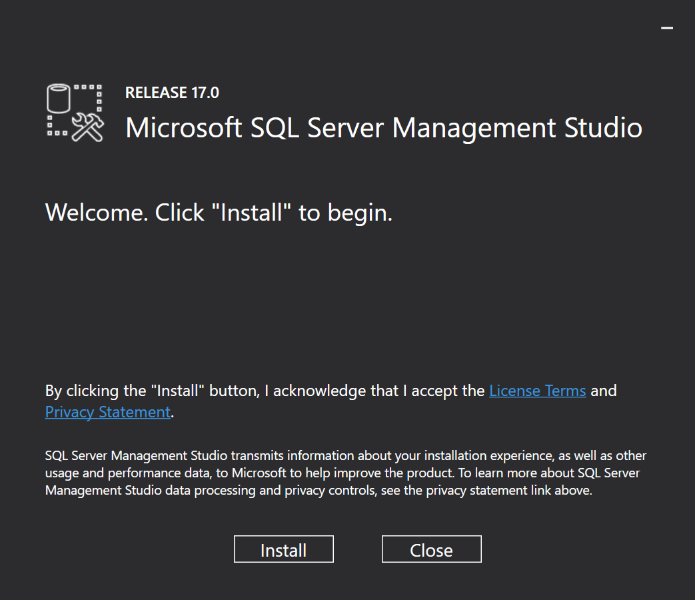
Installing SSMS 17:

sshot-280

Updated splash screen:

image

SSMS 17 icons have been updated to be consistent with VS Shell provided icons and support High DPI resolutions:

sshot-284

One of the nice additions to this release is the inclusion of “Presentation Mode”. There are 3 new tasks available via the Quick Launch (Ctr-Q):

  • PresentOn – Turns on presentation mode where the editor and environment fonts are larger
  • PresentEdit – Allows you to edit the presentation font sizes
  • RestoreDefaultFonts – Reverts back to the default settings

If you  are familiar with these commands in Visual Studio then you will  notice that there is currently no PresentOff command. Use RestoreDefaultFonts to turn off Presentation Mode.

Enjoy!

References

Download SSMS
Download SQL Server Data Tools (SSDT)
SSMS Changelog
SSMS Release Notes

DevelopmentInfographics

Visual Studio 2017 Infographic – What’s New

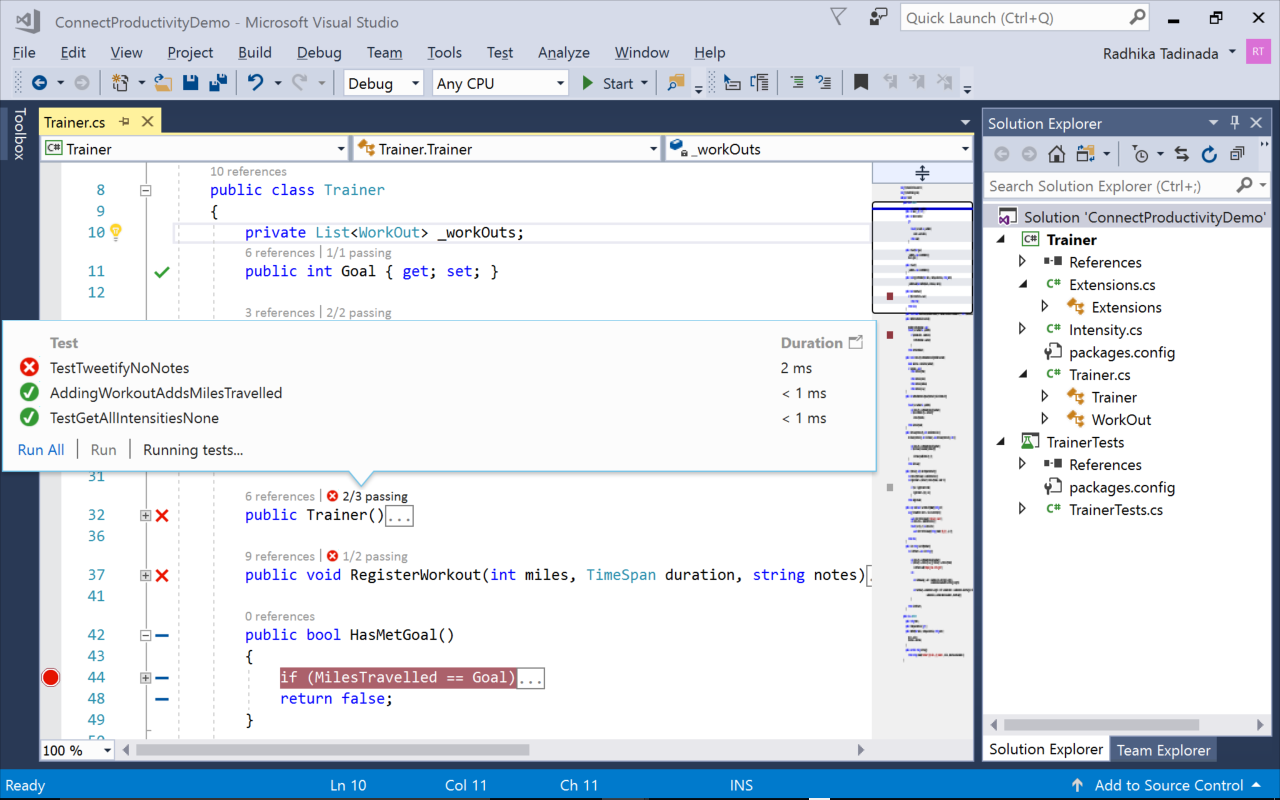
Curious about what’s new in Visual Studio 2017? The Visual Studio team has released an infographic with all the new features. Take a look.

Enjoy!

VisualStudio2017_ProductLaunchPoster

Development

Visual Studio 2017 has Landed

Visual Studio 2017 is finally here and you can download now. Visual Studio 2017 enables you to be more productive for any application and on any platform.

If you download Visual Studio 2017 by March 14, you’ll get a 60-day access to Xamarin University which is a sweet deal.

What’s New

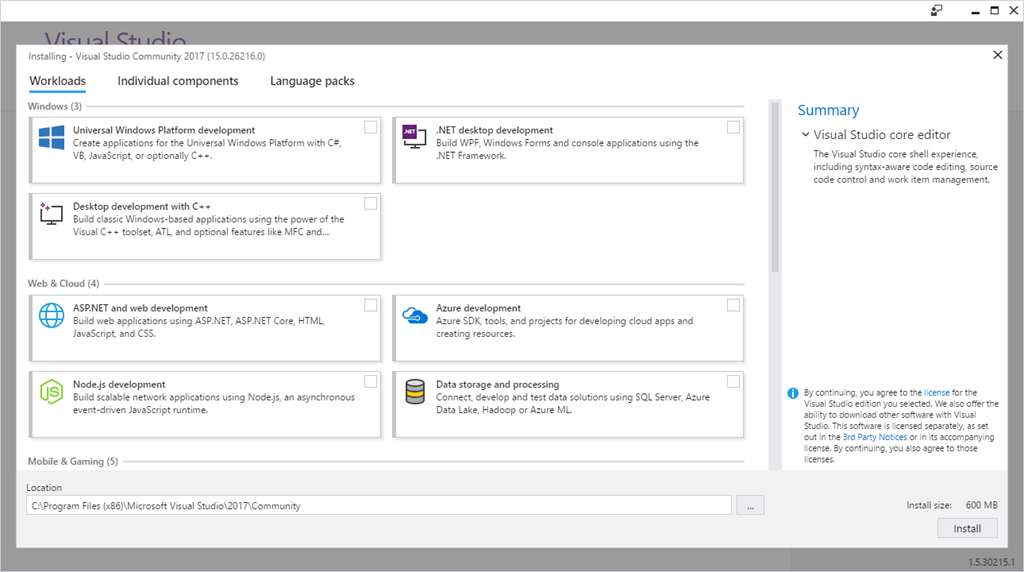
Visual Studio 2017 has a brand new installation experience which includes a minimal footprint for Visual Studio. Installation is quick (minutes not hours) and finally uninstalls cleanly. It’s also much easier to just install the features you want and need.

image

Quick Reference of New Features

For a full list of all new features, please take a look at the release notes.

Enjoy!

image

References

Visual Studio
Visual Studio 2017 Download
Visual Studio 2017 System Requirements
Visual Studio 2017 Release Notes


Development

Getting started with Angular / Angular-CLI – Part 1

This post I’ll introduce you to Angular CLI (command line interface) and how you can use it to get started quickly with building your Angular app.

The roadmap for this blog series:

  • Introduction to Angular CLI and using it to create a new Angular app
  • Using Angular CLI for creating components, routes, services and more
  • Adding in Bootstrap to update the look and feel of your Angular app
  • Finally I’ll take a look at deploying and running your Angular apps on Azure

Installation

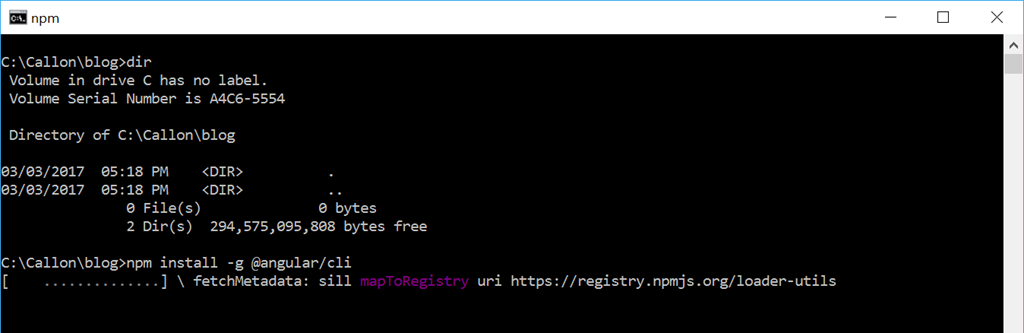
Both the Angular CLI and its generated projects have dependencies that require Node 6.9.0 or higher, together with NPM 3 or higher.

npm install -g @angular/cli

image

After installation you can access help by running the following command:

ng help


Creating a New Angular App

To generate a new Angular app, just run the following command where “angular-cli-app” is the name of your app:

ng new angular-cli-app

image

Generating and Serving your App

Once your project is scaffold, navigate to your project folder and then run the following command to serve your project via a local development server:

cd angular-cli-app
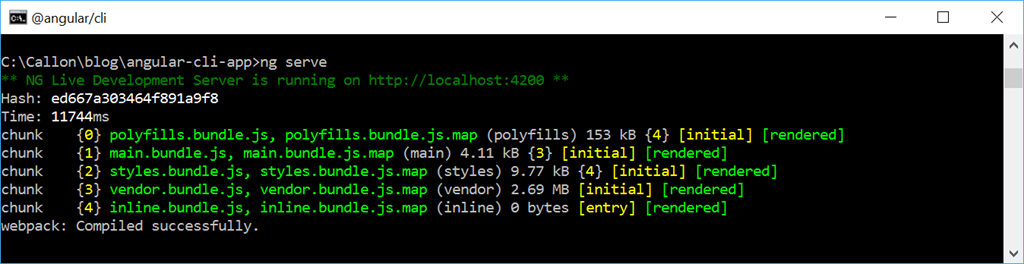
ng serve


image


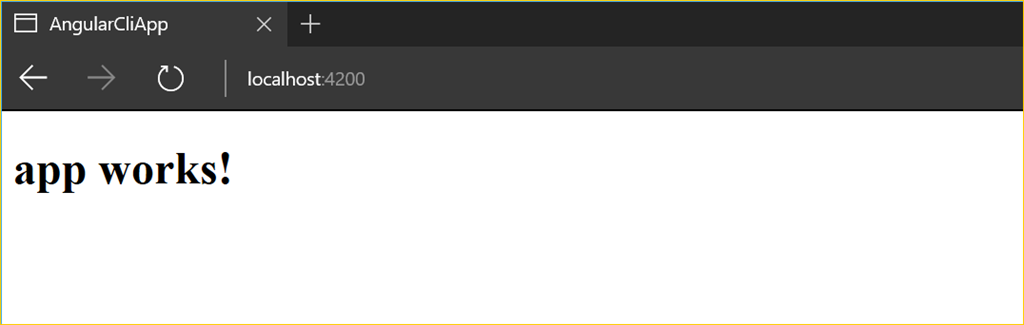
Once your app is up and running, navigate to http://localhost:4200/ to see it. Once the app is running, any changes you make will automatically apply and your app will reload.

image

As you can see it’s fairly straight forward to get started with an Angular app. The Angular CLI really takes care of everything for you compared to the days where you have to manually copy and paste the references and create each file necessary to get your app started.

In the next post I’ll dig deeper into using Angular-CLI to create components, routes, services and other stuff.

Source for this sample can be found here.

Enjoy!

References

Angular
Angular CLI

Development

Error when opening an ASP.NET Core project with Visual Studio 2015 after installing Visual Studio 2017 RC : The following error occurred attempting to run the project model server process 1.0.0-preview4-004223

Ok so if your like me and tried installing Visual Studio 2017 RC, you were probably astonished at how fast it installs compared to previous version of Visual Studio. But as impressive at it is at installing, I ran into some compatibility issues with Visual Studio 2015, so I had to uninstall Visual Studio 2017 RC.

Now even with Visual Studio 2017 RC uninstalled, I ended up running into an issue when I was trying to open a  new or existing ASP.NET Core project. Here is the error I would get when trying to open my ASP.NET Core projects in Visual Studio 2015:

The following error occurred attempting to run the project model server process 1.0.0-preview4-004223

image

To resolve this, I had to go to directory “C:\Program Files\dotnet\sdk” and delete folder “1.0.0-preview4-004233” as shown here:

image

This then resolved my issue when trying to open an existing or new ASP.NET Core project in Visual Studio 2015.

Enjoy!

AzureDevelopment

Azure Tools Extension for Visual Studio Code

Came across an awesome Visual Studio Code extension called “Azure Tools for Visual Studio Code” by Brady Gaster. Check it out!

This extension for Visual Studio Code gives Azure developers some convenient commands for creating or accessing resources directly in the editor.

Features

  • Search the Azure QuickStart Templates GitHub repository
  • Download Azure Resource Manager (ARM) template and parameter files to workspace
  • Uses the Azure Resource Manager Tools extension to simplify the template-editing experience
  • ARM template deployment to live Azure subscription
  • Login with Microsoft Account (@hotmail.com, @live.com, etc.)
  • Login with Azure Active Directory (or "Organizational") account
  • Create App Service Web Apps
  • Create App Service Function Apps
  • Create Storage Accounts
  • Get Storage Account connection string
  • Browse to resource in portal
  • Browse to resource group in portal
  • Support for multiple Azure subscriptions
  • Supports all Azure data centers

Each of these commands is visible directly from commands visible in the command palette.

Installation

Azure Tools Extension for Visual Studio Code can be installed from the built-in extension tab in Visual Studio Code. Just search for “Azure Tools” and it will be the first result. Click on the extension and then click on the green “Install” button.

image

This extension is available as an open-source project and can be found in the GitHub repository https://github.com/bradygaster/azure-tools-vscode.

Enjoy!

References

Announcing the Azure Tools Extension for Visual Studio Code

AzureDevelopment

Azure Bot Service (Preview)

dev_botframework

Last week at Microsoft’s Developer Connect(); // 2016 event, a new public cloud bot service powered by Microsoft Bot Framework is now available on Azure called the Azure Bot Service.

The Azure Bot Service will allow you to:

  • Use the Bot Framework with Azure serverless platform to run and scale your bots while only paying for your usage
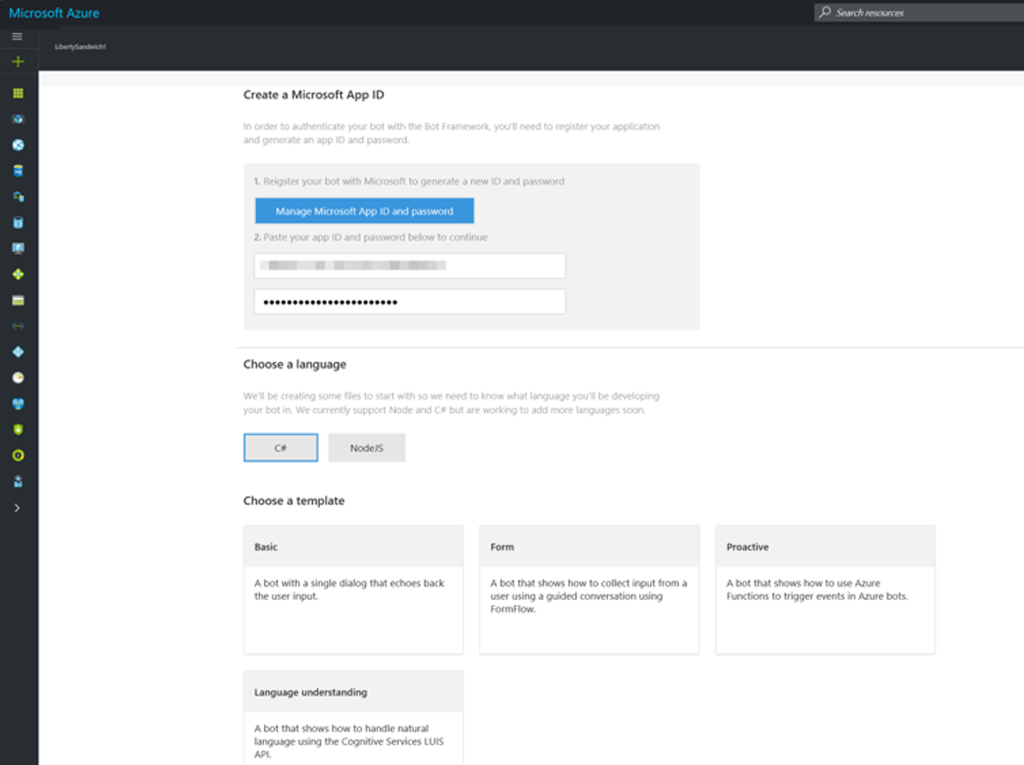
  • Get started quickly with out of the box templates for .NET and Node.js. These templates allow you to create a basic bot, a language understanding bot (LUIS), a form bot or a proactive bot:

image

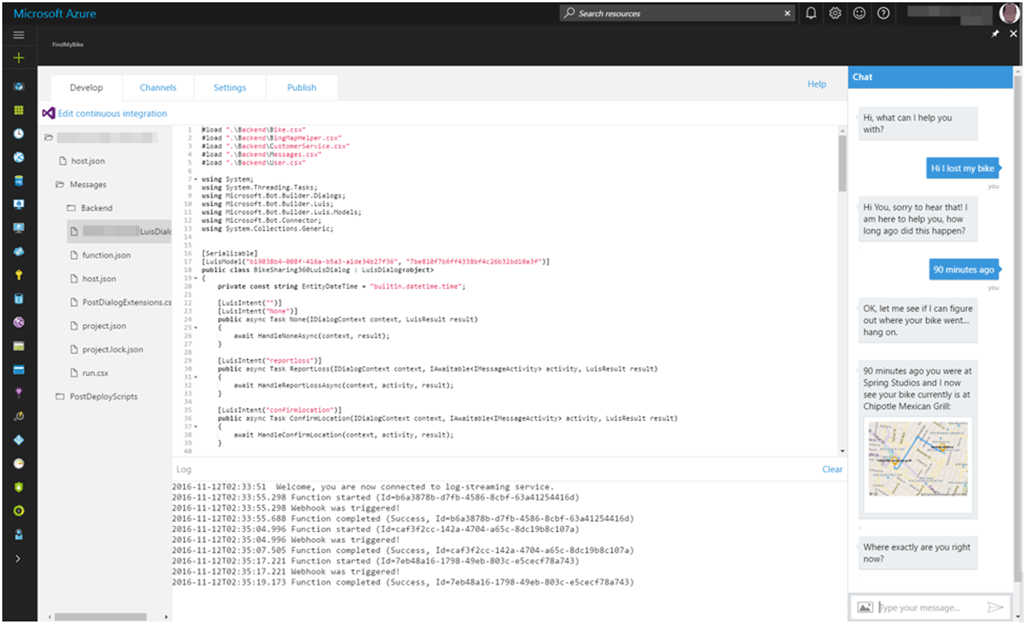
  • Write code for your bot directly in the browser within Azure. You will also be able to test your bot with the included Web Chat control:

image

  • Configure conversation channels
  • Take advantage of integrated continuous deployment (DevOps)

Now more than ever it’s so easy to get started with creating your bots and having them run on Azure.

Enjoy!

References

Azure Bot Service

LUIS: Language Understanding Intelligent Service

AzureDevelopment

Real World Usage for Azure Functions

Came across an excellent blog post from @TroyHunt on using Azure Functions to track abusive IP addresses to a website and log them to an Azure storage account and then have another Azure Function on a timer to validate those IP addresses and block them if necessary.

https://www.troyhunt.com/azure-functions-in-practice/

Enjoy!

CommunicationDevelopment

Introduction to the Microsoft Bot Framework

At the Microsoft BUILD 2016 conference this year, Microsoft released the public preview of the Microsoft Bot Framework. The Microsoft Bot Framework provides just what you need to build and connect intelligent bots that interact naturally wherever your users are talking, from text/SMS to Skype, Slack, Facebook Messenger, Kik, Web Chat, Office 365 email and many other popular services which are constantly being added.

bot-framework-website

The Bot Framework enables organizations to build Bots, also known as intelligent conversation agents. It lets users interact with intelligent solutions as though they were conversing with a real person and interactions can take place in many forms, from text/SMS to Office 365 email, to Skype and Slack.

Bots are quickly becoming an integral part of the digital experience for users to interact with a service or application. The Bot Framework provides automatic translation to more than 30 languages, user and state management, tools for debugging, an embeddable chat control and the means for a user to discover, try and add bots to their conversation experience of choice.

“Bots are like new applications,” Microsoft chief executive Satya Nadella said. “And digital assistants are meta apps, or like the new browsers. And intelligence is infused into all of your interactions. That’s the rich platform that we have.”

The Bot Framework consists of three main components, the Bot Builder SDK, Developer Portal and the Bot Directory.

botframework_overview_july

Bot Builder SDK

The Bot Builder SDK is available on GitHub and is a set of code libraries in C# and Node.js to help with building the bot. It also provides integration with LUIS which is the Language Understanding Intelligent Service, which gives support for natural language interaction.

Bot Developer Portal

The Bot Framework Developer Portal is where you can go to connect your bot to any of the available channels. Here is a listing of all available services:

  • Register your bot
  • Connect to channels
  • Test
  • Publish
  • Manage
  • Measure

Bot Directory

The Bot Directory is a public directory of all available registered bots. From the Bot Directory you can browser, try and add bots to your favorite conversation experience.

You can also see a listing of available bots from Skype. Here is the Skype Preview app and if you click on the bots section, you can see 38 bots (at time of posting).

SkypeBots

You can checkout the Bot Directory for a full listing of registered bots.

In a future article I will explore creating a bot and deploying it to Azure.

Resources

Get started with the Bot Connector.

Microsoft Bot Samples: https://github.com/Microsoft/BotBuilder

Get started developing your first bot bot: https://dev.botframework.com/

Documentation: http://docs.botframework.com/sdkreference/