Category: Azure

Azure

Moving your Azure Resources to Another Subscription or Resource Group

At some point or another you may  need to move your Azure resources to either another Azure Resource Group or to another Azure Subscription. This is easy to do and is useful when organizing your resources for management or billing scenarios. Before moving any resources it’s best to take a look at the following checklist before moving resources link.

Ok let’s get started. In this example I’ll be moving an Azure Resource Group with a number of services over to another Azure Subscription.

Steps to move resources

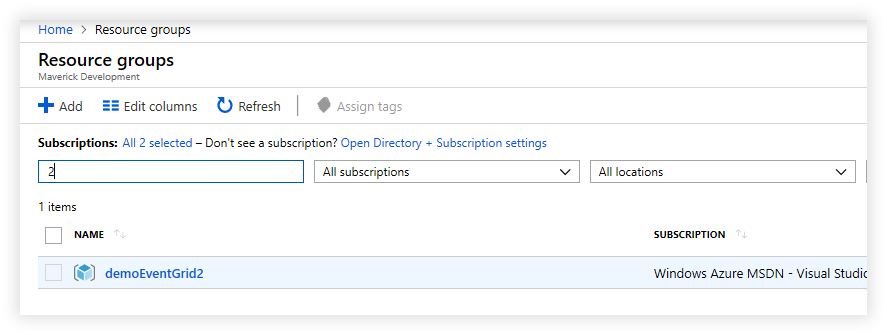
Step 1 – Navigate to the resource group you want to move. Go to the Resource groups blade in the Azure portal and then navigate to the particular resource group.

image

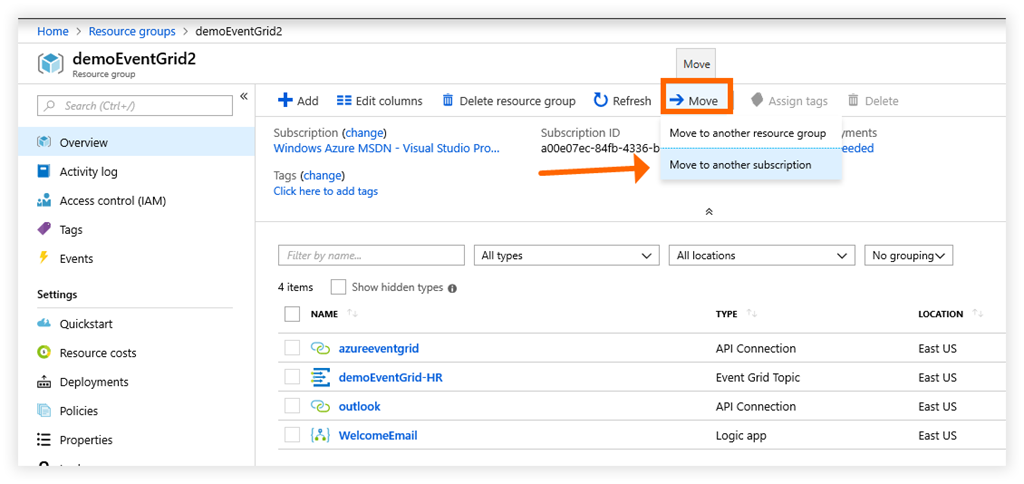
Step 2 – Click on Move button and then select Move to another subscription option.

image

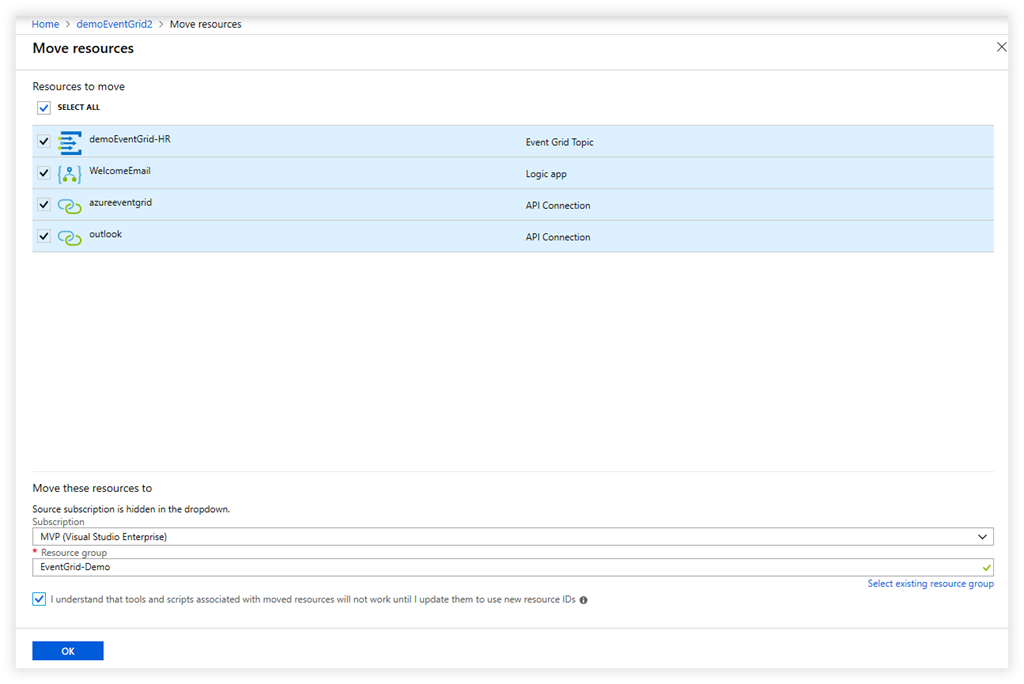
Step 3 – Next in the resources to move screen, review the resources that are to be moved over which are all automatically selected. Then select the subscription and resource group you want to move target. If the resource group is not already created, you can create it now by clicking on the link to create a new resource group.

image

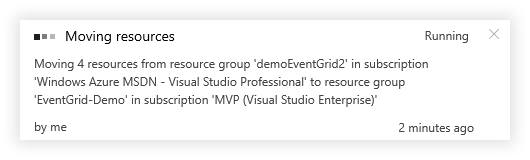
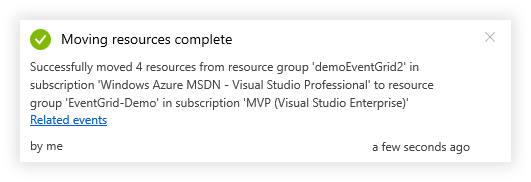
Step 4 – Now click on the OK button to start the process. The job will then be validated and then you will see a notification of the movement in progress, followed by a success or failure notification. In the event of a failure, details will be provided on why the resources could not be moved. Usually after working through these issues you can try again.

image

image

Step 5 – You should now go to the new resource group you created and verify all the resources are accounted for and that the resources still function as intended.

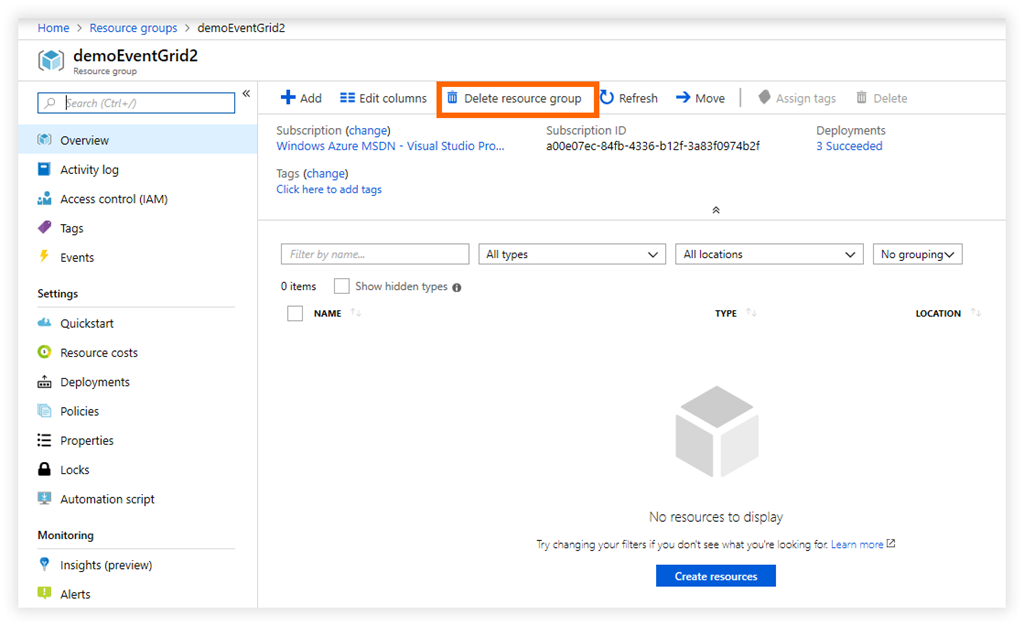
Step 6 – Finally you want to tidy up and delete the original resource group on the source subscription as it’s now empty and should not be used again. To do this go to the original resource group and click on Delete resource group button. You will be prompted to type in the name of the resource group to confirm you want to continue.

image

Summary

This article covered moving a resource group and all of its resources from one subscription to another. The same process is applicable when moving resources from one resource group to another within the same subscription.

Enjoy!

References

Move resources to new resource group or subscription

Azure

Azure Overview Tool

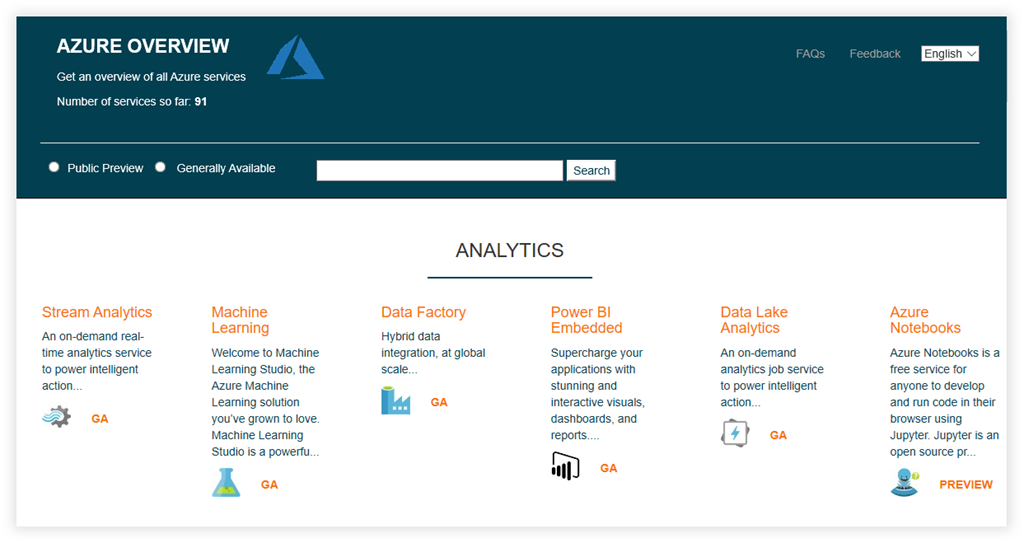
Have you ever wanted to find out if a particular Azure service is in preview or generally available? Fellow Azure MVP Barry Luijbregts created a great website which provides up-to-date status of Azure services.

image

Azure is constantly changing and is sometimes overwhelming to try and keep up with what’s in preview vs generally available. What is awesome about this website is that it’s more up to date than the other Microsoft sites that try to provide this information.

The website is also open source, and you can check out the source code on GitHub: https://github.com/bmaluijb/AzureOverview.

I’ve definitely added this site to my bookmarks and look forward to further enhancements. Thanks Barry!

Enjoy!

References

https://www.azureoverview.com/

https://www.azurebarry.com/find-the-status-of-azure-services-on-azureoverview-com/

AzureDevOps

Introducing the Azure DevOps Service Status Portal

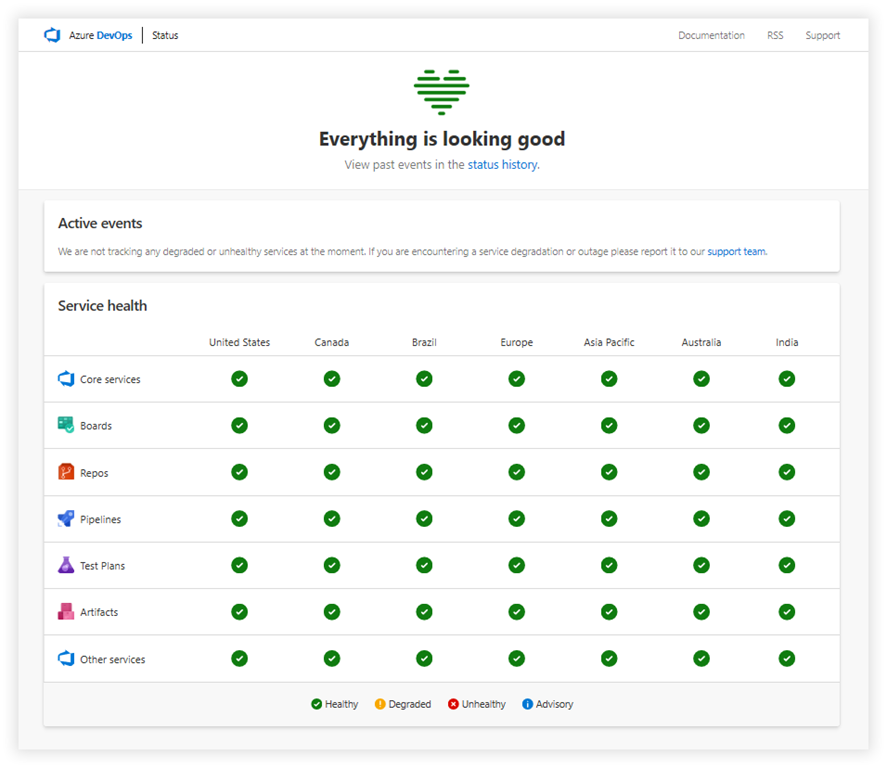
Last week Microsoft introduced the Azure DevOps Service status portal which provides real-time insights into the current health of Azure DevOps regional feature status and provides additional details on specific events either current or historical.

When you go to the Azure DevOps Service status portal, the main dashboard shows you a 2-dimensional matrix mapping of the feature with geographic regions as shown below.

image

To see current or historical events, click on the Status History link where you can filter the results by service type, categories, severity and then date range:

image

Clicking on a particular event log will take you to the event log page which shows all details about the event, what was affected, when it was resolved, and then any workarounds that users can take if needed.

image

REST APIs will be coming soon for users looking to build automated solutions to watch the service status.

For service health updates relating to Azure’s global services, please refer to the Azure Status page.

For more information on the new Azure DevOps Service status portal, please refer to the Azure DevOps Service Status documentation.

Enjoy!

References

Azure DevOps Service Status portal

Azure DevOps Service Status documentation

AzureDevOps

Authenticate Azure DevOps against its own REST API

toonvanhoutte's avatartoon vanhoutte

During Azure DevOps build and release pipelines, you might have the need to consult the Azure DevOps REST API.  This blog explains how you can easily perform the authentication that is required to call that REST API.

Enable OAuth Authentication

First of all, you need to check the option Allow scripts to the OAuth token.  This enables scripts and other processes launched by tasks to access the OAuth token through the System.AccessToken variable.  This setting is somewhere hidden in the Additional options of the Agent Job:

Access1

Use the OAuth token inside the script

Within a PowerShell script you can now retrieve the System.AccessToken variable and use it to authenticate against the Azure DevOps REST API.  A simplified example:

#Set authorization headers Write-Host Set authorization headers $headers = @{ Authorization = "Bearer $env:SYSTEM_ACCESSTOKEN" } #Invoke REST API Write-Host Invoke REST API Invoke-RestMethod $url -Method $method -Body $body -Headers $headers -ContentType 'application/json'…

View original post 90 more words

AzureDevOps

Azure DevOps rolls out a dark theme preview

This week Azure DevOps finally rolled out one of their most requested feature, a dark theme. I use dark theme for just about any app that supports it, so this is a welcome addition to Azure DevOps. Keep in mind that this is just a preview and is still being refined.

To switch to Dark theme, go to your Azure DevOps portal and click on your user dropdown menu in the top right corner. Then click on Theme menu item.

image

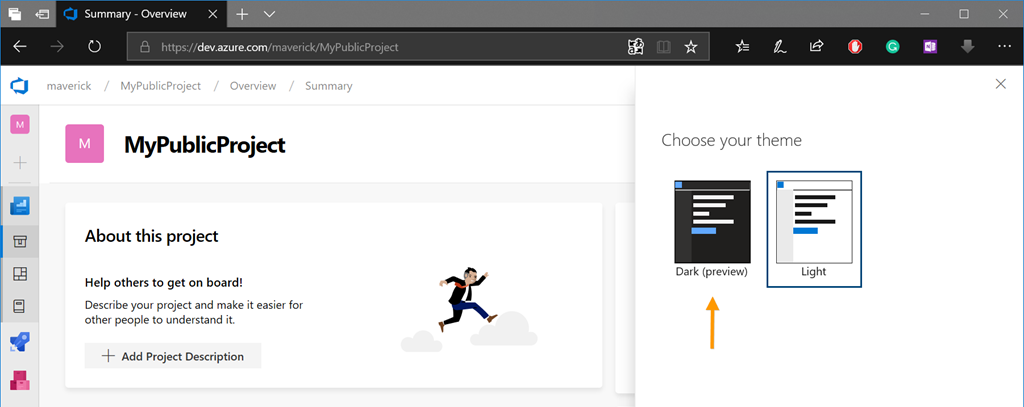
The theme options pane will then be displayed. Click on the Dark (preview) option to switch to the dark theme.

image

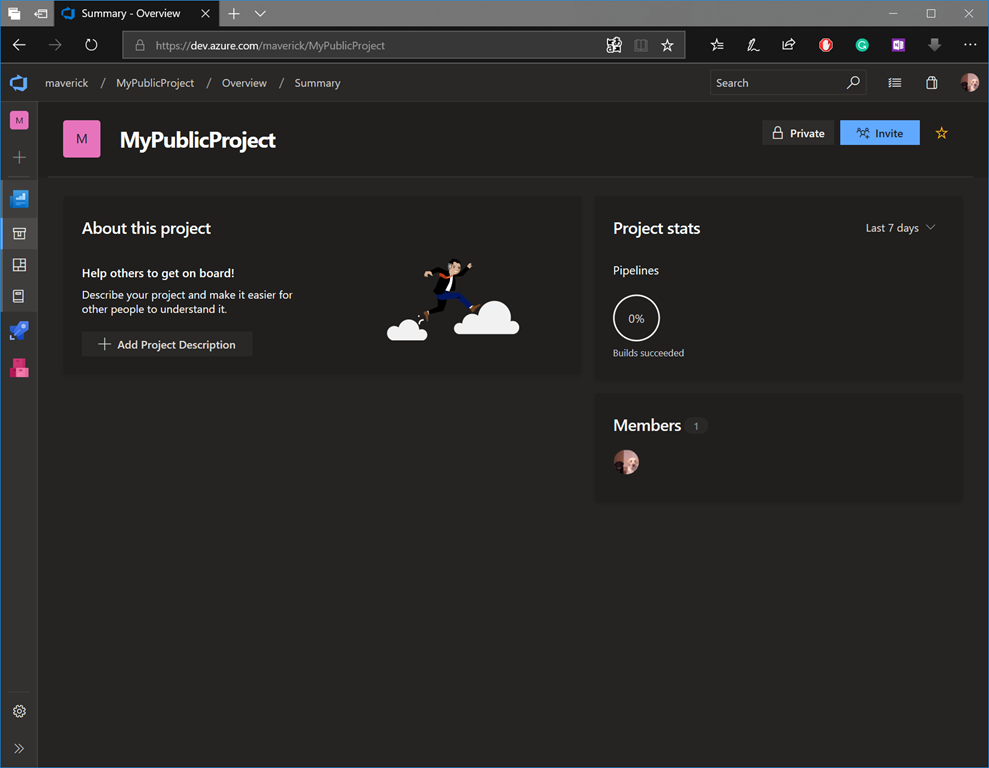
Voila! DevOps in Dark theme.

image

Switching to dark theme is a personal choice and is not something that is forced across your organization, which is nice. I recommend you give it a try and see for yourself.

Enjoy!

References

https://azure.microsoft.com/en-us/services/devops/

https://blogs.msdn.microsoft.com/devops/2018/11/01/whats-new-in-azure-devops-sprint-142-update/

ArchitectureAzureEvents

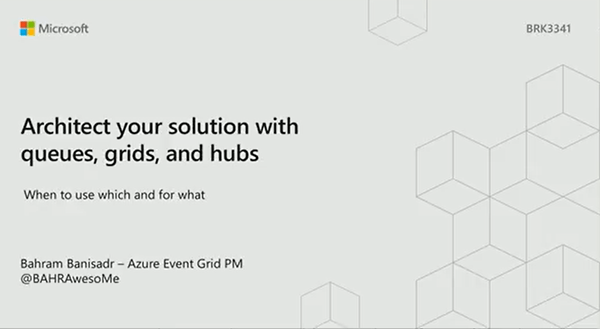
BRK3341 – Architect your solution with queues, grids, and hubs: When to use which and for what

image

Azure provides a lot of messaging solutions and it can become overwhelming for architects and developers to know when to use which server and for what use case. In this talk, Bahram Banisadr will show real life scenarios, code and discuss architecture patterns for messaging and events using Azure Event Hubs, Service Bus, Event Grid, and Storage Queues.

image

Watch the session for more details.

Enjoy!

References

BRK3341 – Architect your solution with queues, grids, and hubs: When to use which and for what

Microsoft Ignite 2018

Azure Event Grid

Azure Event Hubs

Azure Service Bus

Azure Storage Queues

AzureBooksDevOps

Download e-book ‘Effective DevOps’

DevOps is a culture and practice that unifies people, processes and tools across development and operations groups that aims to help deliver software faster and more reliably.

In this e-book from from O’Reilly, you get a practical guide for improving collaboration across teams, promoting efficient use of tools, and using the concepts of DevOps to work more effectively. You’ll also:

  • Explore the foundations and four pillars of effective DevOps: Collaboration, affinity, tools, and scaling.
  • Get an overview of DevOps, including the evolution, foundational terminology, and concepts.
  • Understand common misconceptions about DevOps and anti-patterns used in the practice.

See what it looks like to make effective changes in your organization using a DevOps mindset.

Download the e-book from here. This book was published on August 31, 2018.

Enjoy!

References

Microsoft Azure DevOps

Download e-book Effective DevOps

AzureCloud

Meet your Cloud Developer Advocates

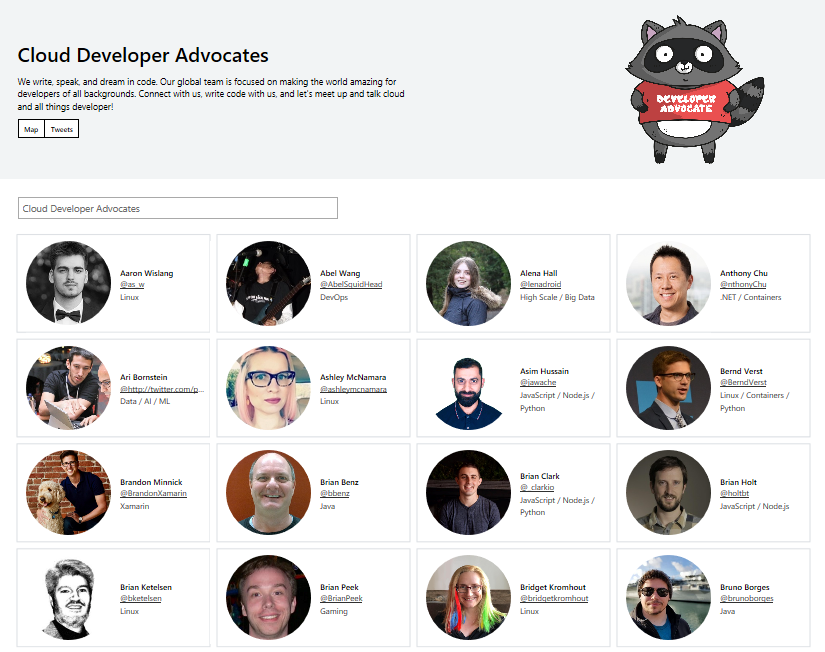
What is a Cloud Developer Advocate? Their a global group of passionate developers that advocate to help solve problems with the cloud. Jeremy Likness wrote up a great post on what is a Cloud Developer Advocate that is great to read and he himself is a Cloud Developer Advocate. These folks are here to help and support you, so don’t be shy and reach out and connect with them. I’ve learned so much from them and have had the pleasure to meet and speak in person at a few events like the Microsoft Tech Summit, Microsoft Build and the Global Azure Summit.

To see a list of the current Cloud Developer Advocates and how you can to reach out and connect with them, please head over to the Cloud Developer Advocates page.

image

Enjoy!

Reference

Azure Advocates on Twitter

Cloud Developer Advocates Website

What is a Cloud Developer Advocate?

Azure

Azure Service Fabric Mesh is now in Public Preview

wp_ss_20180716_0001

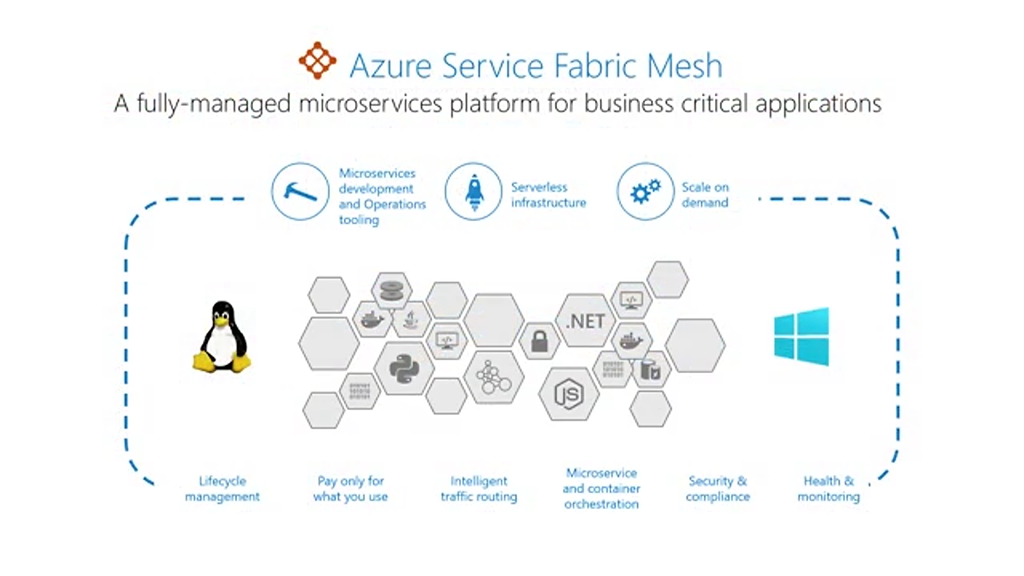
Earlier today, Service Fabric Mesh was made available to everyone as a public preview. At Build 2018, Microsoft announced and demonstrated Service Fabric Mesh, a serverless offering of Azure Service Fabric. The public preview is available in three Azure regions: US West, US East, and Europe West and the availability will expand to other regions in the coming months.

Azure Service Fabric Mesh, a fully-managed service that enables developers to deploy and operate containerized applications without having to manage VMs, storage or networking configuration, while keeping the enterprise-grade reliability, scalability, and mission-critical performance of Service Fabric. Service Fabric Mesh supports both Windows and Linux containers, so you can develop with the programming language and framework of your choice.

You can get started today by heading over to the Azure Service Fabric Mesh documentation.

Be sure to take a look at the Azure Service Fabric Mesh Public Preview Announcement for frequently asked questions (FAQ) on what’s supported, and limitations. Since this is only a public preview, there is no SLA for production use.

Enjoy!

Resources

Azure Service Fabric Mesh Public Preview Announcement

Azure Service Fabric Mesh tools now available for Visual Studio 2017

Azure Friday – Azure Service Fabric Mesh Preview

Azure Service Fabric Mesh documentation

Azure Service Fabric Mesh samples

Azure Service Fabric Mesh pricing

Azure Service Fabric Mesh Container Quick Start

Azure

Getting started with Azure Event Grid Extension for Visual Studio Code

I love Visual Studio Code and all the extensions that are available. It has become my preferred editor for almost everything (replacing Notepad++), except for when developing in Visual Studio.

Recently there is a new extension that was made available for working with Azure Event Grid. Typically when working with Azure Event Grid I use a tool called Postman to send test messages to my Azure Event Grid resource. But now with this latest extension you can use Visual Studio Code.

In this post I’ll walk through how to get started and use the Azure Event Grid extension for Visual Studio Code. Let’s get started.

Prerequisites

Before we can begin we need to make sure we have the following installed and setup:

  1. An Azure Subscription. If you don’t have an Azure Account, you can sign up for one today for free and receive $200 in credits by selecting "Create a Free Azure Account…" or selecting "View->Command Palette" and searching for "Azure: Create an Account"
  2. Install Visual Studio Code
  3. Visual Studio Code Extensions:
    • Install extension Azure Tools for Visual Studio Code
    • Install extension Azure Event Grid

Connecting to your Azure Subscription

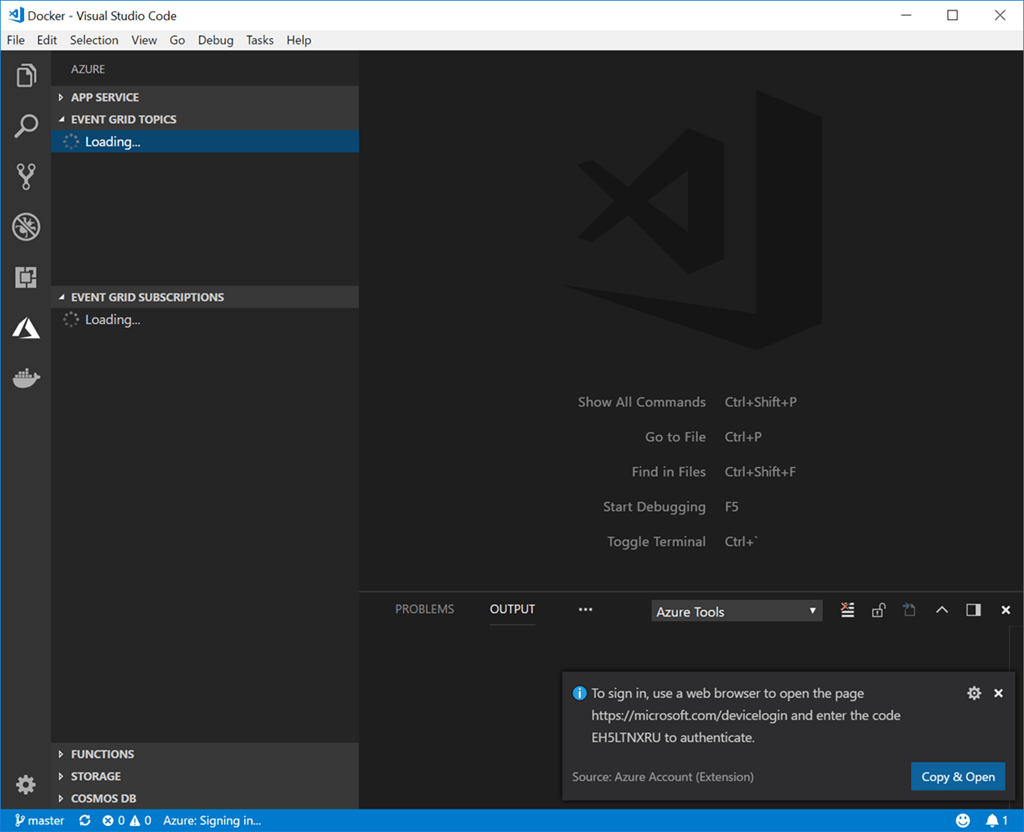
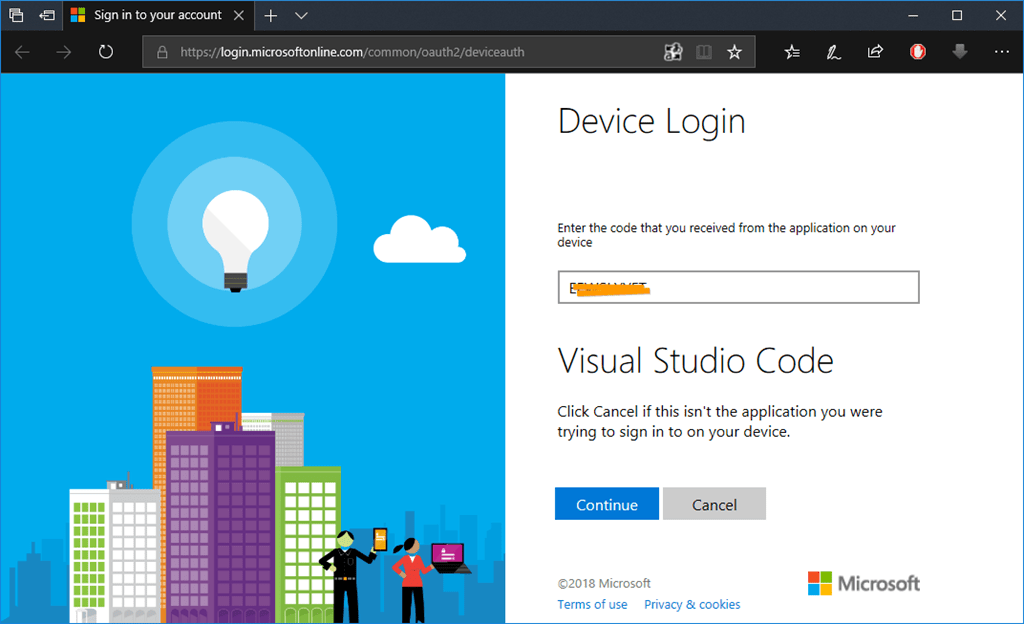
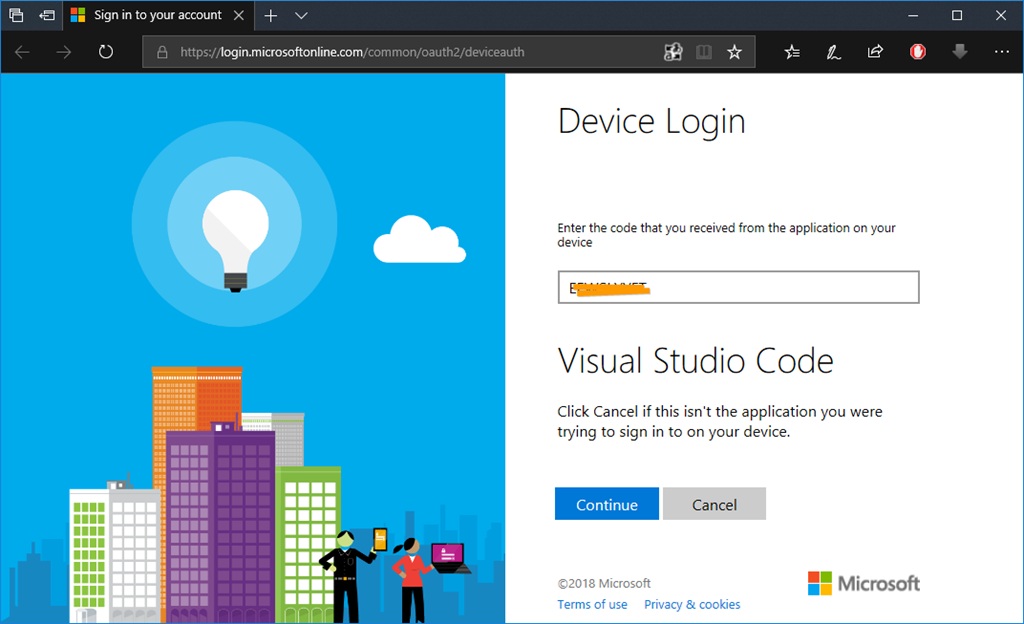
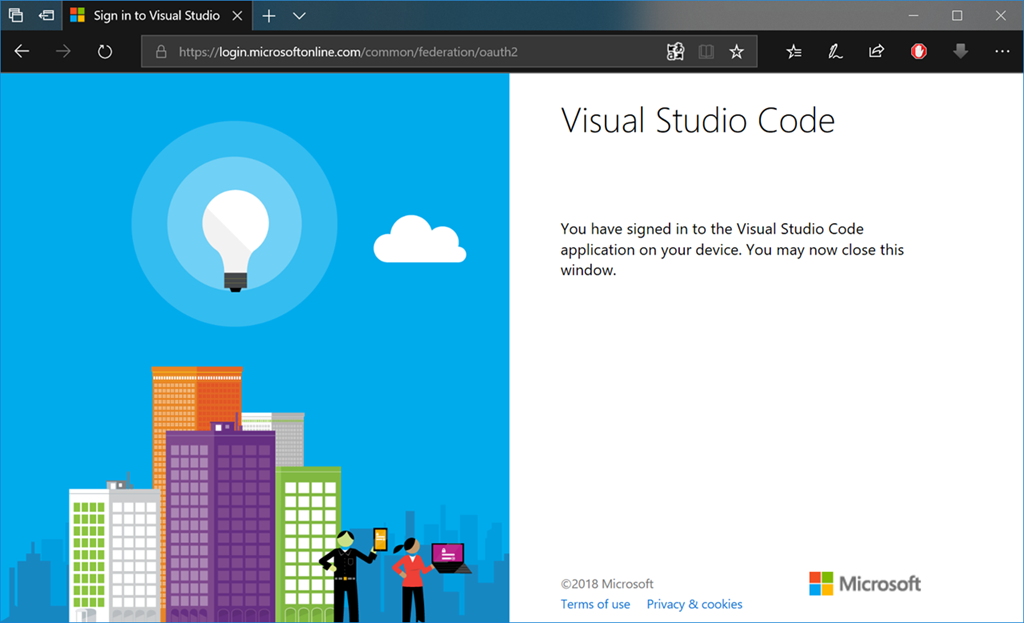
First thing we need to do is connect to your Azure subscription. This will happen automatically when you go to the Azure tab in Visual Studio Code. You can also sign in from the Command palette and searching for “Azure: Login”.
image

image

image

Create an Event Grid Topic

Now that you’re signed in, let’s go ahead and create an Event Grid topic.

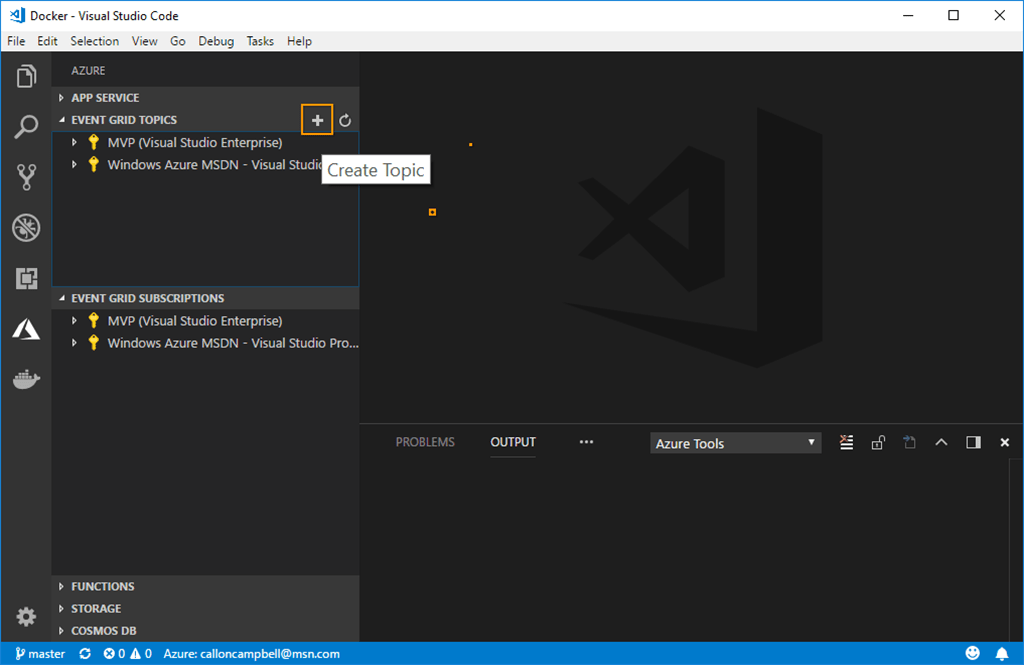
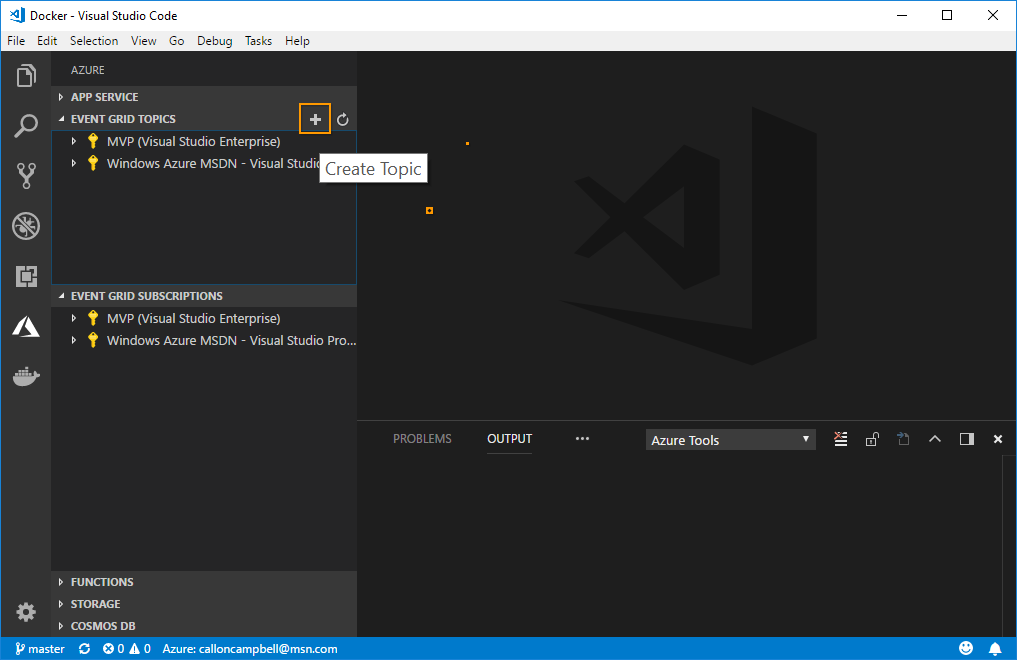
1. In the Event Grid Topics pane, click on the + button to create a new topic:
image

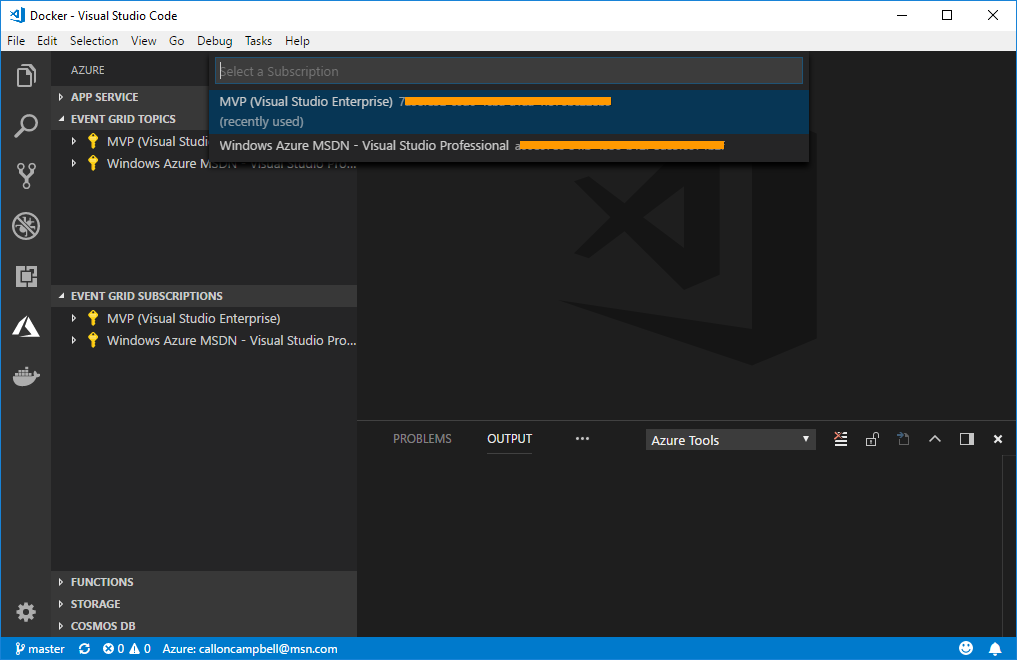
2. Then select your Azure Subscription to associate this topic with:
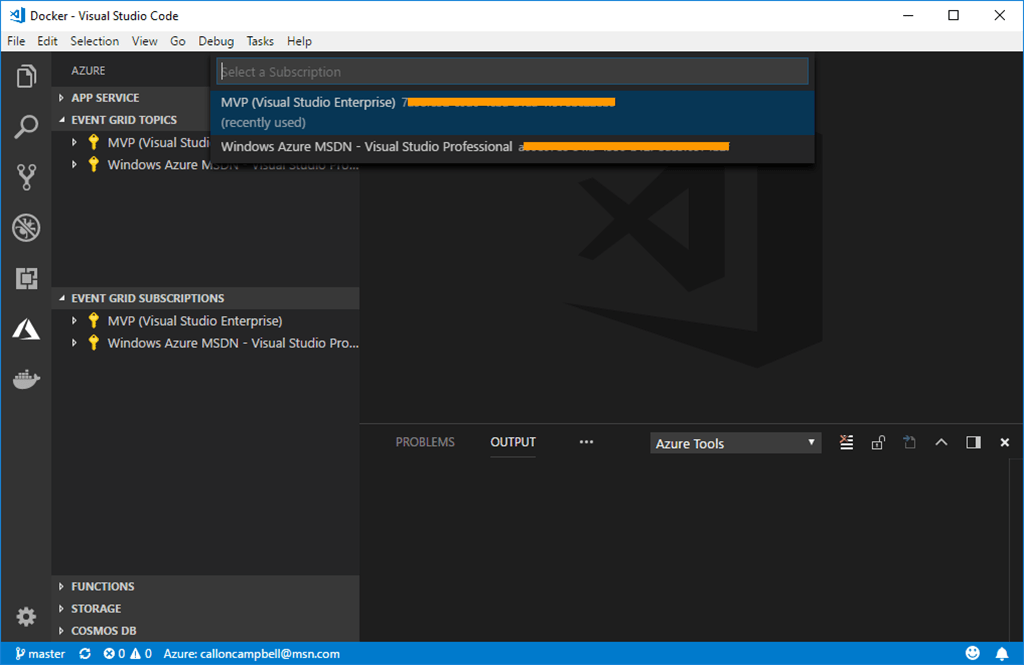
image

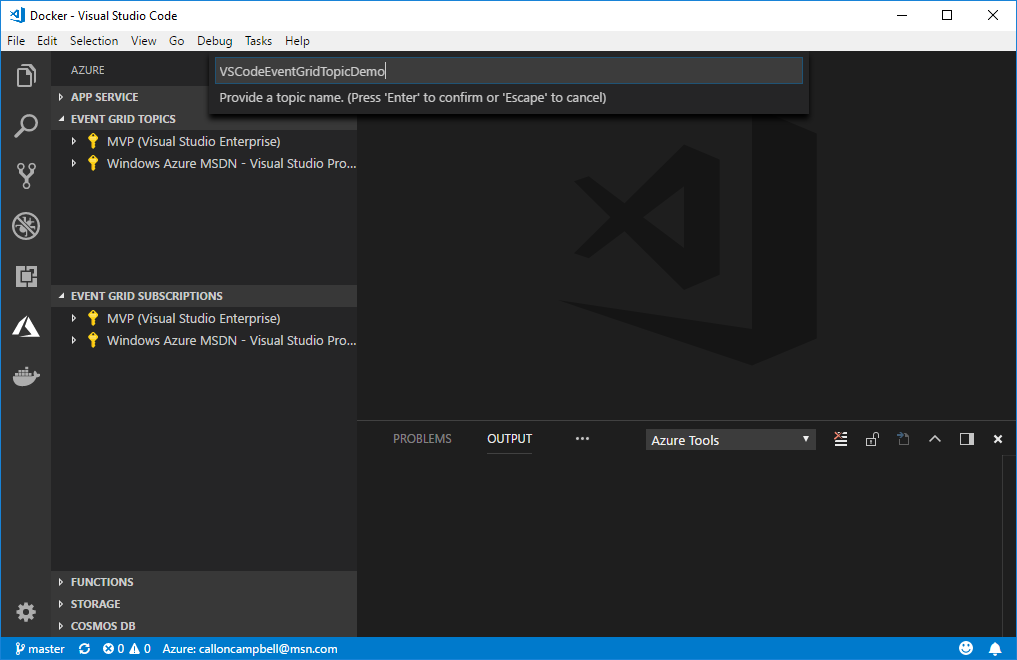
3. Now provide a topic name. I will use “VSCodeEventGridTopicDemo” for my demo:

image

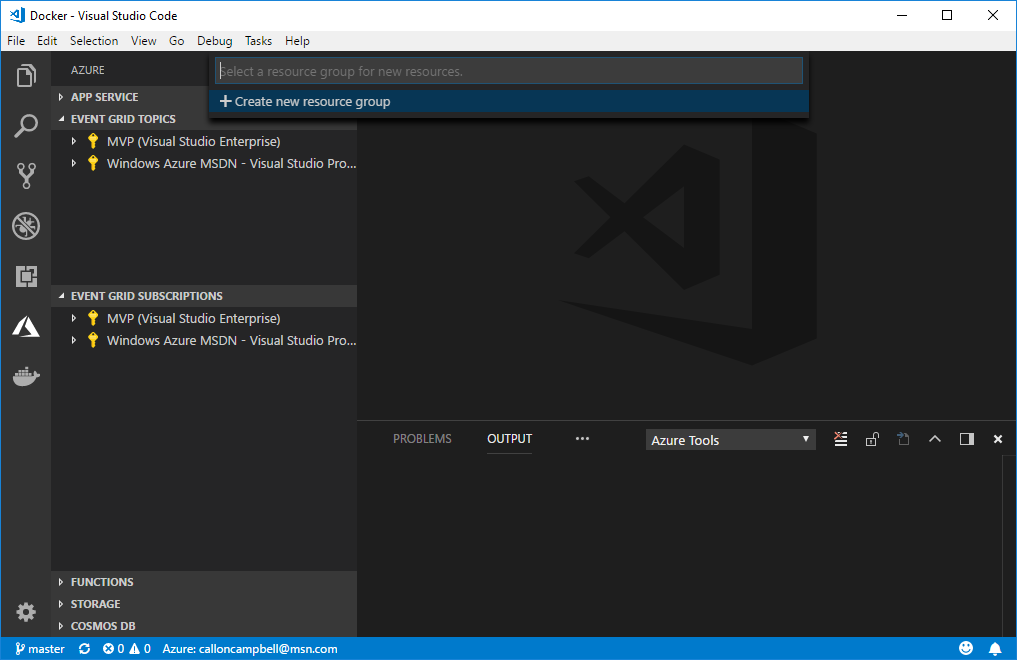
4. Next select a resource group for your topic. I will use  “RGVSCodeEventGridDemo” for my demo:
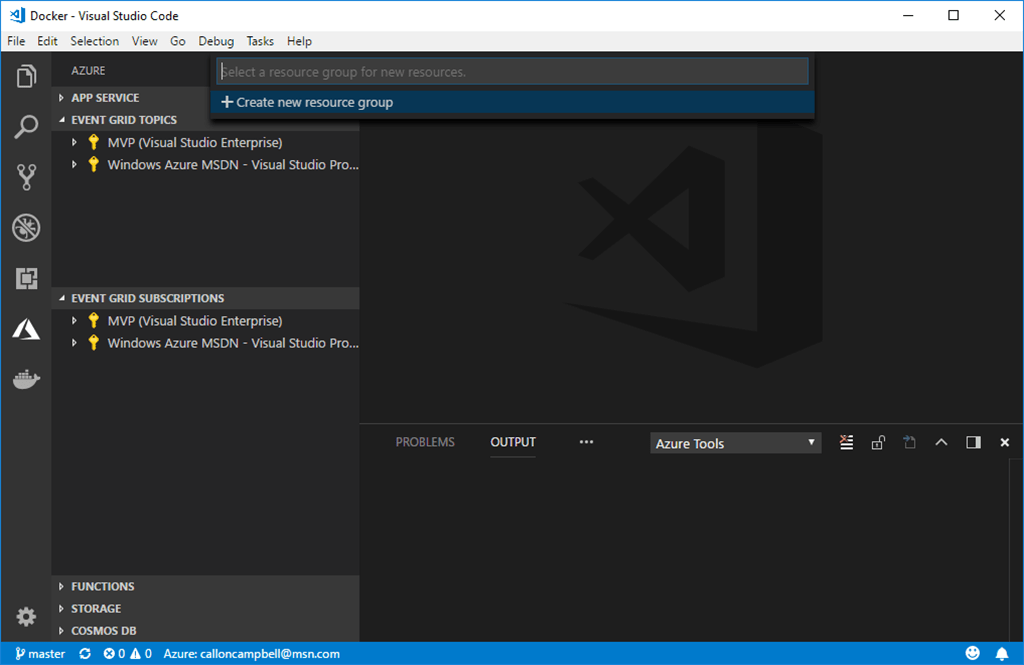
image

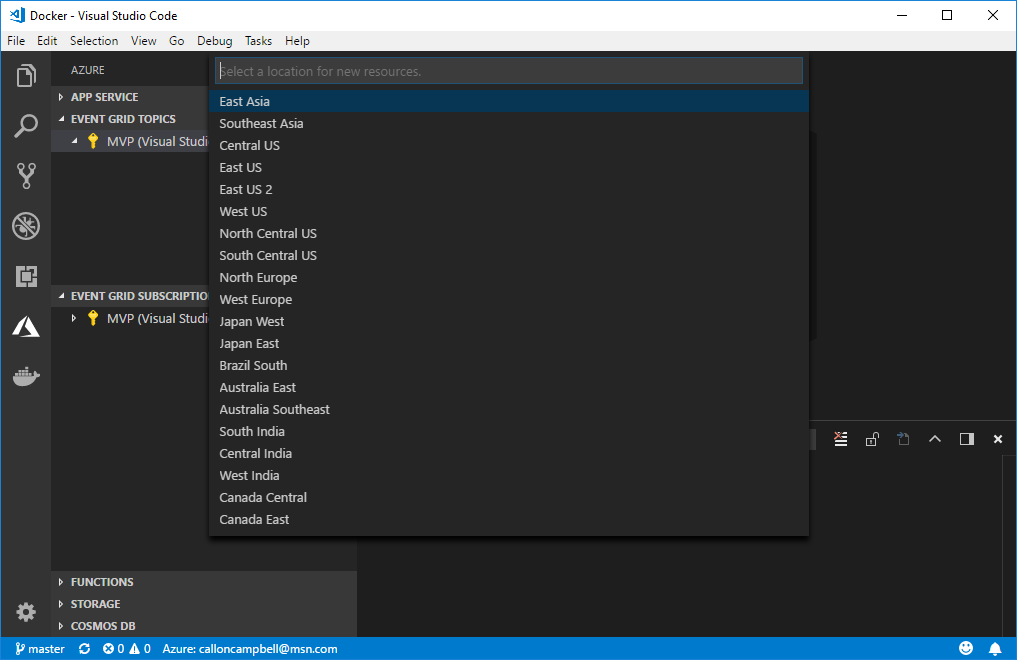
5. Select your location for the resources:
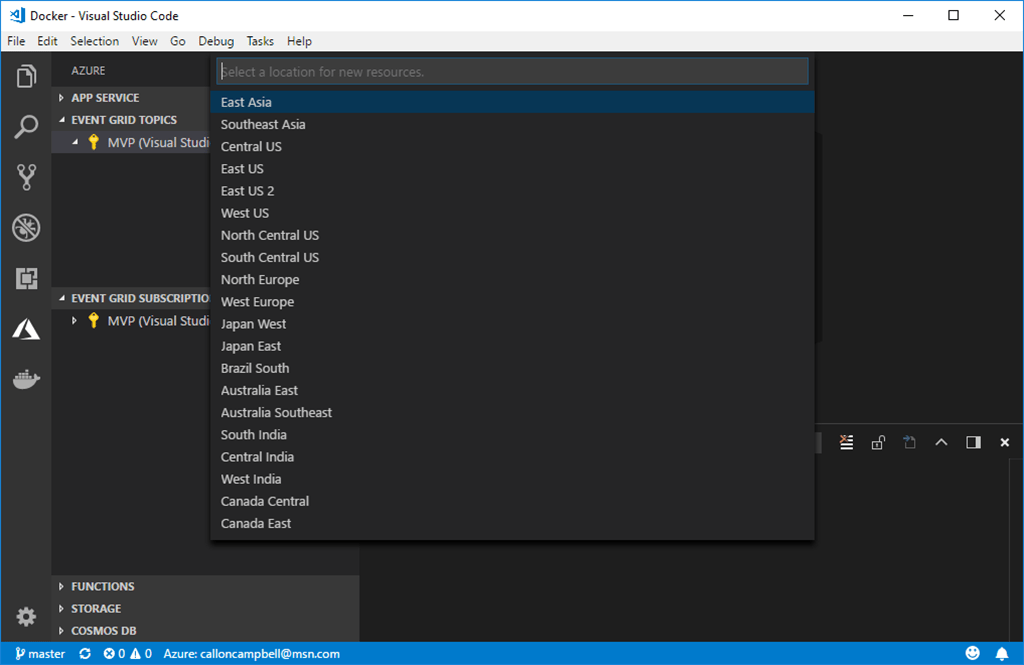
sshot-636

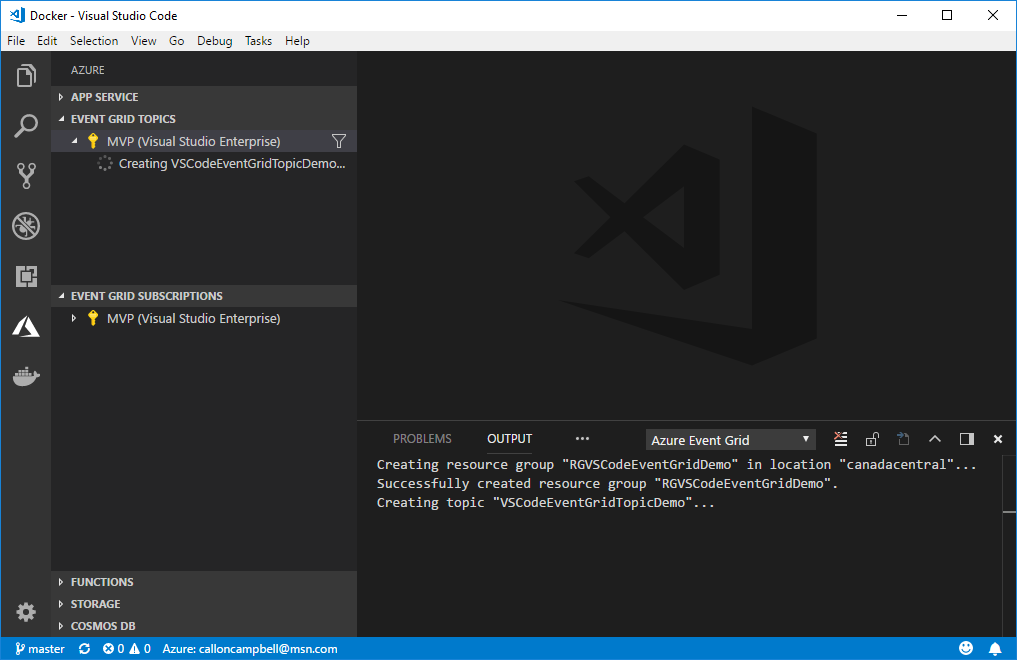
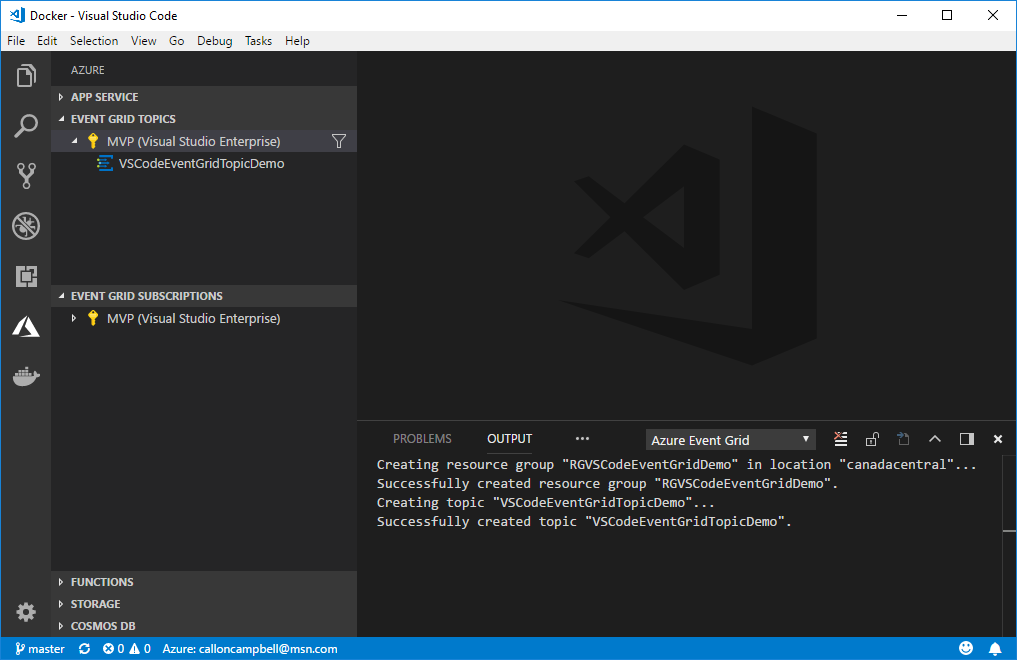
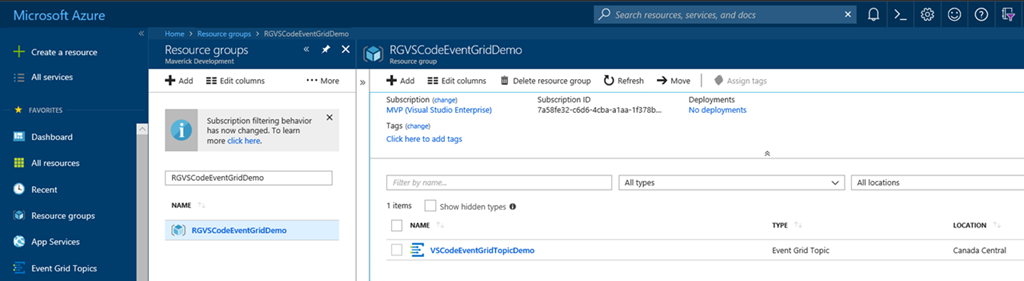
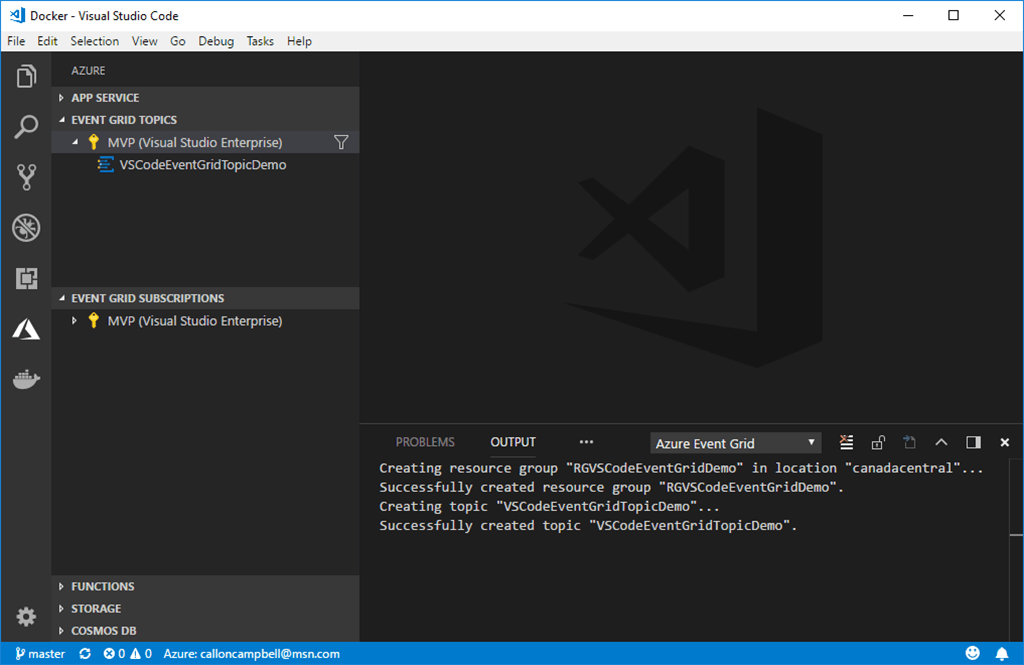
6. Done. In a few seconds your Azure Event Grid will be created and displayed in Visual Studio Code:
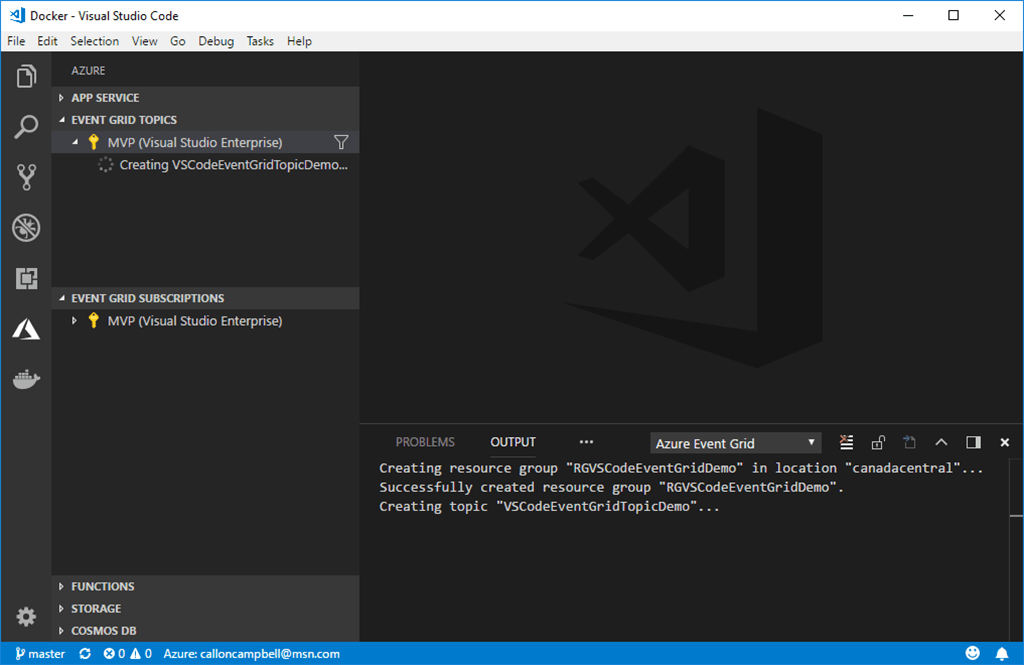
image

image

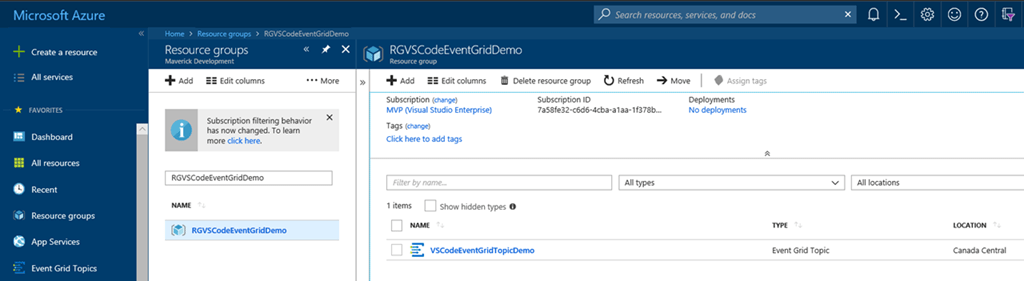
You can login to your Azure Subscription and see everything we just created. Keep your Azure Subscription loaded in the browser as we’ll use it for the next section.
image

Create Event Grid Subscription

Now that we have an Event Grid Topic setup we need to create a subscription to receive the events we send it.

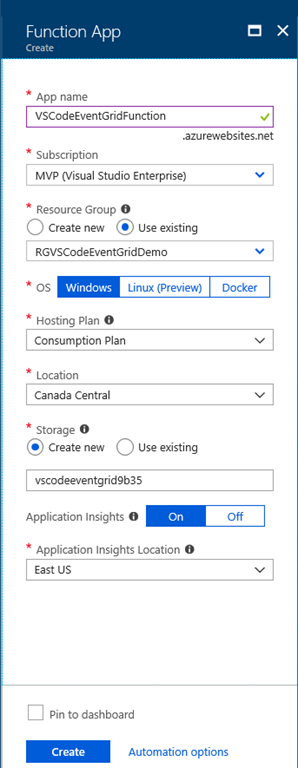
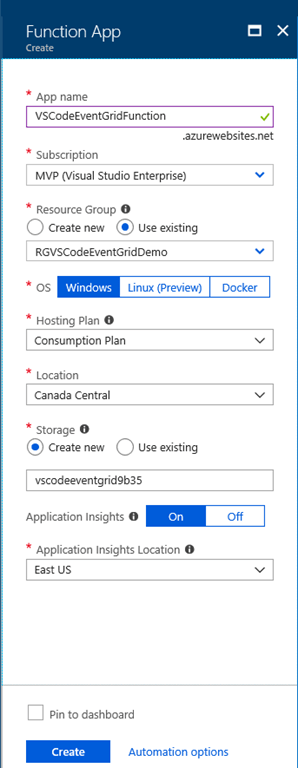
1. Here I will create a new Azure Function app:
image

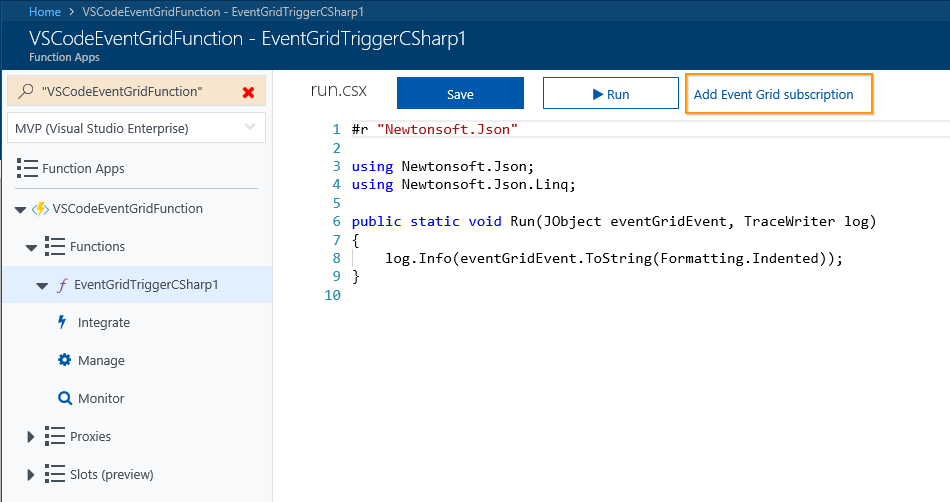
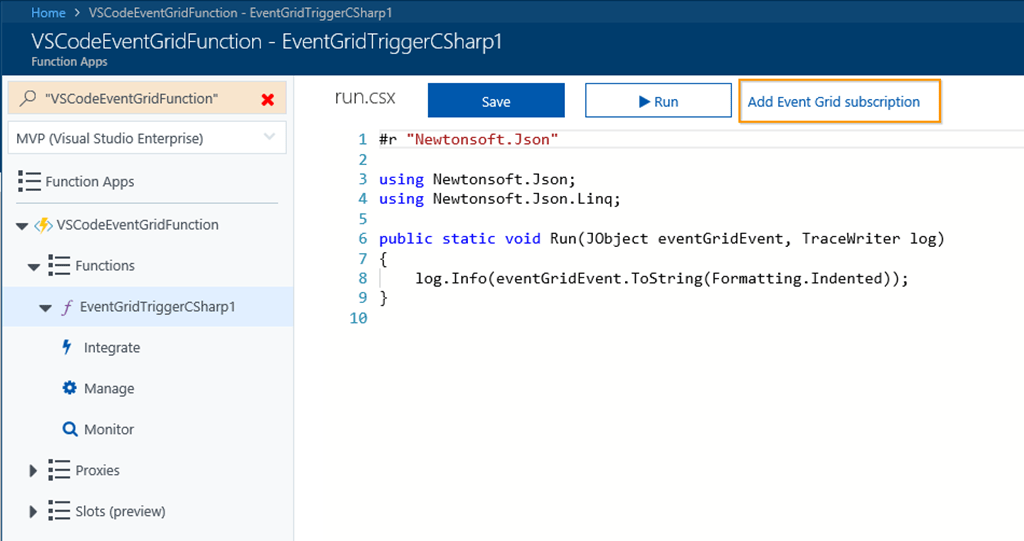
2. Now create a new Event Grid Trigger function and after it’s created click on the Add Event Grid subscription link:
image

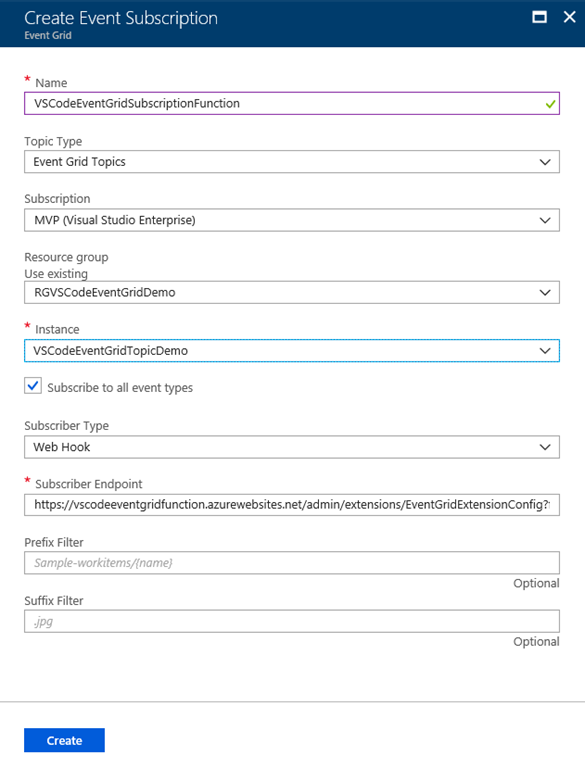
3. Fill in the details relating to the Azure Event Grid Topic we created earlier and then press the Create button:
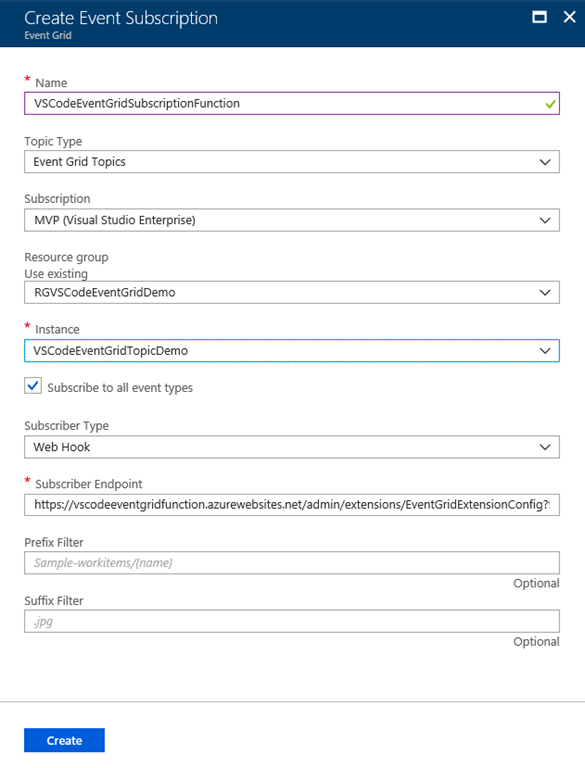
image

Your Event Grid Topic now has an Event Grid Subscription and is ready to test!

Generating Mock Events

Apart from managing your Event Grids resources in Visual Studio Code, you can also generate and send mock events which is great for testing purposes. Instead of using Postman to do this, I find the Event Grid Extension better and mocking and sending events. So let’s get started now mocking some events.

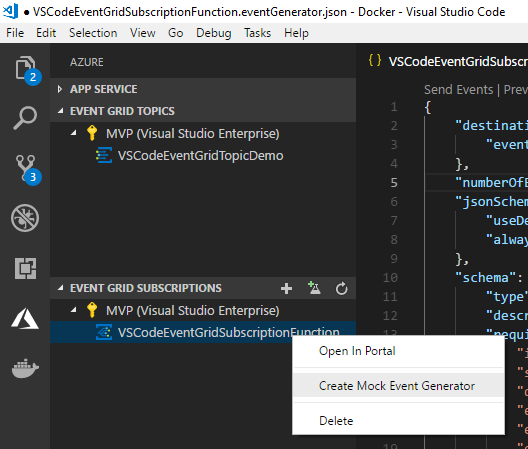
1. To generate a mocked event, right click on your Event Grid Subscription in Visual Studio Code and select Create Mock Event Generator:
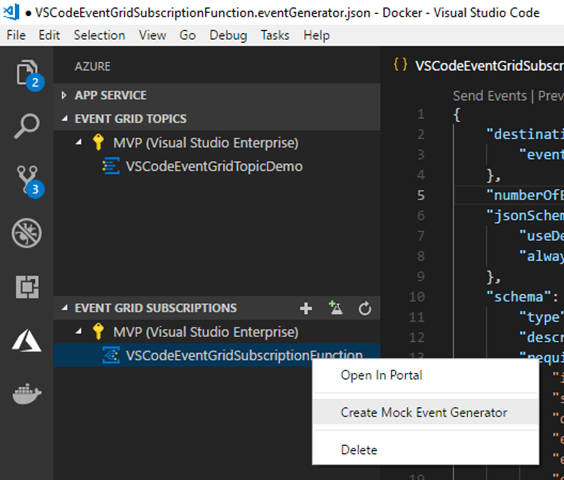
image

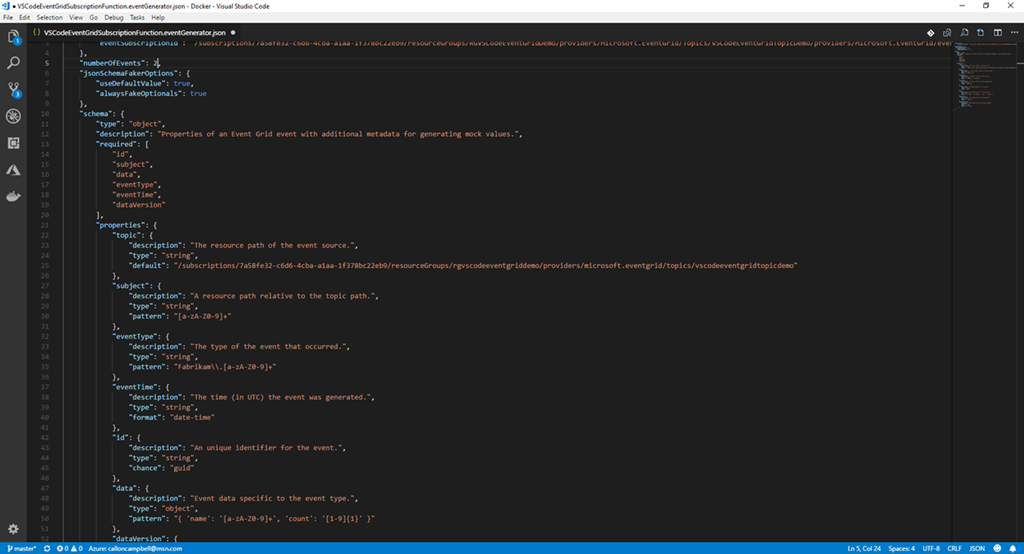
2. A new file will be created with all the details for generating mocked events for this subscription. The pattern property is defined with regex patterns for generating random data. You will noticed I changed the data section pattern value with regex pattern to generate the mocked data for my event:
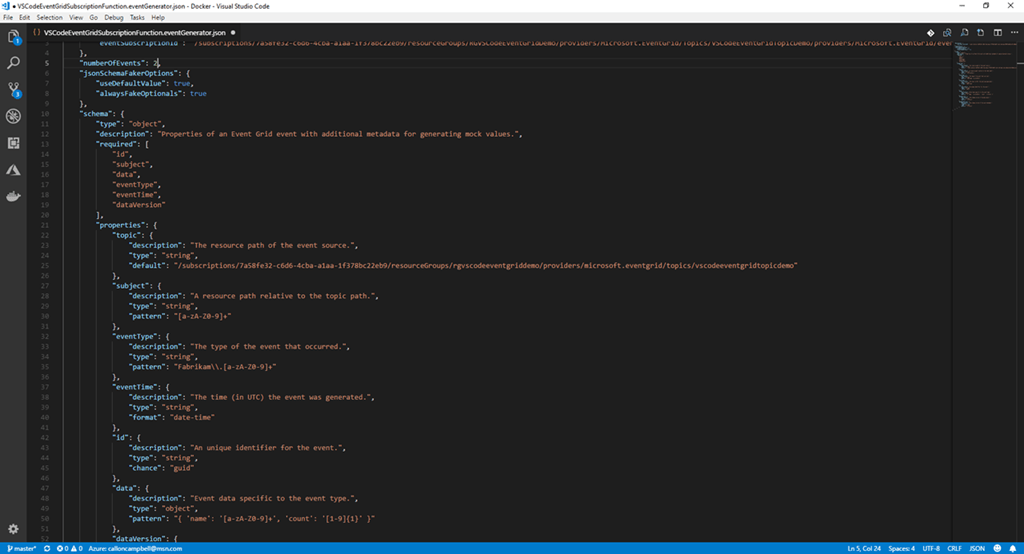
image

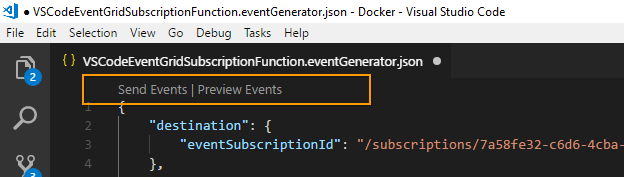
3. At the top of the event generator file will be two links: Send Events and Preview Events. The actions do exactly as they say and are what you want to use when generating your mocked events.
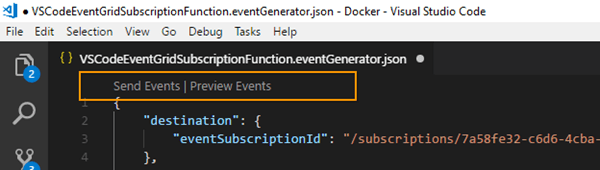
image

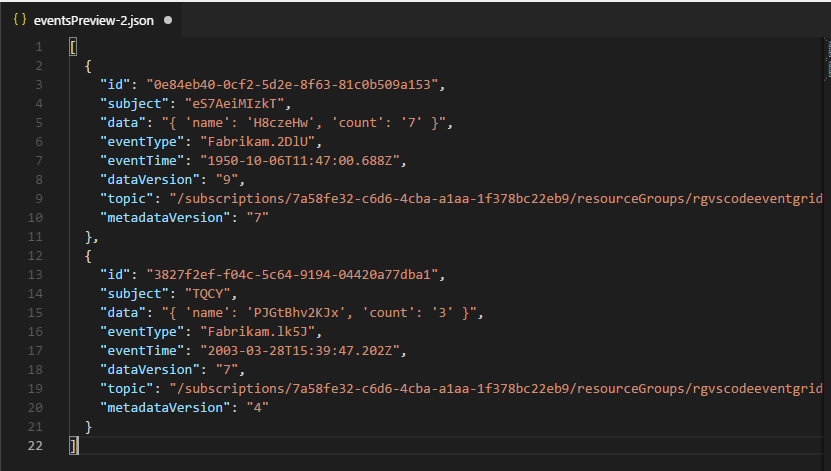
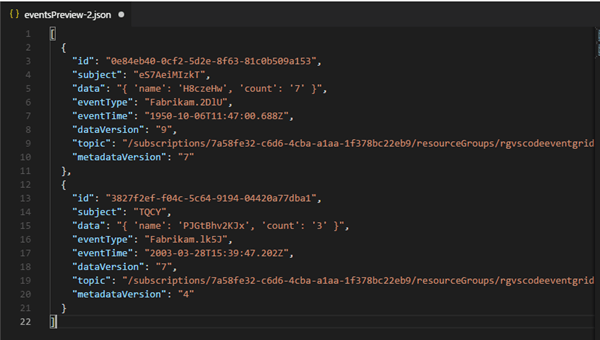
4. If we click on Preview Events, another file is created with a preview of mocked event data to be sent. Notice the different values between the events. This is from the regex logic defined in the event generator. This can be customized to generate data appropriate for your needs.
image

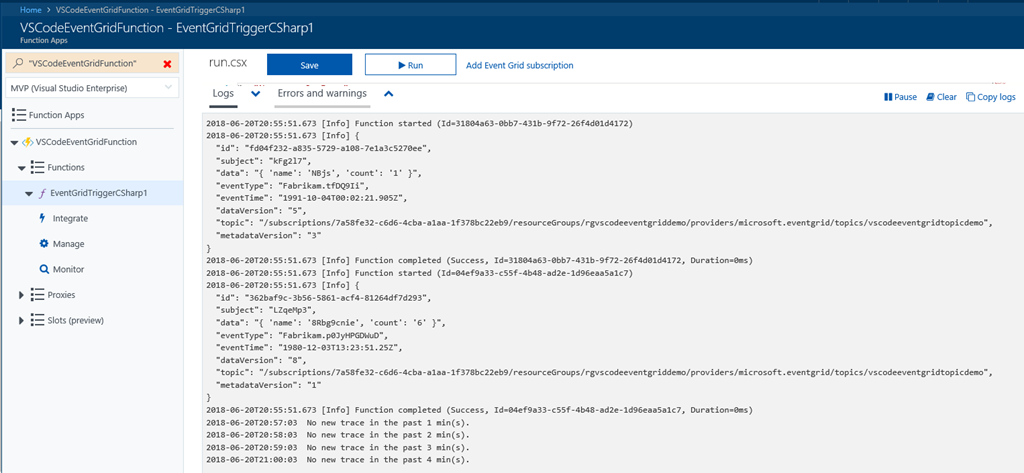
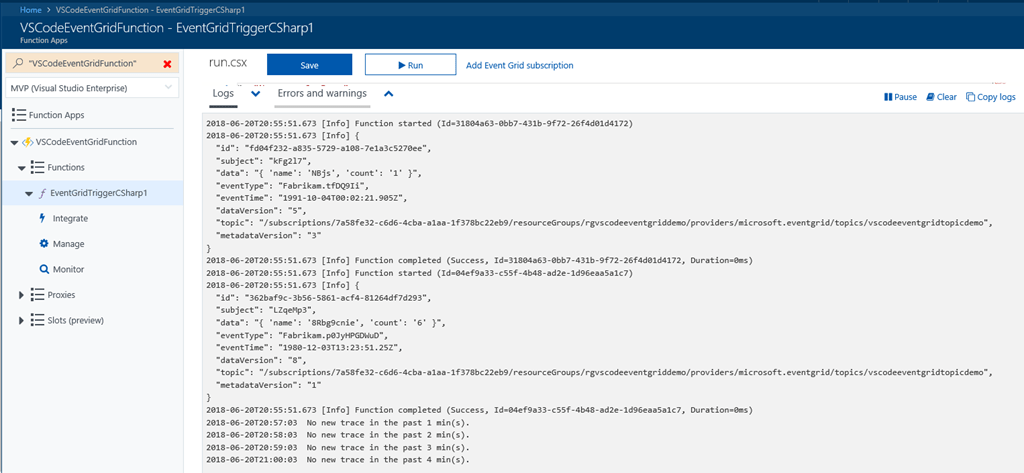
5. Now click on Send Events link at the top of the event generator file and go to your Azure Portal where you previously defined your Azure Function for your Event Grid Topic, and you will see in the logs your mocked events:
sshot-647

As you can see the Azure Event Grid extension for Visual Studio Code is very powerful and is a handy tool to use in your Azure development.
Enjoy!

Reference

Create your free Azure account

Azure Event Grid Overview
Azure Event Grid Documentation
Introduction to Azure serverless with Azure Functions, Logic Apps and Azure Event Grid