AzureDevelopment

How to: Build and deploy an Angular app to Azure using Visual Studio Team Services

This post will guide you on how to build an Angular 4 app using Visual Studio Team Services and then deploy it to an Azure App Service instance.

So let’s review what we’ll need before we begin:

  1. You will be required to have an active Visual Studio Team Services account. If you don’t have one you can signup for free here.
  2. You will also need to have an active Azure subscription. If you don’t have one you can signup for a free trial here.

Now that we have met the requirements, let’s get started.

Create a new build definition

We will start by signing into your Visual Studio Team Services account and then navigating to the Build & Release tab from the top navigation links to create a build. From here we will click on the New button to define a new build definition.

image

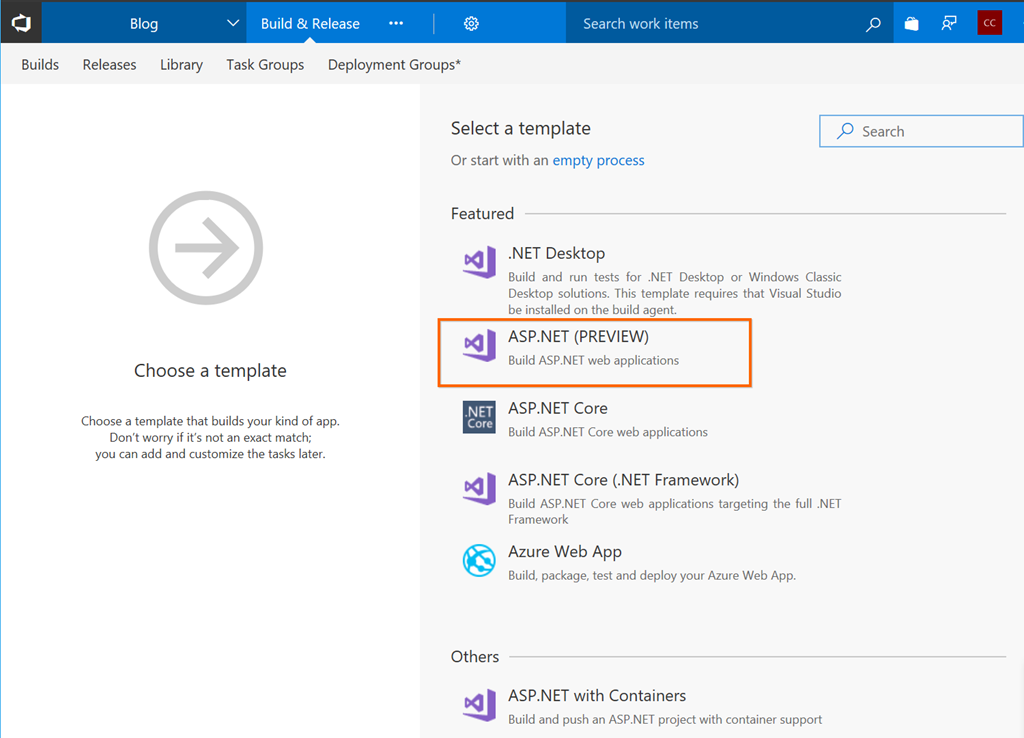
Next you will choose a template to use for your build. There are a lot of build templates so take a look at what’s available and choose what is most appropriate for your needs. If you don’t see what you want, you can always choose the empty template which is what I’m going to do now and then add the necessary build tasks that make sense for you.

image

After selecting the empty template you will want to name your build definition, connect your source code repository (Github, Visual Studio Team Services, other) and then start adding build tasks:

image

Click on the Get sources link on the left side to wire up your source code for the build. In this demo I’m connecting to my personal Github repository:

image

Now that we have our source code wired up, you’re ready to start defining your build tasks.

Defining your build process tasks

Now that we have our build definition configured to our source repository, it’s time to start adding build process tasks. To do this we click on the Add Task button from the left which will then present a listing of available build tasks (some of which are in preview):

image

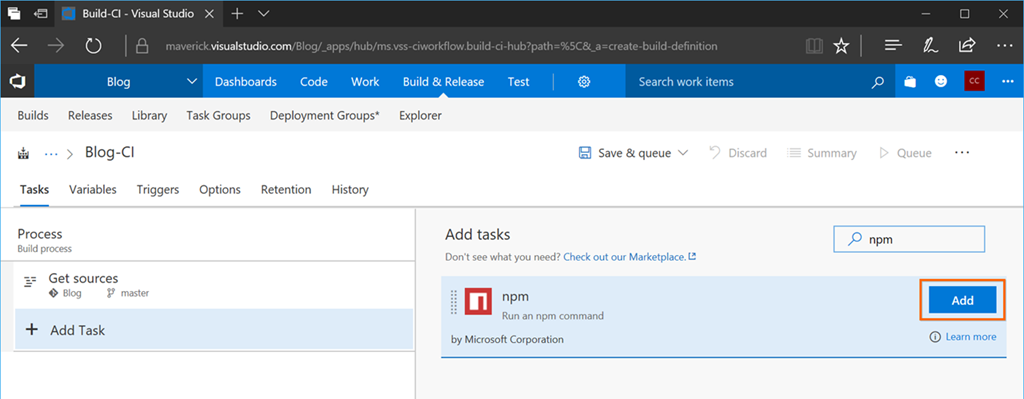
In this post I want to build an Angular app, so I will need to use an npm build task. Using the search box I will type in npm and the listing will then filter out to only show me any npm build tasks. At this time there is one, so I will click on it and then the Add button to add it to my build process:

image

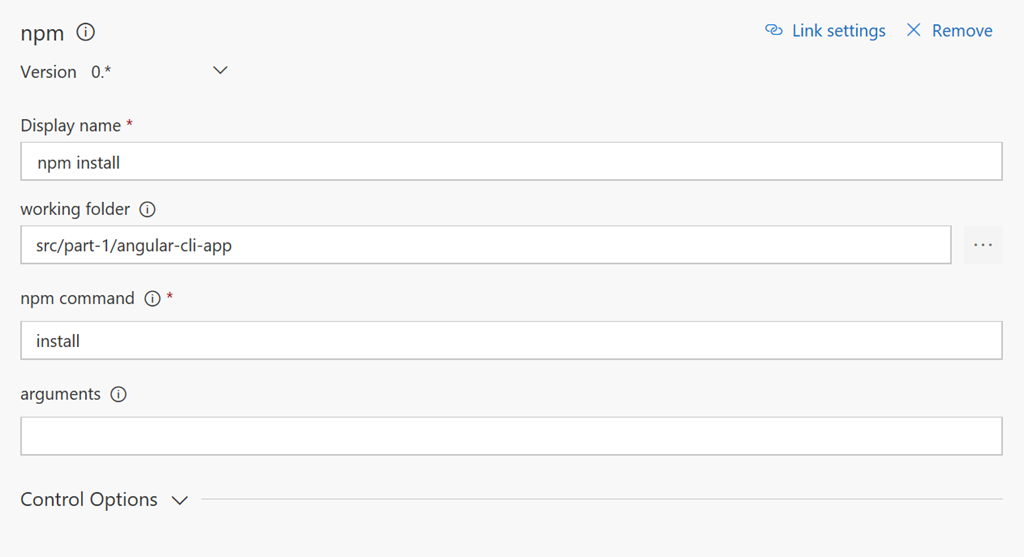
This will be the configuration for our npm install task:

image

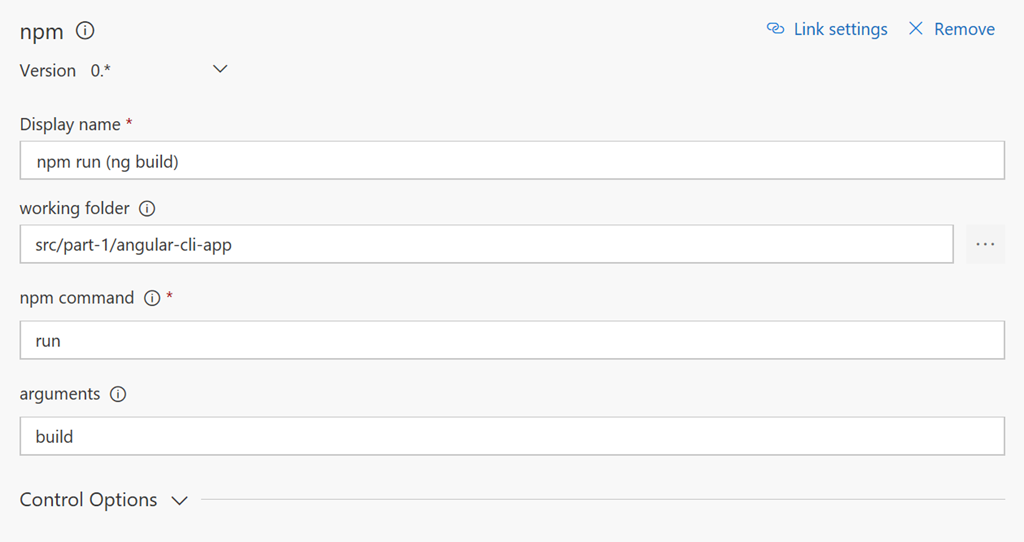
Next we will need to add another npm build task for running the Angular CLI build command ng build. This will be the configuration for our npm run task:

image

At this point our build is installing all necessary npm packages and then running an npm command to build the Angular app. Once the app is built, I like to archive the build artifacts in a ZIP file. This will be our configuration for our archive files build task:

image

Finally we will deploy our app to an Azure App Service instance. To do this you will want to have your Azure App Service already pre-configured. You can checkout this post for details on creating an Azure App Service.

This will be our configuration for our Azure App Service Deployment build task. There are 3 settings you need to set:

  1. Select you Azure subscription
  2. Select your App Service name
  3. Select the package or folder you wish to deploy

image

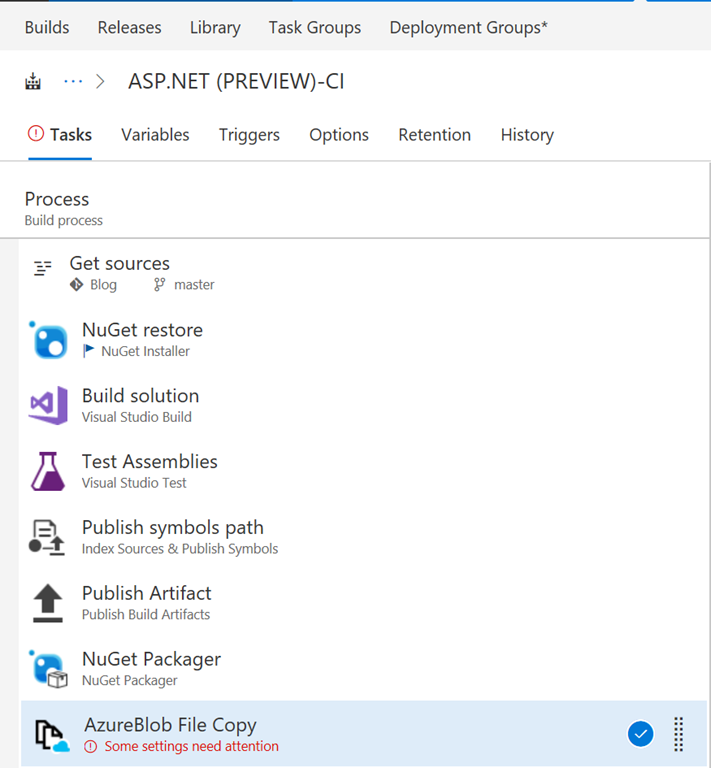
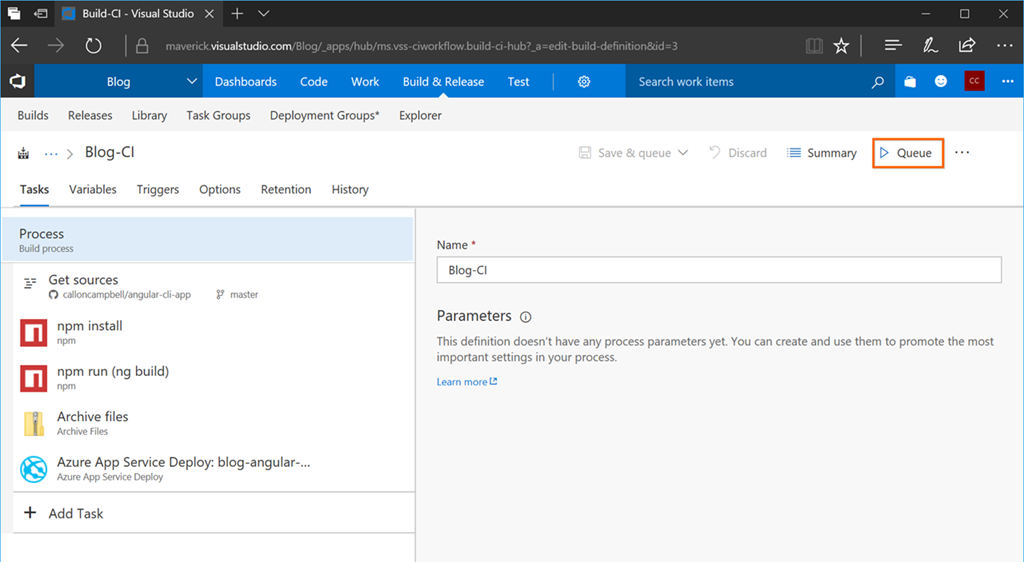
Here is a review of the build tasks we created above:

image

Queue a new build

Once we have our build process defined we can kick off a new build by clicking on the Queue button on the top toolbar:

image

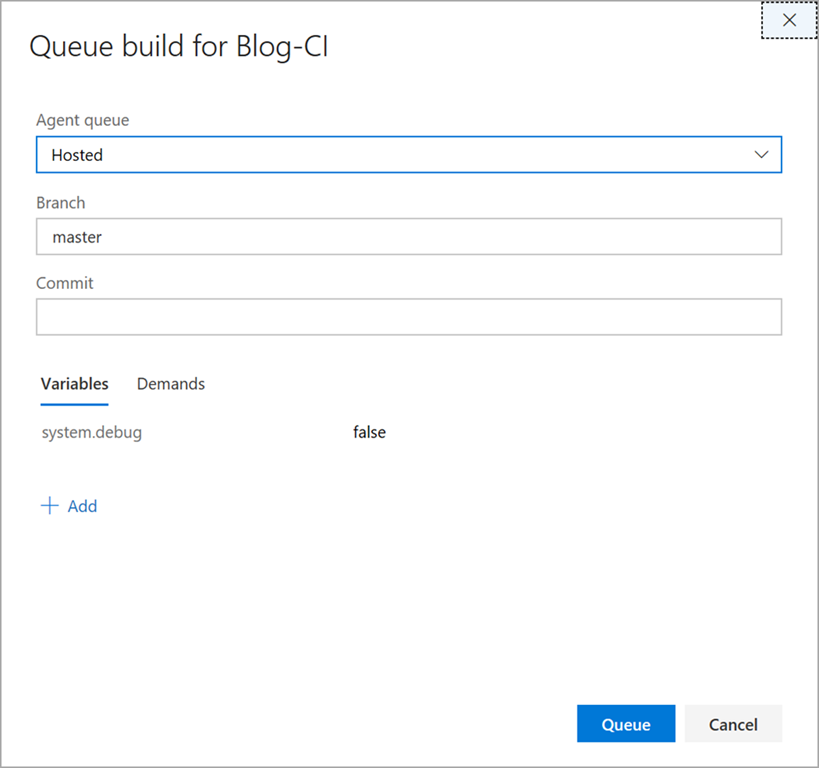
This will being up the queue build modal where you can define the agent queue to use, the branch to build or a specific commit along with defining build variables, etc. I will select the Hosted agent queue and my master branch. I will then click on the Queue button to initiate the build:

image

For more information on the differences between the hosted agents, checkout this link for further details.

You should now notice that your build is now queued:

image

Viewing your build process

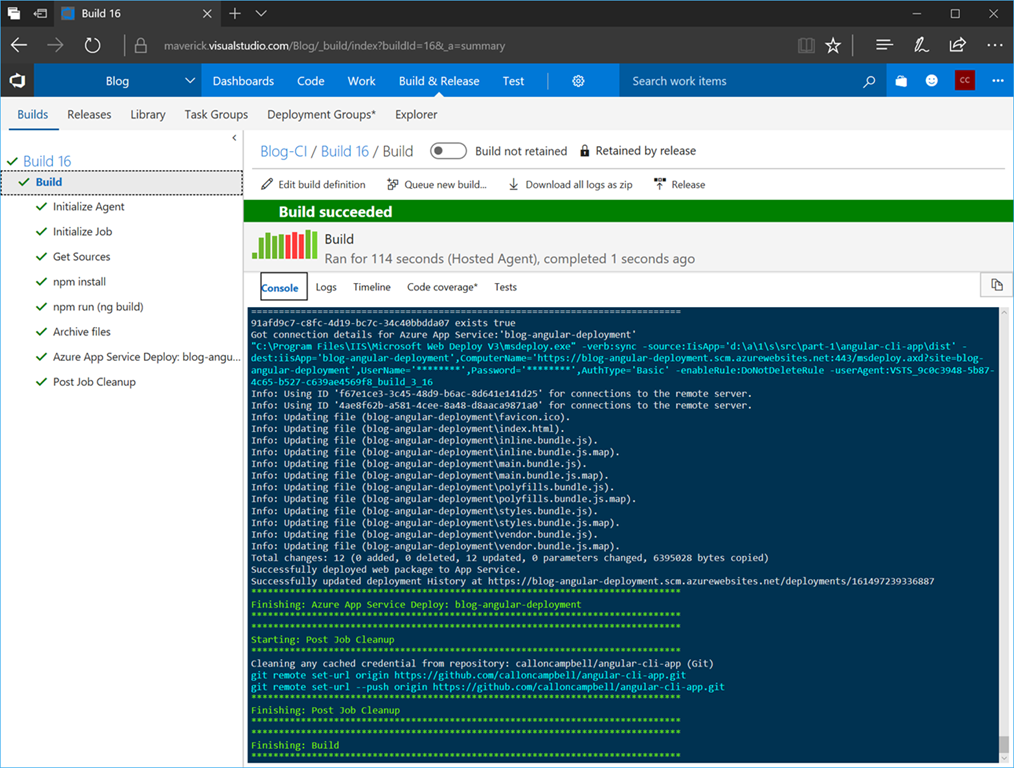
You can click on your build at anytime and see detailed output for what is happening during the build process along with view and/or download detailed log files:

image

Voila, our build is now finished:

image

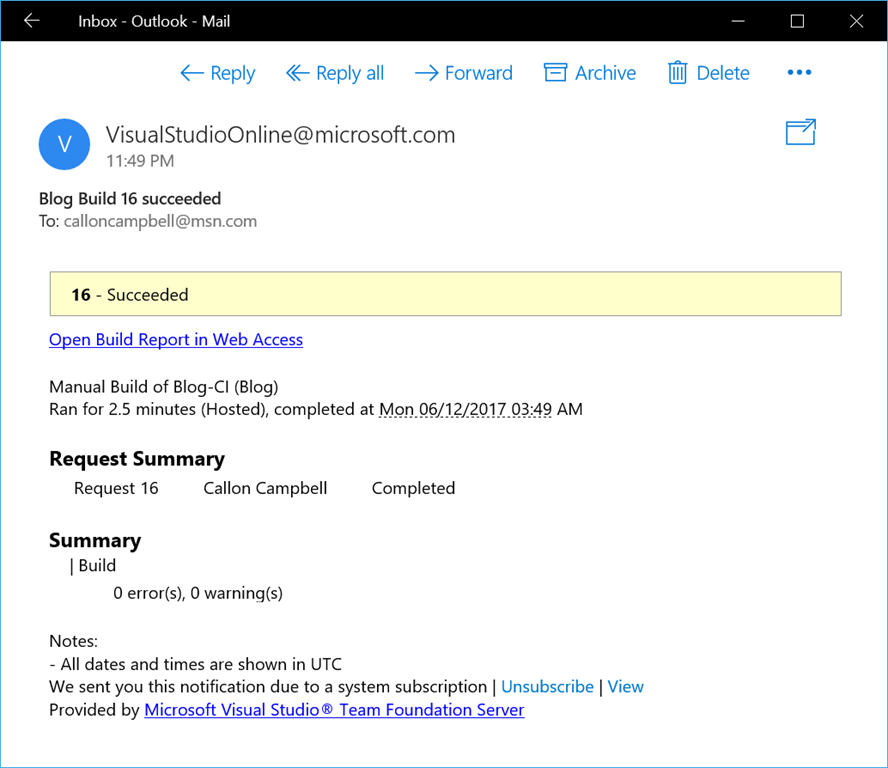
Visual Studio Team Services build can also be configured to send out an email when builds succeed and/or fail:

image 

Now that I have a successful build, lets browse and take a look at our deployed Angular app: http://blog-angular-deployment.azurewebsites.net/ .

Wrap up

I hope this post helps your build and deploy your Angular apps to Azure. As you can see it’s very straight forward to setup and requires no build infrastructure on your end to make it happen.

Enjoy!

References

Azure free trial

Visual Studio Team Services

Build and release tasks

Hosted agents

Angular

Angular CLI

Uncategorized

#CognitiveServices – How to create audio files for Custom Speech Service (#CRIS)

elbruno's avatarEl Bruno

Hello!

A few days ago I was asked about an easy way to create audio files to be used as datasets in Custom Speech Service (CRIS). As I mentioned in a previous post, the audio files must have special features, so it is important to create them correctly.

Note: the files are WAVs files, mono and another pair of details makes it not easy to create them in a single step.

Although there are several ways to create these files, this is the one I use and it works.

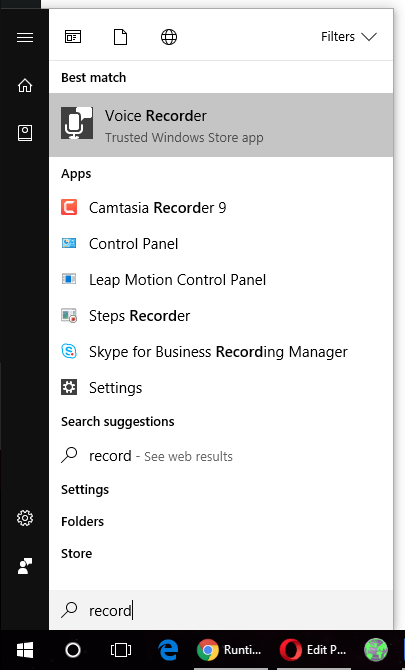
  • To record the audio I use an app that comes by default in Windows: Voice Recorder

Clipboard02

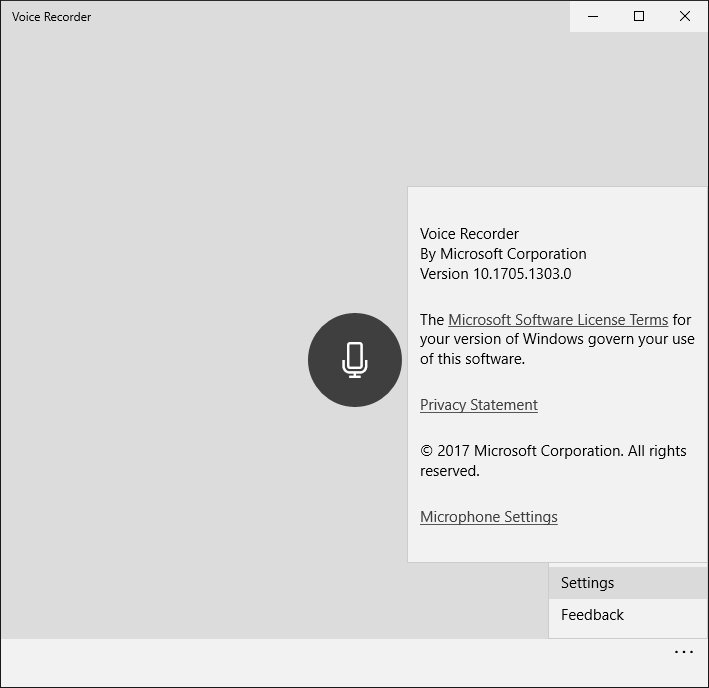
  • I guess I don’t need to explain how the app works. Just press the microphone button. Nor do we expect many options in the Settings section.

Clipboard03

  • Once we have recorded a session, we can access the list of recordings. If we see the record path…

View original post 186 more words

Uncategorized

CosmosDB: The New DocumentDB NoSQL Database in Microsoft Azure

Chris Pietschmann's avatarBuild5Nines

DocumentDB has been around for awhile now in Microsoft Azure. It’s a Document based, NoSQL database in the cloud. There’s been tons of advancements to the service over time, including MongoDB API support so you can use it in place of MongoDB for existing code bases. It’s always been called “DocumentDB” since initial release of the service, but for a time it was labeled as “NoSQL (DocumentDB)” in the Azure Portal. It seems there was some indication that Microsoft wasn’t happy with the name they first chose.
Today, we wake up in the morning to updates that have been made to the Azure Portal where DocumentDB is no longer there. Well, it actually is there, but has undergone renaming / rebranding. From this day forward, DocumentDB will no longer be called DocumentDB. Instead we will call this NoSQL, Document based database service….. Azure Cosmos DB.

From this day forward, DocumentDB…

View original post 388 more words

Azure

Tips to managing your Azure subscription

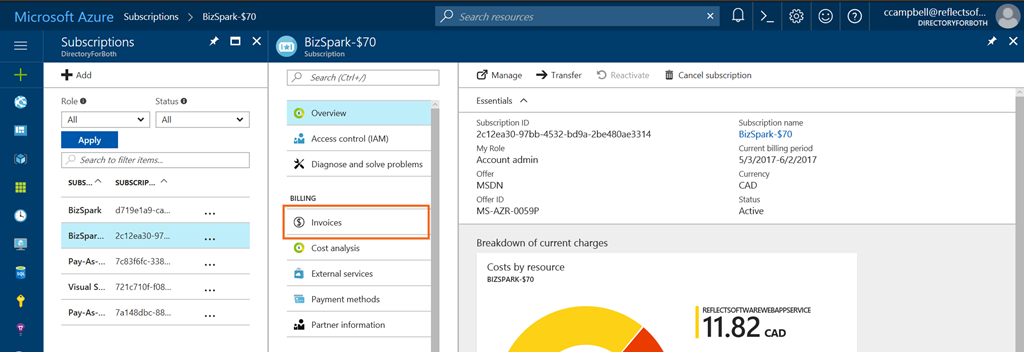
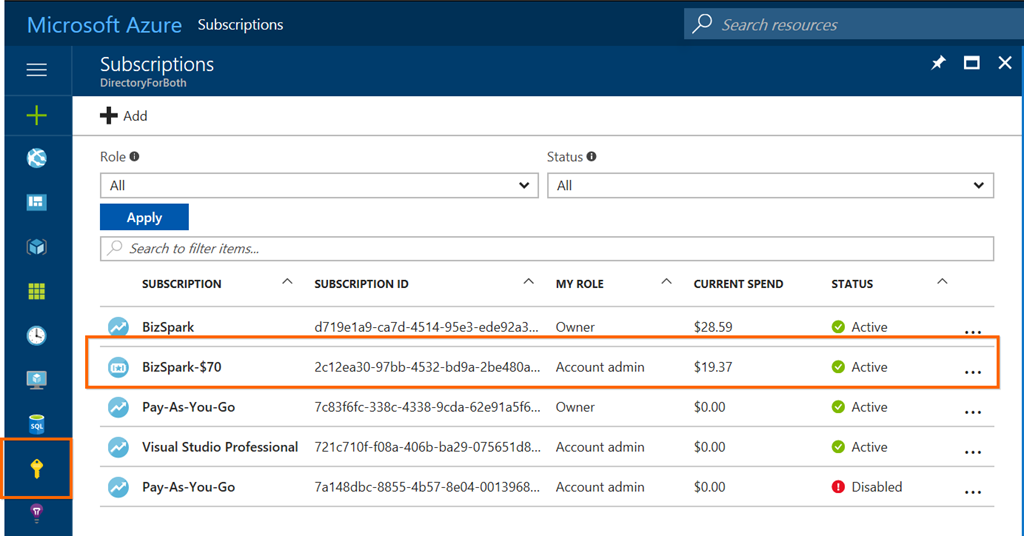
The following are a few tips for managing your Azure subscription. Start by navigating to the Subscription blade and then click on a Subscription you wish to manage:

image

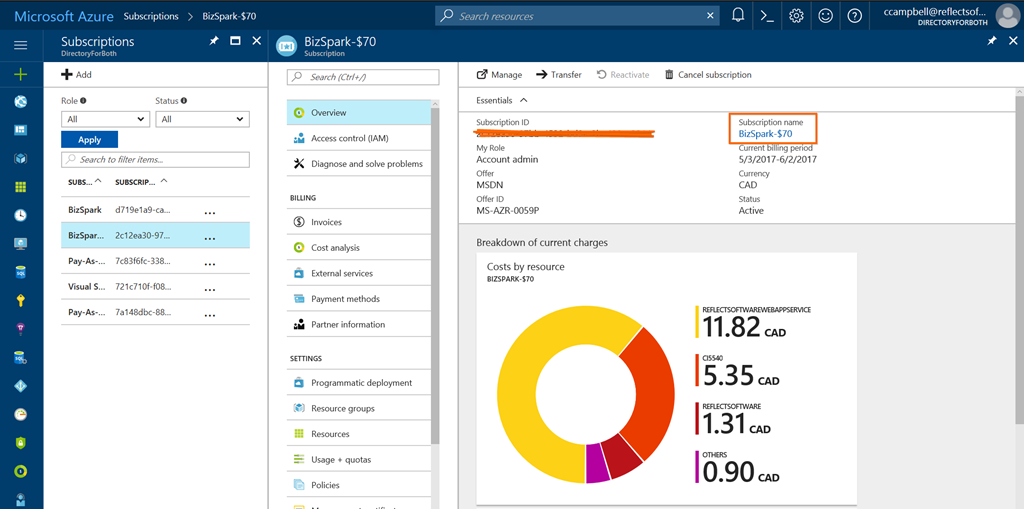
From here you have a clear overview of your Subscription ID and the current spending with a breakdown by resource.

Renaming your subscription

To rename your Subscription, in my case I want to change it from “BizSpark-$70” to “MSDN-Professional-$70” as that is a new MSDN subscription I purchased and changing the name properly reflects that subscription and the Azure credits associated with it.

To rename the Subscription, click on the Subscription name:

image

You can now enter in a new Subscription name and when you’re done click on the Save button. The subscription name change can take up to 10 minutes to be reflected on the Azure portal.

image

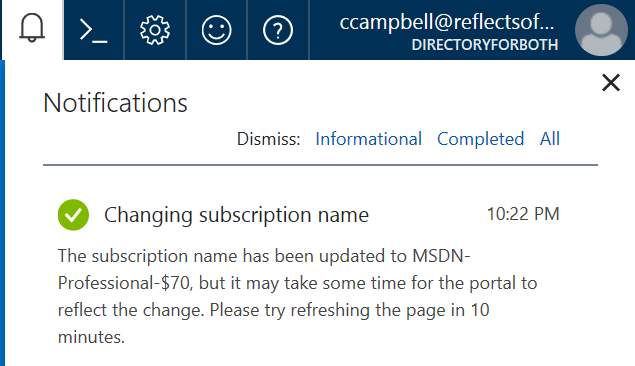
After the subscription has successfully been renamed, you’ll receive an alert:

image

Configuring email invoices

The Azure portal recently allowed you to opt in and configure email invoices. This means instead of receiving an email each month that your invoice is ready which required you to login to the Azure portal, now you can have the invoice emailed to you instead, which is awesome!

If you haven’t already setup email invoices, from the Azure Subscription blade, click on Invoices:

image

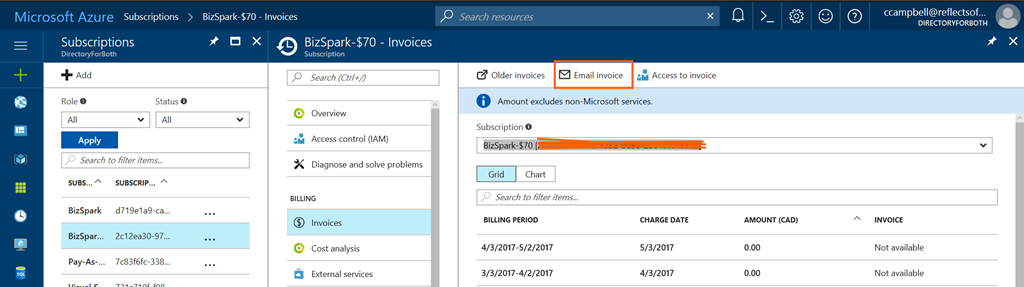
From the Invoices blade, you can now click on the Invoices button and then from here you can opt-in and configure it:

image

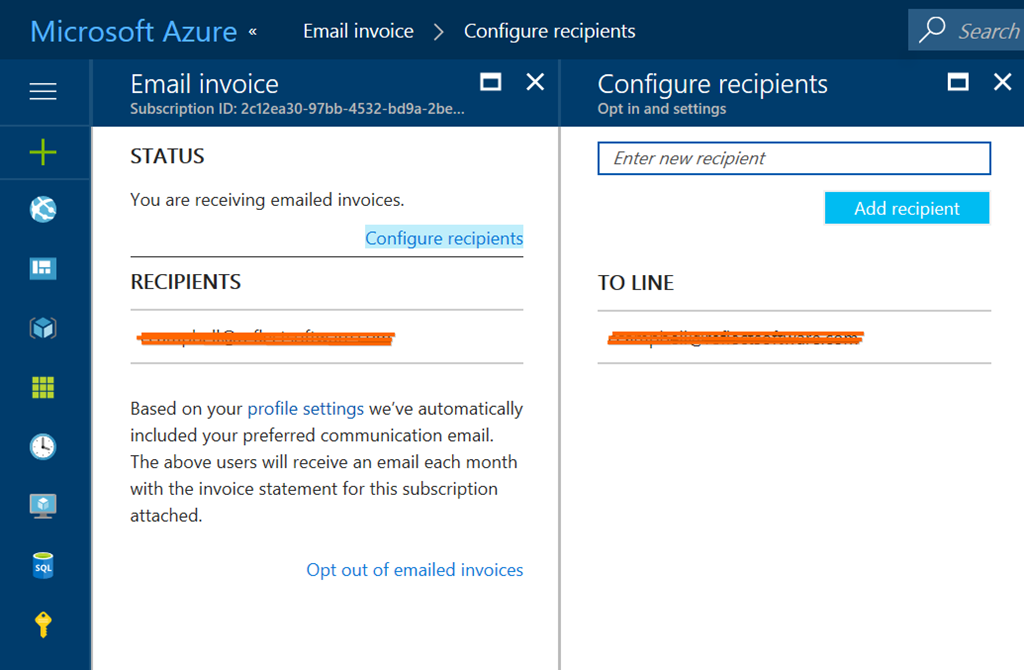
If you already opted in, you can review your current configuration and also configure the list of recipients (maybe you want the invoice sent to your accounting department also). When done, click the Done button at the bottom:

image

Enjoy!

Resources

Azure Portal

DatabaseDevelopment

SQL Server Management Studio 17.0

There is a new release of SQL Server Management Studio (SSMS) now available – version 17.0. It feels like yesterday when SSMS 16 was released (June 2016). I’m not going to complain as it’s refreshing to see such the constant updates to SSMS now that it’s not tied in with the database engine installer.

To get the latest version, head to the download page and install the web-installer. SSMS 17 will install side-by side with previous versions of SSMS.

This latest release includes a lot of new functionality, namely with support for connecting to SQL Server on Linux. Please see the full SSMS changelog for a complete listing of enhancements and bug fixes. Sadly this release still doesn’t support the Dark theme. Hopefully this is something they add in a future release.

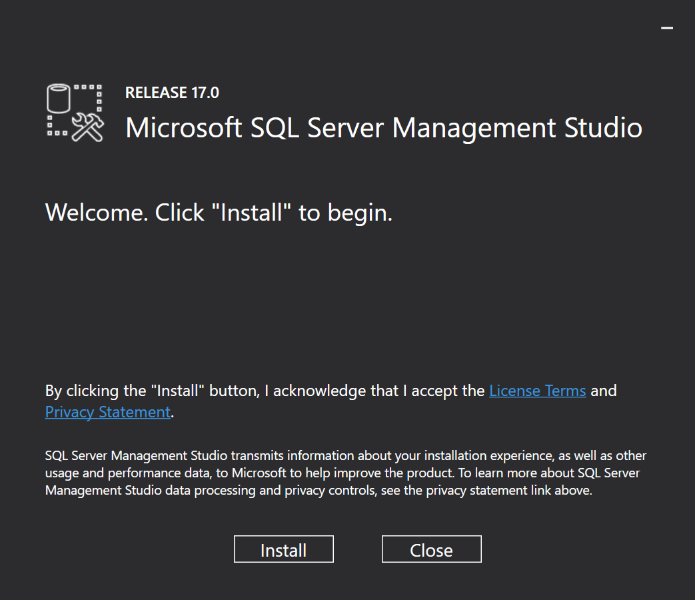
Installing SSMS 17:

sshot-280

Updated splash screen:

image

SSMS 17 icons have been updated to be consistent with VS Shell provided icons and support High DPI resolutions:

sshot-284

One of the nice additions to this release is the inclusion of “Presentation Mode”. There are 3 new tasks available via the Quick Launch (Ctr-Q):

  • PresentOn – Turns on presentation mode where the editor and environment fonts are larger
  • PresentEdit – Allows you to edit the presentation font sizes
  • RestoreDefaultFonts – Reverts back to the default settings

If you  are familiar with these commands in Visual Studio then you will  notice that there is currently no PresentOff command. Use RestoreDefaultFonts to turn off Presentation Mode.

Enjoy!

References

Download SSMS
Download SQL Server Data Tools (SSDT)
SSMS Changelog
SSMS Release Notes

Azure

Azure Functions Updates

New Release of Azure Functions

A new release of Azure Functions is now available, version 1.0.10917. The main things in this release are:

  • Application Insights integration (Preview)
  • Native TypeScript support (preview)
  • Improvements to binding extensibility for binding authors
  • JavaScript transpiler API/extension model
  • Miscellaneous bug fixes and improvements

New Experience for Azure Functions

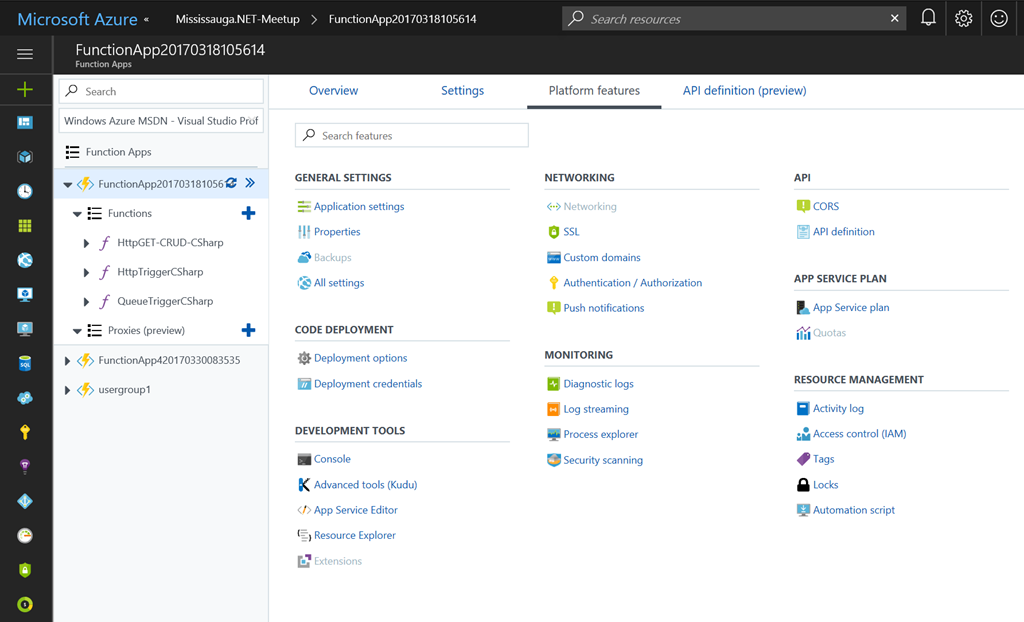
The Azure Functions portal was also completely re-vamped with a new UI experience. Some of the improvements are:

  • A dedicated browse blade for Function Apps.
  • A tree view that allows viewing and managing multiple Function Apps
  • Filters on subscription and app name, as well as an option to scope the view to just one app
  • One-click access to all App Service platform features
  • A convenient way to manage features that have already been configured
  • Overall UI enhancements to be more consistent with the rest of the Azure portal

image

You can read more about the portal changes in the announcement blog.

Enjoy!

References

https://blogs.msdn.microsoft.com/appserviceteam/2017/05/01/april-2017-app-service-update/

Azure

Azure Functions now with Application Insights integration

Earlier this month Azure Functions was updated to have direct integration with Application Insights and is currently only available on the “beta” version of Azure Functions. At this time it’s recommended to only try this out in non-production Azure Function apps until it’s a more stable release.

Getting Started

Before we can enable Azure Function Application Insights integration, we will need to setup an Application Insights instance. If you already have one skip to the next step.

  1. Create an Application Insights instance and Application Type should be General. Once your Application Insights is setup, copy the instrumentation key which we’ll need in the next step.
    image
    image
  2. Next you will need to update your Azure Function Application Settings to configure your function to run under the “beta” version and then to set your Application Insights Instrumentation Key.image
  3. Now go to Application Settings and then update App Setting “FUNCTIONS_EXTENSION_VERSION” from “~1” to “beta” and then add a new key named “APPINSIGHTS_INSTRUMENTATIONKEY” and set the value to the Application Insights Instrumentation key you copied in step 1. Now click Save to update your Azure Function.
    image 

Once this is done, your Application Insights instance will start collecting telemetry from your Azure Function without any code changes.

Using Application Insights

Going to your Application Insights, you can start to see some metrics showing up on the overview blade:image

Live Metrics Stream

You can get a lot more insights to real-time telemetry from the Live Metrics Stream to see what’s happening right now:
image

Analytics

Another great resource of Application Insights is the Analytics portal, which provides you the ability to write your own custom queries.
image

Alerts

The previous two options are great to see what is happening or what happened historically, but Alerts will tell you what’s happening. I suggest you checkout Alerts from the Application Insights blade, where you can define alerts based on a wide array of metrics.

image

Summary

You can now add Application Insights to your Azure Functions with minimal effort, which is a powerful tool for monitoring your applications. Keep in mind that this is currently only available in the “beta” version of Azure Functions, but is something that should be coming to the production release in the near future now that it’s been merged into the develop branch on github.

Enjoy!

References

Azure Functions integration with Application Insights

Azure Functions now has direct integration with Application Insights

Application Insights

Live Metrics Stream docs

Uncategorized

Using Azure Storage Queues from .NET

Chris Pietschmann's avatarBuild5Nines

Azure Storage Queues provide an easy to implement messaging communication mechanism for reliably passing messages to/from different components of a single application or multiple applications. Storage Queues have an HTTP/HTTPS API to allow for support of any development platform; however, Microsoft does provide a .NET SDK to make it even easier to implement from C# or other .NET languages.

View original post 419 more words

Uncategorized

Intro to Azure for Developers FREE Webinar On-Demand from Opsgility

Unknown's avatarBuild5Nines

The other day I hosted a FREE Webinar with Opsgility that provides an Introduction to Azure for Developers. In this webinar I went over an introduction to what IaaS, PaaS, and SaaS are. Then I dove into the Azure Portal and showed how to create IaaS (Infrastructure as a Service) VMs with Windows and Linux, as well as how to remote into those VMs with Remote Desktop and SSH; respectively. I also went into deploying a Web Application into an Azure Web App PaaS (Platform as a Service) service directly from within the Visual Studio IDE, and I even showed how you can easily deploy a website directly from Github into an Azure Web App as well! I also discussed Azure SQL Database (“Database as a Service”), as well as a few additional services and features.

I encourage you to watch the entire webinar recording to see the whole demo…

View original post 25 more words