Category: Database

DatabaseDevelopment

Including Data in a SQL Server Database Project

The other day I found myself looking at how I can include reference data in a new database as part of my SQL Server Database Project. Typically for my existing databases, I’ve just create post-deployment scripts to add/update/delete reference data as needed with each release. However with my new database, I have a number of tables and rows in each that I’ll need to deploy the first time.

The first option that comes to mind would be that I can do this as per usual and create a v1.0 script to populate the data, but I thought there should be a better way to maintain and deploy this data. What if it ever changes and I need it updated? I’ll then have to script specific post-deployment scripts. Not ideal.

I did a little searching and came across this old post on the SQL Server Data Tools Team Blog for Including Data in SQL Server Database Projects. This seems like a great option, but I already see there are a number of people complaining that this isn’t good enough and I would agree. I also have the added annoyance that I’m still stuck using SQL Server 2005, so the MERGE option isn’t even an option for me.

Further research shows another post on how to Mimic MERGE with the OUTPUT statement in SQL Server 2005. This looks like it will work for SQL Server 2005, but makes things more complex in my opinion. I really just want to declare in my database project the values the table should have on deployment and then let the build and deployment process determine what needs to be done.

I think for now I’ll stick with my first option and create an initial v1.0 post-deployment script. I’ll then take a look at what comes in Visual Studio 2013 later this year and if there are new options for addressing this issue.

We are moving to SQL Server 2012 by year end, so I can at least migrate to doing the MERGE approach at that time if there is nothing else available.

I hope this helps others in the same situation.

Enjoy!

DatabaseDevelopment

Announcing SQL Server Data Tools – June 2013

This week we saw another update to the SQL Server Data Tools (SSDT). This release introduces several new features.

What’s New

  • Data Compare
  • Extensibility
  • Build and Deployment Contributors
  • Schema Model Navigation and Extensibility API
  • Updated Date-Tier Application Framework

Download it Now

http://msdn.microsoft.com/en-us/data/hh297027

References

http://blogs.msdn.com/b/ssdt/archive/2013/06/24/announcing-sql-server-data-tools-june-2013.aspx

DatabaseDevelopment

Using SQL Server Data Tools for Connected Database Development

Great post on doing connected database development with SQL Server Data Tools (SSDT). Please see my previous post on getting started with SSDT.

Read more…

Enjoy!

DatabaseDevelopment

Getting Started with SQL Server Data Tools (SSDT)

Great post on getting started with SQL Server Data Tools.

Read more…

Enjoy!

DatabaseDevelopment

SQL Server Data Tools–December 2012 Update is now available

New updates are now available for SQL Server Data Tools (SSDT). The latest update is called SQL Server Data Tools – December 2012. You can get the update from here:

SSDT for Visual Studio 2012: http://msdn.microsoft.com/en-us/jj650015

SSDT for Visual Studio 2010: http://msdn.microsoft.com/en-us/jj650014

As posted on the following blog post, here is a recap of what’s new:

“What’s New?
Database Unit Testing

We have received an overwhelming amount of feedback that database unit testing is a critical feature for customers, so SSDT- December 2012 adds support for this feature. Database Unit Testing in SSDT will look familiar to many of you as it is based on the equivalent capability in the Visual Studio 2010 DB Pro tools. Some highlights:

  • Installs in Visual Studio 2010 or Visual Studio 2012:
    • Requires Visual Studio Professional or higher edition to support database unit testing functionality.
    • Installs side-by-side with existing Visual Studio 2010 DB Pro tools in Visual Studio Premium and Ultimate editions.
  • Supports client-side testing based on MSTest with the same built-in test conditions as DB Pro.
  • Allows desktop development and execution of tests as well as execution from the command line or as part of a build on a build server.
  • Upgrades existing VS 2010 test projects without change to the database unit test scripts or code.
  • Integrates with SSDT SQL Server database projects:
    • Automates deployment of the database project on test initialization.
    • Generates skeleton test scripts for stored procedures, functions and triggers via SQL Server Object Explorer.
    • Applies changes to test scripts when refactoring objects in database projects.
  • Supports custom test conditions (existing custom test conditions need to be modified before they can be used).

Stay tuned for a follow-up post on getting started with SQL Server database unit testing.

Integration of SSDT Power Tools

The SSDT team started releasing SSDT Power Tools last April as a mechanism to deliver new and experimental features with each release. Since then, the Power Tools have been downloaded over 24,500 times.

We received a great deal of positive feedback on the Power Tools and as a response, this release integrates the functionality previously delivered via Power Tools into the core SSDT product. The advantage of product inclusion is that a separate install will no longer be needed and that features are now fully supported and available to users in all languages. The following features are now included in SSDT’s SQL Server Object Explorer:

Projects node adds the equivalent of Schema View to SSDT. You can use this node to browse the logical schema of your project and to edit, refactor, and add new objects.

Script As support in SSOX enables you to generate Create, Alter, Drop, and Drop and Create-To scripts for objects in your connected database.

DAC actions allow you to perform similar DAC-based tasks in SSDT to those available in SSMS. You can extract a dacpac from a live database, publish a dacpac to a database, register a database as a DAC, or remove the registration metadata for a database registered as a DAC. These actions are supported for both on-premises SQL Server databases as well as Windows Azure SQL Databases.

clip_image003

We recommend that you uninstall the SSDT Power Tools extension if you had it previously installed.

Updated Data-Tier Application Framework

This release includes the November 2012 release of SQL Server Data-Tier Application Framework (DACFx), which contains several feature enhancements and bug fixes. You can learn more about the latest release of DACFx here.

Bug fixes

SSDT – December 2012 contains over 50 bug fixes, including fixes for customer-reported issues from SSDT – November 2012 and SSDT Power Tools releases.”

DatabaseDevelopment

SQL Server Data Tools – September 2012 update is now available!

New updates are now available for SQL Server Data Tools (SSDT). The latest update is called SQL Server Data Tools – September 2012. You can get the update from here:

SSDT for Visual Studio 2012: http://msdn.microsoft.com/en-us/jj650015

SSDT for Visual Studio 2010: http://msdn.microsoft.com/en-us/jj650014

As posted on the following blog post, here is a recap of what’s new:

“What’s New?

Visual Studio 2012

In keeping with our goal of supporting the most recent version of Visual Studio, this release of SSDT supports the Visual Studio 2012 shell. SSDT – September 2012 contains several bug fixes to the SSDT version that shipped in Visual Studio 2012 and this release can be applied as an update on top of Visual Studio 2012 Professional, Premium, and Ultimate Editions. If one of these SKUs is not present on the box, running the SSDT installer for Visual Studio 2012 will lay down a standalone version of SSDT for the Visual Studio 2012 Integrated Shell.

Keep in mind that the underlying engine and functionality for SSDT – September 2012 is the same for both Visual Studio 2010 and Visual Studio 2012, so you don’t need to upgrade to Visual Studio 2012 to use the latest version of SSDT. If you wish to have both shells of SSDT in your environment, they can exist side by side and SSDT projects will successfully round-trip between both shells.

LocalDB Configuration Improvements

We received feedback that SSDT’s policy of creating a new localdb instance for each SSDT solution was too verbose, so we created a single localdb instance called Projects to host all the project debug databases. We’ve also enhanced SQL Server Object Explorer by surfacing the default localdb instance and enabling the deletion of localdb instances.

Support for ANSI_NULLS and QUOTED_IDENIFIER Properties

In previous releases, SSDT didn’t support database objects with non-standard ANSI_NULLS or QUOTED_IDENTIFIER properties. SSDT – September 2012 has enabled this scenario by adding support for ANSI_NULLS and QUOTED_IDENTIFIER properties on project and script files.

Updated Data-Tier Application Framework

SSDT – September 2012 includes the latest redist of SQL Server Data-Tier Application Framework (DACFx), which contains several feature enhancements and bug fixes. Most notably, the updated DACFx version enables packaging and deploying data using SqlPackage.exe. You can learn more about the new DACFx release here.

Updated SSDT Power Tools

The September 2012 update is compatible with updated Power Tools that include new features and support for both Visual Studio 2012 and Visual Studio 2010 shells.

SSDT Power Tools for Visual Studio 2012

SSDT Power Tools for Visual Studio 2010

Bug fixes to customer-reported issues

This release includes many bug fixes for issues reported by customers using SSDT RTW or Visual Studio 2012 RTM. Here are some of the most impactful bugs that this release addresses:

· Unable to override Publish Profile properties when using the msbuild command line

· Slow performance on "Add New Item" from SSDT project

· Absence of debugger functionality due to errors in assembly registration

· Publish fails with no message when "extended verification" is disabled

· SSDT overwrites Visual Studio shortcut on Windows8

· Steps to edit and save a Publish Profile editor aren’t intuitive”

CloudDatabaseDesignDevelopment

Top 12 of Visual Studio 2012

I’ve been using Visual Studio 2012 for just over a week now and I’m really liking all the new features and functionality that comes with it. However I’m still not a huge fan of the new light/dark themes. I would like to use the Dark theme, but find it’s just too dark. It would be nice if they made it a few shades lighter.

Anyway I came across the following blog post on Jason Zander’s blog about the Top 12 of Visual Studio 2012 and I thought I would share it.

In summary, with Visual Studio 2012 you can:

  1. Develop for Windows 8
  2. Develop for the Web
  3. Developer for Windows Phone 8
  4. Develop for Windows Azure
  5. Develop Business Applications
  6. Develop Games and other 3D Applications
  7. Take advantage of the latest language enhancements
  8. Performance, Reliability and Compatibility Improvements
  9. New IDE Productivity Features
  10. Improve your code quality with enhanced testing tools
  11. Reduce cycle times using tools for agile practices
  12. Deliver Cloud-Based Services with Smoother Collaboration between Operations and Engineering

Checkout Jason Zander’s blog post for the full article the Top 12 of Visual Studio 2012.

If you have access to Visual Studio 2012, I highly recommend you give it a try. You can always work in both Visual Studio 2010 and 2012 as they are backwards compatible with one another.

Happy Coding!

CloudDatabaseDevelopment

WebsiteSpark Members Now Have Access To Windows Azure Benefits

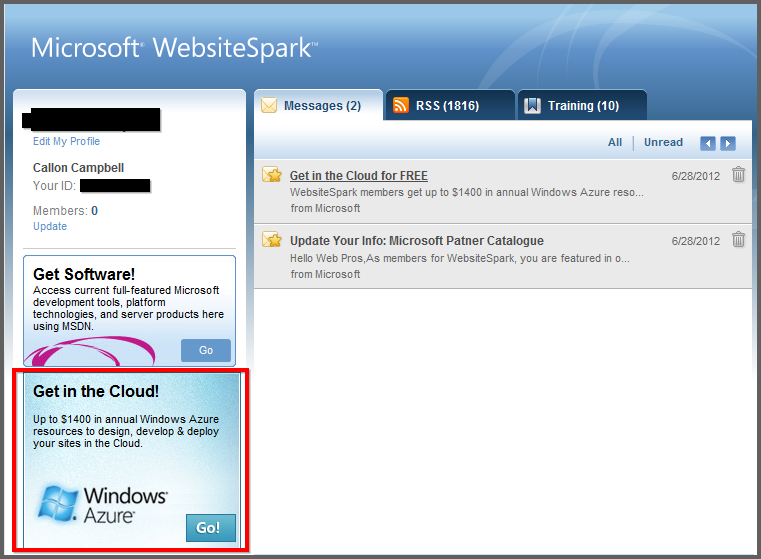
Microsoft’s WebsiteSpark program has been updated to now include Windows Azure benefits. If you’re a member of this program then you should have or will be receiving an email to update your account.

You will need to login to your WebsiteSpark account and then click to update your account to include the new Windows Azure benefits.

sshot-239

Here is what is included…

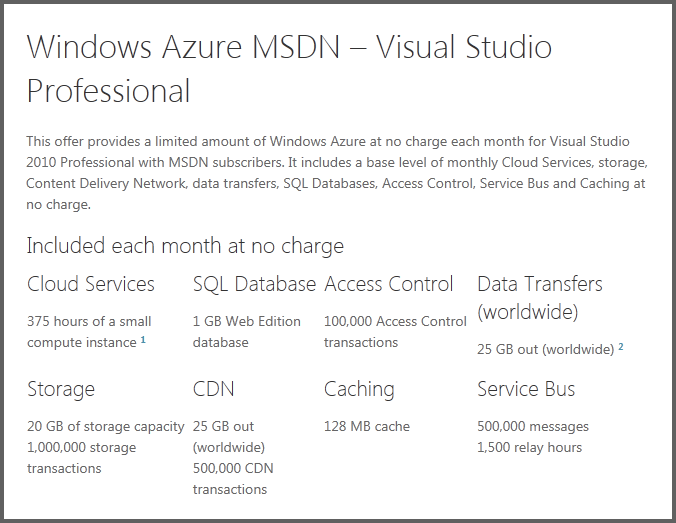
WebsiteSpark members can now get up to $1400 in annual Windows Azure resources to design, develop and deploy their site in the cloud. You will also get to keep at no charge, an Expression Web license upon completion of the 3 year program.

Here is additional information about the WebsiteSpark Azure Offer Details:

sshot-235

In order to take advantage of these additional program benefits, you will need to do this prior to 12/18/2012.

sshot-238

CloudDatabaseDevelopment

Exploring Windows Azure

image

If you don’t already know what Windows Azure is, then it’s Microsoft’s public cloud.

Microsoft’s Windows Azure is flexible, open and rock solid. Windows Azure allows you to quickly build, deploy and manage applications across a global network of Microsoft-managed datacenters. You can build applications using any OS, Language, Database or Tool and it has a 99.95% monthly SLA.

One of the new features I noticed is FREE Web Sites. It allows you to start for free and scale as you go.

When they say open, they have greatly expanded the development languages, framework and tools available, all of which are open source and available on github. Cool!

There are also changes in what servers you can use. Apart from Windows, you can now also install Linux as well in virtual machines.

Azure is really transforming into a cloud that isn’t just limited to the Microsoft technology stack, not that there is nothing wrong with that. I love Microsoft technologies, but I think Microsoft make a smart decision to open up and allows Linux, mySql and other languages to be used.

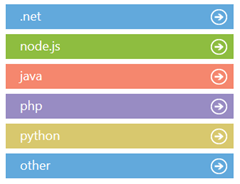
Speaking of languages, there is now support for 5 major languages and then some.

Languages

image

Developer Features

Data Storage

  • Blob Service
  • Table Service
  • SQL Database
  • SQL Reporting
  • Hadoop

Messaging and Integration

  • Service Bus Queues
  • Service Bus Topics
  • Queue Service
  • Service Bus Relay

Additional Features

  • Caching (AppFabric)
  • Access Control
  • Diagnostics
  • Autoscaling
  • Media Services
  • SendGrid Email Service
  • Twilio

Free Trial

With the free trial you can…

  • Quickly deploy websites to a highly scalable cloud environment
  • Easily deploy and manage virtual machines running Windows Server and Linux
  • Create highly scalable applications in a rich PaaS environment
  • Create, manage and distribute media in the cloud

The free trial contains:

compute 750 small compute hours per month
web sites 10 shared web sites
relational database 1 GB SQL database instance
storage 20 GB with 1,000,000 storage transactions
bandwidth unlimited inbound and 20 GB outbound

There is a lot that can be done with Windows Azure and the only way to know if it’s right for you and your organization is to give it a try and see what you think.

Get started now:

image

DatabaseDevelopment

SQL Server Management Studio 2012 –Tips and Tricks

One of the biggest changes to SQL Server 2012 is that is now uses the Visual Studio 2010 Shell. Knowing that now, here are a few tips and tricks for SQL Server Management Studio 2012

Blocked Selection

Sometimes you may only want to select and copy a column of text as opposed to the normal text selection done by holding down the Shift Key. To do Block selection, you can do SHIFT+ALT and drag your mouse to only select certain areas of your text in column fashion.

image

Cycle through Query Windows

I’ve known about ALT+TAB to cycle through programs (Windows). I’ve also known about CTRL+TAB to cycle through components within a given application. For example in Excel you could use CTRL+TAB to move between worksheets. I’ve never tried it in Management Studio, but it allows you to cycle through the Query Windows.

image

Also, CTRL + F6 will cycle through the actual tabs without the graphic switching display.

Status Bar

Most people should be familiar with the Status Bar at the bottom of the query window, but did you know you can customize it?

image

If you look under Tools –> Options –> Text Editor –> Editor Tab and Status Bar you will see a number of options that you can change.

Grouped Connections

You can go to View and select to show Registered Servers. Within Registered Servers you can create a group of SQL Servers. This then allows you to start a query that will be run against all of the servers within the group. This is where the Group Connection Color for the status bar comes into play.

image

This could be really handy if you need to execute items across multiple servers. The color of the status bar is there to help you realize that that query is a group query as opposed to a single server connection.

Keyboard Shortcuts

There are a ton of Keyboard shortcuts that you can use within Visual Studio. The default settings are based on Visual Studio 2010. Here is a list of those shortcuts. SQL Server Management Studio Keyboard Shortcuts

You can get to these through Tools -> Options -> Environment/Keyboard

image


I hope these are useful to you.