Category: Azure

Azure

Know your Azure Regions and Locations

Microsoft is constantly expanding it’s Azure reach into new regions and locations. Recently Microsoft announced new regions in Europe, South Africa, and United Arab Emirates (UAE).

Azure Regions

Today Azure has a total of 50 regions worldwide that span 140 countries. That’s more than all other cloud providers combined – offering the scale needed to bring applications closer to your users around the world, preserving data residency, and offering comprehensive compliance and resiliency options.

image

With so many regions it’s important to know and select the appropriate region for your applications. This is where Azure locations comes in.

Azure Locations

When selecting an Azure Region you want to select the one that is closest to your users. For example if you have your application running in Toronto, Canada and you want to bring in some Azure resources you will want to select the Canadian region that is closest to Toronto, in this case you would choose Canada Central.

If you look at the Azure Locations page you will see that Canada East is located in Quebec City, and Canada Central is in Toronto.

Funny enough when I talk to new Azure users, more often than not they think Canada East is in Toronto and select the wrong region. If this case you can easily move the resources to another region, provided that region also offers those services. I say this because not all regions offer the same services.

Enjoy!

Resources

Azure Regions

Azure Locations

AzureIoT

Introducing Azure Sphere

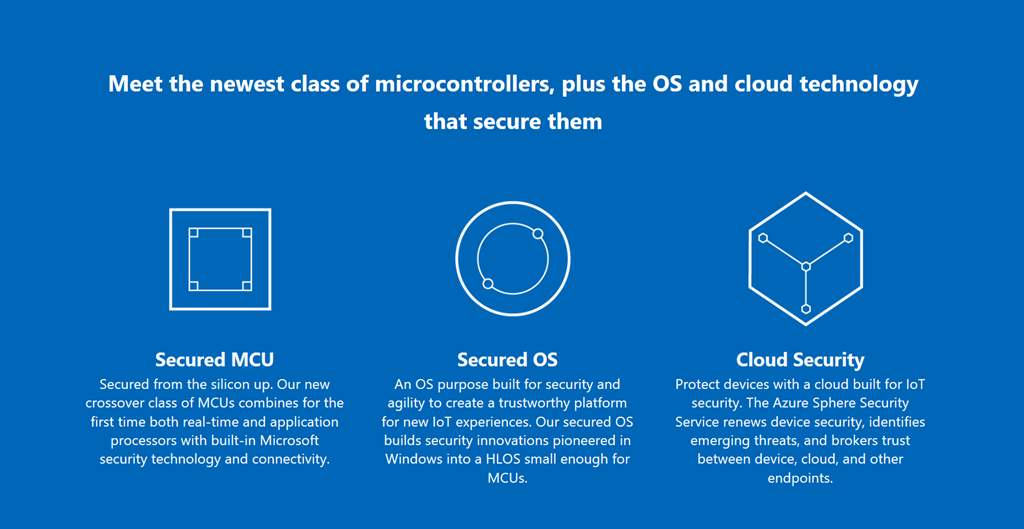
Microsoft recently announced the introduction of Azure Sphere which is a low cost single chip computer that is described as a highly secured end-to-end solution for connected microcontroller powered devices. Azure Sphere includes three components working as one, a brand-new class of crossover microcontrollers running a secured operating system and supported by Azure cloud services. Along with advanced development tools, Azure Sphere is your opportunity to reimagine your business from the ground up.

image

What is surprising to know is that Azure Sphere is powered by Linux and not Windows.

You can learn more about Azure Sphere here: https://www.microsoft.com/en-us/azure-sphere/

Enjoy!

Resources

https://www.microsoft.com/en-us/azure-sphere/

Learn About Azure Sphere

Explore Details of Azure Sphere

https://www.youtube.com/watch?v=iiDF26HNh-Y&feature=youtu.be

Azure

Azure Storage Explorer Reaches 1.0

image

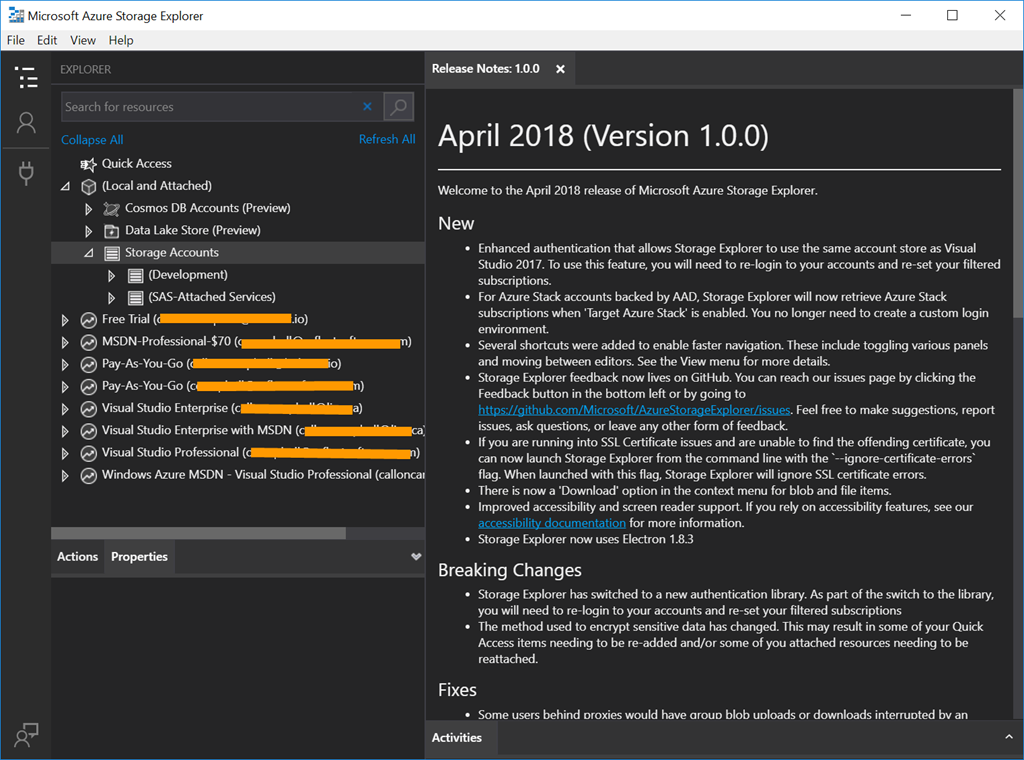
Microsoft Azure Storage Explorer is a cross platform client tool built on Electron that allows you to easily work with Azure Storage data on Windows, macOS and Linux. This tool also provides preview support for Azure Cosmos DB and Azure Data Lake Store.

I find this is a great tool to use when working with Azure Functions locally and you want to work with Azure Storage Accounts, both locally or in Azure.

Microsoft Azure Storage Explorer was updated on April 16 2018 to version 1.0 and is a big update with log of new features, bug fixes, and some breaking changes, so be sure to checkout the release notes on what is new and fixed.

image

Breaking Changes

It’s worth pointing out the following breaking changes:

  • Storage Explorer has switched to a new authentication library. As part of the switch to the library, you will need to re-login to your accounts and re-set your filtered subscriptions
  • The method used to encrypt sensitive data has changed. This may result in some of your Quick Access items needing to be re-added and/or some of you attached resources needing to be reattached.

Download Details

Enjoy!

References

Azure Storage Explorer release notes

Feedback can be submitted to the Azure Storage Explorer issues page on GitHub

AzureEvents

Global Azure Bootcamp 2018

This coming weekend will be the 6th Global Azure Bootcamp, which is a worldwide series of one day technical learning events for Azure. This event is created and hosted by the leaders from the global cloud developer community.

This will be my first year attending the event and I’m honored to be one of the presenters at not one but two events in Mississauga and Kitchener/Waterloo region in Ontario, Canada. I’ll be speaking about Azure Event Grid and how it can be used in a serverless architecture in the cloud.

“The Global Azure Bootcamp is community at its finest. We are incredibly excited to see community leaders around the world rise up and help developers build the skills they need in today’s cloud-driven business environment. We’re here to help each of these community led events be a success and can’t wait to continue our decades-long commitment to the worldwide developer community,” says Jeff Sandquist, General Manager of the Azure Platform Experiences Group at Microsoft.

Map

I hope you’re able to attend one of the events happening this weekend around the world and learn something new about Azure.

Enjoy!

Resources

https://global.azurebootcamp.net/

https://azure.microsoft.com/en-ca/blog/globalazure-bootcamp-2018/

Azure

Comparing Azure Functions Runtime Versions

image

Azure Functions now have 2 different runtimes, version 1 which is what is currently in production and the only runtime supported for production use, and version 2 which is currently in preview. I’ll cover the difference in both runtimes and when to use which version.

Overview or Version 1

The version 1 runtime is what is currently used in production and is the only version supported for production use. This runtime is based on .NET Framework 4.6 and only support Windows for development and/or hosting in the portal. Version 1 also only supports the following languages: C#, JavaScript, and F#.

What’s New in Version 2

Version 2 runtime has been rebuilt from the ground up on .NET Core 2.0 and support cross platform (Windows and Linux) for deployment and for development you can use Windows, Linux, and macOS.

Version 2 introduces language extension model that both JavaScript and Java are taking advantage of. There is also expanded language support for Java and more coming. We also have new bindings for Microsoft Graph and Durable Functions.

Azure Functions is a great serverless offering and provides lots of functionality for almost any application. If you need to run code in production than version 1 is your only choice, but if you want to try out Azure Functions then definitely take a look at both runtimes. With Microsoft annual developer conference Build next month, I bet we will hear more information about version 2 runtime and a timeline for release.

Enjoy!

References

Azure Functions runtime versions overview

Install Azure Functions Core Tools

Azure Functions Roadmap

Azure

Introduction to Durable Functions

Durable Functions is a new extension of Azure Functions which manages state, checkpoints and restarts for you. Durable Functions provide the capability to code stateful functions in a serverless environment. This new extension enables a new type of function called an orchestrator. The primary use case for Durable Functions is to simplify complex, stateful coordination problems in serverless applications. Some advantages of an orchestrator function are:

  • Workflows are defined in code. This means no JSON schemas or designers are needed.
  • Other functions can be called synchronously or asynchronously. Output from functions can be saved to local variables.
  • Automatic checkpoint the progress of the function whenever it awaits. This means local state is never lost if the process recycles or the VM reboots.

The following are 5 sample patterns where Durable Functions can help.

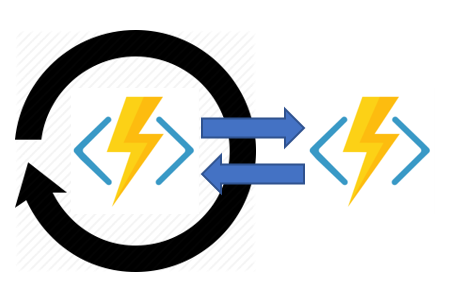
Pattern #1: Function Chaining

Function chaining is the execution of functions in sequence where the output of one function is the input to another function. With this pattern you typically use queues to pass state from function to function.

Function chaining diagram

Pattern #2: Fan-out/Fan-in

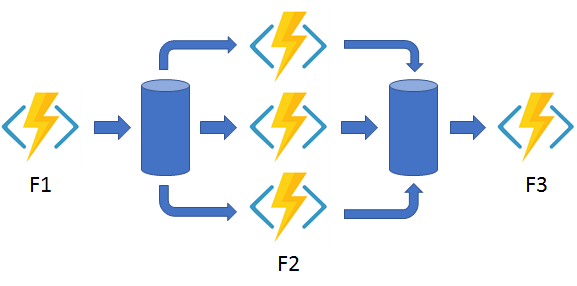
Fan-out/Fan-in refers to the execution of multiple functions in parallel and then waiting for all of them to finish. This pattern also uses queues to manage state from start to end. Fanning back in is much more complicated as you would have to track the outputs of all the functions waiting for them to finish.

Fan-out/fan-in diagram 

Pattern #3: Async HTTP APIs

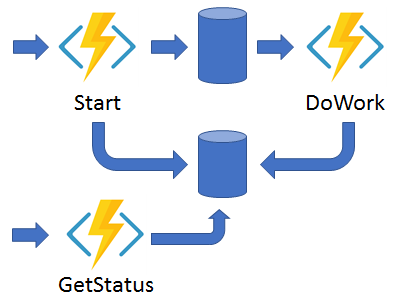
Async HTTP APIs pattern is all about the problem of coordinating the state of long running operations with external APIs. With this pattern you often use another status endpoint for the client to check on the status of the long running operation.

HTTP API diagram

Pattern #4: Monitoring

The Monitoring pattern is a recurring process in a workflow where the function polls for a certain condition to be met. A simple timer trigger could address this but its interval is static and management of it is more complex.

Monitor diagram

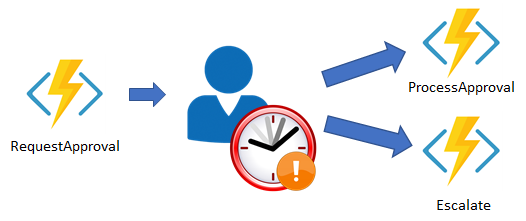
Pattern #5: Human Interaction

Finally we have the Human Interaction pattern. This pattern is where a function executes but its process is gated based on some sort of human interaction. People are not always available or respond in a timely manner which introduces complexity to your function process.

Human interaction diagram

In all five use cases, Durable Functions provides built-in support for easily handling these scenarios without the need extra resources likes queues, timers, etc for managing state and controlling the function flow. For more information on each of these patterns and code samples please see the Durable Functions documentation.

Durable Functions is currently in preview and is an advanced extension for Azure Functions that is not appropriate for all scenarios. Next month is the annual Microsoft developer conference Build. I suspect we’ll see some new exciting details with Azure Functions and Durable Functions specifically. Hopefully they become generally available.

Enjoy!

References

Overview of Azure Functions

Durable Functions Documentation

AIAzureDevelopment

Using the Face API from Microsoft Cognitive Services (part 2)–Face Verification

In part 1 of this series I showed you how to create a Face API subscription from Microsoft Cognitive Services and then use the Face API library to detect faces from an image. In this post we’ll expand on the previous to include Face Verification. Let’s get started.

Picking up where we left off, we will want to detect the most prominent face from an image and then use the detected face and verify it to see if they belong to the same person.

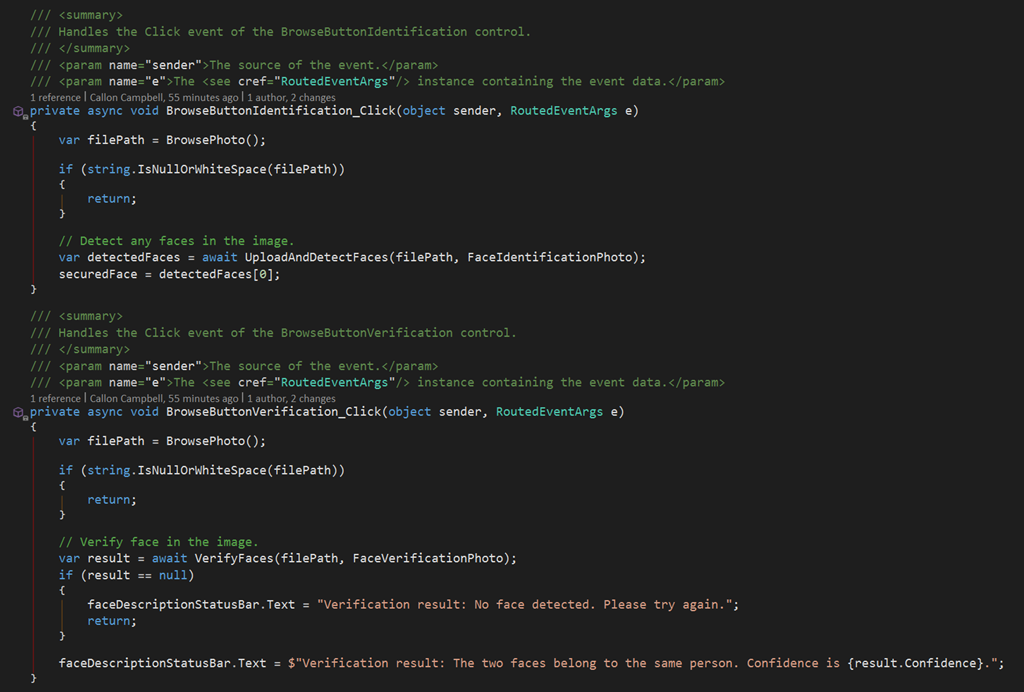
1. I refactored the code in the BrowsePhoto method to return an image that was selected. This method is then used by both the Identification and Verification images processes.

2. I refactored the UI to show 2 different images files, so means there is now 2 click events to identify the person in the image and then use this identification to verify its the same person when we load up another image. Both of these events can be seen here:

image

3. Finally we will be using the Face API VerifyAsync method to check to faces and determine if they belong to the same person.

image

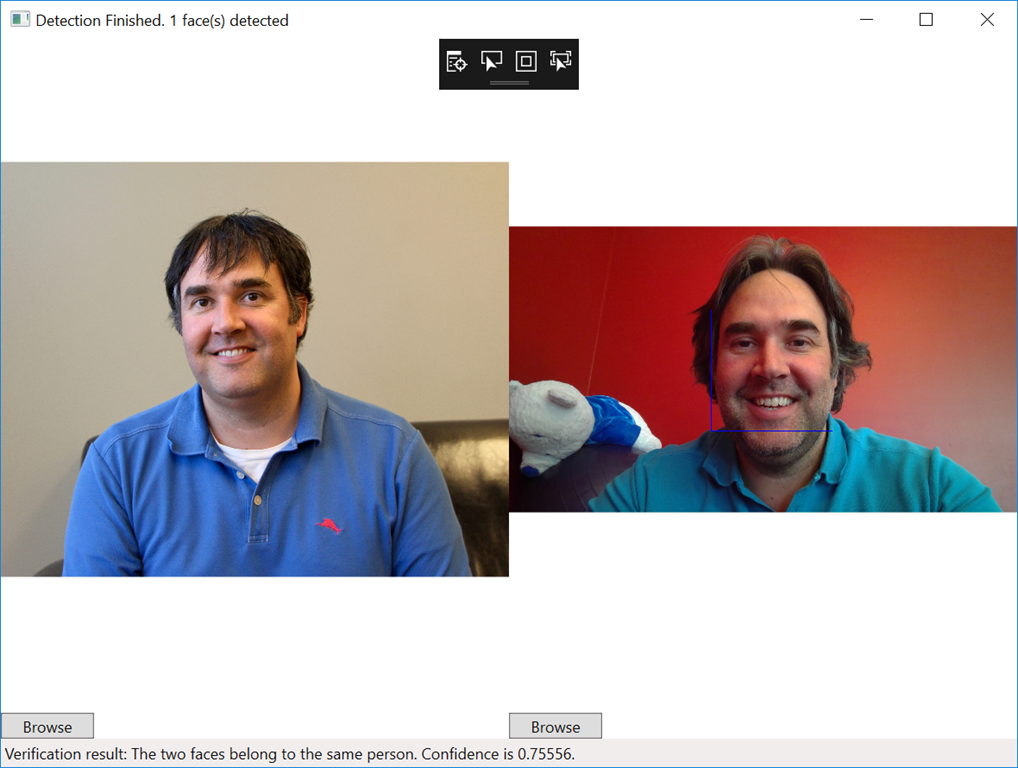
4. Now let’s run the application across a few images and see how well it performs with two images of me from different years. In the first result I have an image from 10+ years ago and the Face API has come back that its 66% certain it’s the same person.

image

How about using something more recent. In this next test run the Face API again detects its 75% certain its the same person.

image

Wrap up

As you can see I’m able to use the Face API from Microsoft Cognitive Services to not only detect by also verify identity. The Face API provides other methods that can be used for grouping, people together and training it to recognize specific people with their identification method.The Face API has also recently been updated to support a large group of people (1,000 in the free tier and over 1,000,000 in the paid tier).

Enjoy!

References

Sample Code

Face API Documentation

AIAzureDevelopment

Using the Face API from Microsoft Cognitive Services (part 1)–Face Detection

Earlier this month I wrote about giving your applications a more human side with Microsoft Cognitive Services, which provides a number of API’s that you can start using immediately in your applications. Today I’ll dive into the vision API’s and show you how you can leverage the Face API to detect faces in your images.

What is the Face API?

The Face API provides facial and emotion recognition and location in an image. There are 5 main areas for this API:

– Face detection
– Face verification
– Find similar faces
– Face grouping
– Face identification

Potential uses for this technology include facial login, photo tagging, and home monitoring. You can also use it for attribute detection to know age, gender, facial hair, whether the person is wearing a hat, wearing glasses, or has a beard. This API can also be used to determine if two faces belong to the same person, identify previously tagged people, find similar-looking faces in a collection.

So let’s get started with creating an Face API resource and then a small application to detect faces. In the next post I’ll extend this example to do face verification to determine if it’s the same person.

Step 1 – Requirements

To get started with Microsoft Cognitive Services and specifically the Face API you will need to have an Azure Subscription. If you don’t have one you can get a free trial subscription which includes $250 of credits to be used for any Azure services.

You will also need to have Visual Studio 2017 installed, which you can download for free.

Step 2 – Subscribe to the Face API

1. Log in to the Azure portal and click on the Create a resource link in top left corner. From here select AI + Cognitive Services and then select Face API as shown here:

image

2. Give your Face API a name, select your subscription, location, resource group and then select the F0 Free tie for pricingr:

image

3. After a few seconds your Face API subscription will be created and ready for you to start using. At this point you will need to get two items, your subscription key and your endpoint location.

The endpoint URL is shown on the Overview section and your subscription keys are located under Keys in the Resource Management section as shown here:

image

Now that we have the subscription key and endpoint let’s create our application.

Step 3 – Create new Application and reference the Face API

1. Open Visual Studio and from the File menu, click on New then Project. From here you can select any type of application but for me I’m going to create a new WPF application in C#. This code will also work with Xamarin.Forms project if you wanted to try this out for mobile.

image

2. Go to the Solution Explorer pane in Visual Studio, right click your project and then click Manage NuGet Packages.

3. Click on the Include prerelease checkbox and then search for Microsoft.Azure.CognitiveServices.Vision.Face. You might be wondering why are these API’s still in preview? Well the Cognitive Services API’s were previously called Microsoft.ProjectOxford.* and are now being moved over to Microsoft.Azure.CognitiveServices.*. Once that migration is complete they should be out of prerelease and is what you should be using from then on.

image

4.Now let’s go to the code and configure the Face API client library.

Step 4 – Configure the Face API Client Library

1. Open up your MainWindow.cs file and declare a new FaceServiceClient instance as shown here

image

2. Insert your Face API subscription key and endpoint. Replace “YOUR-SUBSCRIPTION-KEY-GOES-HERE” with your subscription key from step 2. Do the same for the second parameter which is your endpoint URL.

Step 5 – Upload images, detect faces, and show facial attributes

I wont walk through the entire code as you can do that on my GitHub repository. Instead in this step I’ll show you how I used the Face API to detect the faces, draw a square around each detected face, and finally show you the facial attributes when the mouse hovers over a detected face.

It’s worth mentioning that the maximum size of the image to upload is 4 MB.

image

As highlighted above you will take a photo you have and upload it to the Face API where it will detect an array of faces. The largest face in the image is usually what is returned first in the array. Using the DetectAsync method, you have the option to pass in an IEnumerable of FaceAttributeTypes. Just declare a list of the attributes you want back in the results like so:

image

The second highlighted code shows were we store the facial attributes returned for each face. The GetFaceDescription method is used when you mouse over a detected face and you want to show the attributes that were returned from the Face API:

image

Now let’s run our application and try detecting some faces for an image containing one or more faces. After a few seconds the API will return back with the results. As you can see we’re drawing blue squares for the makes and pink for the females, and when you hover your mouse over one of the faces I’m displaying the description of all the facial attributes returned by the API.

image

Wrap up

As you can see its very easy to add AI to your application with Microsoft Cognitive Services. Today I showed you how you can leverage the Face API for facial recognition.

Enjoy!

Resources

Sample Code

Face API Documentation

Azure

How to Lock Azure Resources and Prevent Unexpected Changes or Deletions

Management locks can help you prevent accidental deletion or modification of your Azure resources. You can manage these locks from one of the following…the Azure Portal, ARM Templates, PowerShell, Azure CLI, or the REST API. To view, add, or delete locks, go to the Locks section of any resource’s settings blade. In the Azure Portal, the locks are called Delete and Read-Only respectively.

There are two possible types of locks on a resource:

  • CanNotDetele – This means authorized users can still read and modify a resource, but they can’t delete the resource.
  • ReadOnly – This means authorized users can read a resource, but they can’t delete or update the resource. Applying this lock is similar to restricting all authorized users to the permissions granted by the Reader role.

When a lock is applied at the parent level, all resources within that scope inherit the same lock. This applies to any resources you add later on to this parent resource. Resource locks do not restrict how a particular resource functions and only resource changes are restricted, but the most restrictive lock will always take precedence.

Creating a Lock using the Portal

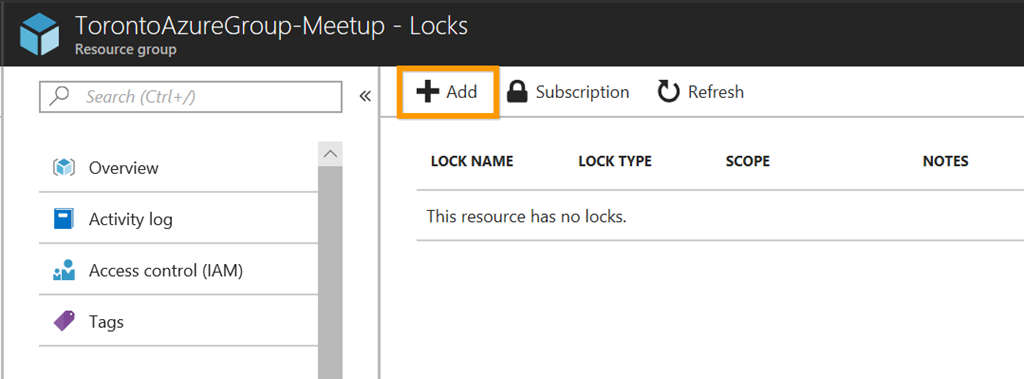
1. In the portal, go to the particular resource you want to lock. In this case it’s a Resource Group but it could be any Resource, a Resource Group, or a Subscription  and then click on the Lock option under the Settings section:

image

2. To add a lock click on the Add button:

image

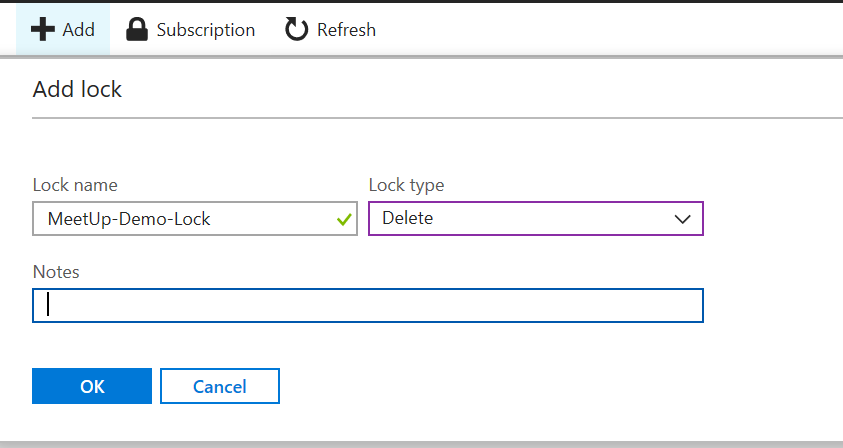
3. Give your lock a name and the type of lock (Delete or Read-Only) and then click on the OK button:

image

Your resources are now locked. If you try to delete a resource that is locked you will see the following warning which prevents you from deleting the particular resource:

image

Unlocking a Resource

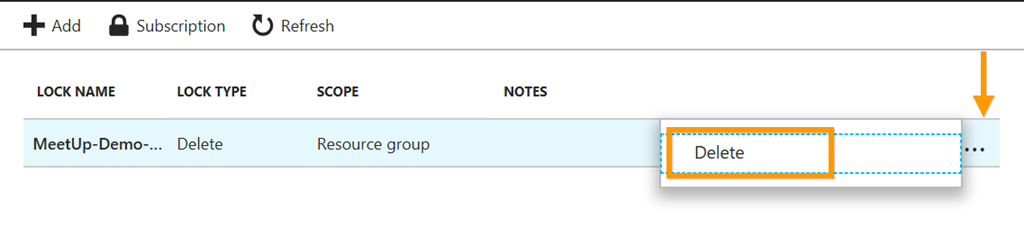
To unlock the resource click on the ellipse (…) button and click on the Delete option:

image

Using resource locks is a must and really prevents an “oops…I deleted the wrong resource” situation which leads to accidental and hard to recover from downtown.

Enjoy!

Resources

https://docs.microsoft.com/en-us/azure/azure-resource-manager/resource-group-lock-resources

Lock Down your Azure Resources

Remove Locks from Azure Resources

AIAzure

Give your solutions a more human side with Microsoft Cognitive Services

image

Making AI Possible

Today there are three mega trends converging that are making AI possible:

    1. Big Compute
    2. Powerful Algorithms
    3. Massive Data

      Microsoft is in a unique position to help you take advantage of these trends with three important assets:

        1. Microsoft Azure, providing the best cloud for developers
        2. Breakthrough in AI Innovations, through Microsoft Azure and their AI resources this innovation is brought to you as a developer
        3. Data. Microsoft Graph gives you access to the most important data for your business and/or application, your data!

          Microsoft has a strong vision that AI should be democratized and be available to everyone – developers, data scientists, enterprises, and yes even your dog. Microsoft has been involved and conducting research into AI for the last couple decades and infusing it into their products and services (Bing, Xbox, Office 365, Skype, Cortana, LinkedIn, etc). This research eventually found its way into a product known as Microsoft Cognitive Services.

          Introducing Microsoft Cognitive Services

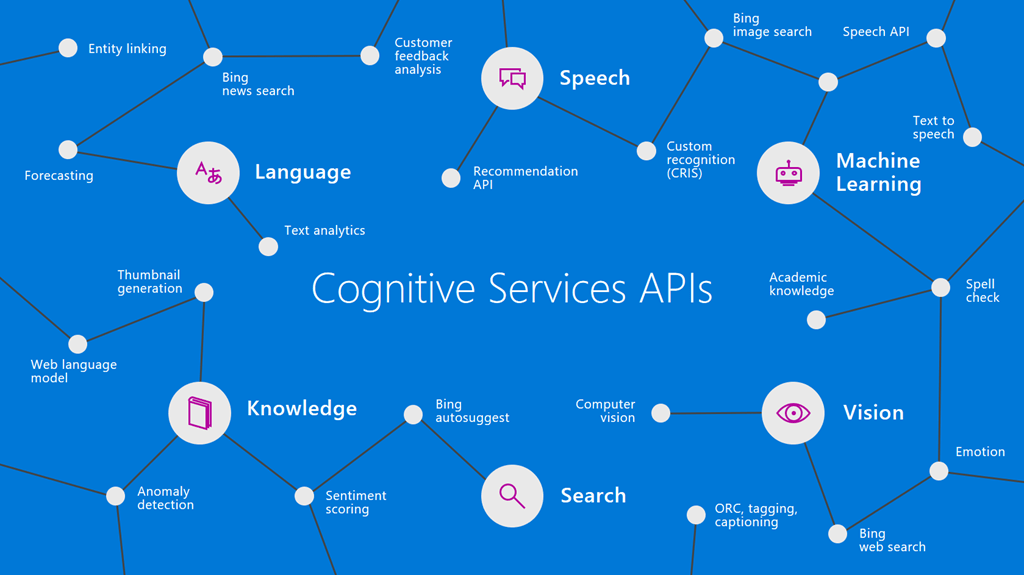
          Microsoft Cognitive Services, formerly known as “Project Oxford” was first announced at Build 2016 conference and released as a preview. This is a rich collection of cloud-hosted APIs that let’s developers add AI capabilities such as vision, speech, language, knowledge and search into any application across any platform (Windows, Mac, iOS, Android, and Web) using simple RESTful APIs and/or SDKs (NuGet packages). Rather than having to deal with the complexities that come with machine learning, Cognitive Services provides simple APIs that handle common use cases, such as recognizing speech or performing facial recognition on an image.These APIs are based off machine learning and fit perfectly into the conversation-as-a-platform philosophy.

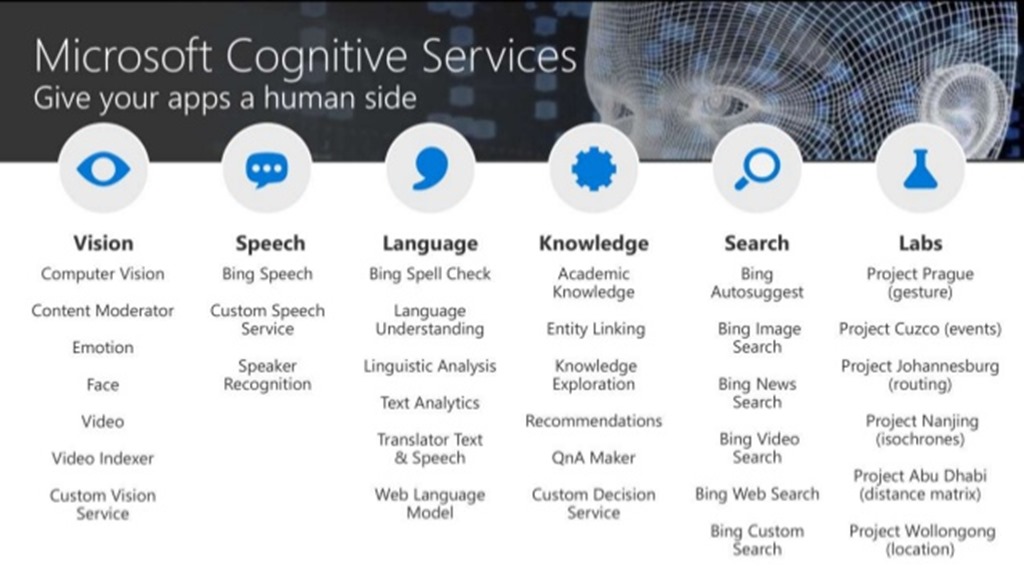
          With Microsoft Cognitive Services, you can give your applications a human side. To date there are currently 29 APIs across 5 categories of Vision, Speech, Language, Knowledge, and Search. Let’s take a look at each of these categories:
          azure-meetup-getting-started-cognitive-services-7-638

          Vision – From faces to feelings, allow your apps to understand images and videos

          Speech – Hear and speak to your users by filtering noise, identifying speakers, and understanding intent

          Language – Process text and learn how to recognize what users want

          Knowledge – Tap into rich knowledge amassed from the web, academia, or your own data

          Search – Access billions of web pages, images, videos and news with the power of Bing API’s

          Labs – Microsoft Cognitive Services Labs is an early look at emerging technologies that you can discover, try and provide feedback before they become generally available

          Why Use Microsoft Cognitive Services?

          So why choose these APIs? It’s simple, they just work, their easy to work with, flexible to fit into any application or platform and their tested.

          Easy – The APIs are easy to implement because their simple REST calls.

          Flexible – These APIs all work on whatever language, framework, or platform your choose. This means you can easily incorporate into your Windows, iOS, Android and Web apps using the tools and frameworks you already use and love (.NET, Python, Node.js, Xamarin, etc.).

          Tested – Tap into the ever growing collection of APIs developed by the experts. You as developers can trust the quality and expertise built into each API by experts in their field from Microsoft Research, Bing, and Azure Machine Learning.

          What’s also nice to know is that Microsoft Cognitive Services is now using the same terms as other Azure services. Under these new terms you as a Microsoft Cognitive Services customer, you own and can manage and delete your data.

          Cognitive Services Real-World Applications

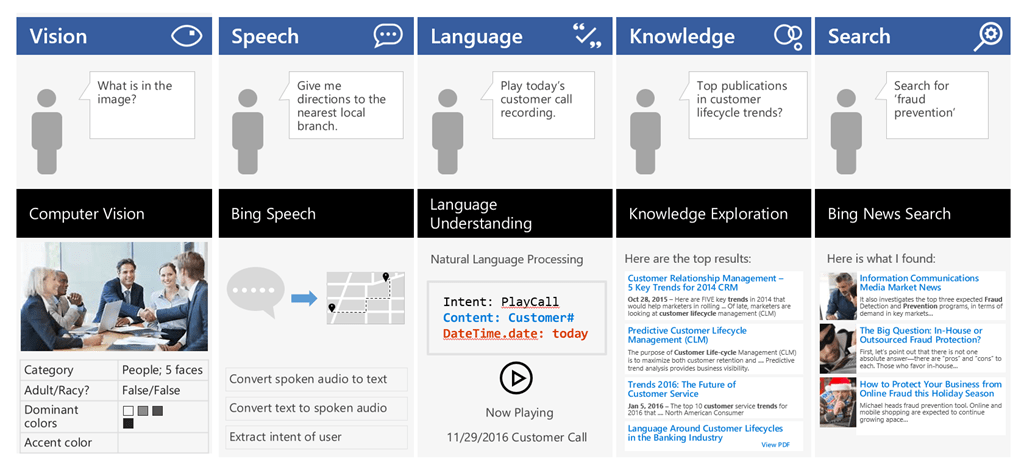
          The following is a set of possible real-world application scenarios:
          image

          The Computer Vision API is able to extract rich information from images to categorize and process visual data and protect your users from unwanted content. Here, the API is able to tell us what the photo contains, indicate the most common colors, and lets us know that the content would not be considered inappropriate for users.

          The Bing Speech API is capable of converting audio to text, understanding intent, and converting text back to speech for natural responsiveness. This case shows us that the user has asked for directions verbally, the intent has been extracted, and a map with directions provided.

          Language Understanding Intelligent Service, known as LUIS, can be trained to understand user language contextually, so your app communicates with people in the way they speak. The example we see here demonstrates Language Understanding’s ability to understand what a person wants, and to find the pieces of information that are relevant to the user’s intent.

          Knowledge Exploration Service adds interactive search over structured data to reduce user effort and increase efficiency. The Knowledge Exploration API example here demonstrates the usefulness of this API for answering questions posed in natural language in an interactive experience.

          Bing Image Search API enables you to add a variety of image search options to your app or website, from trending images to detailed insights. Users can do a simple search, and this API scours the web for thumbnails, full image URLs, publishing website info, image metadata, and more before returning results.

          These APIs are available as stand-alone solutions, or as past of the Cortana Intelligence Suite. These APIs can also be used in conjunction with the Microsoft Bot Framework.

          Use Case: How Uber is Using Driver Selfies to Enhance Security

          There is a use case where Uber is using Microsoft Cognitive Services to offer real-time ID check. Using the Face API, drivers are prompted to verify their identity by taking a selfie and then verifying that image with the one they have one file. The Face API is smart enough to recognize if you’re wearing glasses or a hat letting you take action and ask your users to remove and retry the verification process. Uber has made rides safer by giving their clients peace of mind that the drivers have been verified.

          image

          Dig Deeper into AI

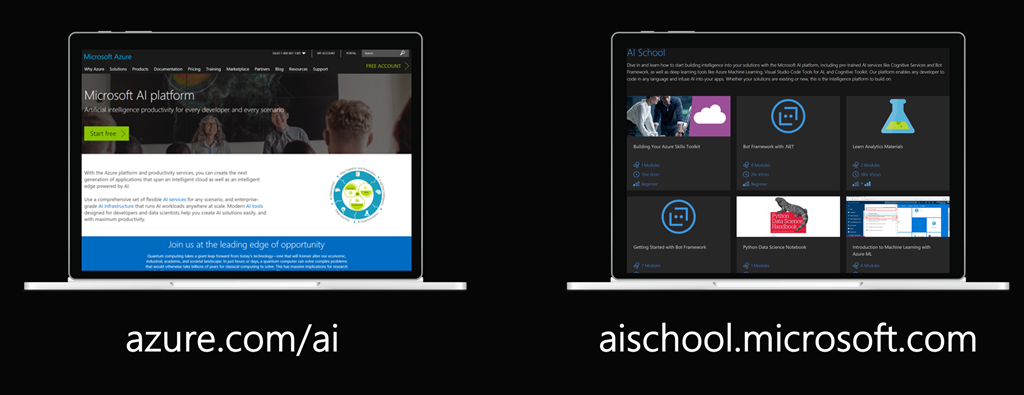
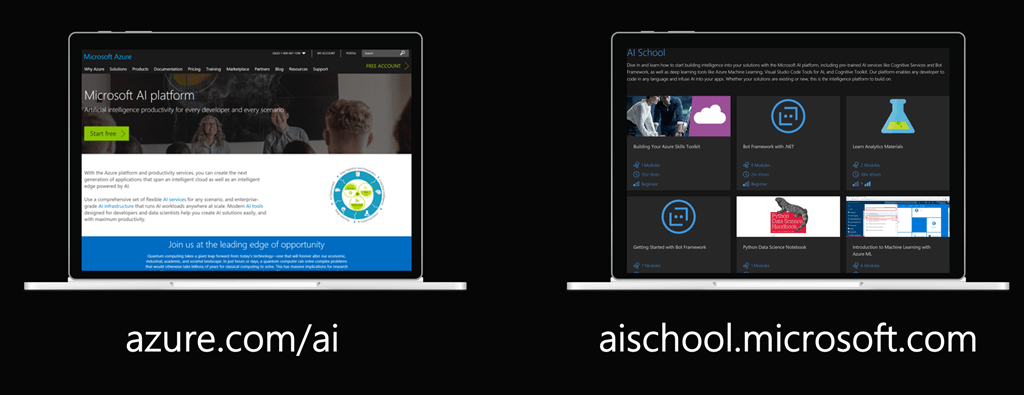
          If you’re interested in learning more about Microsoft AI then be sure to checkout these two websites:

          http://azure.com/ai

          http://aischool.microsoft.com
          62e3621c-efa5-4df8-81fa-53ed5187f9c9

          In my next post I’ll dig deeper into one of these APIs and walk through the code on how easily it is to incorporate into your applications.

          Enjoy!

          References

          Microsoft Cognitive Services homepage

          Microsoft Cognitive Services blog

          Try Microsoft Cognitive Services
          Cognitive Services Labs

          Microsoft updates Cognitive Services terms

          How Uber is using driver selfies to enhance security, powered by Microsoft Cognitive Services