Month: January 2018

Azure

Microsoft Azure Roadmap and Updates

Azure has three areas online where you can go to keep up to date with Azure updates and what the roadmap is for certain products within Azure.

Microsoft Cloud Platform Roadmap

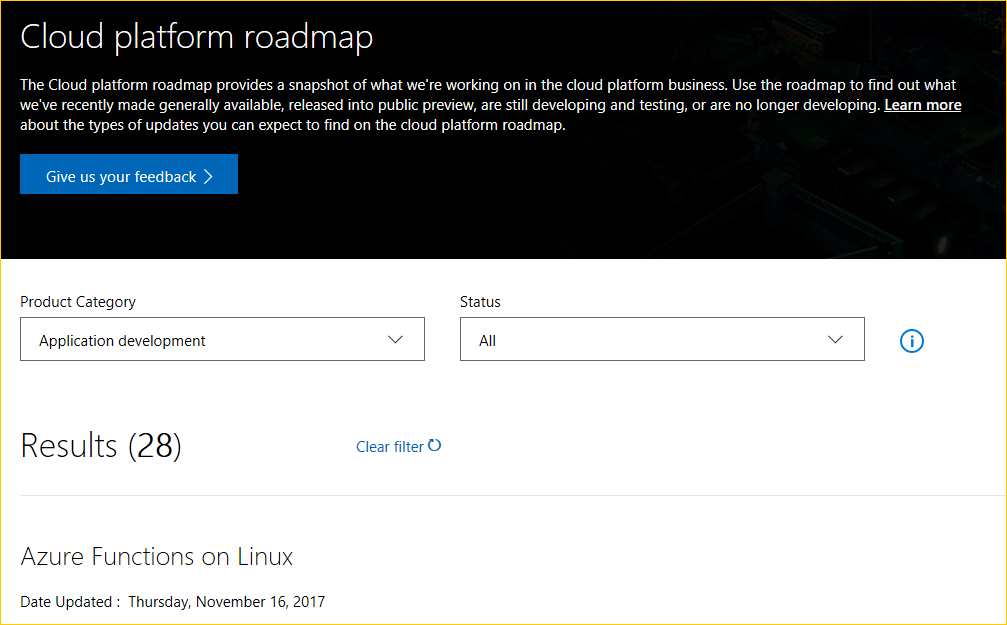
The Microsoft Cloud Platform Roadmap provides a snapshot of what Microsoft is working on in their cloud platform business. From here you can use the roadmap to find out what they’re recently made generally available, released to public preview, are still developing and testing, or what’s no longer being developed. You can search by Product Category and/or Status.

For Product Category you have the following categories:

  • Application development
  • Cloud infrastructure
  • Data management and analytics
  • Enterprise Mobility + Security
  • Internet of Things

For Status type you can search by the following types:

  • All
  • In Development
  • In Preview
  • Now Available

image

For each result there is a date of when it was last updated and then a status of either In Development, In Preview, and Now Available.

image

Finally you can can click the Learn more link for further details about this update.

Azure Roadmap

The Azure Roadmap page shows you where they’re heading and any upcoming changes to Azure products. This is the place to find out what’s new

image

Azure Updates

The Azure Updates page allows you to see all the updates in one place. You can filter by product, update type and even platform.

image

Enjoy!

References

https://azure.microsoft.com/en-us/updates/

https://azure.microsoft.com/en-us/roadmap/

https://www.microsoft.com/en-us/cloud-platform/roadmap/

Uncategorized

Serverless On-Demand Scaling : Pushing the pedal when you need it…

kvaes's avatarKarim Vaes

Introduction

A lot of workloads are driven by peak consumption. From my experience, there aren’t the amount of workloads that have a constant performance need are in the minority. Now here comes the interesting opportunity when leveraging serverless architectures… Here you only pay for your actual consumption. So if you tweak your architecture to leverage this, then you can get huge gains!

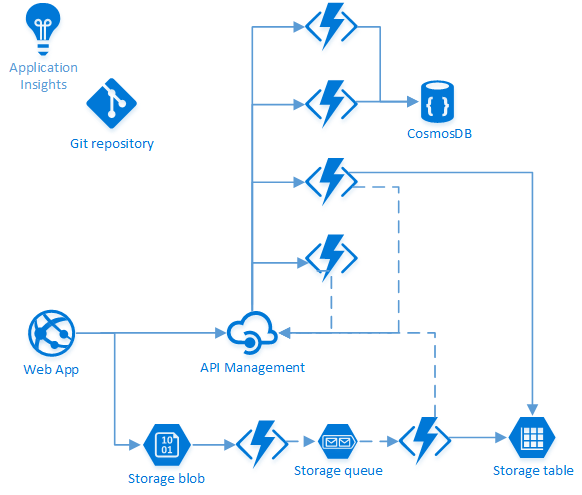
For today’s post, I’ll be using VMchooser once again as an example. A lot has changed since the last post on the anatomy of this application. Here is an updated drawing of the high level architecture ;

Underneath you can see the flow that’ll be used when doing a “Bulk Mapping” (aka “CSV Upload”). The webapp (“frontend”) will store the CSV as a blob on the storage account. Once a new blob arrives, a function will be triggered that will examine the CSV file and put every entry…

View original post 953 more words

Uncategorized

How to Configure Git in Visual Studio to Prune Branches during a Fetch

If you’ve been using Git from within Visual Studio 2017 you might be aware of the fact that when performing a fetch it would not automatically prune your local list of branches that no longer exist on the server. Typically you would have to open up a Command Prompt and run the following command to cleanup your list of branches that exist on the remote:

> git remote prune origin

image

Well now with Visual Studio 2017 Update 5 you can now configure your global and repository settings to prune your local list of branches on every fetch. Let’s take a look at how you can configure this.

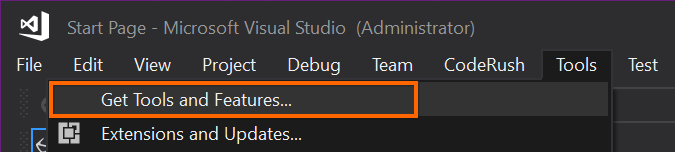
First download and install Visual Studio 2017 Update 5. You can do this from within Visual Studio under the Tools menu:

image

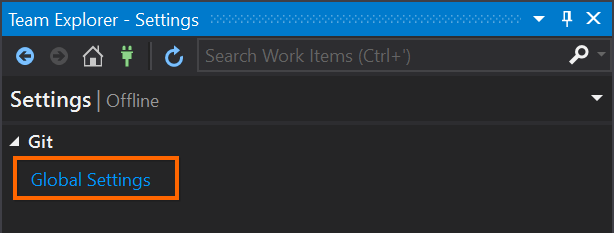
Once you have Visual Studio 2017 Update 5 installed, go to the Team Explorer pane and click on Settings where you can configure your default behavior for your Global and/or Repository Settings:

image

image

Now you can change the setting to prune remote branches on every fetch. In my opinion this should be the default value.

image

Another nice addition to the Git settings in Visual Studio 2017 Update 5 is the ability to Rebase your changes when you pull. I’ll explore that in a future post.

In summary when enabling the prune on every fetch, this means your local list of branches is always up-to-date with the remote. Pruning will cleanup and remove your local tracking branches that no longer exist on the server.

Enjoy!

References

Git Configuration: Configure your default behavior