
Read the latest announcements about Azure Maps, our machine-learning tools, how we give clinicians the right data, and more.
— Read on azure.microsoft.com/en-us/blog/azure-source-86/
Tag: Azure
Comparing Serverless Architecture Providers: AWS, Azure, Google, IBM, and Other FaaS Vendors – DZone Cloud
This article takes a look at the four largest cloud vendors and compares them based on services, prices, languages and more, and offers some alternatives.
— Read on dzone.com/articles/comparing-serverless-architecture-providers-aws-az
#AzureApril–Day 1
Inspired by @burkeholland, @editingemily, @sigje and others where instead of putting effort into an Aprils Fools joke, I will instead take the #AzureApril challenge of posting an Azure tip each day in April. Some tips might come from @mbcrump comprehensive list of tips and tricks, while others might come from me and/or the community. Now on to todays tip.
Tip #1
Azure has over a 100 services that offer you everything you need to develop, build and run you applications with all the performance, redundancy, security, and scale that the cloud has to offer. With all these services sometimes it can be daunting on where to begin.
Todays tip is to take bite-sized lessons to reinforce your #Azure skills, all in a single month of lunches. This is a practical guide to learning Azure cloud computing skills quickly or refresh what you already know.
By reading this e-book, you get to build your cloud computing skills quickly and efficiently. You’ll be productive immediately, and when you finish, you’ll be well on your way to Azure mastery.
For more details and to download the e-book, go to https://azure.microsoft.com/en-us/resources/learn-azure-in-a-month-of-lunches/
Since we’re starting a new month today this is a great tip to tackle and complete by end of the month, all while eating your lunch.
Enjoy!
References
New Azure Datacenters Open in Africa
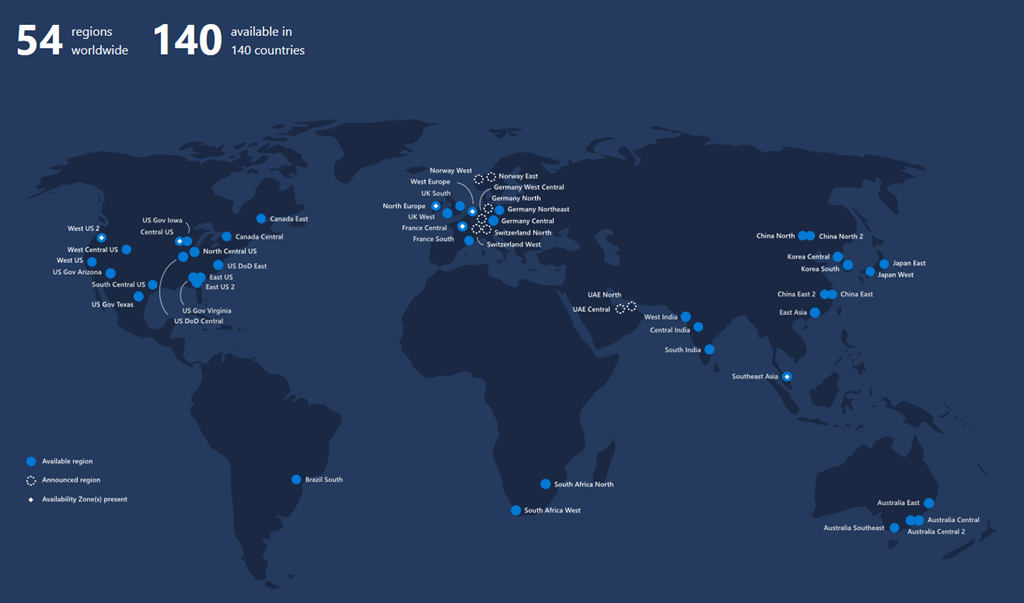
Today Microsoft announced the general availability of new Azure regions in Cape Town and Johannesburg, South Africa. This marks a major milestone as Microsoft is the first global cloud provider to deliver cloud services from datacenters on the African continent.
Microsoft Azure now has a total of 54 regions worldwide that span 140 countries. That’s more than all other cloud providers combined – offering the scale needed to bring applications closer to your users around the world, preserving data residency, and offering comprehensive compliance and resiliency options.
Enjoy!
References
Microsoft opens first datacenters in Africa with general availability of Microsoft Azure
Ignite The Tour 2019 Toronto Recap

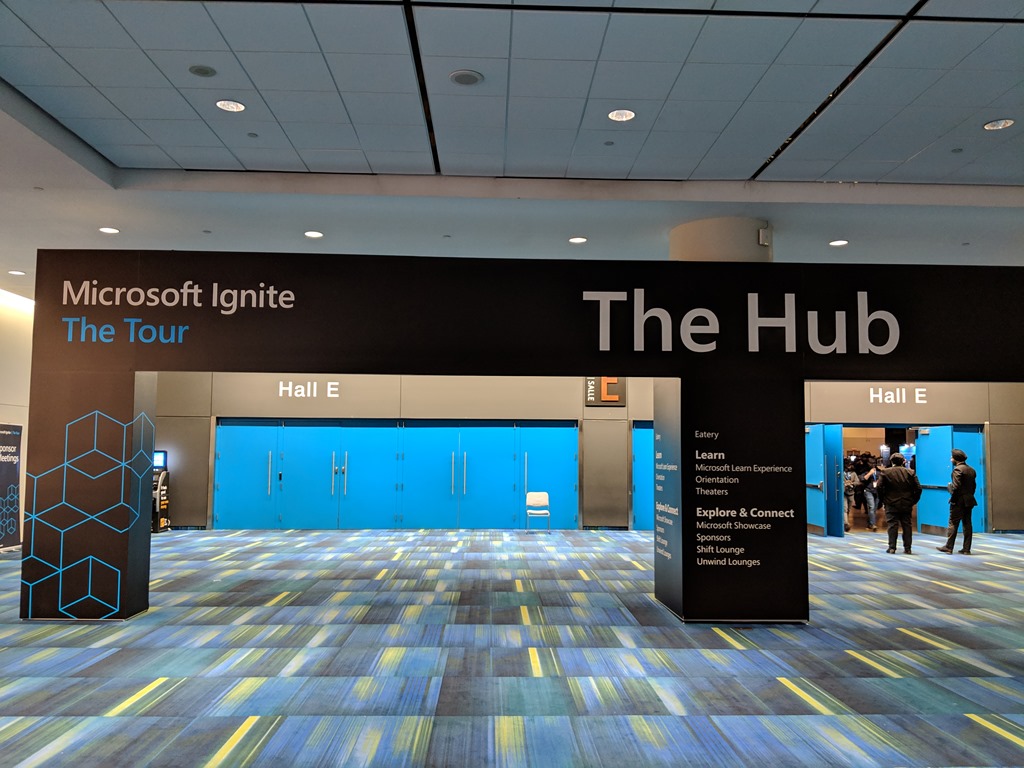
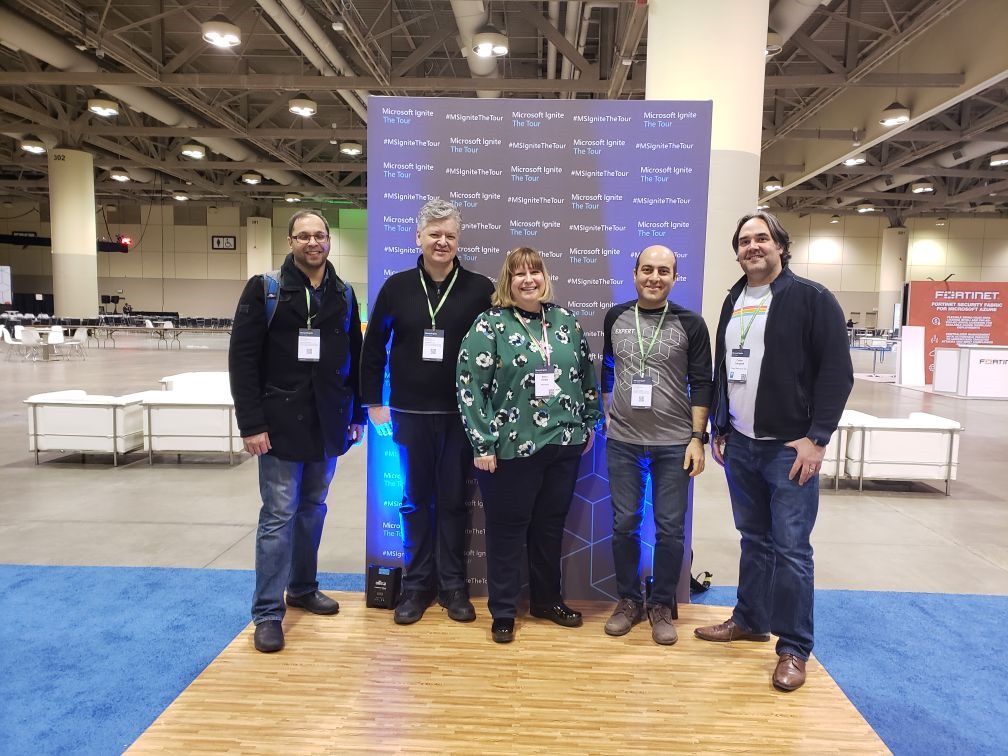
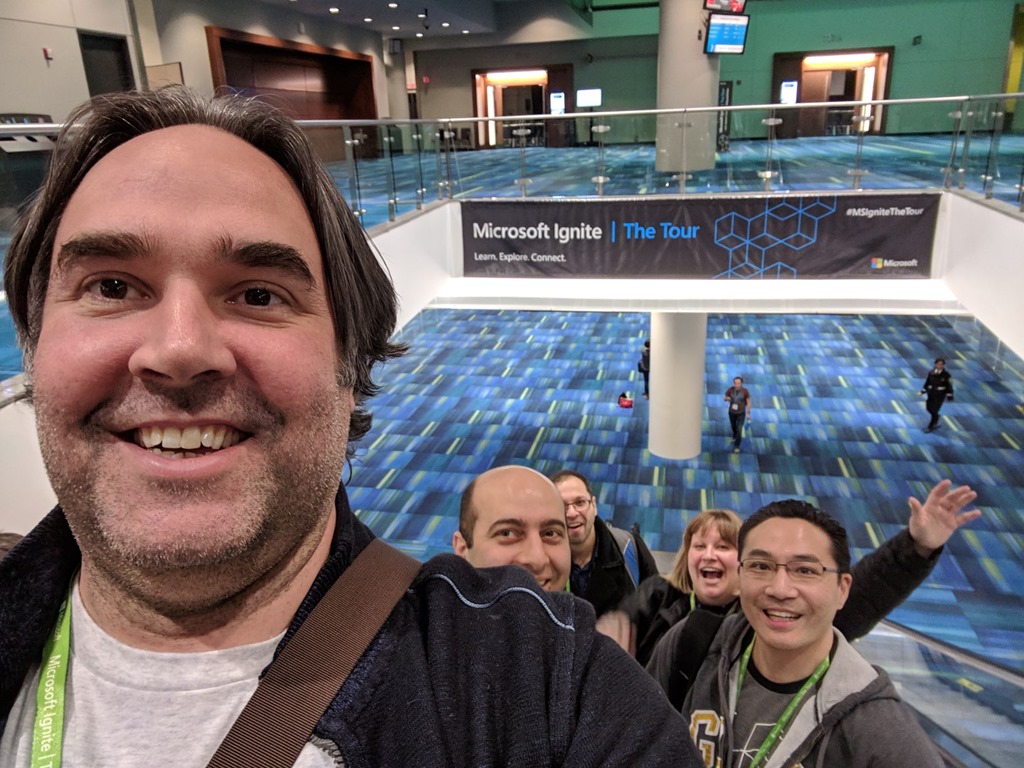
This year I had the opportunity to attend and participate as a speaker at the Microsoft Ignite The Tour in Toronto. The event was held over two days from January 10-11, 2019 at the Metro Toronto Convention Centre, and provided a venue for developers and tech professionals to continue learning alongside experts in developer tools and cloud technologies. It also provided an opportunity to connect with technical community and learn best practices and insights into cloud development, data, IT, AI, and business intelligence.
With events like this I usually attend as an attendee, but this year myself and two colleagues put through submissions for the call for speakers from the MVP community. For me this year has largely been about Azure DevOps and trying to connect with local developers, IT, and businesses and showing them up to take advantage of DevOps, specially with Azure DevOps. So it was only natural to focus my efforts around this. It also provided a great opportunity to connect with industry experts and other Microsoft MVP’s to further my education and career path.
Here are some morning pictures outside the contention centre. It was a nice clear day, but it was very cold.


Getting Prepared for my Talk
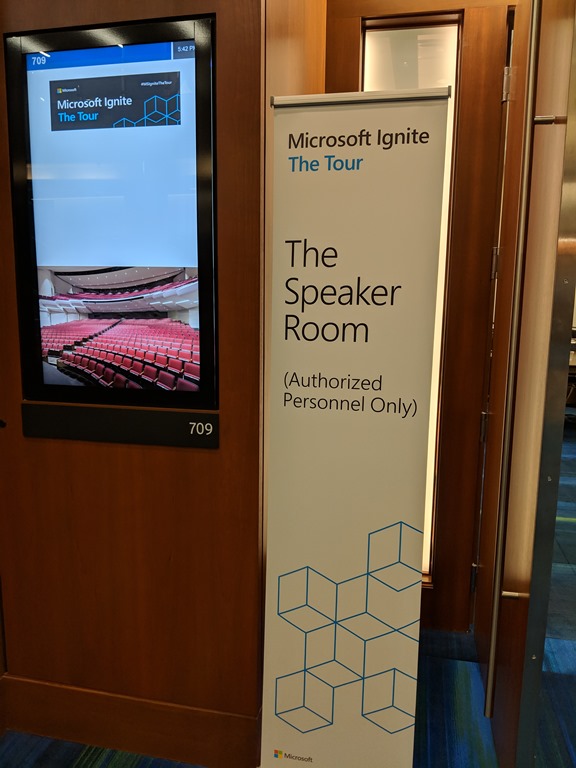
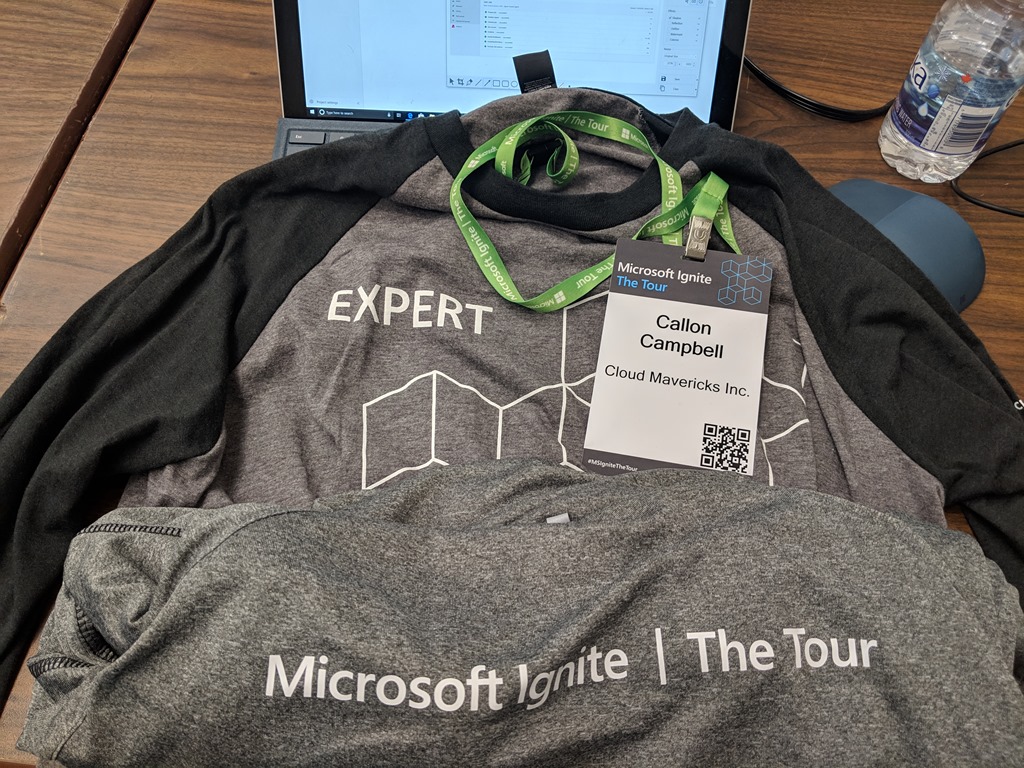
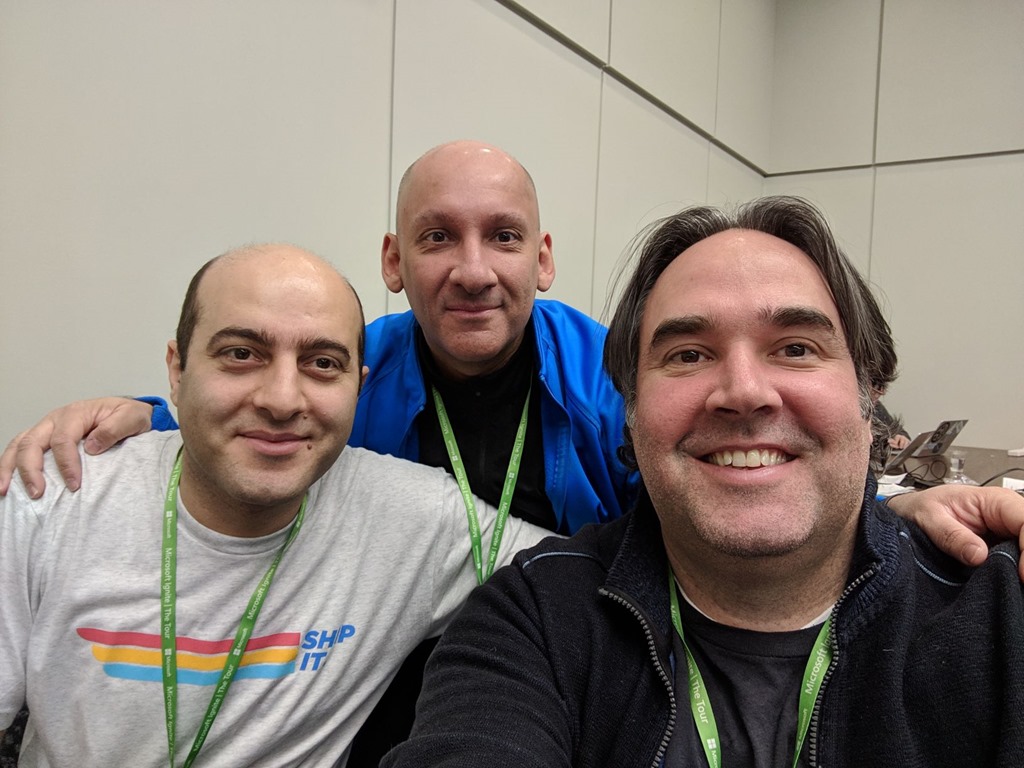
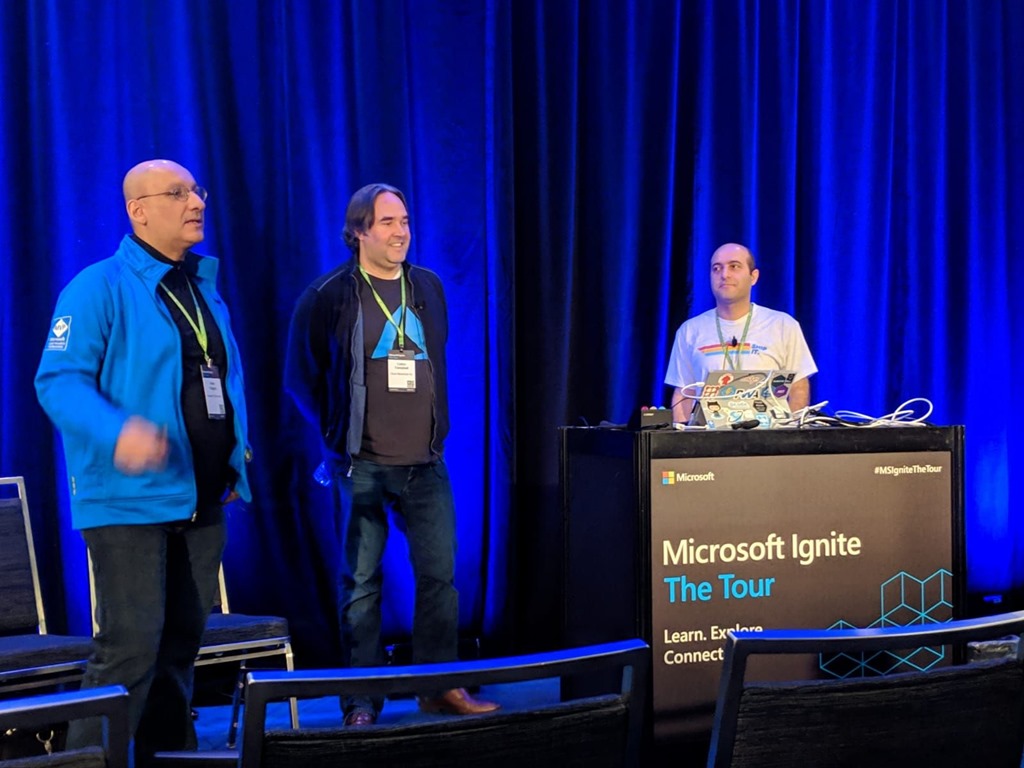
Day 1 of the conference was our talk on Azure DevOps. After getting my badge I met up with my co-presenters Ehsan and Arlan in the speaker room. This is a relatively quiet place to get away from the crowd and do some preparation or just relax. The food here was great too!
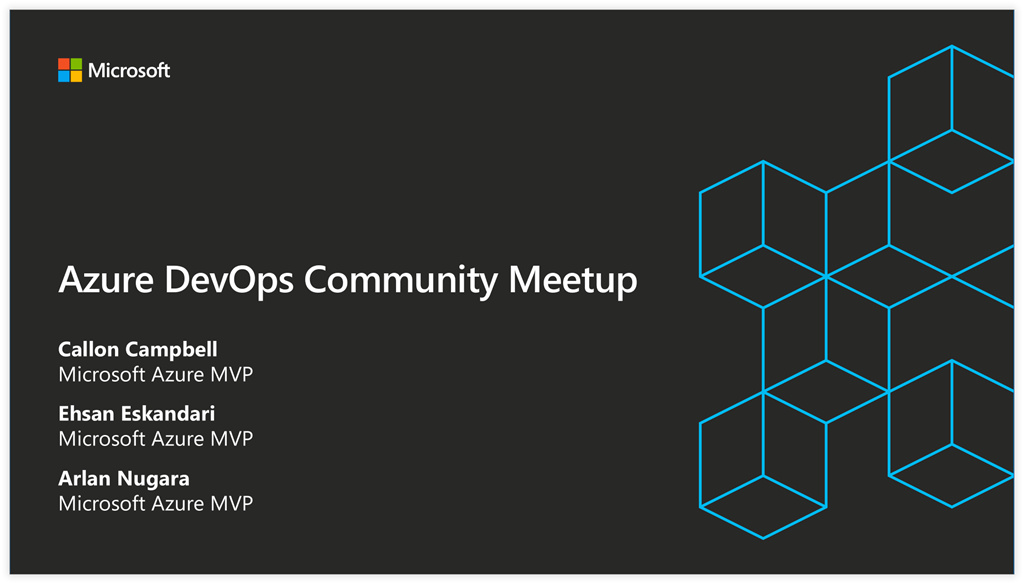
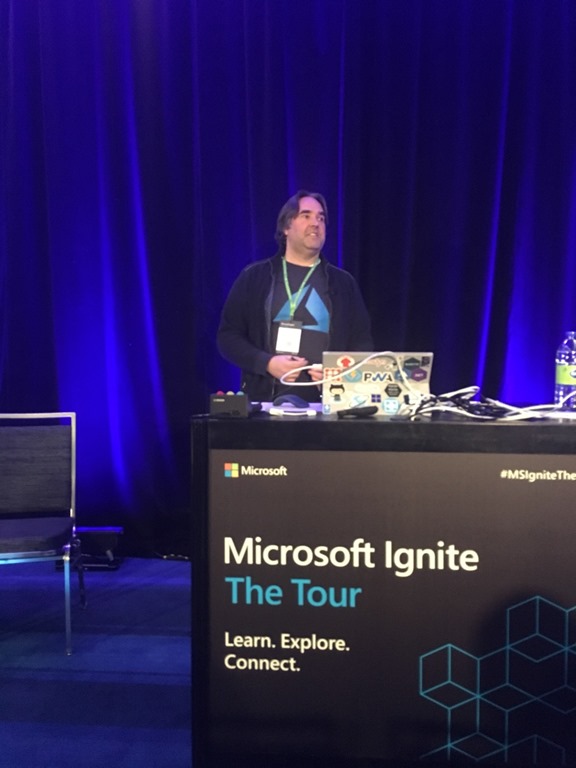
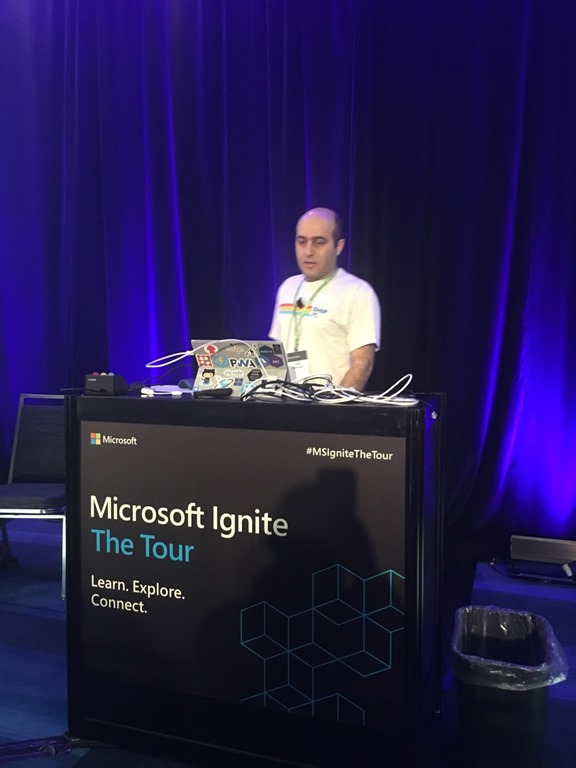
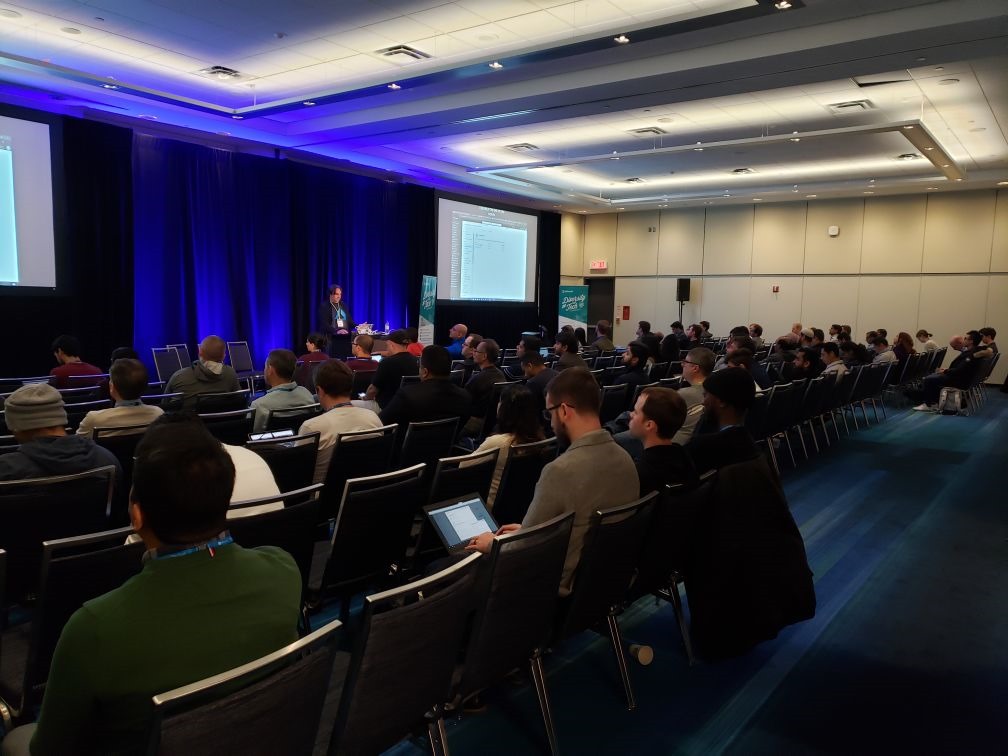
Presenting – Azure DevOps Community Meetup
Our talk was a community meetup on Azure DevOps with 146 people registered and we had great turnout of 130 or so. The presentation sparked many conversations with the attendees and other community MVPs. This later led to a conversation about coordinating a single Global Azure DevOps Bootcamp in the Great Toronto Area which was very exciting.
Working the Microsoft Area – Demo Stations, Lounges and Meeting Pods
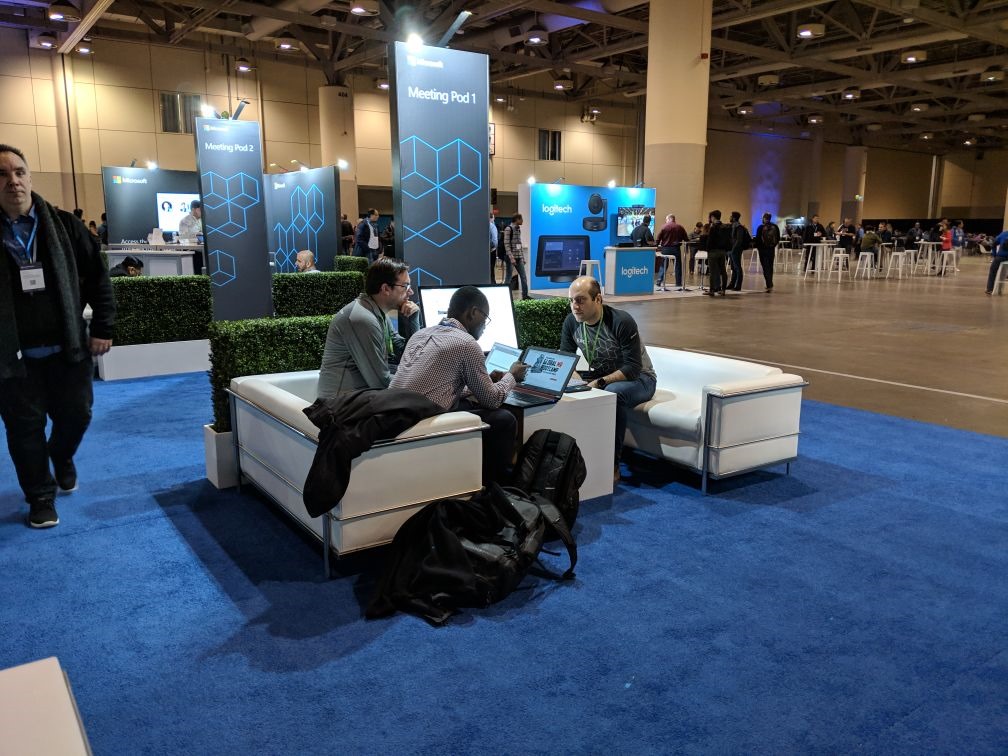
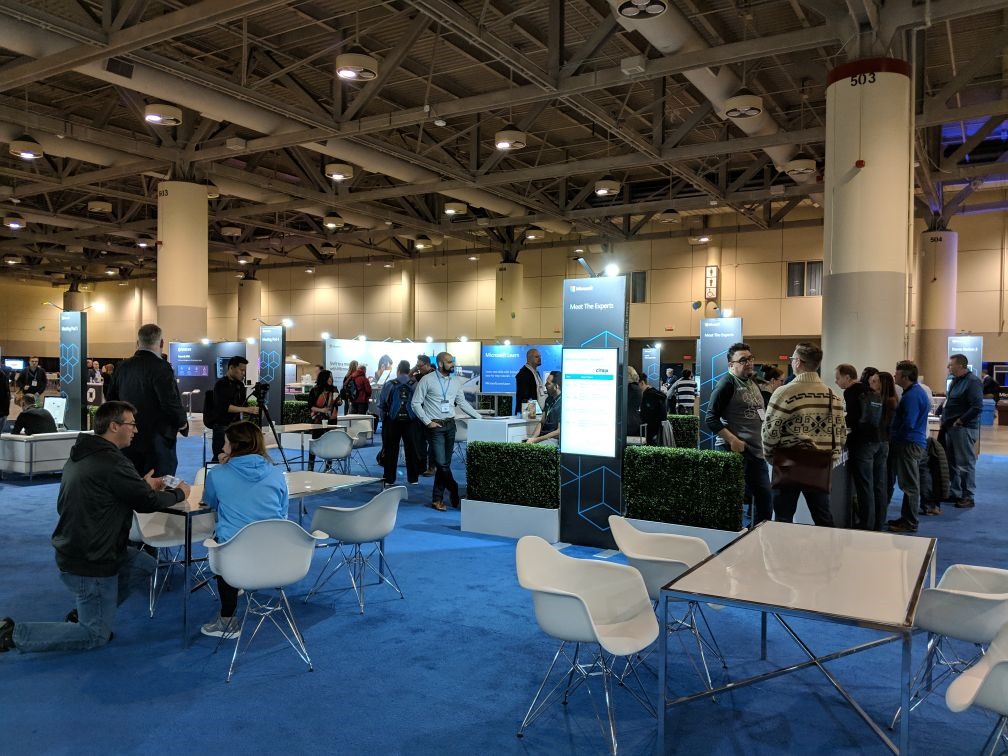
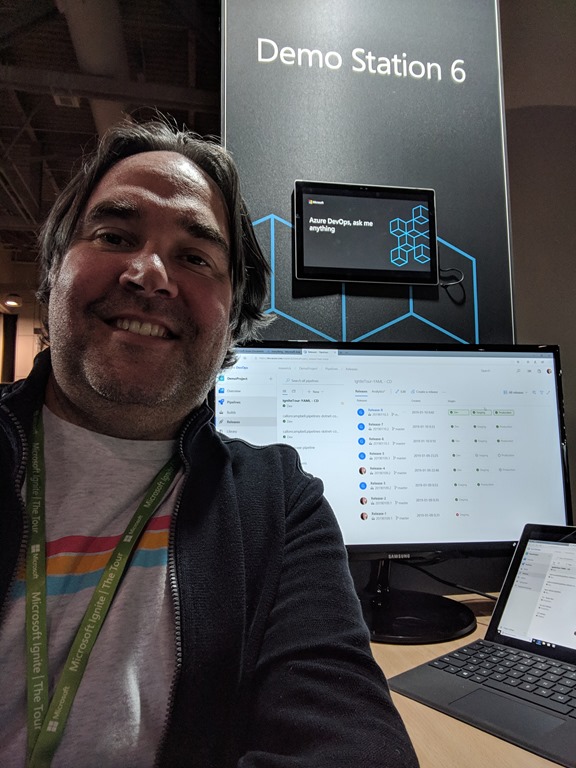
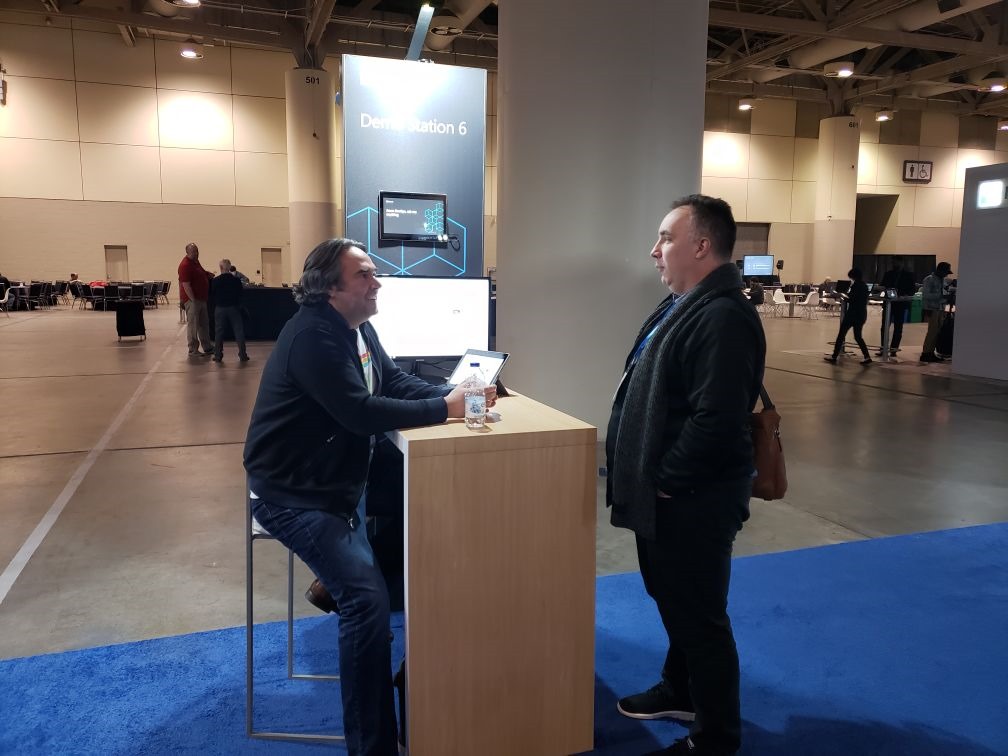
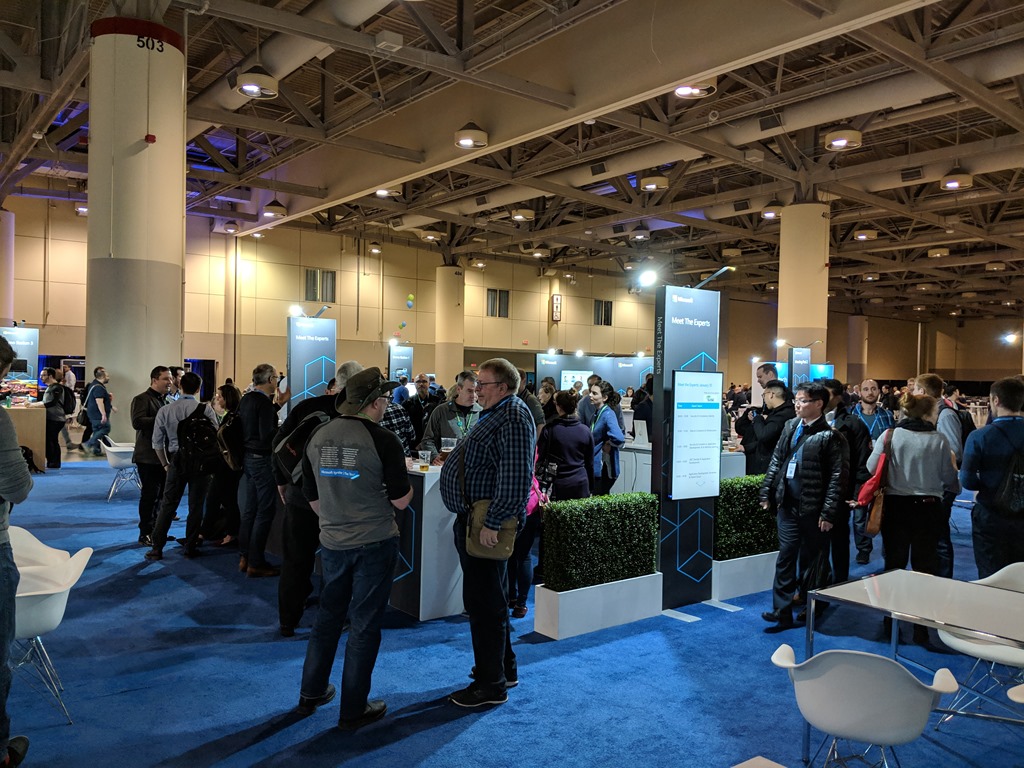
After the presentation was done we had arranged a Meeting Pod for both days to continue the Q&A discussions that sparked from the talk. This allowed attendees to come and talk with us afterwards since our time in the room was limited. I also got to work the Demo Station where anyone could walk up to me any ask me anything. I focused my demos on Azure DevOps, Azure Functions, Event Grid and Logic Apps.
Networking, Socializing and Connecting with the Community
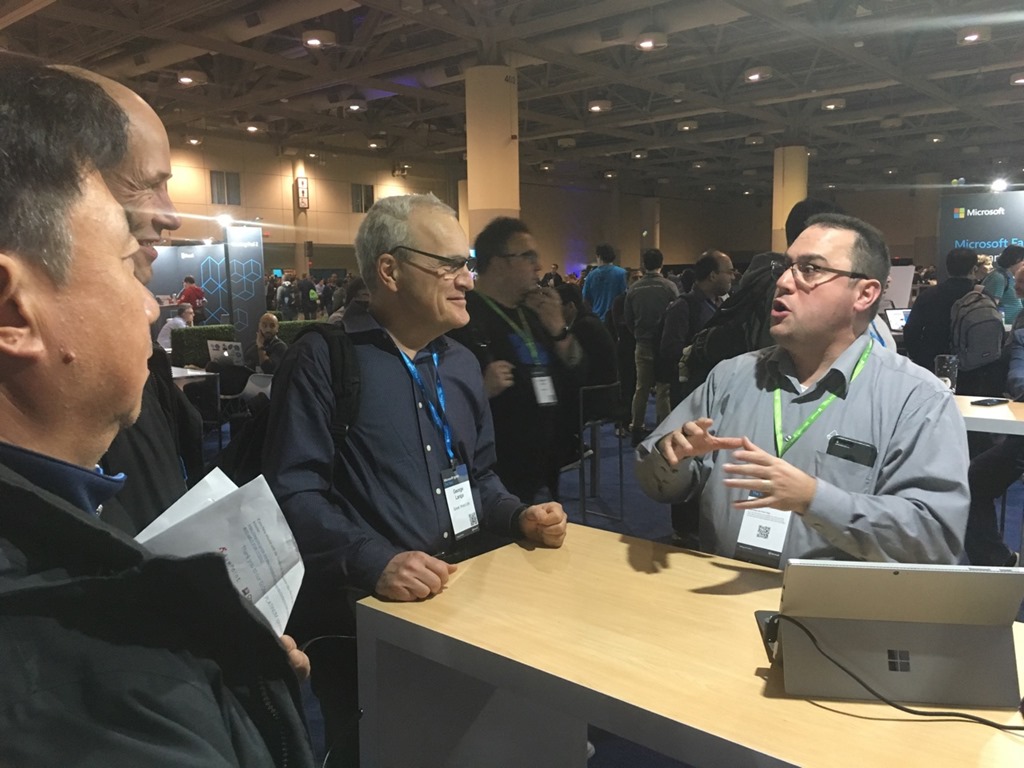
Of course you need to have fun and there was plenty of it throughout the two days. I had the opportunity to connect with other MVP’s in the local community and those that flew in for the event. I love this group and the passion we all share to learn and help others in the community.
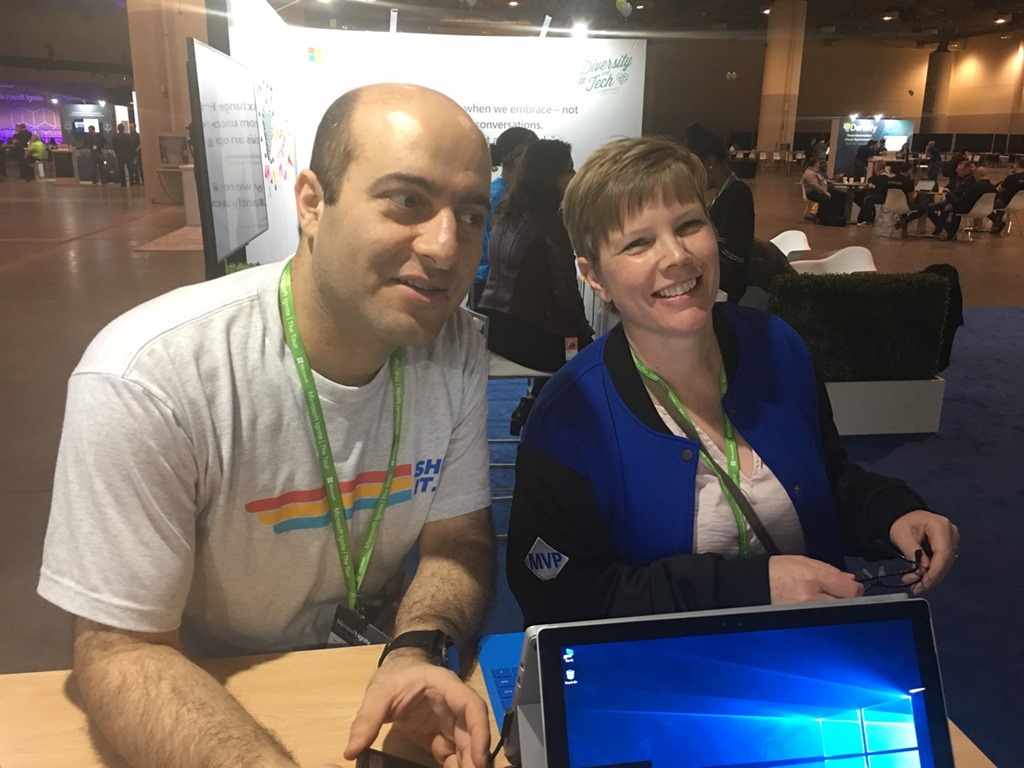
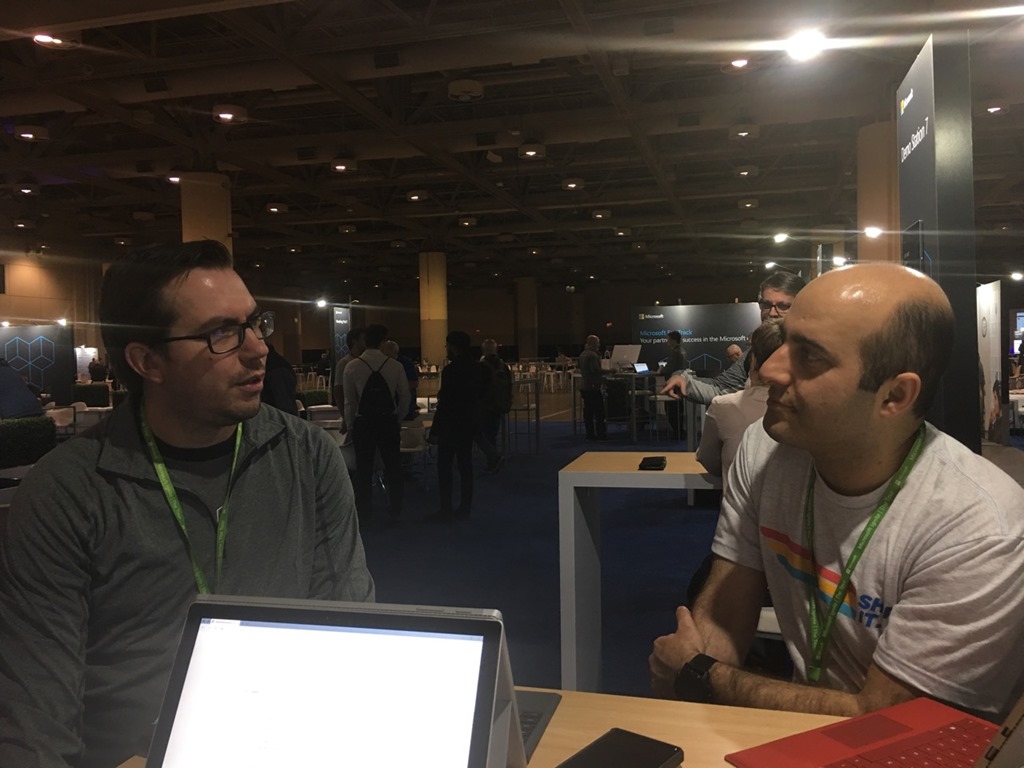
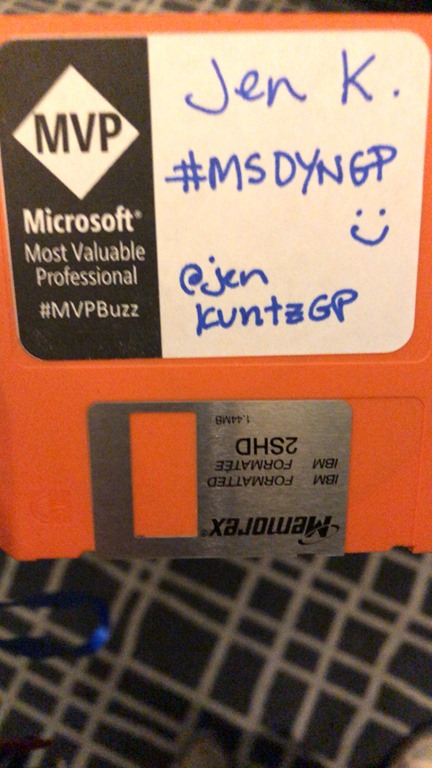
In the evening there was a MVP social dinner. The name tags for the event were a neat idea, 1.44” floppy disks on a lanyard. I wonder what rock those disks were dug up from? I’m sure I have a box of these somewhere in my basement “tech” museum.

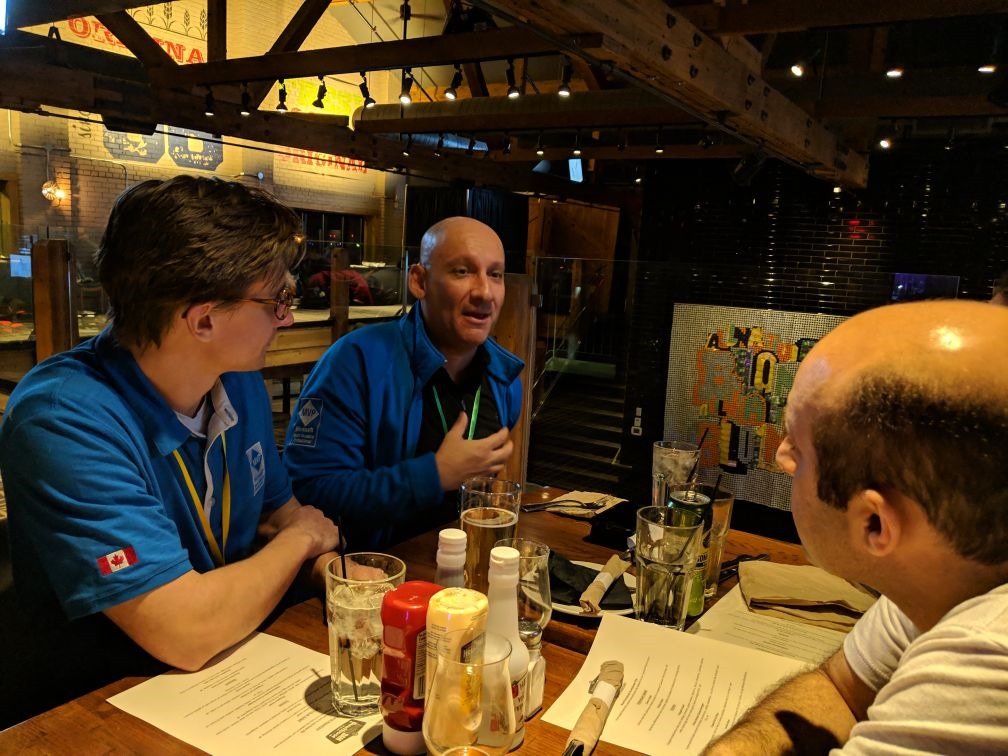
Wrap Up
Having the opportunity to participate at a conference like this was amazing. What was special about this event is that it was my first high profile conference to speak at. When I was younger public speaking was something I dreaded and tried to avoid at all cost. Speaking at conferences like this is nerve racking at first but does goes away as you get comfortable and relaxed. You get so much support from the tech community, whether its other speakers, colleagues or just the attendees wanting to engage with you and try to solve similar problems.
I had a blast at this event and I can’t wait for next year. I hope I once again get the opportunity to participate in this conference as a speaker, staffer or both.
Enjoy!
Resources
- Here are my 2018 Ignite the Tour Azure DevOps Demos on GitHub
- Microsoft Ignite The Tour – Toronto
- Azure DevOps Documentation
- Explore the DevOps Resource Center
- Azure DevOps Hands-On Labs
- Azure DevOps Demo Generator
UofTHacks VI Recap

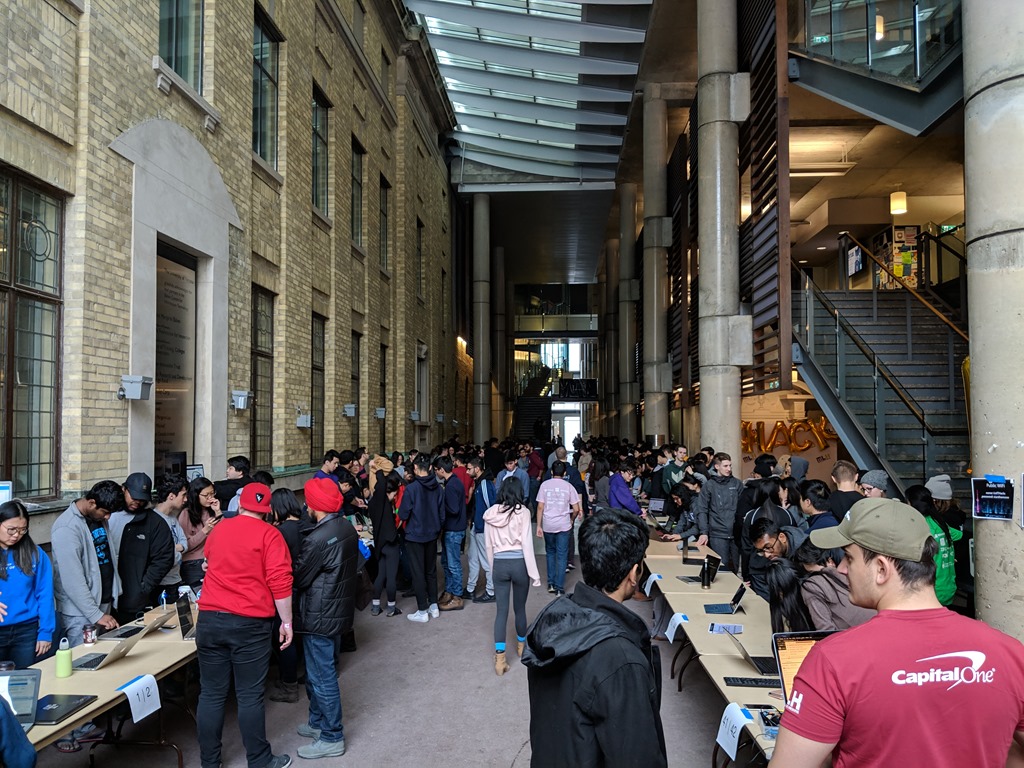
This past weekend I got the opportunity and had the pleasure of participating in my first hackathon at the UofTHacks VI, which was at the University of Toronto campus from January 18th to the 20th at the Bahen Centre for Information Technology. The event consisted of over 500 hackers, and spanned 36 hours, and would ultimately prize 3 winners.
hack•a•thon
An event, typically lasting several days, in which a large number of people meet to engage in collaborative computer programming. We look past this traditional definition of a hackathon and take it to new heights. UofTHacks is the University of Toronto’s annual hackathon. At UofTHacks, we bring people together to make new friends, learn new things, and bring new ideas to life.
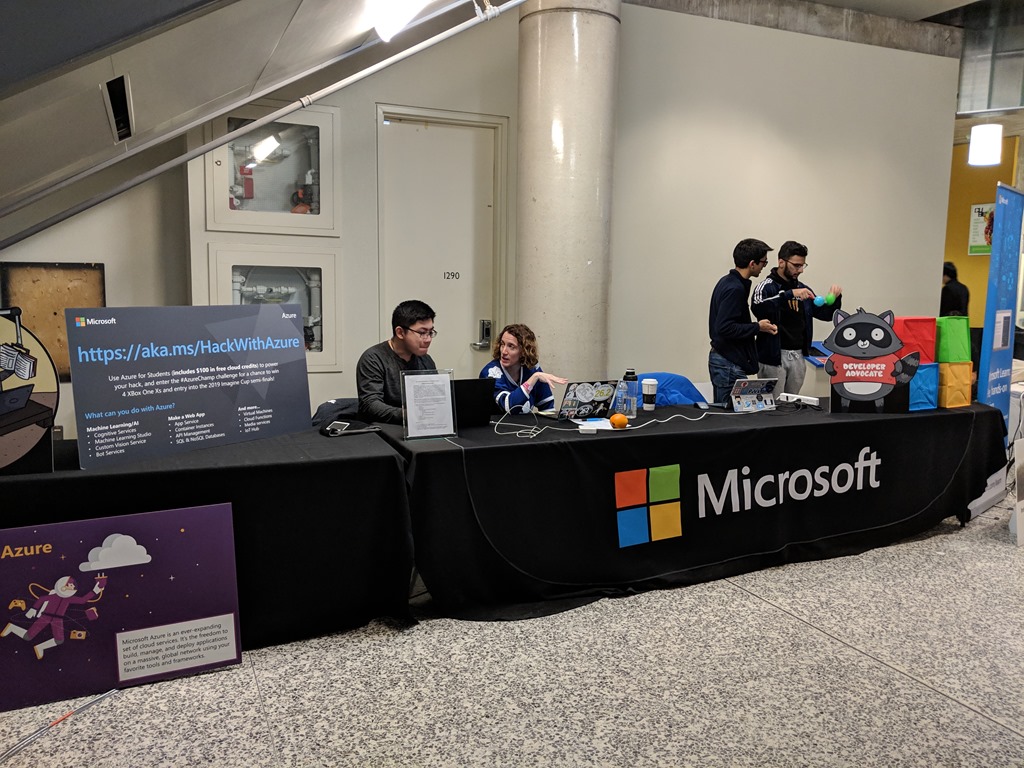
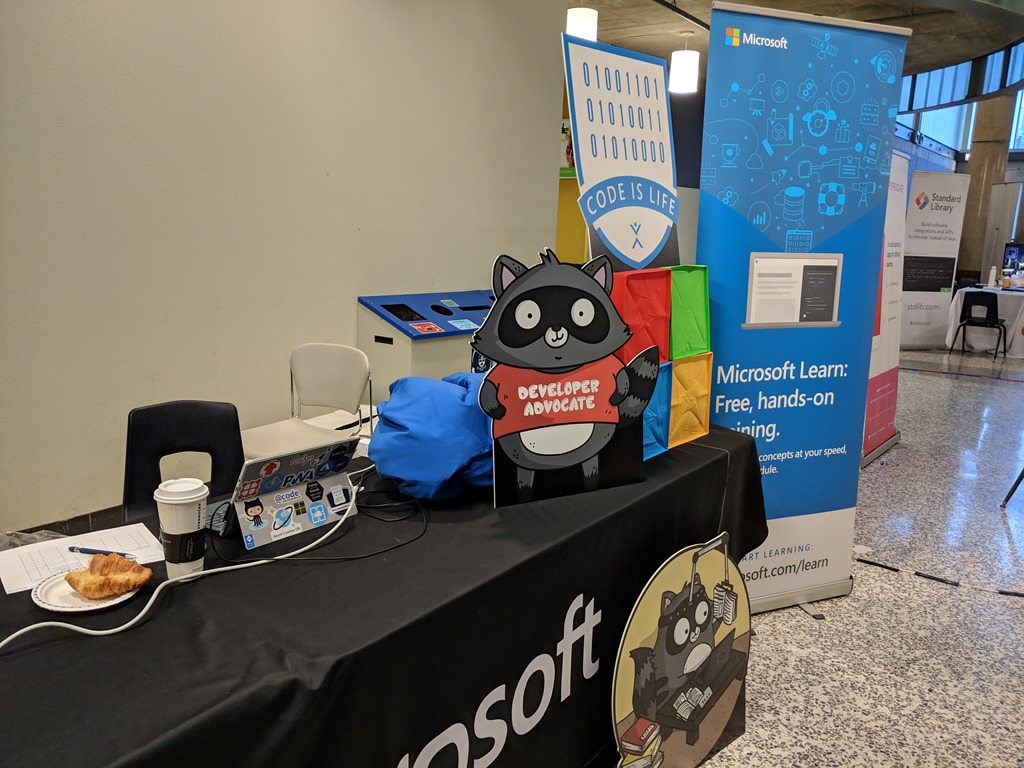
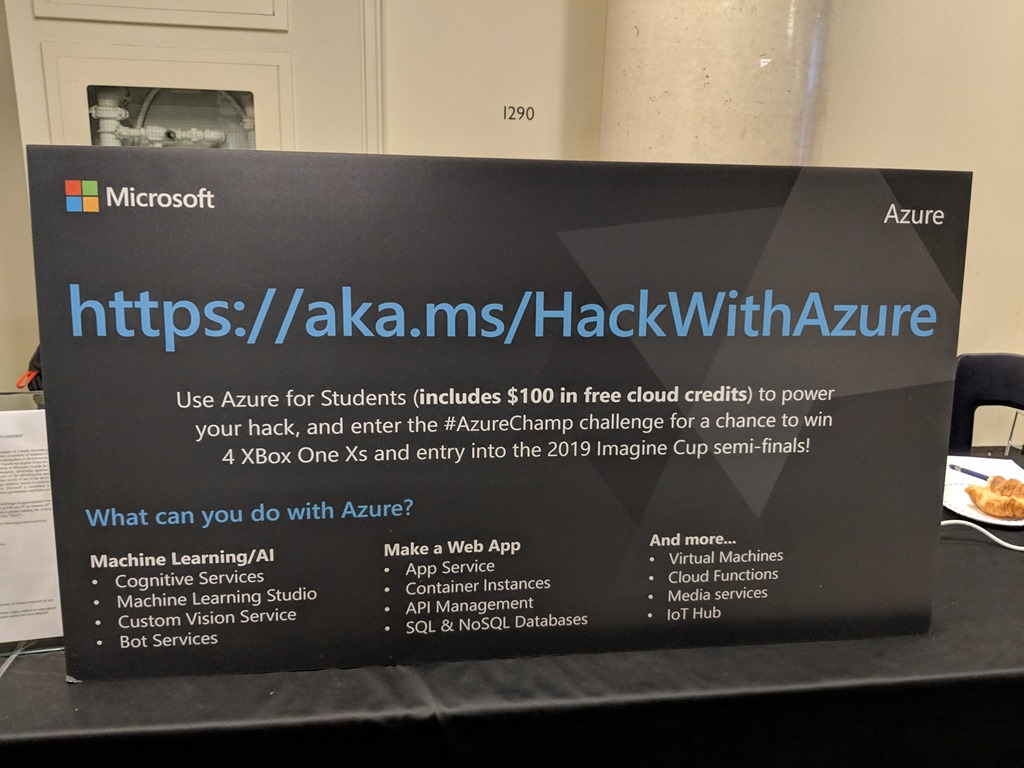
I was participating as a Microsoft sponsor. This meant I was available to help mentor the students who had questions on Microsoft Azure or anything for that matter, and provide them with an insider perspective of how things work in the industry. I also then got to be a judge for the Microsoft prize which was based on projects that leverage Microsoft Azure services.
It was a lot of fun to work with these students as they had such drive and passion for what they worked on. The judging aspect was probably the best part as I got to take a look at over a dozen projects and see what they built, why they built it, how they built and then where would they take it next. Almost all the projects had real world applications and some even created business plans as part of their sales pitch.
Some of the big sponsors at the event were Microsoft, Google, IBM, Interact, Intel, Standard Library, ChainSafe, Lyft and SmartCar, plus many others.
As for the Microsoft prize, it was 4 Xbox One X 1TB consoles. This was presented to team Blink who created an application that would sit in your car and monitor the drivers eyes for signs of fatigue, drowsiness, or any other impairment. They leveraged the Microsoft Custom Vision Service and built their own data model that consisted over 250 images they gathered from the event of peoples eyes. They eyes were that of different ages, different skin colors, with and without glasses. They also retrained this model a number of times over the course of the 36 hour event, including the morning of judging session when the room had different lighting conditions. Their was a mobile and server components of the app that would send out SMS alerts to the registered emergency contact in the event impairment was detected and also alert emergency services. It was a well put together hack that had a clear application for issues we encounter today.
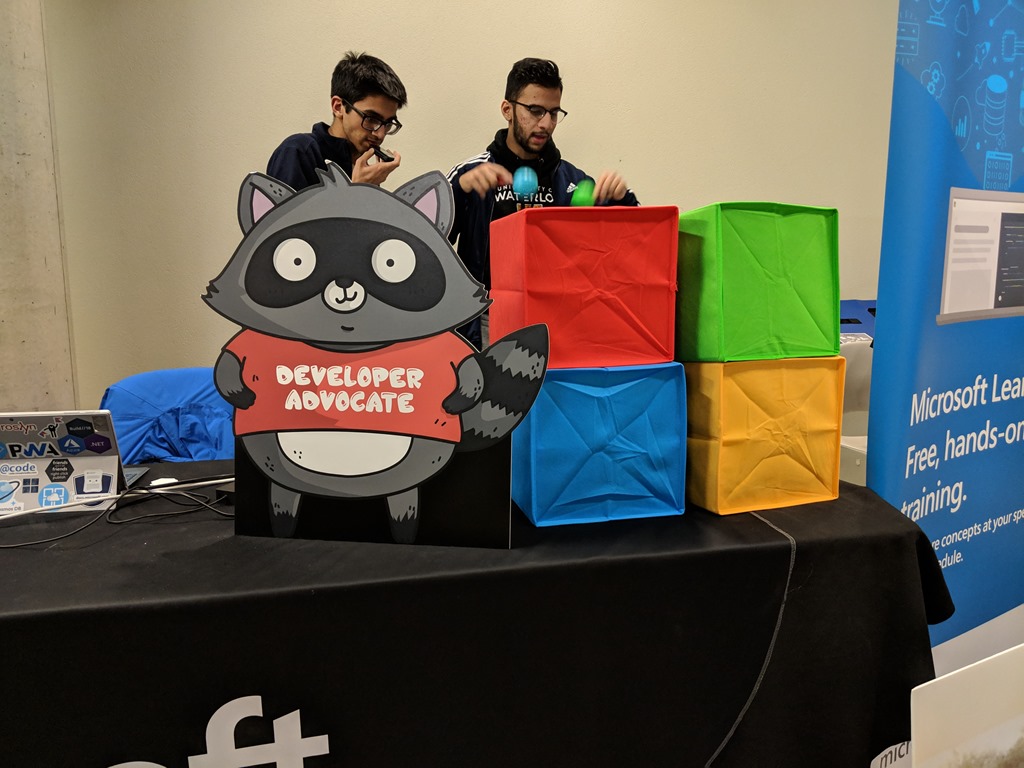
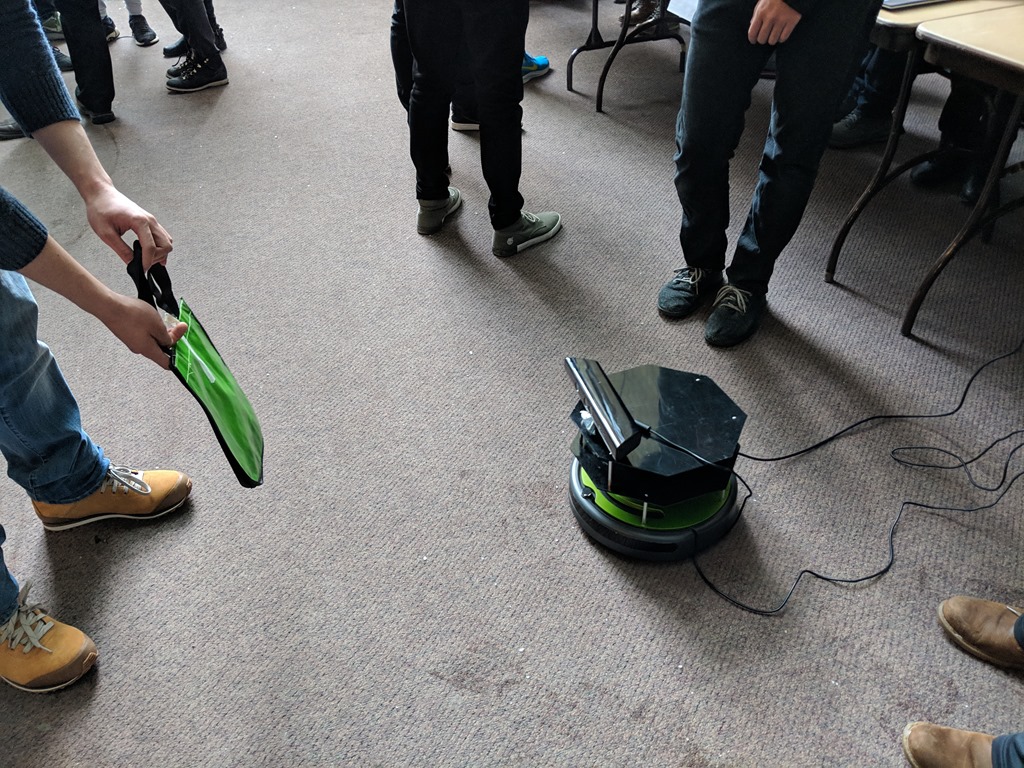
Here are some pictures of the event



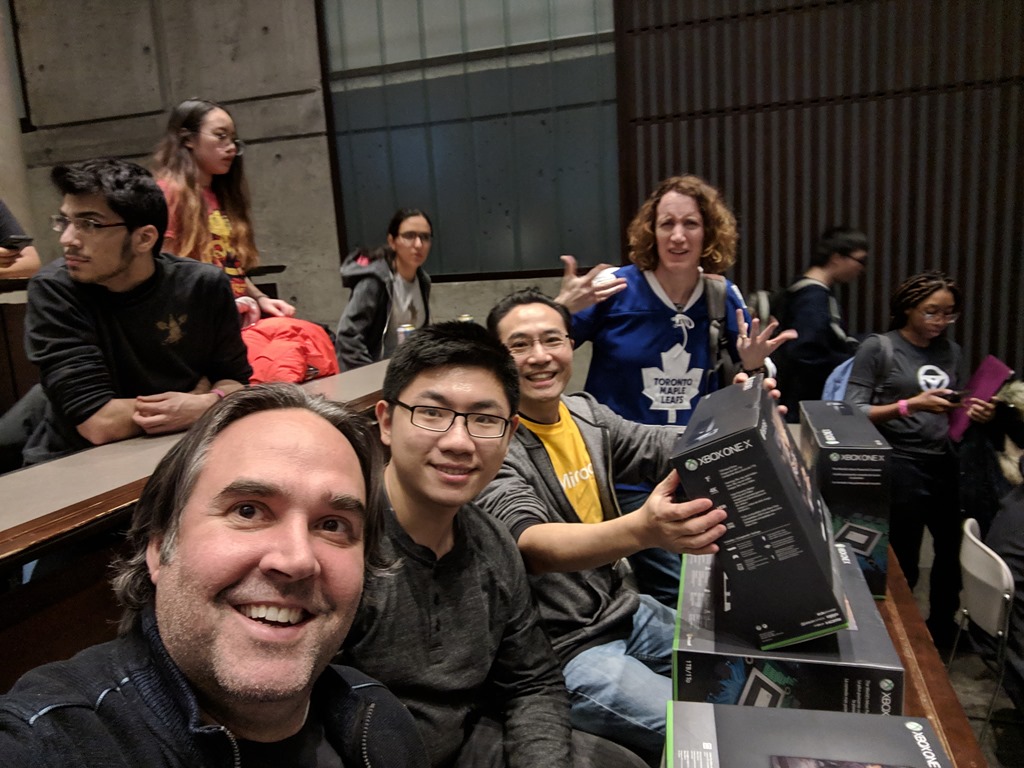
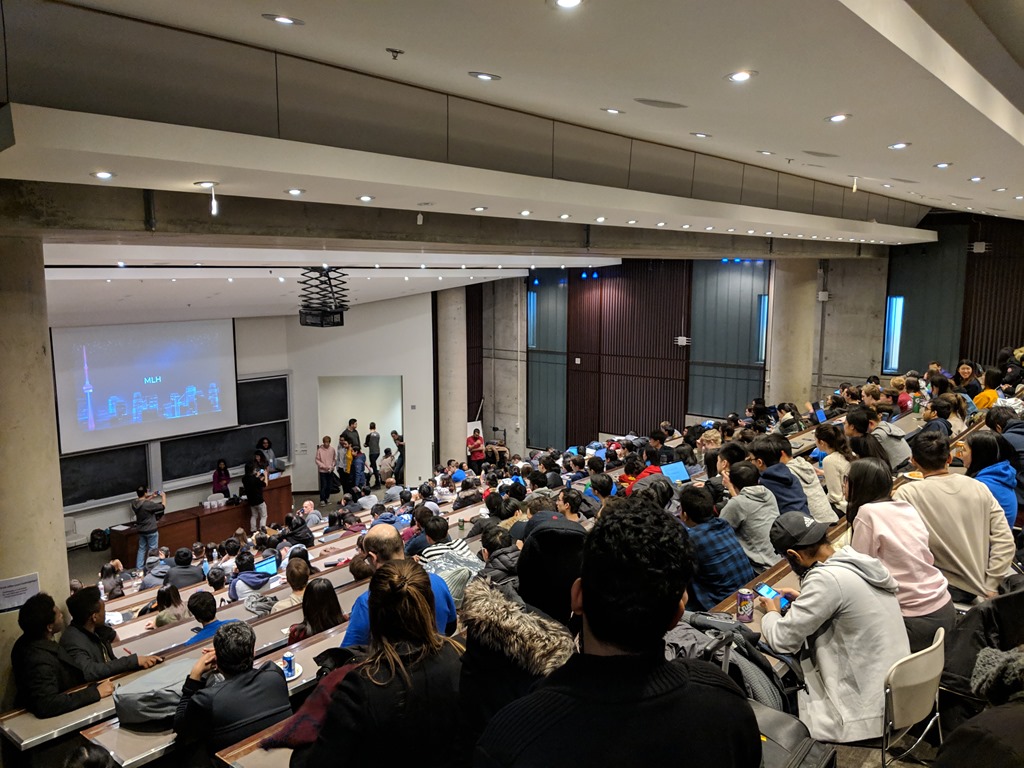
This might of been my first hackathon but it definitely won’t be my last. I will keep an eye out for something more suited for the working developer that is maybe limited to a day, otherwise I hope to come back next year and help these students out and see what they create.
Enjoy!
Resources
Team Blink – A machine learning eye detection app which determines if the driver of a smartcar is impaired & alerts 1st responders
Moving your Azure Resources to Another Subscription or Resource Group
At some point or another you may need to move your Azure resources to either another Azure Resource Group or to another Azure Subscription. This is easy to do and is useful when organizing your resources for management or billing scenarios. Before moving any resources it’s best to take a look at the following checklist before moving resources link.
Ok let’s get started. In this example I’ll be moving an Azure Resource Group with a number of services over to another Azure Subscription.
Steps to move resources
Step 1 – Navigate to the resource group you want to move. Go to the Resource groups blade in the Azure portal and then navigate to the particular resource group.
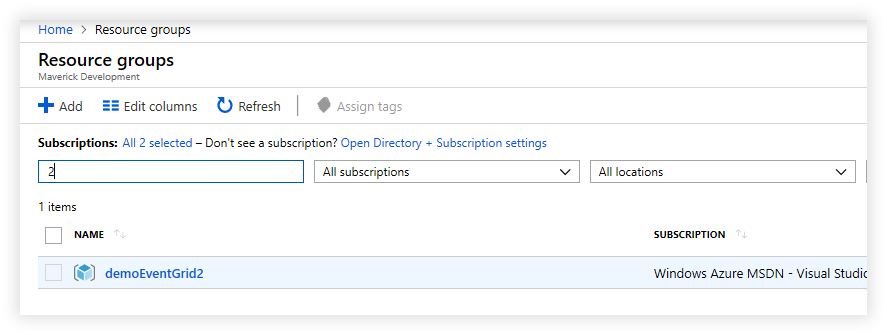
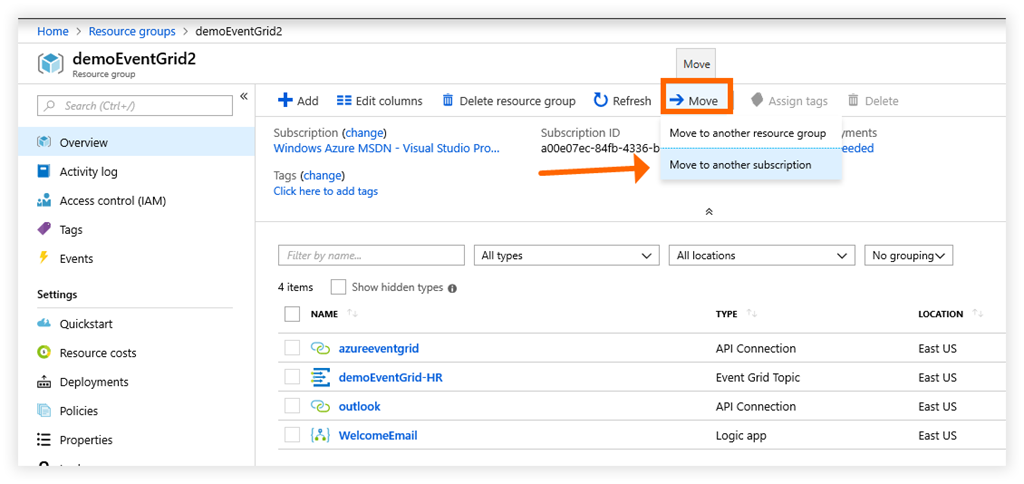
Step 2 – Click on Move button and then select Move to another subscription option.
Step 3 – Next in the resources to move screen, review the resources that are to be moved over which are all automatically selected. Then select the subscription and resource group you want to move target. If the resource group is not already created, you can create it now by clicking on the link to create a new resource group.
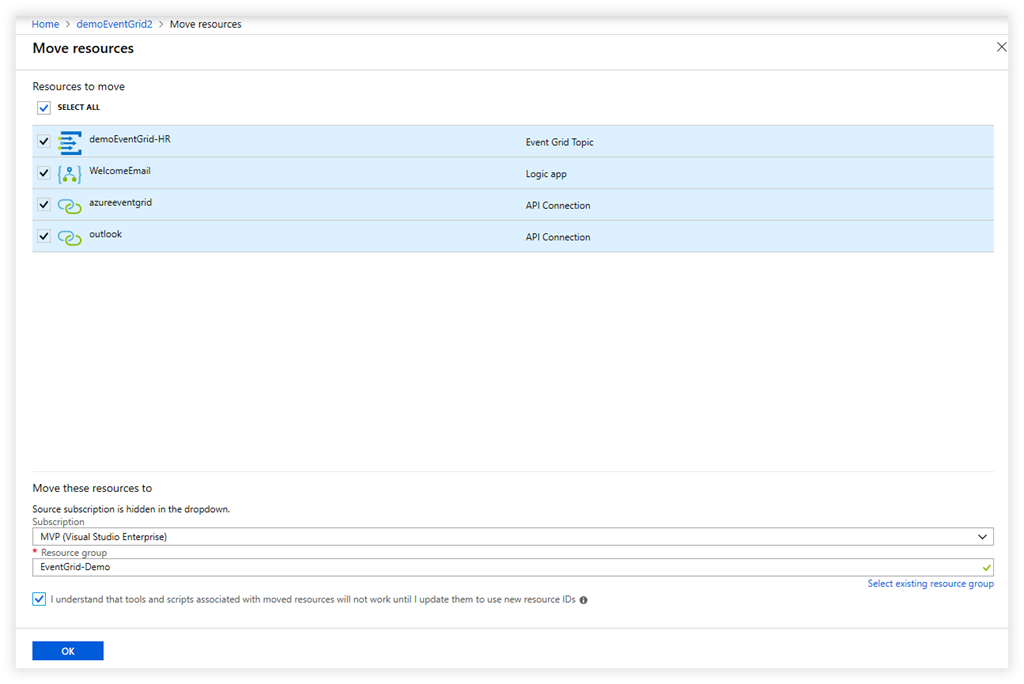
Step 4 – Now click on the OK button to start the process. The job will then be validated and then you will see a notification of the movement in progress, followed by a success or failure notification. In the event of a failure, details will be provided on why the resources could not be moved. Usually after working through these issues you can try again.
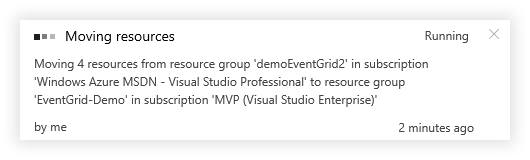
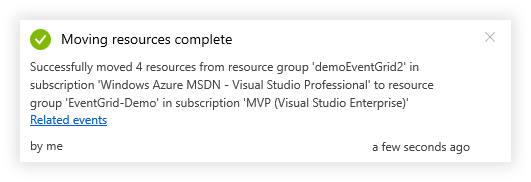
Step 5 – You should now go to the new resource group you created and verify all the resources are accounted for and that the resources still function as intended.
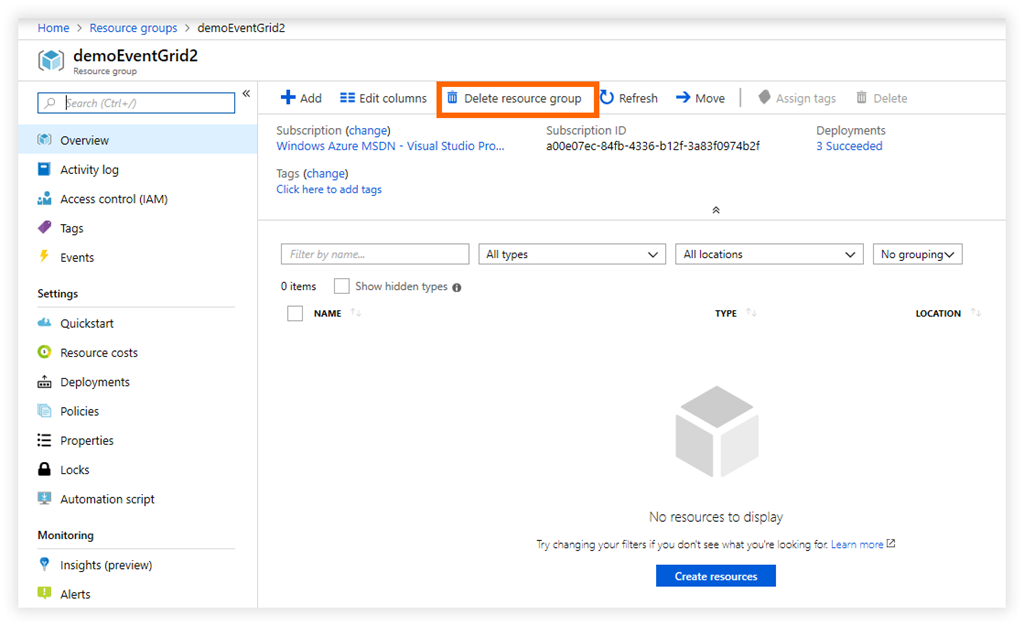
Step 6 – Finally you want to tidy up and delete the original resource group on the source subscription as it’s now empty and should not be used again. To do this go to the original resource group and click on Delete resource group button. You will be prompted to type in the name of the resource group to confirm you want to continue.
Summary
This article covered moving a resource group and all of its resources from one subscription to another. The same process is applicable when moving resources from one resource group to another within the same subscription.
Enjoy!
References
Azure Overview Tool
Have you ever wanted to find out if a particular Azure service is in preview or generally available? Fellow Azure MVP Barry Luijbregts created a great website which provides up-to-date status of Azure services.
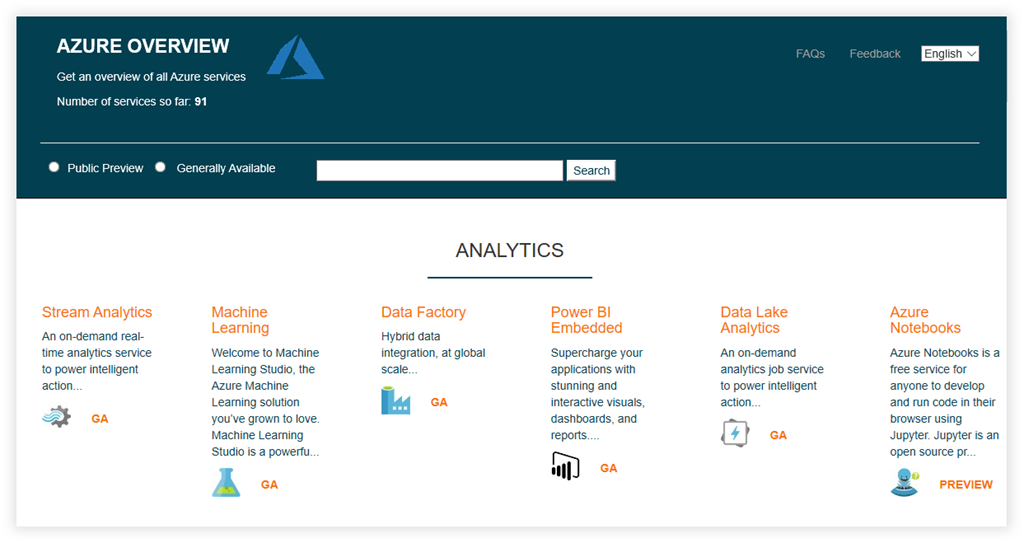
Azure is constantly changing and is sometimes overwhelming to try and keep up with what’s in preview vs generally available. What is awesome about this website is that it’s more up to date than the other Microsoft sites that try to provide this information.
The website is also open source, and you can check out the source code on GitHub: https://github.com/bmaluijb/AzureOverview.
I’ve definitely added this site to my bookmarks and look forward to further enhancements. Thanks Barry!
Enjoy!
References
https://www.azureoverview.com/
https://www.azurebarry.com/find-the-status-of-azure-services-on-azureoverview-com/
Introducing the Azure DevOps Service Status Portal
Last week Microsoft introduced the Azure DevOps Service status portal which provides real-time insights into the current health of Azure DevOps regional feature status and provides additional details on specific events either current or historical.
When you go to the Azure DevOps Service status portal, the main dashboard shows you a 2-dimensional matrix mapping of the feature with geographic regions as shown below.
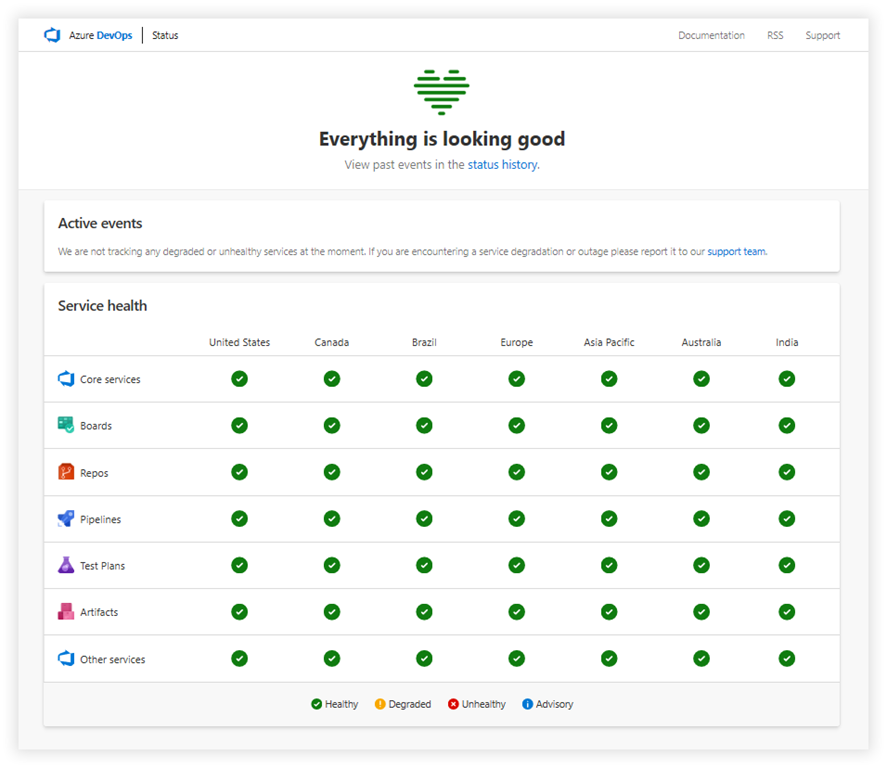
To see current or historical events, click on the Status History link where you can filter the results by service type, categories, severity and then date range:

Clicking on a particular event log will take you to the event log page which shows all details about the event, what was affected, when it was resolved, and then any workarounds that users can take if needed.

REST APIs will be coming soon for users looking to build automated solutions to watch the service status.
For service health updates relating to Azure’s global services, please refer to the Azure Status page.
For more information on the new Azure DevOps Service status portal, please refer to the Azure DevOps Service Status documentation.
Enjoy!
References
Azure DevOps rolls out a dark theme preview
This week Azure DevOps finally rolled out one of their most requested feature, a dark theme. I use dark theme for just about any app that supports it, so this is a welcome addition to Azure DevOps. Keep in mind that this is just a preview and is still being refined.
To switch to Dark theme, go to your Azure DevOps portal and click on your user dropdown menu in the top right corner. Then click on Theme menu item.

The theme options pane will then be displayed. Click on the Dark (preview) option to switch to the dark theme.
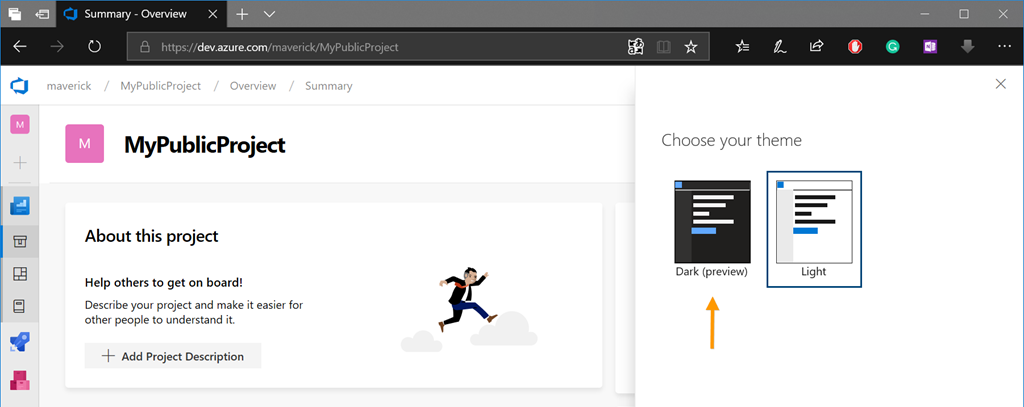
Voila! DevOps in Dark theme.
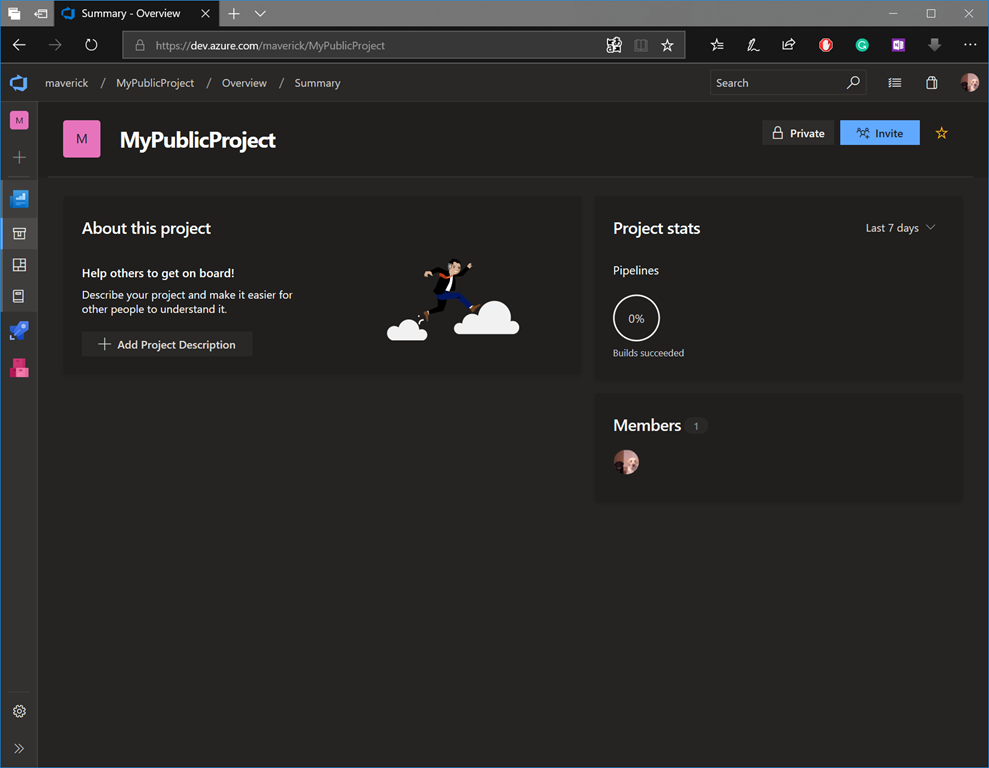
Switching to dark theme is a personal choice and is not something that is forced across your organization, which is nice. I recommend you give it a try and see for yourself.
Enjoy!
References
https://azure.microsoft.com/en-us/services/devops/
https://blogs.msdn.microsoft.com/devops/2018/11/01/whats-new-in-azure-devops-sprint-142-update/
 The Flying Maverick