
#Windows10 – Mouse without borders, a #MustHave if you work with 2 or more computers
#Windows10 – Mouse without borders, a #MustHave if you work with 2 or more computers
— Read on elbruno.com/2019/10/30/windows10-mouse-without-borders-a-musthave-if-you-work-with-2-or-more-computers/
11 Tips for Giving Technical Presentations
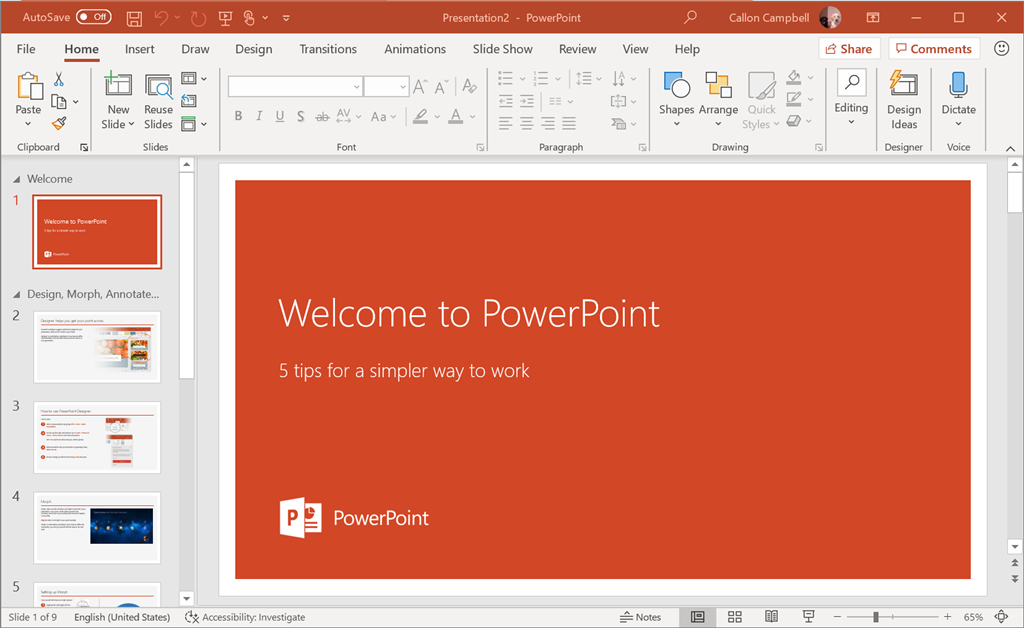
The following are eleven tips I’ve learned over the years of giving technical presentations at work, meetups, or at conferences that I wanted to share with the community so that it might help someone else that is new to presenting or wants to refine their presentation process. So let’s get started.
1. Get out of the dark
If you’re using Dark Mode for your tools, please switch to the light theme as it provides a better viewing experience when used with a projector.

2. Enable Presenter Mode
This extension works great for Visual Studio 2017 but doesn’t currently work in Visual Studio 2019 unless you also have Visual Studio 2017 installed. Surprisingly this hasn’t been fixed yet, so for Visual Studio 2019, I found Presenter a good replacement. Both of these tools will increase the font size for Visual Studio panes and the text editor. This saves you from changing it on every code file. When you’re done just exit presenter mode.
3. Bigger is better
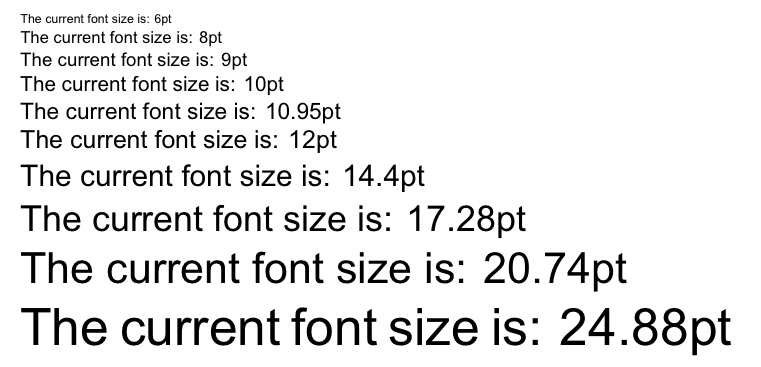
Increase your font size. You might be able to see your content but think about the people at the back of the room. Do them a favour and use a tool called ZoomIt which is part of SysInternals.
4. Remove the distractions
Hide your desktop icons, close down any apps unrelated to your presentation/demo, and finally turn on Focus Assist. If you’re on Windows 10 then please turn on Focus Assist. People don’t want to get distracted by your notifications.
5. Have a backup plan
In case there is no internet, have a plan for how you can do your demo. People have gone so far as recording their desktop during a rehearsal and then playing that video back and talking through it like no one is the wiser. You should also keep a copy of your presentation file locally.
6. Use standard tools
You should always go with the standard applications for your talk. If there is a glitch, or you need to borrow a machine then you don’t need to worry about special downloads and installation. If you’re going to try and use a different tool, then do your audience a favour and quickly mention what tool you’re using, why and where to get it. For one of my talks, I was using the REST Client extension for Visual Studio Code and the audience found that interesting that I was using this instead of Postman. So I quickly told them why and it probably encouraged a few dozen downloads that day.
7. No updates and no notifications!
It’s funny how often this bites people in the behind but the golden rule is to never apply Windows or application updates the day of your talk. The “demo gods” will tempt you and offer an update…please resist. I lost count how many times Visual Studio got an update on the day of my talk, same with Azure Functions SDK, even Windows 10 wanted to install an update. The last thing you need is to go into an update cycle and not know how long it will take or how it will affect your presentation and demo. Be safe and wait until after your talk. You should also turn on Focus Assist, which is a setting in the Windows 10 Action Center to hide any unwanted notifications.

8. The pen is mightier than the sword
Invest in a presentation remote. This keeps you away from your laptop and allows you to stay focused on your talk and the audience. If you have a Microsoft Surface Pen then your in luck as you can use it as a presentation remote. Just click the eraser to go forward or click and hold to go back. Although not as fancy, it does the job and is what I use for every presentation I do.
9. Practice and know your content
There is no rule here for how much prep work you should do for your talk, but a guideline that was given to me by a fellow MVP is to factor in 20 hours of work for a 40-60min talk. This includes the research, working on the presentation (PowerPoint and demos) and then rehearsing. If it’s a new topic I’m not familiar with then 20 hours is about correct, otherwise for something I’m well versed in I can usually put something together in a relatively short amount of time. When it comes to practicing make sure to actually practice. Speak out loud to an imaginary audience and go through your demos. You will find that speaking out loud will give you a more accurate feel for how the talk will go and you will find what works and what doesn’t.
10. Rogue One
Rogue One is a Star Wars movie (one of my favourite) and worked in the movie. However going rogue and off-script from what you rehearsed for can have consequences you might not have been prepared for. Some presenters are good at doing this and others fall flat on their face. If you do decide to go rogue, know when to bring it back in and get back on track, otherwise your audience might lose interest and it makes you look un-professional.
11. Have fun
Seems obvious but seriously make sure you’re having fun doing your talk. Your attitude projects out to the audience and they will feel your excitement and be more engaged. Also if you’re having fun, then that easily provides cover for any blunders that might happen along the way and your audience is more forgiving and understanding.
I hope you enjoyed my presentation tips and they help make you a better presenter.
Enjoy!
References
Adding the Visual Studio Developer Command Prompt to Windows Terminal
The Windows Terminal was announced at Build 2019 and is open source and free. In this article I’ll show you how to add a new shell profile for the Developer Command Prompt for VS2019.
Getting Windows Terminal
Windows Terminal requires Windows 10 1903. You can get the Windows Terminal for free from the Store. For users who are unable to download from the Store, Windows Terminal builds can manually be downloaded from the repositories Release page.
JSON Syntax
The Windows Terminal settings is stored in a “Profiles.json” file. You can access this file from the Settings menu located in the dropdown menu to the right of the add new shell button as shown below.

Alternatively this file is located in the following path:
%USERPROFILE%\AppData\Local\Packages\Microsoft.WindowsTerminal_8wekyb3d8bbwe\LocalState
Editing the Profiles.json file is easy, but if your unfamiliar with the JSON syntax then there are few things you need to know.
- Do not use backslash (\) in file paths. These should be replaced with a forward slash (/).
- Always close files paths in double quotes.
- All lines must end in a comma except for the last line in a section or block.
Adding the Develper Command Prompt Profile
This section assumes that you have Visual Studio 2019 installed and have access to the Developer Command Prompt for VS 2019.
{
    "acrylicOpacity": 0.75,
    "closeOnExit": true,
    "colorScheme": "Campbell",
    "commandline": "cmd.exe /k \"C://Program Files (x86)//Microsoft Visual Studio//2019//Enterprise//Common7//Tools//VsDevCmd.bat\"",
    "cursorColor": "#FFFFFF",
    "cursorShape": "bar",
    "fontFace": "Consolas",
    "fontSize": 10,
    "guid": "{26b30263-74e9-4146-b80e-11632e86d42c}",
    "historySize": 9001,
    "icon": "ms-appdata:///roaming/vs2019-32.png",
    "name": "Developer Command Prompt for VS2019",
    "padding": "0, 0, 0, 0",
    "snapOnInput": true,
    "startingDirectory": "%USERPROFILE%",
    "useAcrylic": true
},
A couple things to note about the above profile that you might need to change based on your local system.
- For the “commandline” line, you will want to change “Enterprise” to the Visual Studio 2019 SKU you have, like “Professional” or “Community”.
- For the “icon” line, I downloaded a VS 2019 icon from https://visualstudio.microsoft.com/vs/ and resized it to 32×32 and saved it in my RoamingState folder %USERPROFILE%\AppData\Local\Packages\Microsoft.WindowsTerminal_8wekyb3d8bbwe\RoamingState
- For the “guid” line, you need to generate a new GUID and enter it in here.
Once you’ve saved these changes restart the Windows Terminal app and your new Developer Command Prompt for VS 2019 will be listed.

There are a number of other consoles you can add like “Python”, “Linux Bash”, “PowerShell Core, “Ubuntu”, and many more.
Enjoy!
References
Download Windows Terminal from the Store
Windows Terminal Documentation
A new Console for Windows – It’s the open source Windows Terminal
Learn all about Distributed Application Runtime (Dapr), Part 2 | Azure Friday
In this episode of Azure Friday, Aman Bhardwaj and Yaron Schneider join Scott Hanselman to talk about the actor model of Distributed Application Runtime (Dapr). Dapr is a portable, event-driven runtime that makes it easy for developers to build resilient, microservice stateless and stateful applications that run on the cloud and edge and embraces the diversity of languages and developer frameworks.
[00:01:36] – Demo
- Dapr – Distributed Application Runtime
- dapr/dapr repo (GitHub)
- Announcing Distributed Application Runtime (Dapr), an open source project to make it easier for every developer to build microservice applications
- Learn all about Distributed Application Runtime (Dapr), Part 2
- Create a free account (Azure)
Resources
- Azure Friday – https://channel9.msdn.com/Shows/Azure-Friday
- Free Azure Account – https://aka.ms/cldntvshw/freeazure
Learn all about Distributed Application Runtime (Dapr), Part 1 | Azure Friday
In this espisode of Azure Friday, Aman Bhardwaj and Yaron Schneider join Scott Hanselman to talk about the core concepts of Distributed Application Runtime (Dapr). Dapr is a portable, event-driven runtime that makes it easy for developers to build resilient, microservice stateless and stateful applications that run on the cloud and edge and embraces the diversity of languages and developer frameworks.
[00:02:19] – Demo
- Dapr – Distributed Application Runtime
- dapr/dapr repo (GitHub)
- Announcing Distributed Application Runtime (Dapr), an open source project to make it easier for every developer to build microservice applications
- Learn all about Distributed Application Runtime (Dapr), Part 2
- Create a free account (Azure)
Resources
- Azure Friday – https://channel9.msdn.com/Shows/Azure-Friday
- Free Azure Account – https://aka.ms/cldntvshw/freeazure
Prairie.Code() 2019 – SQL Server DevOps
Great presentation on SQL Server DevOps!

Note: Slides do not tell the whole story of the talk, so take the stand alone slides with a grain of salt. Things may be taken out of context.
Prairie.Code() 2019 – Building Large, Yet Maintainable, ASP.NET Core Applications
Great post on building and maintaining ASP.NET / ASP.NET Core applications.
Note: Slides do not tell the whole story of the talk, so take the stand alone slides with a grain of salt. Things may be taken out of context.
Azure Icon Update is Coming
New Azure icons are coming. Read more about this at
Buy Domain Names with Azure App Service Domain — Build Azure

There’s a feature for purchasing Internet Domain Names within Microsoft Azure that’s not very widely known. With the Azure App Service Domain feature, you can purchase and manage your domain names directly within Microsoft Azure. This is a sort of “hidden” feature since not many people know it exists, and it’s not talked about very…
Buy Domain Names with Azure App Service Domain — Build Azure
Microsoft Learn is the new Microsoft Virtual Academy — Build Azure

Over the last few months I’ve seen a lot of comments about Microsoft Virtual Academy being retired, in addition to a fair amount of traffic going to an article I posted about Microsoft Virtual Academy (MVA) being retired January 31, 2019. It’s important to note that Microsoft hasn’t abandoned the learning community. They’ve actually been…
Microsoft Learn is the new Microsoft Virtual Academy — Build Azure
 The Flying Maverick