Category: Development

DesignDevelopment

XAML UI Responsiveness tool in Visual Studio 2013

Interesting article about a new XAML UI Responsiveness tool included in Visual Studio 2013…

From the perspective of interaction-performance applications need to be “fast” and “fluid” – fast to launch, to navigate between pages, to react to changes in orientation, and fluid in scrolling, in panning and in animations. This post introduces the XAML UI Responsiveness tool, a new tool in the Visual Studio Performance and Diagnostics hub that lets you analyze such interaction-performance of your XAML-based Windows Store applications.

Reference

http://blogs.msdn.com/b/visualstudioalm/archive/2013/07/11/xaml-ui-responsiveness-tool-in-visual-studio-2013.aspx

DatabaseDevelopment

Announcing SQL Server Data Tools – June 2013

This week we saw another update to the SQL Server Data Tools (SSDT). This release introduces several new features.

What’s New

  • Data Compare
  • Extensibility
  • Build and Deployment Contributors
  • Schema Model Navigation and Extensibility API
  • Updated Date-Tier Application Framework

Download it Now

http://msdn.microsoft.com/en-us/data/hh297027

References

http://blogs.msdn.com/b/ssdt/archive/2013/06/24/announcing-sql-server-data-tools-june-2013.aspx

DesignDevelopment

Designing the Visual Studio 2013 User Experience

Great post on the Visual Studio Blog on Designing the Visual Studio 2013 User Experience.

sshot-498

Development

Creating a Windows Service Using PowerShell

Last week I was looking at using PowerShell for creating and starting a Windows Service.

Usually I have a batch program for installing and uninstalling my services. As you can see, my Batch script is very basic, but works:

image

This type of script has worked for me for years but I’ve always wanted to learn PowerShell and figured this is a good time to do so and why not migrate to using PowerShell for installing my Windows Services.

After reading through the PowerShell documentation, Core Cmdlets and playing around with the PowerShell ISE tool (part of PowerShell 3), I found I was still lacking the knowledge to do this properly and since I was also learning PowerShell, I decided to see if anyone else had troubles with this or had insight and behold they did!

One of the best articles I came across nailed it perfectly with decent information on interacting with Windows Services from PowerShell and then a detailed walkthrough and example on exactly how to do it.

Referenced article: Create a Windows Service using PowerShell

Thanks, you saved me a lot of time.

Here is what I created for PowerShell scripts

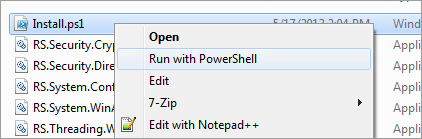
After creating the Install.ps1 and Uninstall.ps1 files, to install your service, just right click on  Install.ps1 file and click on Run with PowerShell:
image

This will check if your service is already installed and if so, stop and uninstall your service. Then it will proceed with installing and started your service.

You can then confirm your service is installed and running by running the following Cmdlet as shown below:

Get-Service –Name “YourServiceName”

image

And voila, you can see that your service is installed and running. Pretty simple.

I will say that the scripts are far more complex than their original batch scripts, but as you will find, you have much more control and there is a lot you can do in PowerShell. It more than makes up for the extra effort.

Give it a try if you haven’t already started to use PowerShell. You may find you like it and that it can help in ways you never thought possible.

Below are each of the scripts.

Enjoy!


Install.ps1

$serviceName = "WorkManagerDemoService"
$serviceDisplayName = "WorkManager Demo Service"
$serviceDescription = "WorkManager Demo Service"
$serviceExecutable = "WindowsService1.exe"

# verify if the service already exists, and if yes remove it first
if (Get-Service $serviceName -ErrorAction SilentlyContinue)
{
    "service already installed, stopping…"
    # using WMI to remove Windows service because PowerShell does not have CmdLet for this
    $serviceToRemove = Get-WmiObject -Class Win32_Service -Filter "name=’$serviceName’"
    $serviceToRemove | Stop-Service
    $serviceToRemove.delete()
    "service removed"
}
else
{
    # just do nothing
    "service does not exist"
}

"installing service…"

# detect current execution directory
$directoryPath = Split-Path $MyInvocation.MyCommand.Path

# creating credentials which can be used to run my windows service
#$secpasswd = ConvertTo-SecureString "MyPa$$word" -AsPlainText -Force
#$mycreds = New-Object System.Management.Automation.PSCredential (".\MyUserName", $secpasswd)
# OR
#$myCredentials = Get-Credential

$binaryPath = $directoryPath + "\" + $serviceExecutable

# creating widnows service using all provided parameters, -displayName $serviceName, -credential $myCredentials
New-Service -name $serviceName -displayName $serviceDisplayName -binaryPathName $binaryPath -startupType Automatic -Description $serviceDescription

Start-Service -Name $serviceName

Get-Service $serviceName

"installation completed"

Pause


Uninstall.ps1

$serviceName = "WorkManagerDemoService"

# verify if the service already exists, and if yes remove it
if (Get-Service $serviceName -ErrorAction SilentlyContinue)
{
    "service already installed, stopping…"
    # using WMI to remove Windows service because PowerShell does not have CmdLet for this
    $serviceToRemove = Get-WmiObject -Class Win32_Service -Filter "name=’$serviceName’"
    $serviceToRemove | Stop-Service
    $serviceToRemove.delete()
    "service removed"
}
else
{
    # just do nothing
    "service does not exist"
}

Pause

Development

The Project Name Generator

Have you ever found yourself looking for a cool project name for your next project? Well look no further than the The Project Name Generator

Project Name Generator makes random, catchy and creative project and code names for your projects.

The Project Name Generator is an online and free web service. The goal of the project generator is to make cool ideas for project names, and that the users having fun and gaining new inputs and ideas to work on with.

Just click on the red Generate Project Name to get started. If you don’t like the name generated, just click it again for another result.

As you can see on the image below, you can see a history of all the names you’ve generated.

sshot-451

Development

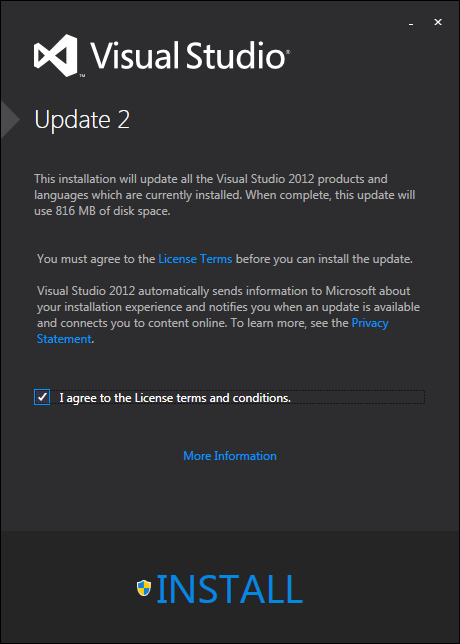
Visual Studio 2012 Update 2 Released

Microsoft released it’s second update for Visual Studio 2012. So far they’re been releasing updates every quarter since it was released in late 2012.

sshot-448

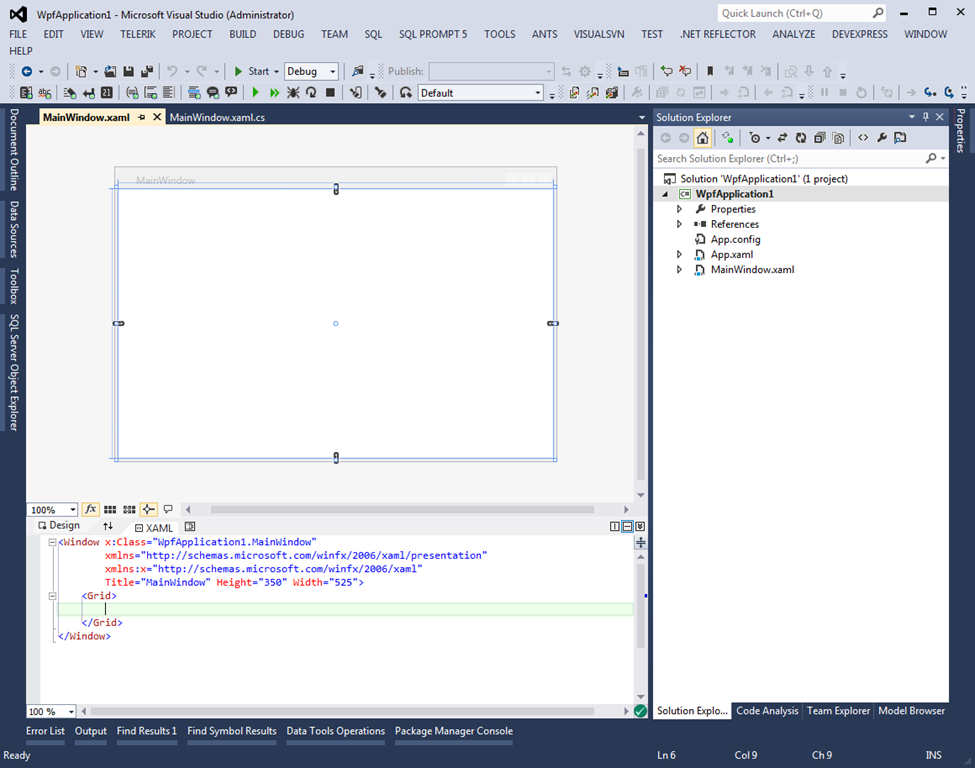
This is a considerable update that adds lots of new features, bug fixes and performance improvements. There is even a new Blue theme, that gives the IDE a VS2010 look.

sshot-450

Highlights of this update are:

  • Agile Planning
  • Quality Enablement
  • Windows Store Development
  • Line-of-business Development
  • Development Experience

Install Update 2 today to get the latest support Visual Studio has to offer.

Enjoy

Development

How to call WinRT APIs in Windows 8 from Desktop Applications

Great article by Scott Hanselman on How to call WinRT API’s in Windows 8 from a Desktop Applications.

Enjoy!

Development

Pretty Paste Tool for Visual Studio

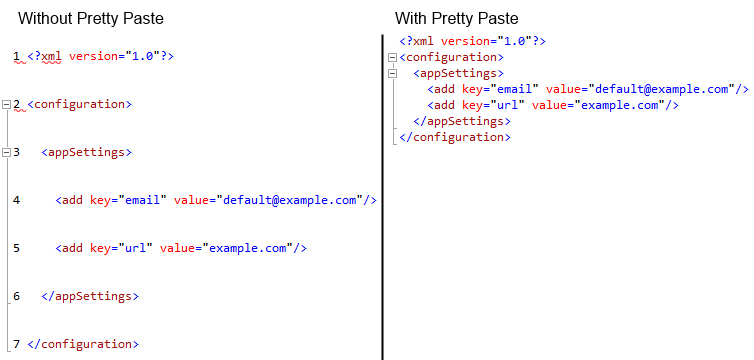
I came across a great tool for Visual Studio that fixes a real issue when pasting code into Visual Studio called Pretty Paste. This is a tool which fixes an issue where copied text into Visual Studio introduces new blank lines and line numbers as shown in the following image:

Paste FixR

This is a fantastic tool. Thank you Mads Kristensen for creating this tool for the community!

Download

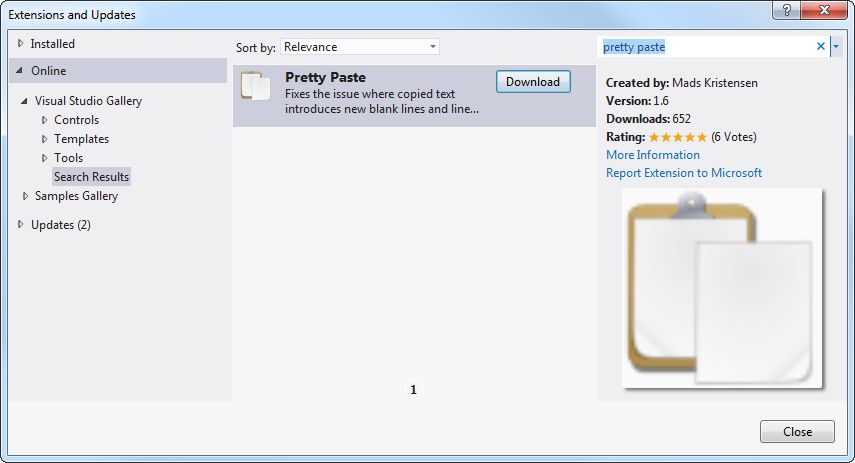
You can install it from the Extensions and Updates dialog in Visual Studio. Go to Tools | Extensions and Updates and do an online search for pretty paste:

sshot-441

You can also download it from the Visual Studio Extension Gallery: http://visualstudiogallery.msdn.microsoft.com/6a23234d-45f6-4212-bac3-f6d9bb08fb1e

Enjoy!

CommunicationDevelopment

The mistake that kills too many start ups – Talk to your customers!

Great Post: Talk to Your Users. Or Else!

I completely agree with what they have to say. This is why we use UserVoice for our ReflectInsight .NET Logging tool over at ReflectSoftware for capturing feedback and support from our customers.

uservoice-logo-150px

I have not tried the other tools mentioned, but I highly recommend that you evaluate them and use one, even if it’s for something simple.

Enjoy!

CloudDevelopmentMobileWeb

Windows Azure Mobile Services – Backend for Your Windows 8, iOS, and Android Apps

sshot-437

Mobile app developers don’t need to care about servers and clouds, push notification services and databases. Windows Azure Mobile Services is a cloud-based offering that provides a complete backend for mobile apps including data access and push notifications, enabling you to focus on the mobile app infrastructure and code and forget about the server management intricacies. In this talk we’ll build a backend for a Windows 8 app, an iOS app, and an Android app — all accessing the same data store and server-side triggers.

Video: http://channel9.msdn.com/Events/WindowsAzure/AzureConf2012/B01

References

http://www.windowsazure.com/en-us/develop/mobile/