


Interesting article about a new XAML UI Responsiveness tool included in Visual Studio 2013…
From the perspective of interaction-performance applications need to be “fast” and “fluid” – fast to launch, to navigate between pages, to react to changes in orientation, and fluid in scrolling, in panning and in animations. This post introduces the XAML UI Responsiveness tool, a new tool in the Visual Studio Performance and Diagnostics hub that lets you analyze such interaction-performance of your XAML-based Windows Store applications.


Starbucks True North Blend™
Named by Canadians for Canadians. What began as Starbucks® Veranda Blend® now has a name that’s all yours. As enticing as the natural beauty of majestic Canada, this blend is dedicated to a country that’s been part of the Starbucks story since 1987. Just the thing to make your day brighter. Mellow and easy-drinking, it’s the perfect coffee to enjoy at home throughout the day–whether it’s English Bay in Vancouver, the bustling Toronto lakeshore or someplace a little quieter like Peggy’s Cove in Nova Scotia.
Mellow & Soft
An after-dinner dessert and a balcony view.
Roast – Blonde
Region – Latin America
This week we saw another update to the SQL Server Data Tools (SSDT). This release introduces several new features.
http://msdn.microsoft.com/en-us/data/hh297027
http://blogs.msdn.com/b/ssdt/archive/2013/06/24/announcing-sql-server-data-tools-june-2013.aspx
Great post on the Visual Studio Blog on Designing the Visual Studio 2013 User Experience.
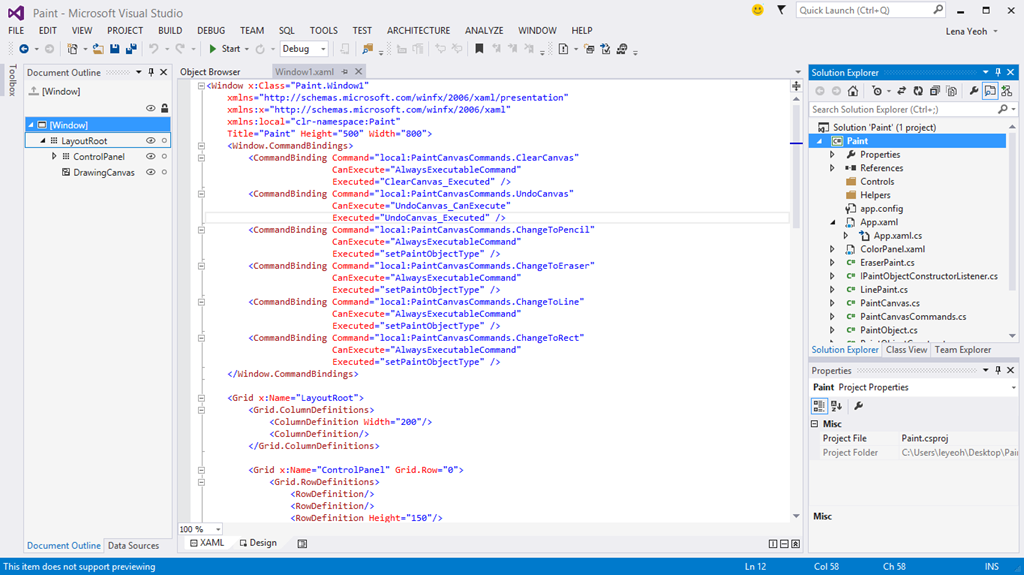

Visual Studio 2012 Update 3 is now available to download and is primarily focused on bug fixes.
VS2012.3 is an incrementally smaller update than its two predecessors: it includes a few new capabilities, but is focused primarily on bug fixes. You can find a detailed list of included fixes in the associated Support article. If you’ve already installed VS2012.2, this update will install on top of it, and if you haven’t, this update includes all of the features from VS2012.1 and VS2012.2, so you can install it on top of either of those or on the RTM release and still get all of the value from those previous updates. Note that it’s important to install this update if you need to be able to "round-trip" projects between Visual Studio 2012 and Visual Studio 2013, or if you want to run Visual Studio 2012 on the Windows 8.1 Preview. – S.Somasegar
Download VS2012.3 now!
http://blogs.msdn.com/b/somasegar/archive/2013/06/26/visual-studio-2013-preview.aspx
Great post by Scott HanselMan on 10 New Features in Windows 8.1 Preview that saved my Surface RT.
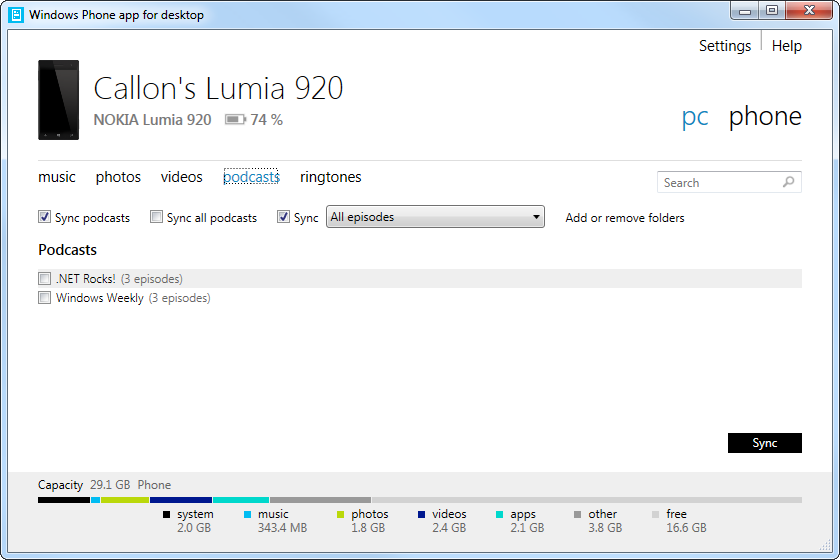
There is now a new version of the Windows Phone desktop app for syncing your Windows Phone 8 content and includes a number of improvements.
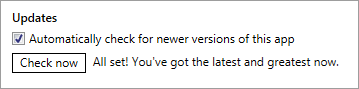
Previously you had to visit the WindowsPhone.com site to see if there was an updated version. Now the Windows Phone desktop app has added a way to automatically check for an newer version of the application and notify you.
Other enhancements are expanded podcast support, simplified updates, flexible library selection and many bug fixes.
You can download the Windows Phone desktop app from the WindowsPhone.com site.
Source: Microsoft
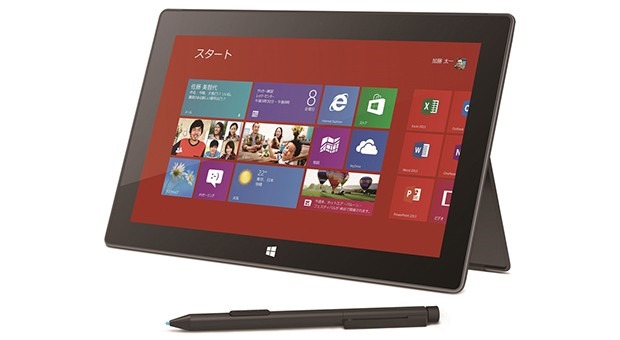
Microsoft will start selling the Surface Pro tablet in Japan on June 6 and it will be sold in 2 different versions as is the case elsewhere in the world, but with some noticeable differences. The storage will double to 128 GB and a 256 GB and it will include Office Home and Business 2013.
Let’s hope the rest of the world get’s these storage updates and that Office 2013 is included for free, similar to the Surface RT.
Sources: Engadget and WinsuperSite
Last week I was looking at using PowerShell for creating and starting a Windows Service.
Usually I have a batch program for installing and uninstalling my services. As you can see, my Batch script is very basic, but works:

This type of script has worked for me for years but I’ve always wanted to learn PowerShell and figured this is a good time to do so and why not migrate to using PowerShell for installing my Windows Services.
After reading through the PowerShell documentation, Core Cmdlets and playing around with the PowerShell ISE tool (part of PowerShell 3), I found I was still lacking the knowledge to do this properly and since I was also learning PowerShell, I decided to see if anyone else had troubles with this or had insight and behold they did!
One of the best articles I came across nailed it perfectly with decent information on interacting with Windows Services from PowerShell and then a detailed walkthrough and example on exactly how to do it.
Referenced article: Create a Windows Service using PowerShell
Thanks, you saved me a lot of time.
After creating the Install.ps1 and Uninstall.ps1 files, to install your service, just right click on Install.ps1 file and click on Run with PowerShell:

This will check if your service is already installed and if so, stop and uninstall your service. Then it will proceed with installing and started your service.
You can then confirm your service is installed and running by running the following Cmdlet as shown below:
Get-Service –Name “YourServiceName”

And voila, you can see that your service is installed and running. Pretty simple.
I will say that the scripts are far more complex than their original batch scripts, but as you will find, you have much more control and there is a lot you can do in PowerShell. It more than makes up for the extra effort.
Give it a try if you haven’t already started to use PowerShell. You may find you like it and that it can help in ways you never thought possible.
Below are each of the scripts.
Enjoy!
$serviceName = "WorkManagerDemoService"
$serviceDisplayName = "WorkManager Demo Service"
$serviceDescription = "WorkManager Demo Service"
$serviceExecutable = "WindowsService1.exe"
# verify if the service already exists, and if yes remove it first
if (Get-Service $serviceName -ErrorAction SilentlyContinue)
{
"service already installed, stopping…"
# using WMI to remove Windows service because PowerShell does not have CmdLet for this
$serviceToRemove = Get-WmiObject -Class Win32_Service -Filter "name=’$serviceName’"
$serviceToRemove | Stop-Service
$serviceToRemove.delete()
"service removed"
}
else
{
# just do nothing
"service does not exist"
}
"installing service…"
# detect current execution directory
$directoryPath = Split-Path $MyInvocation.MyCommand.Path
# creating credentials which can be used to run my windows service
#$secpasswd = ConvertTo-SecureString "MyPa$$word" -AsPlainText -Force
#$mycreds = New-Object System.Management.Automation.PSCredential (".\MyUserName", $secpasswd)
# OR
#$myCredentials = Get-Credential
$binaryPath = $directoryPath + "\" + $serviceExecutable
# creating widnows service using all provided parameters, -displayName $serviceName, -credential $myCredentials
New-Service -name $serviceName -displayName $serviceDisplayName -binaryPathName $binaryPath -startupType Automatic -Description $serviceDescription
Start-Service -Name $serviceName
Get-Service $serviceName
"installation completed"
Pause
$serviceName = "WorkManagerDemoService"
# verify if the service already exists, and if yes remove it
if (Get-Service $serviceName -ErrorAction SilentlyContinue)
{
"service already installed, stopping…"
# using WMI to remove Windows service because PowerShell does not have CmdLet for this
$serviceToRemove = Get-WmiObject -Class Win32_Service -Filter "name=’$serviceName’"
$serviceToRemove | Stop-Service
$serviceToRemove.delete()
"service removed"
}
else
{
# just do nothing
"service does not exist"
}
Pause
A French word, a photo, and a slice of life in Provence
Microsoft MVP on Azure IoT & Real-Time Intelligence | International Speaker | Principle architect at Alten-SDG Group
It's all about Microsoft Business Applications
AI & Cloud Consulting for Modern Enterprises
Author: John Lunn @jonnychipz
If you're not having fun, you're doing it wrong.
Code. Fun. Serverless
Intelligent Apps for Pilots
My personal blog about everything technical
coding facts and opinions
Sponsored by Cloud Formations Ltd
Exploring the world of Azure, IoT and other interesting topics
where learning never ends...
Practical Coding Tutorial
A blog about Microsoft Azure
Christian Nagel and the CN innovation team about .NET Aspire, C#, Azure, ASP.NET Core, WinUI, .NET MAUI, and more
Cloud Computing & DevOps Tips & Tricks with Hammad Aslam.
 The Flying Maverick