Unknown's avatar

All posts by Callon Campbell [MVP]

Azure

Get Azure API Management Git Credentials using PowerShell

Daniel Scott-Raynsford [MSFT]'s avatarArchive: PowerShell, Programming and DevOps

One of the many great features of Azure API Management is the fact that it has a built in Git repository for storing the current configuration as well as publishing new configurations.

ss_apim_gitrepository

This allows you to push updated Azure API Management configurations to this internal Git repository as a new branch and then Deploy the configuration to API Management.

The internal Git repository in Azure API Management is not intended to be used for a normal development workflow. You’ll still want to develop and store your Azure API management configuration in an external Git repository such as GitHub or TFS/VSTS and then copy configuration updates to the internal Git repository in Azure API Management using some sort of automated process (e.g. Continuous Integration/Continuous Delivery could be adopted for this).

The Internal Git Repository

To access the Internal Git Repository requires short lived (30 days maximum) Git credentials to…

View original post 588 more words

AzureCloud

Microsoft Tech Summit

MicrosoftTechSummit2017

Microsoft is hosting their Tech Summit conference in Toronto from December 13-14, 2017.  You can build your skills with the latest in cloud technologies at a free, technical learning event for IT professional and developers.

This is a great event to build your cloud skills, connect with experts and get inspired. What’s great is that you can customize your learning – there is something for everyone.

Click here to register.

Reference

Microsoft Tech Summit 2017-18

Software

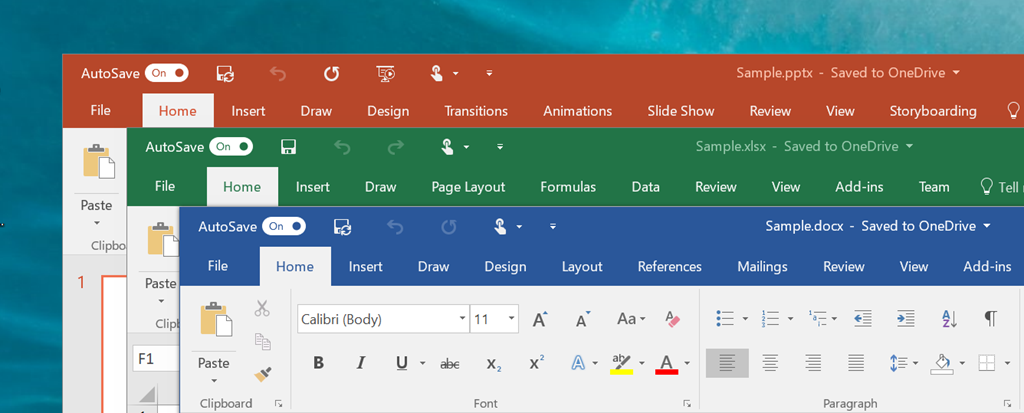
New updates for Office 2016 apps

sshot-31

This past week updates for Office 2016 started to roll out. Let’s take a look at some of the new features.

What’s New

New ink effects – Easily express your ideas with flair using metallic pens and ink effects like rainbow, galaxy, lava, ocean, gold, silver and more.

New Dubai font.

Insert 3D models.

While you were away – shows you who edited your shared document since your last visit.

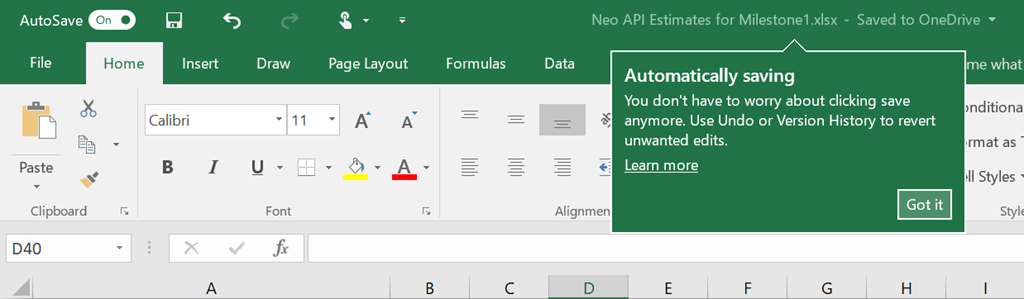
Saves for you – Changes are automatically saved when your document is stored in the cloud (much like the mobile versions of Office apps). You can also see others’ updates in seconds.

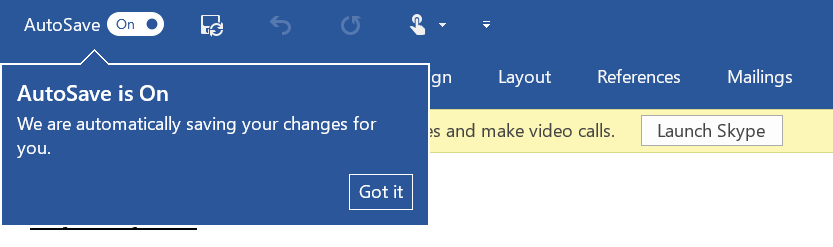
Once you start saving your document to OneDrive, you will see your AutoSave feature  enabled.

sshot-29

While AutoSave is enabled your work will automatically be saved, similar to the Office mobile apps.

sshot-30

If you’re not already saving your work to the Cloud (OneDrive or another) then you should seriously consider doing this. It provides a better experience and also peace of mind that your content is backed up to the cloud and accessible from just about any device.

Enjoy!

References

https://support.office.com/en-us/article/What-s-new-in-PowerPoint-2016-for-Windows-e8ef980c-5b12-4fff-ae3f-0819e6a21a1f?ui=en-US&rs=en-US&ad=US#Audience=Office_365_subscribers

Uncategorized

Video: An introduction to Azure Logic Apps & Salesforce demo

toonvanhoutte's avatartoon vanhoutte

Recently, I’ve created an audition video to become a Pluralsight author.  I wanted to share this video, as it might be interesting for you.  The video gives an introduction to Azure Logic Apps and finishes with a great demo about Saleforce integration (at 5:43).

Enjoy!

View original post

Azure

FAQ: Azure App Service Domain and Custom Domains

I came across an excellent blog post from the Azure App Service Team BlogFAQ: App Service Domain (preview) and Custom Domains. Lots of great of questions and answers relating to Azure DNS and your custom domains.

If you have any questions or have run into issues with your custom domain and Azure this is a great resource, so check it out!

Reference

Azure App Service Team Blog

Database

An Update to SQL Server Management Studio is Available

image

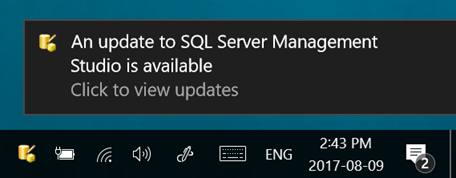
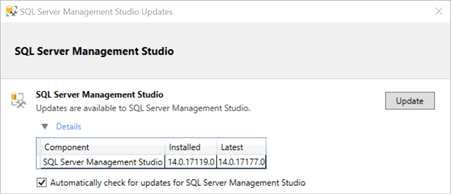
This week we see an update for SQL Server Management Studio, version 17.2. This release is the latest generation of SQL Server Management Studio and provides support for SQL Server 2017.
image

What’s New in this Release

  • Multi-Factor Authentication (MFA)
  • The connection dialog box now supports the following 5 authentication methods:
    • Windows Authentication
    • SQL Server Authentication
    • Active Directory – Universal with MFA support
    • Active Directory – Password
    • Active Directory – Integrated
  • Database import/export for DacFx wizard can now use Universal Authentication with MFA
  • ADAL managed library used by Azure AD Universal Authentication with MFA was upgraded to version 3.13.9
  • A new CLI interface supporting Azure AD admin setting for SQL Database and SQL Data Warehouse
  • Output window has entries for queries run during expansion of Object Explorer nodes
  • Enabled View designer for Azure SQL Databases
  • Changes to the default scripting options for scripting objects from Object Explorer in SSMS
  • Added support for National Clouds in "Restore from URL"
  • QueryStoreUI reports now supports additional metrics (RowCount, DOP, CLR Time etc.) from sys.query_store_runtime_stats
  • IntelliSense is now supported for Azure SQL Database
  • Security: connection dialog will default to not trusting server certificates and to requesting encryption for Azure SQL Database connections
  • General improvements around support for SQL Server on Linux
  • Performance Dashboard server report now available as a default report
  • Showplan node search allows searching in plan properties. Easily look for any operator property such as table name

For the full list of changes, see SQL Server Management Studio – Changelog (SSMS).

Getting the Update

Head over to https://docs.microsoft.com/en-us/sql/ssms/download-sql-server-management-studio-ssms and you will find two links for installation. The first links downloads and installs SSMS 17.2 where as the second link will update an existing 17.x installation.

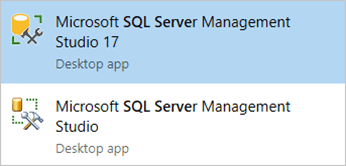
This update will not upgrade or replace SSMS versions 16.x or earlier. SSMS 17.x will install side by side with previous versions. If you have multiple SSMS versions installed than the latest is labeled as Microsoft SQL Server Management Studio 17 and has the following icon:
image

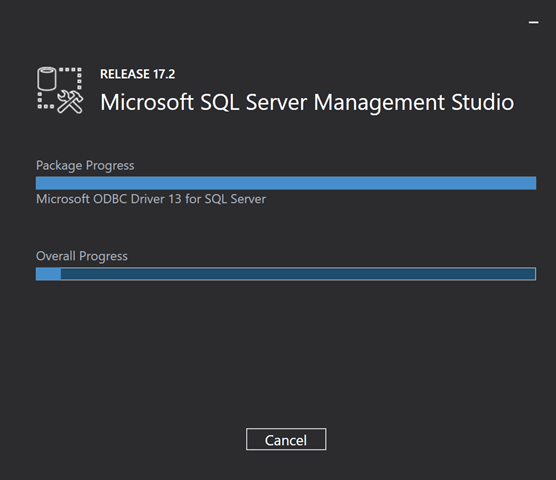
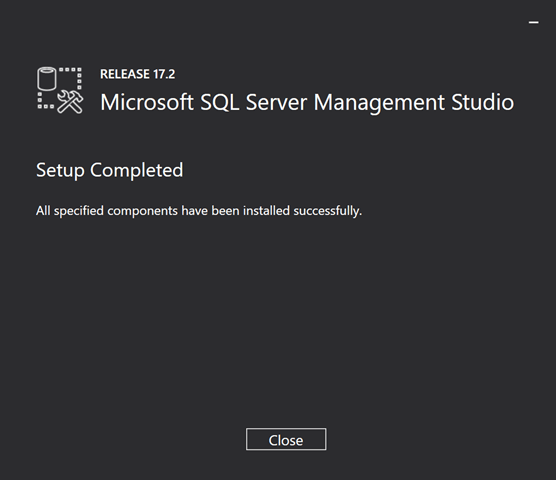
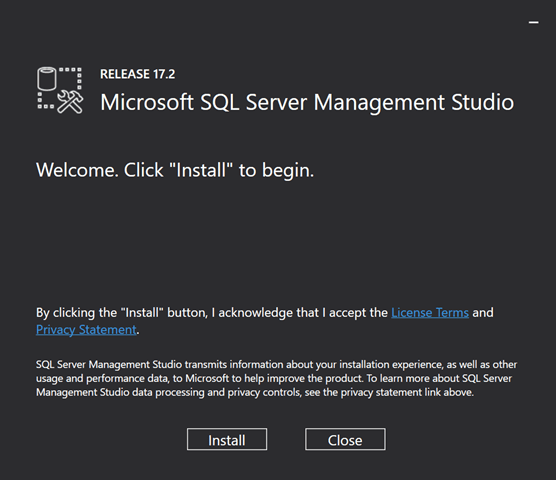
Starting the Installation

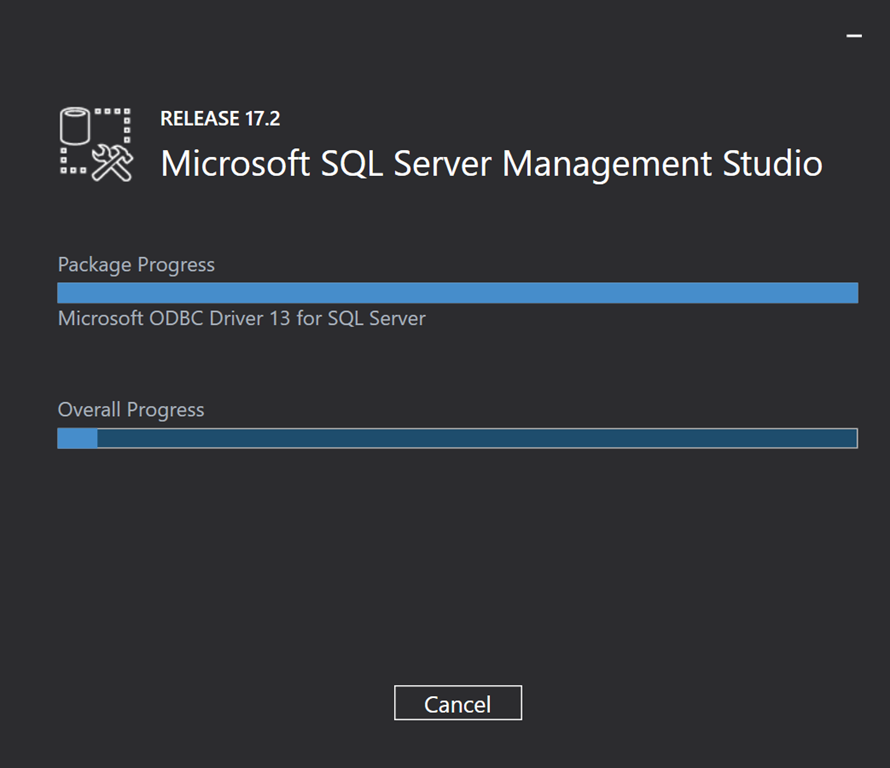
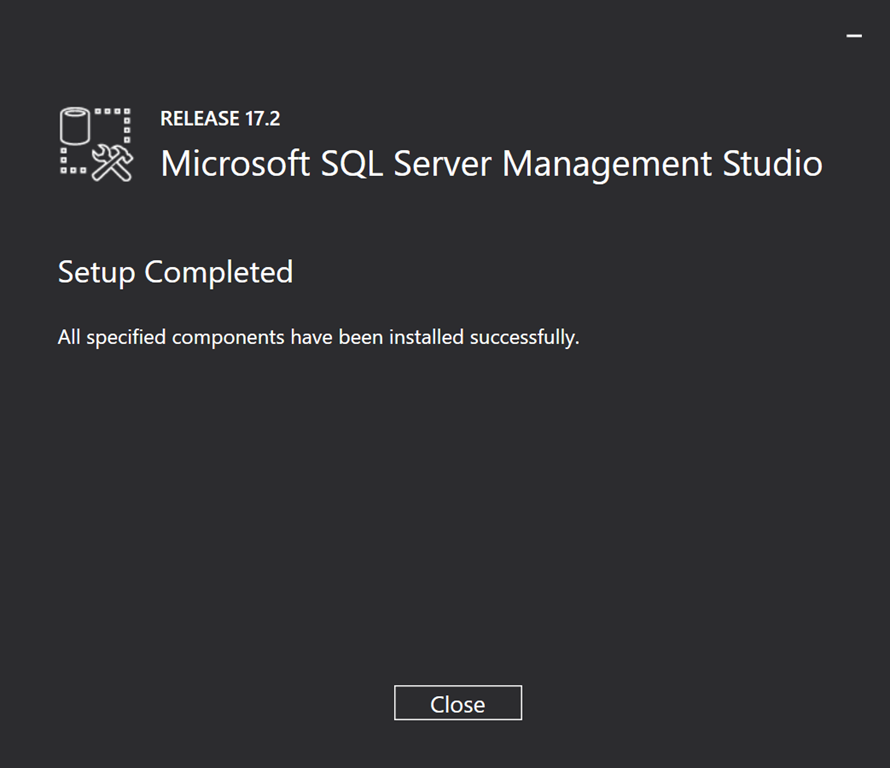
Installation is quick and easy…
sshot-8

sshot-9

sshot-11

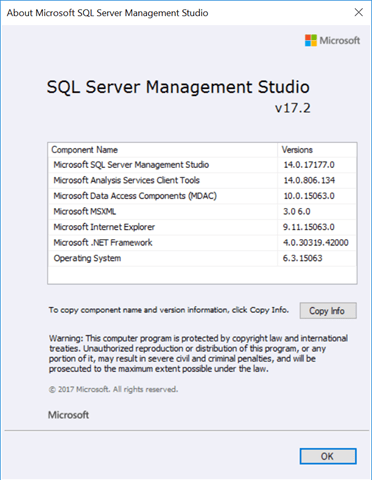
After the installation is complete, when you open up SSMS 17.2 and look at the About dialog you will see the following components updated:
image

Sadly we still don’t have an official Dark theme for SQL Server Management Studio. I recall reading comments from the SQL team last year that they needed to do work on all the dialogs before releasing this theme. If the base SSMS IDE supports the Dark theme than just release it You can work on the dialogs as needed and provide them in future updates.

Enjoy!

References

Download SQL Server Management Studio (SSMS)

SQL Server Management Studio – Changelog (SSMS)

Azure

Microsoft Azure Events

azureevents2

Microsoft Azure is huge and sometimes it can be a bit daunting to try to keep up to date with service changes, new products, region availability, etc. There are many options when it comes to staying current, but one of them I really like is by attending Microsoft Azure events…either locally or online.

Microsoft Azure Events site is a listing of Azure events happening in your area. You can filter events by Event Type, Country, and by a specific Azure Service.

If you missed an event then you can find recorded webinars that are available online.

You also have the option to checkout local Meetup events hosted by the community in your area which are also another great resource.

Enjoy your summer and have fun catching up on everything Azure.

Cheers!

Resources

Microsoft Azure Events site

Recorded Webinars

Community Meetup events

Uncategorized

Microsoft Azure Stack is ready to Purchase!

Chris Pietschmann's avatarBuild5Nines

In the early days of Microsoft Azure, back in 2010 when it was called Windows Azure, Microsoft had announced plans to make the Azure services available to be run / hosted in on-premises datacenter. Shortly after the announcement they released Azure Pack which wasn’t quite what we had all hoped for. Then about 2 years ago, Microsoft started talking about “Azure in your datacenter” again! The started talking about this new product offering called Azure Stack. We’ve seen a couple technical previews of Azure Stack so far, but not much in the way of a GA (Generally Available) release. That is until now. This week, Microsoft announced that in coordination with hardware OEMs you can now order Azure Stack integrated system hardware, with the first systems beginning to ship in September. There is also some pricing information, and an Azure Stack Development Kit (ASDK) being made available.

This is an…

View original post 291 more words

DevelopmentDevOps

Visual Studio Team Services Build to the Rescue

So this week Visual Studio Team Services build and release saved me and my team.

At our company we have configured an on premise continuous integration server along with build agents using TeamCity which is a product from JetBrains. TeamCity Professional is actually a free application that allows you to run 3 build agents. The only cost is the associated hardware and Windows licensing. I fell in love with TeamCity years ago when I set it up at our company and it’s been a very stable and a versatile CI server since. However this week I ran into some issues with our TeamCity server and the fact that it was on premise only added to the problem. Let me explain.

Our build server physical infrastructure is actually located offsite from our office (along with other dev/qa servers), so when I say on premise I really means its dedicated hardware that we own and not up in the cloud. The situation we ran into is that our TeamCity server didn’t restart properly and was unavailable by remote access by the ITOPS team, this meant someone had to go to the offsite location and reboot the server. Now you might be wondering, why don’t you have a backup…a good question and something I’ll be looking into.

What made matters worse is that we we’re nearing the end of a regression cycle and we wanted to deploy later this week. So having our build server drop off the grid was just bad timing and it meant DEV and QA were in a holding pattern while we waited for our build server to be brought back up and hopefully it was ok and not corrupted or worse.

While we waited for our build server to be restarted I started thinking about worse case scenarios like what if our build server is dead and we need to rebuild or restore from a backup (and what do you know it was out of date). None of these options can be done quickly and they require unplanned resources from the ITOPS team and myself.

Having already explored Visual Studio Team Services (VSTS) build and release services for my personal development and that of our Live .NET logging tool ReflectInsight, I knew I could easily and quickly get one of our applications setup in that continuous integration pipeline. You will actually be shocked at how quickly I got things going.

Our current build process typically builds the solution, runs unit tests, creates a nuget package and then finally publishes the nuget package to an internal nuget repository that is part of TeamCity. We then have an automated deployment service called Octopus Deploy that picks up this package and can then deploy to any of our QA and/or production systems. Since our TeamCity server is offline, I would need to publish the nuget package to another destination for the time being. I decided to create an Azure Storage account and then copy the nuget package there. I could then pull the nuget package down and manually upload to our Octopus Deploy server.

To get started I headed over to my Visual Studio Team Services account I had setup with my MSDN subscription and I then created a new project to contain my builds. I then clicked on the Build & Release tab and then clicked on the New button to create a new build definition:

image

I then clicked on the ASP.NET (PREVIEW) featured template:

image

I then configured the Get sources task to point to our GitHub repository and then I added in the last two steps for generating a NuGet package and to copy the generated NuGet package to an Azure Storage account:

image

I wont go into detail for each of these build tasks as their pretty straight forward, but after I had everything setup and tested, I looked at the clock and it was under 15 min from start to finish. That is something I could never have done in our existing on premise build infrastructure and it now looks like I have my backup solution.

One of the nice things about using the hosted agent in VSTS is that it’s located in Azure and its a service that is managed by the Azure team. This means I spend more time focusing on developing my applications and less time worrying about managing the associated build infrastructure and what happens if a server goes down, performing backups, restores and that all hands on deck feeling when your infrastructure goes down at the worse possible time.

Enjoy!

References

TeamCity

Visual Studio Team Services

Azure Storage Explorer

Octopus Deploy

AzureDevelopment

How to: Build and deploy an Angular app to Azure using Visual Studio Team Services

This post will guide you on how to build an Angular 4 app using Visual Studio Team Services and then deploy it to an Azure App Service instance.

So let’s review what we’ll need before we begin:

  1. You will be required to have an active Visual Studio Team Services account. If you don’t have one you can signup for free here.
  2. You will also need to have an active Azure subscription. If you don’t have one you can signup for a free trial here.

Now that we have met the requirements, let’s get started.

Create a new build definition

We will start by signing into your Visual Studio Team Services account and then navigating to the Build & Release tab from the top navigation links to create a build. From here we will click on the New button to define a new build definition.

image

Next you will choose a template to use for your build. There are a lot of build templates so take a look at what’s available and choose what is most appropriate for your needs. If you don’t see what you want, you can always choose the empty template which is what I’m going to do now and then add the necessary build tasks that make sense for you.

image

After selecting the empty template you will want to name your build definition, connect your source code repository (Github, Visual Studio Team Services, other) and then start adding build tasks:

image

Click on the Get sources link on the left side to wire up your source code for the build. In this demo I’m connecting to my personal Github repository:

image

Now that we have our source code wired up, you’re ready to start defining your build tasks.

Defining your build process tasks

Now that we have our build definition configured to our source repository, it’s time to start adding build process tasks. To do this we click on the Add Task button from the left which will then present a listing of available build tasks (some of which are in preview):

image

In this post I want to build an Angular app, so I will need to use an npm build task. Using the search box I will type in npm and the listing will then filter out to only show me any npm build tasks. At this time there is one, so I will click on it and then the Add button to add it to my build process:

image

This will be the configuration for our npm install task:

image

Next we will need to add another npm build task for running the Angular CLI build command ng build. This will be the configuration for our npm run task:

image

At this point our build is installing all necessary npm packages and then running an npm command to build the Angular app. Once the app is built, I like to archive the build artifacts in a ZIP file. This will be our configuration for our archive files build task:

image

Finally we will deploy our app to an Azure App Service instance. To do this you will want to have your Azure App Service already pre-configured. You can checkout this post for details on creating an Azure App Service.

This will be our configuration for our Azure App Service Deployment build task. There are 3 settings you need to set:

  1. Select you Azure subscription
  2. Select your App Service name
  3. Select the package or folder you wish to deploy

image

Here is a review of the build tasks we created above:

image

Queue a new build

Once we have our build process defined we can kick off a new build by clicking on the Queue button on the top toolbar:

image

This will being up the queue build modal where you can define the agent queue to use, the branch to build or a specific commit along with defining build variables, etc. I will select the Hosted agent queue and my master branch. I will then click on the Queue button to initiate the build:

image

For more information on the differences between the hosted agents, checkout this link for further details.

You should now notice that your build is now queued:

image

Viewing your build process

You can click on your build at anytime and see detailed output for what is happening during the build process along with view and/or download detailed log files:

image

Voila, our build is now finished:

image

Visual Studio Team Services build can also be configured to send out an email when builds succeed and/or fail:

image 

Now that I have a successful build, lets browse and take a look at our deployed Angular app: http://blog-angular-deployment.azurewebsites.net/ .

Wrap up

I hope this post helps your build and deploy your Angular apps to Azure. As you can see it’s very straight forward to setup and requires no build infrastructure on your end to make it happen.

Enjoy!

References

Azure free trial

Visual Studio Team Services

Build and release tasks

Hosted agents

Angular

Angular CLI