Month: February 2013

Development

Microsoft Introduces modern.IE Tools & Resources to Help Developers Make Modern Web Sites

On Friday February 1, Microsoft launched modern.IE, which is a set of new tools and resources to help developers test their websites for the over 50% of internet users who run various versions of Internet Explorer. These tools also work with other modern browsers.

modern.IE includes a wizard that scans a Web page URL for common interoperability problems and suggests some ideas for how to address those issues to improve the user experience across modern and older browsers.”

sshot-413

“In a post to the Exploring IE blog, Microsoft general manager Ryan Gavin explained that modern.IE comes in the wake of many changes that have thoroughly modernized the company’s web browser. These changes include adopting automatic updates, the introduction of IE platform preview releases to get early developer feedback, and embracing modern web standards, “coupled with cutting edge performance and advanced touch capabilities.”

But modern.IE is designed to help developers overcome what is arguably the web’s biggest issue as a platform today: the proliferation of older versions of IE and other browsers makes it hard to develop modern web sites that work well across browsers. To that end, modern.IE provides three tools today, and Microsoft promises more are on the way. These include:

Code detection wizard. modern.IE has a wizard that scans for common coding practices that might prevent users from having their best experience on a site. Developers start by entering a webpage URL that they want to test and then the wizard reports on problems and provides recommendations.

Free Virtual Testing Service with BrowserStack. modern.IE includes special access to BrowserStack, a leading virtual browser testing site that lets developers test their site on any browser available on Windows, regardless of what OS their test machine is running. Best of all, developers who visit the site via modern.IE will receive three months of free service over the next year.

Best practices and sample code for cross-browser coding. modern.IE compiles the top 20 tech tips that address most of the compatibility issues developers have coding for the web and IE today.”

This looks really cool. Although it’s still in BETA, it’s given me plenty of information for my websites and what I can do to make them better experiences to my users.

modern.IE is available now. Go ahead and try it out for your self.

References

Development

Introduction to NuGet

NuGet is a package management system for Microsoft .NET and Visual Studio. It allows you to create simple and/or complex packages that install files into your projects, adds references and make any necessary configuration changes if needed. It also allows you to easily update to a newer version of the package if it’s available, or completely remove the package.

What is NuGet

“NuGet is a Visual Studio extension that makes it easy to add, remove, and update libraries and tools in Visual Studio projects that use the .NET Framework.

When you install the package, NuGet copies files to your solution and automatically makes whatever changes are needed, such as adding references and changing your app.config or web.config file. If you decide to remove the library, NuGet removes files and reverses whatever changes it made in your project so that no clutter is left.”

What is a NuGet Package

“Everything necessary to install a library or tool is bundled into a package (a .nupkg file). A package includes files to copy to your project and a manifest file that describes the contents of the package and what needs to be done to add or remove the library. Packages are bundled into feeds that Visual Studio accesses in order to present lists of available packages. There is an official feed that is the default source for NuGet, and you can contribute to that feed or create your own feeds.”

NuGet User Interface in Visual Studio

“NuGet runs in all versions of Visual Studio 2012, as well as Visual Studio 2010, Visual Web Developer 2010, and Windows Phone Developer Tools 7.1. You can find, install, remove, and update packages by using the Manage NuGet Packages dialog box or by using PowerShell command-line commands in the Package Manager Console dedicated Visual Studio window. Both options are accessible from the Visual Studio main menu; you can also open the dialog box from a Solution Explorer context menu.”

The Manage NuGet Packages Dialog Box

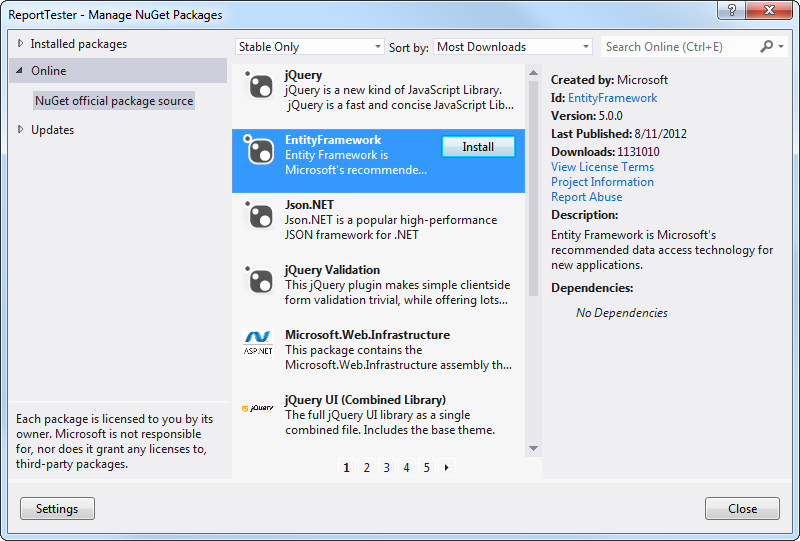
The following illustration shows the Manage NuGet Packages dialog box. You can access this by right clicking on your project in the Solution Explorer and then click on the Manage NuGet Packages… menu item.

sshot-409

The Manage NuGet Packages Console Window

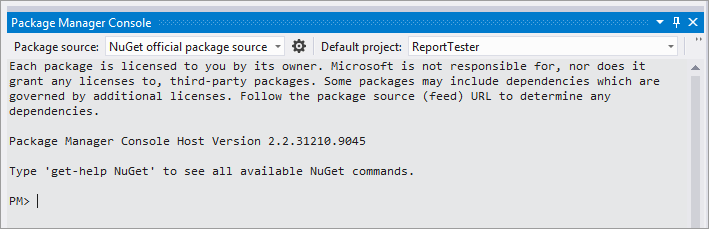
The following illustration shows the Package Manager Console in Visual Studio. This console window lets you run NuGet PowerShell commands.

sshot-410

Supported Operating Systems

  • Windows 8
  • Windows 7
  • Windows Vista SP1
  • Windows Server 2008
  • Windows Server 2008 R2
  • Windows Server 2003 SP2
  • Windows XP SP3

Now that we have an idea of what NuGet is, let’s try it out.

Getting Started

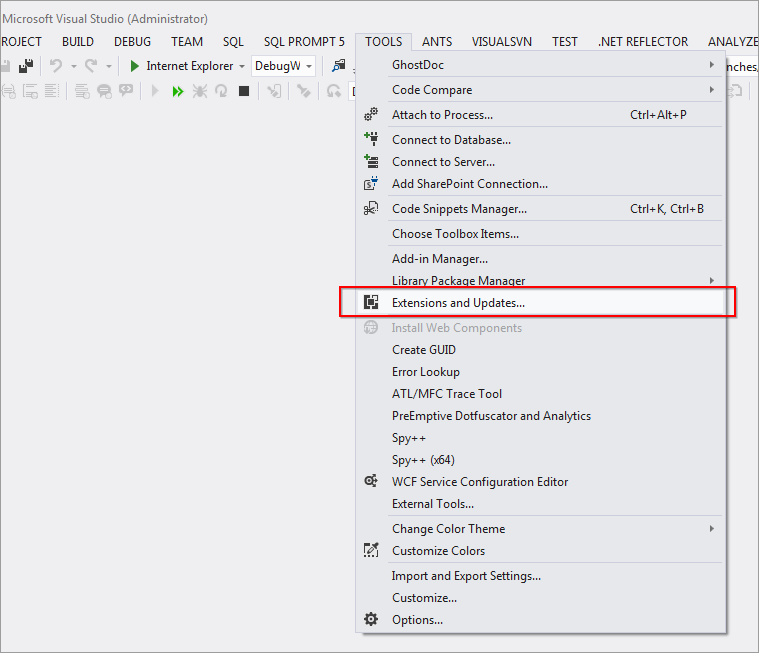
To get started, you will need to download and install NuGet. Launch Visual Studio and then go to the Tools menu, then select the Extensions and Updates… menu item.

sshot-411

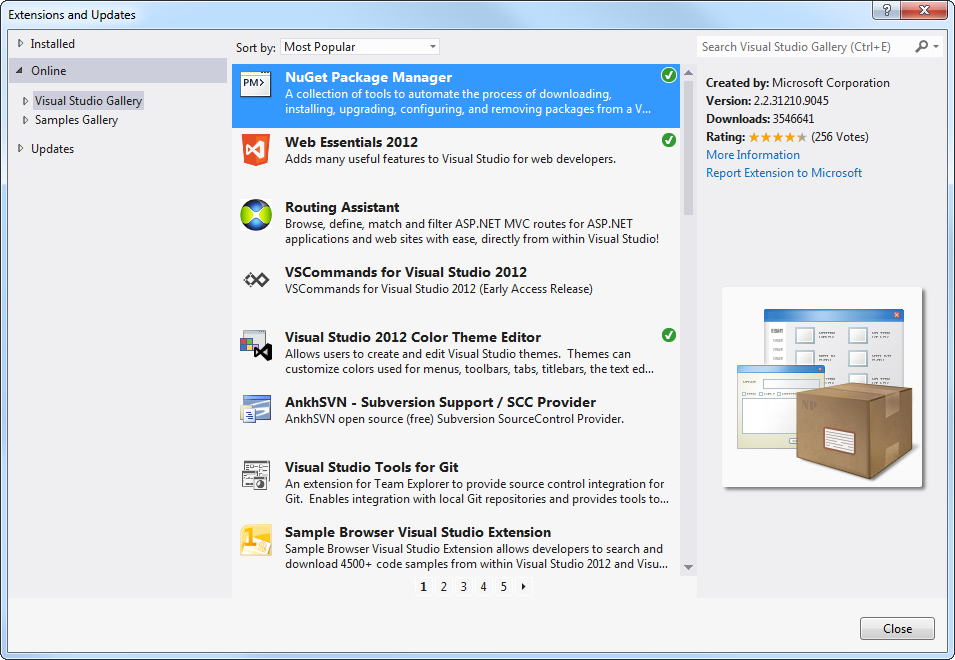
Then in the Online section, search for NuGet Package Manager or usually this is listed as one of the top items in the Visual Studio Gallery section.

Once NuGet Package Manager is selected, press the Download button. After a package has been downloaded and installed, you will see a green checkmark as illustrated below:

sshot-412

When the installation is complete, you will need to restart Visual Studio.

After Visual Studio is restarted, NuGet will then be ready for use.

NuGet is truly a pain-free way of installing and managing packages for your projects. NuGet takes care of everything and it just works!

Further Reading

  1. Managing NuGet Packages using the dialog. This describes in great detail how to find, install, update and remove packages from your project and/or solution.

    The solution option is neat as you simply select which projects you want to add the package to and then they’re all installed/updated at once.

  2. Creating and Publishing a Package.

References