Excellent post on calculating bitmasks in PowerShell…
http://www.jasonstrate.com/2013/02/calculate-bitmasks-in-powershell/
Passionate about Azure Development, Serverless and DevOps
Excellent post on calculating bitmasks in PowerShell…
http://www.jasonstrate.com/2013/02/calculate-bitmasks-in-powershell/
I came across a post in the MSDN Forums on how to delete a project from your TF Service.
“For some time now Buck Hodges has had a nice BLOG post about deleting team projects from Team Foundation Service collections. Not trying to reinvent the wheel but I thought it valuable to have it here in our support forum, too.
Basically, to delete a team project from your Team Foundation Service collection you will need Visual Studio 2012 (or just Team Explorer 2012, which is free here). These provide you with the "tfsdeleteproject.exe" command line tool, which you run thusly:
tfsdeleteproject /collection:https://<Your Collection>.VisualStudio.com/DefaultCollection <"Project Name">
Don’t forget the "/DefaultCollection" bit.”
Thanks Trevor for providing this.
http://social.msdn.microsoft.com/Forums/en-US/TFService/thread/81997146-a64f-43fb-9952-57d71542cd11
On January 30 2013, Microsoft announced the availability of the Community Technology Preview (CTP) for Visual Studio 2012 Update 2 (VS2012.2).
As mentioned in the announcement, there is going to be a ton of cool new capabilities coming in Update 2. With that said, not all of them are available in the CTP, but many are.
The significant improvements in this CTP can be categorized into the following groups:
Here are a couple screenshots for what’s been changed/added for a developer experience.
Visual Studio Blue Theme. Time and time again, you hear people asking that they bring back the VS2010 theme. Well it looks like the included the “Blue” theme that was previously available on the Visual Studio Gallery:
CodeMap and Debugger Integration. You can now easily add a call stack to a CodeMap to explore the code dependencies from your debugging session:
Blend for Visual Studio 2012. Finally, Blend has been added back into VS2012, which includes support for WPF, Silverlight and Sketchflow:
NOTE: This CTP is not a “go-live” CTP and is for evaluation purposes only.
Head over to the post for complete details on what’s coming.
I’m looking forward to this update and can’t wait to hear about other cool new capabilities.
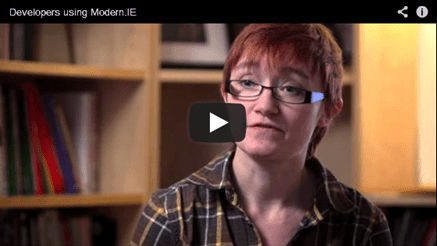
On Friday February 1, Microsoft launched modern.IE, which is a set of new tools and resources to help developers test their websites for the over 50% of internet users who run various versions of Internet Explorer. These tools also work with other modern browsers.
“modern.IE includes a wizard that scans a Web page URL for common interoperability problems and suggests some ideas for how to address those issues to improve the user experience across modern and older browsers.”
“In a post to the Exploring IE blog, Microsoft general manager Ryan Gavin explained that modern.IE comes in the wake of many changes that have thoroughly modernized the company’s web browser. These changes include adopting automatic updates, the introduction of IE platform preview releases to get early developer feedback, and embracing modern web standards, “coupled with cutting edge performance and advanced touch capabilities.”
But modern.IE is designed to help developers overcome what is arguably the web’s biggest issue as a platform today: the proliferation of older versions of IE and other browsers makes it hard to develop modern web sites that work well across browsers. To that end, modern.IE provides three tools today, and Microsoft promises more are on the way. These include:
Code detection wizard. modern.IE has a wizard that scans for common coding practices that might prevent users from having their best experience on a site. Developers start by entering a webpage URL that they want to test and then the wizard reports on problems and provides recommendations.
Free Virtual Testing Service with BrowserStack. modern.IE includes special access to BrowserStack, a leading virtual browser testing site that lets developers test their site on any browser available on Windows, regardless of what OS their test machine is running. Best of all, developers who visit the site via modern.IE will receive three months of free service over the next year.
Best practices and sample code for cross-browser coding. modern.IE compiles the top 20 tech tips that address most of the compatibility issues developers have coding for the web and IE today.”
This looks really cool. Although it’s still in BETA, it’s given me plenty of information for my websites and what I can do to make them better experiences to my users.
modern.IE is available now. Go ahead and try it out for your self.
NuGet is a package management system for Microsoft .NET and Visual Studio. It allows you to create simple and/or complex packages that install files into your projects, adds references and make any necessary configuration changes if needed. It also allows you to easily update to a newer version of the package if it’s available, or completely remove the package.
“NuGet is a Visual Studio extension that makes it easy to add, remove, and update libraries and tools in Visual Studio projects that use the .NET Framework.
When you install the package, NuGet copies files to your solution and automatically makes whatever changes are needed, such as adding references and changing your app.config or web.config file. If you decide to remove the library, NuGet removes files and reverses whatever changes it made in your project so that no clutter is left.”
“Everything necessary to install a library or tool is bundled into a package (a .nupkg file). A package includes files to copy to your project and a manifest file that describes the contents of the package and what needs to be done to add or remove the library. Packages are bundled into feeds that Visual Studio accesses in order to present lists of available packages. There is an official feed that is the default source for NuGet, and you can contribute to that feed or create your own feeds.”
“NuGet runs in all versions of Visual Studio 2012, as well as Visual Studio 2010, Visual Web Developer 2010, and Windows Phone Developer Tools 7.1. You can find, install, remove, and update packages by using the Manage NuGet Packages dialog box or by using PowerShell command-line commands in the Package Manager Console dedicated Visual Studio window. Both options are accessible from the Visual Studio main menu; you can also open the dialog box from a Solution Explorer context menu.”
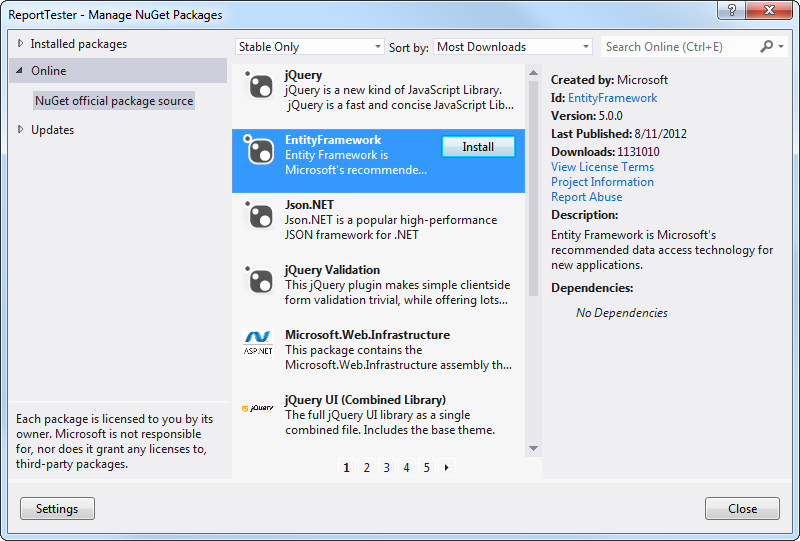
The following illustration shows the Manage NuGet Packages dialog box. You can access this by right clicking on your project in the Solution Explorer and then click on the Manage NuGet Packages… menu item.
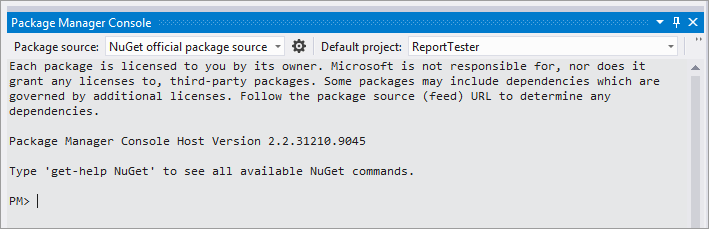
The following illustration shows the Package Manager Console in Visual Studio. This console window lets you run NuGet PowerShell commands.
Now that we have an idea of what NuGet is, let’s try it out.
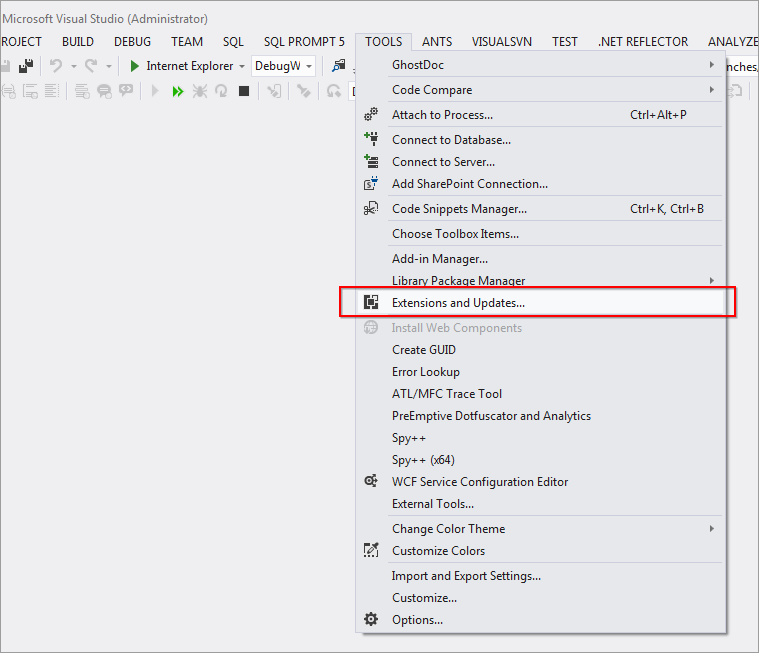
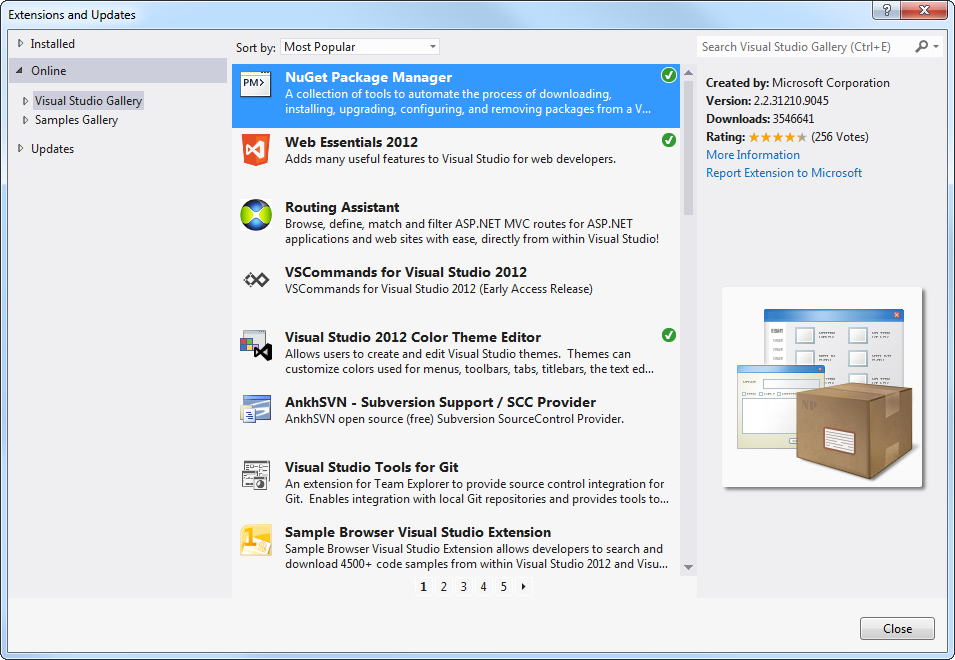
To get started, you will need to download and install NuGet. Launch Visual Studio and then go to the Tools menu, then select the Extensions and Updates… menu item.
Then in the Online section, search for NuGet Package Manager or usually this is listed as one of the top items in the Visual Studio Gallery section.
Once NuGet Package Manager is selected, press the Download button. After a package has been downloaded and installed, you will see a green checkmark as illustrated below:
When the installation is complete, you will need to restart Visual Studio.
After Visual Studio is restarted, NuGet will then be ready for use.
NuGet is truly a pain-free way of installing and managing packages for your projects. NuGet takes care of everything and it just works!
The solution option is neat as you simply select which projects you want to add the package to and then they’re all installed/updated at once.
New updates are now available for SQL Server Data Tools (SSDT). The latest update is called SQL Server Data Tools – December 2012. You can get the update from here:
SSDT for Visual Studio 2012: http://msdn.microsoft.com/en-us/jj650015
SSDT for Visual Studio 2010: http://msdn.microsoft.com/en-us/jj650014
As posted on the following blog post, here is a recap of what’s new:
We have received an overwhelming amount of feedback that database unit testing is a critical feature for customers, so SSDT- December 2012 adds support for this feature. Database Unit Testing in SSDT will look familiar to many of you as it is based on the equivalent capability in the Visual Studio 2010 DB Pro tools. Some highlights:
Stay tuned for a follow-up post on getting started with SQL Server database unit testing.
The SSDT team started releasing SSDT Power Tools last April as a mechanism to deliver new and experimental features with each release. Since then, the Power Tools have been downloaded over 24,500 times.
We received a great deal of positive feedback on the Power Tools and as a response, this release integrates the functionality previously delivered via Power Tools into the core SSDT product. The advantage of product inclusion is that a separate install will no longer be needed and that features are now fully supported and available to users in all languages. The following features are now included in SSDT’s SQL Server Object Explorer:
Projects node adds the equivalent of Schema View to SSDT. You can use this node to browse the logical schema of your project and to edit, refactor, and add new objects.
Script As support in SSOX enables you to generate Create, Alter, Drop, and Drop and Create-To scripts for objects in your connected database.
DAC actions allow you to perform similar DAC-based tasks in SSDT to those available in SSMS. You can extract a dacpac from a live database, publish a dacpac to a database, register a database as a DAC, or remove the registration metadata for a database registered as a DAC. These actions are supported for both on-premises SQL Server databases as well as Windows Azure SQL Databases.
We recommend that you uninstall the SSDT Power Tools extension if you had it previously installed.
This release includes the November 2012 release of SQL Server Data-Tier Application Framework (DACFx), which contains several feature enhancements and bug fixes. You can learn more about the latest release of DACFx here.
SSDT – December 2012 contains over 50 bug fixes, including fixes for customer-reported issues from SSDT – November 2012 and SSDT Power Tools releases.”
I came across an interesting rumor about the possible retirement of Windows Live Messenger and having Skype take over. If that is true, then Windows Live Messenger might be no more in a few months time.
I use both Windows Live Messenger and Skype, so it would be nice to have them consolidated into 1 account, 1 service. I’ve also tried Skype on Windows 8 and it’s fantastic.

If you haven’t tried Skype, then you should.
Neowin: http://www.neowin.net/news/rumor-microsoft-retiring-windows-live-messenger-skype-taking-the-helm
Microsoft has completed Office 2013 and made it available to TechNet and MSDN subscribers.
If you have a subscription, go get it!
Posted from WordPress for Windows Phone
A French word, a photo, and a slice of life in Provence
Microsoft MVP on Azure IoT & Real-Time Intelligence | International Speaker | Principle architect at Alten-SDG Group
It's all about Microsoft Business Applications
AI & Cloud Consulting for Modern Enterprises
Author: John Lunn @jonnychipz
If you're not having fun, you're doing it wrong.
Code. Fun. Serverless
Intelligent Apps for Pilots
My personal blog about everything technical
coding facts and opinions
Sponsored by Cloud Formations Ltd
Exploring the world of Azure, IoT and other interesting topics
where learning never ends...
Practical Coding Tutorial
A blog about Microsoft Azure
Christian Nagel and the CN innovation team about .NET Aspire, C#, Azure, ASP.NET Core, WinUI, .NET MAUI, and more
Cloud Computing & DevOps Tips & Tricks with Hammad Aslam.