DevelopmentMobile

Troubleshooting the installation of Xamarin Android Device Manager

UPDATED: Feb 26 2018 (later that day)

This post is a follow up to how I got Xamarin Android Device Manager up and running on Windows. Please read the Xamarin Developer guide first which explains how to install and use the Xamarin Android Device Manager for Visual Studio on Windows (or for Mac). Please keep in mind that at the time of this post the Xamarin Android Device Manager is still in preview.

For me I’m running the latest version of Visual Studio 2017 (15.5.7) and I already had the Xamarin components installed and working. Up until now I wasn’t really using the Android emulators for any Xamarin development as I was more focused on iOS and Windows. However now I have a need to and so I decided to try out the new Xamarin Android Device manager. Why you might ask? Well as of Android SDK Tools version 26.0.1, Google has removed support for their UI-based AVD and SDK managers in favor of their new CLI (Command Line Interface) tools.

After having installed the latest version of the Xamarin Device Manager installer for Windows, I ran it from the Start menu with Administrator privileges like so:

sshot-360

And this is the error I get:

sshot-360-1

I ran through the troubleshooting section section and the issue is that I was missing the Android SDK (requires 26 or higher). Perhaps a one of the latest Visual Studio updates caused this issue because now none of the Android tooling like device or emulator are working. Perhaps installing the Xamarin Device Manager broke it, I’m not sure but it’s broken. The only way I was able to resolve this was to run the Visual Studio Installer and uninstalled the the Xamarin SDK Manager and re-install it. Here is what I did.

My Solution to Fixing Missing Android SDK

1. Run Visual Studio Installer and then click on the Modify button:

image

2. Now go to the Individual components tab and Remove Xamarin SDK Manager and then click on the Modify button to apply the changes. Take notice of the amount of disk space that will be freed up. For me it was 113 MB.

image

3. Now do steps 1 and 2 again but this time add back the Xamarin SDK Manager and then notice the amount of disk space required for these changes…for me it was 1.4 GB, obviously something screwed up and I was missing a great deal. Now apply the changes by clicking on the Modify button.

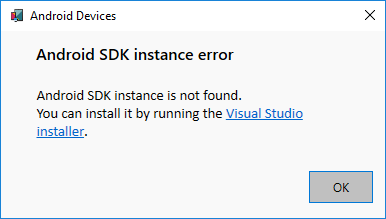
Now when you run the Xamarin Android Device Manager from the start menu (with administrator rights) it should load up as expected. Now if you are like me and don’t have the latest Android SDK Tools, then you are then presented with the following dialog prompting you to download them from the Xamarin Android SDKs and Tools manager:

sshot-361

When the Xamarin Android SDK and Tools manager opens, review the SDK platforms you want installed and then click over to the Tools tab:

sshot-362

In the Tools tab, expand the Android SDK Tools selection and change the selected tooling to the current version which is 26.1.1 and then click on the Apply Changes button. If you’re just changing the Android SDK Tools, this should only take a couple min at most to apply. Once it’s done close down the Android SDKs and Tools manager.

sshot-363

Now go back to Visual Studio (re-run if you have it running already) and run the Android Emulator Manager from the Tools – > Android menu.

image

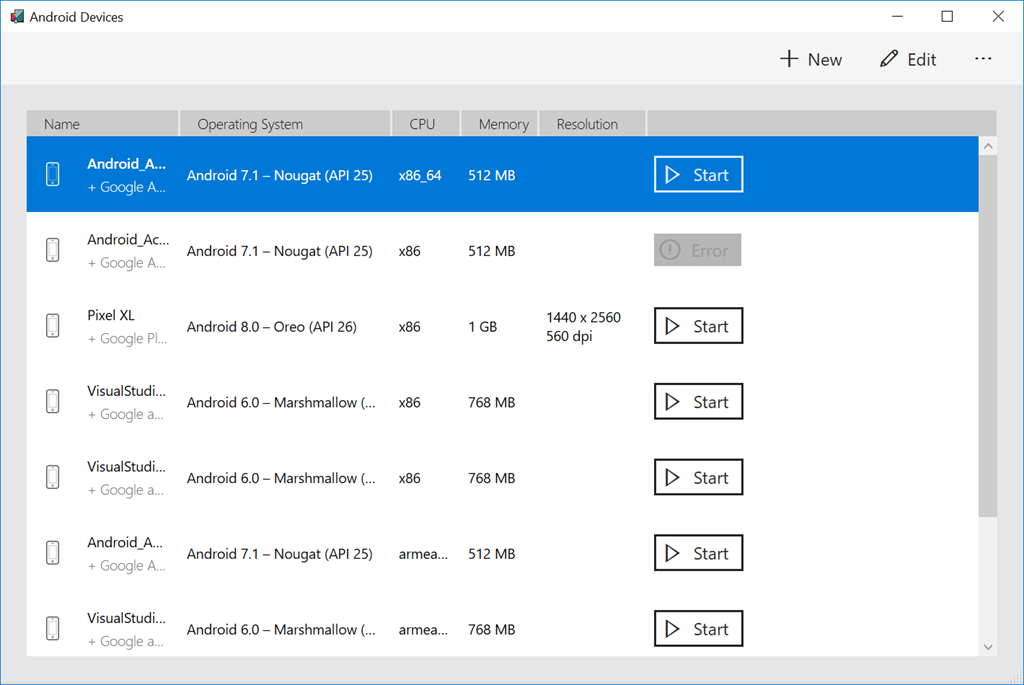
You will now be presented with the new Android Devices manager. When you first launch the Android Device Manager, it presents a screen that displays all currently configured virtual devices. For each device, the Name, Operating System (Android API Level), CPU, Memory size, and screen resolution are displayed:

image

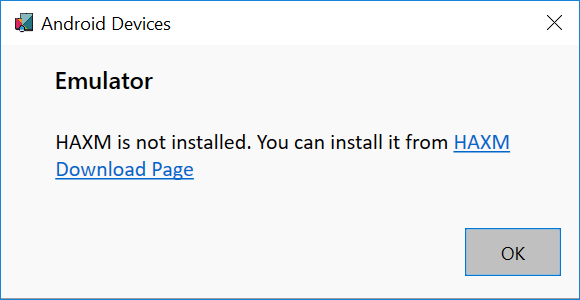
I then went on and added a new option for Android Oreo and when I tried to run it I got another error:

image

Now it looks like I need to install another tool, Intel’s HAXM which requires Hyper-V be disabled.

Summary

What seemed like a quick and easy update has turned into quite the adventure. It’s 2018…why can’t this be more simple!

Enjoy!

References

Channel 9 | The Xamarin Show: Snack Pack | The New Xamarin Android Device Manager

How to setup and create Android virtual devices using Xamarin Android Device Manager

Installing Xamarin.Android on Windows

Installation Instructions for Intel® Hardware Accelerated Execution Manager (Intel® HAXM) – Microsoft Windows*

AnalyticsAzure

Monitoring and Scaling your Azure Functions

Everybody loves Azure Functions. My team recently deployed a production service using Azure Functions as the back end backbone. I’d like to share some lessons and tips we learned along the way. We’re using Azure functions in consumption plan – which basically means the platform scales in and out as required without our intervention. But […]

via Monitoring and Scaling Azure Functions — 4pp1n51ght5

Azure

How to cleanup your Azure Functions URL and remove /api from the route

We looked at Azure Functions. We also looked at security around Azure Function used to implement APIs. Something people will quickly notice when implementing an Webhook / API function is that its URL or route is always prepended by /api. For instance, if we create a webhook function in C# and we setup the route […]

via How to get rid of /api in Azure Function’s route? — Vincent-Philippe Lauzon’s

EventsMVP

Microsoft MVP Summit Checklist — Ken Cenerelli

In March 2018, I will be heading to my third Microsoft MVP Global Summit. Just like in past years, MVPs from around the world converge on Bellevue, Redmond, and Seattle, Washington for several days of technical sessions and camaraderie on the Microsoft campus. While the majority of MVPs attending are returnees, a good portion is […]

via Microsoft MVP Summit Checklist — Ken Cenerelli

DatabaseProductivity

How to Enable Dark Theme for SQL Server Management Studio

Updated Feb. 21, 2018 – Each time you install a newer version of SSMS, like 17.5 that released last week, you will need to go and update the configuration file and comment out the Dark theme references as described below.

If you’re like me and you like to use the Visual Studio Dark theme and wish you could use this theme for SQL Server Management Studio (SSMS), unfortunately, there is no official support at this time (keep bugging Microsoft for this feature please). Currently SSMS 2016 and SSMS 17 support both the Blue and Light themes.

If you weren’t aware, SQL Server Management Studio is built on the Visual Studio shell, so it does support the Dark theme but it’s currently disabled due to “unfinished work” with various parts of the application like the Object Explorer and Output panes.

Here is my current SSMS 17 using the Light theme:

image

To enable the Dark theme follow these simple steps

1. Close down all running instances of SSMS

2. Open Windows Explorer and browse to the following location to change the configuration file ssms.pkgundef

    • For SSMS 2016: C:\Program Files (x86)\Microsoft SQL Server\130\Tools\Binn\ManagementStudio
    • For SSMS 17: C:\Program Files (x86)\Microsoft SQL Server\140\Tools\Binn\ManagementStudio

3. Type the name of the file into the search box at the top right corner and then right click to edit this file. Note: You will need to edit this file with Administrative rights.

image

4. Now search the file for the following line // Remove Dark Theme and then comment out each line in this section by using // at the start of each line in this section as shown below:

image

5. Save the file and now re-launch SSMS. After restarting SSMS, go to Options you will see the Dark them listed. Select the Dark theme and then press the OK button.

image

Your SSMS should now be using the Dark theme, similar to what my SSMS looks like now after enabling this theme. Ah this is much better!

image

For the most part its dark but where it fails is in the Object Explorer and Output panes as you can see here:

image

There is a way to go into Options and tweak the colors for the Output pane (results grid and messages), but that is extremely tedious and not worth the effort in my opinion.

Alternate Solutions

Now I’m not sure why this is not fully supported yet, especially for the Object Explorer and the Output panes. People keep asking for this feature and release after release it’s still not properly supported.

Now if you look at Visual Studio, there is a SQL Server Object Explorer and when you run a query, the results window (text and grid) supprt support the dark theme as shown below. So this is an alternate method if you don’t want to change SSMS.

image

For those of you that are not developers and use SSMS for interacting with your SQL Servers and want to use a dark theme editor, you can install a bare bones instance of Visual Studio 2017 with just the database tooling by selecting the Data storage and processing workload.

image

Summary

Hopefully, a future update to SSMS will enable the Dark theme out of the box and until then this is a temporary solution that may or may not work for you. For me, I spend most of my time working with SQL queries that I don’t need Output or Object Explorer visible, so I just collapse them.

This method works for both SSMS 2016 and SSMS 17.

Enjoy!

References

https://www.sqlshack.com/setting-up-the-dark-theme-in-sql-server-management-studio/

Azure

Azure Serverless: Azure Functions and Logic Apps that are ready to deploy!

image

If you’re new to Azure Functions and/or Logic Apps there is a great open source library for you to browse that contains set of common use cases that are ready to deploy!

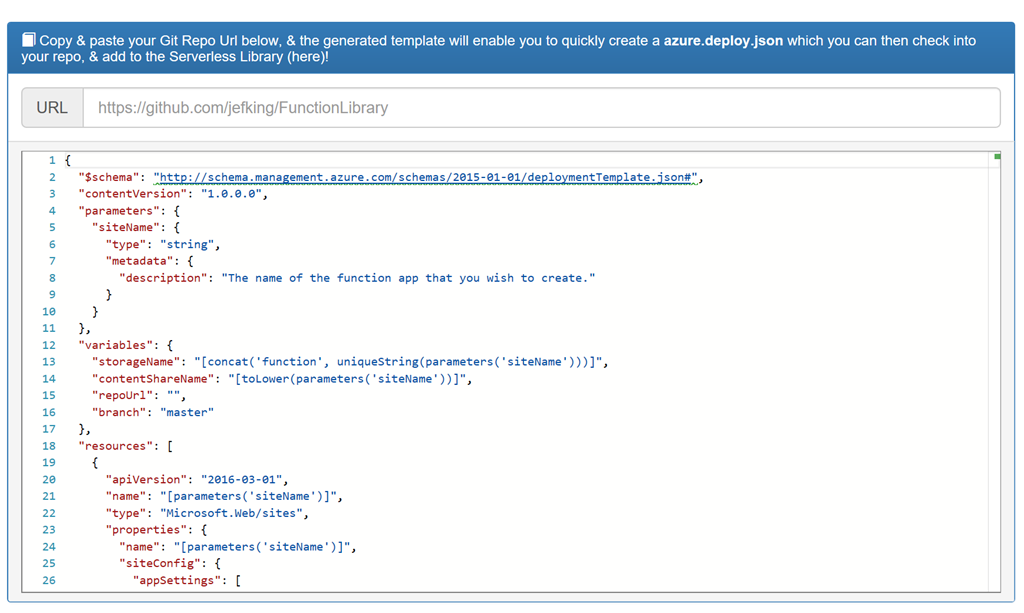
If you want to create an Azure Resource Manager (ARM) template that deploys Functions or Logic Apps, you can build your own as shown here. Just provide your GitHub repository URL and it will quickly create an azure.deploy.json file for you to include with your repos.

image

Summary

These samples are available in a either C# or NodeJS and can be deployed to your Azure subscription with a click of a button. The samples cover a number of useful tasks that can easily be incorporated into your application or simply used for learning purposes. If you’re interested in contributing to this project or browsing through the code please take a look at the GitHub repository.

Enjoy!

    References

    http://functionlibrary.azurewebsites.net/

    https://github.com/jefking/FunctionLibrary

    DevelopmentEvents

    Windows Developer Day–March 7, 2018

    WindowsDeveloperDay-Mar72018

    On March 7, 2018 at 9:00 AM PST, Microsoft will livestream a Windows Developer Day event on the latest news on tools and features for developers that will be coming in the next Windows 10 Update. The livestream will cover a keynote by Kevin Gallo, CVP of the Windows Developers Platform and then be followed by a Q&A session.

    No matter what you’re working on, you’ll find plenty of improvements that will make your software even more compelling. You’ll also get inside info on:

    • Building for the modern workplace—Learn how Windows is evolving as a platform to make improving and updating your existing Windows code with new functionality as simple as possible.
    • Making your software part of the intelligent edge—Give your applications the capability to quickly make complex calculations and inferences, enabling them to become a native part of the intelligent edge.

    Windows Developer Day is the only place to find out what’s coming for developers in the next Windows 10 Update, so RSVP today.

    Enjoy!

    Resources

    Windows Developer Day

    Azure

    Try Azure Functions for Free

    In my previous post “Introduction to Azure serverless with Azure Functions, Logic Apps and Azure Event Grid” I briefly introduced each of those services from Azure. In this post I’ll show you how you can try Azure Functions for free without signing up for an Azure subscription. Let’s get started.

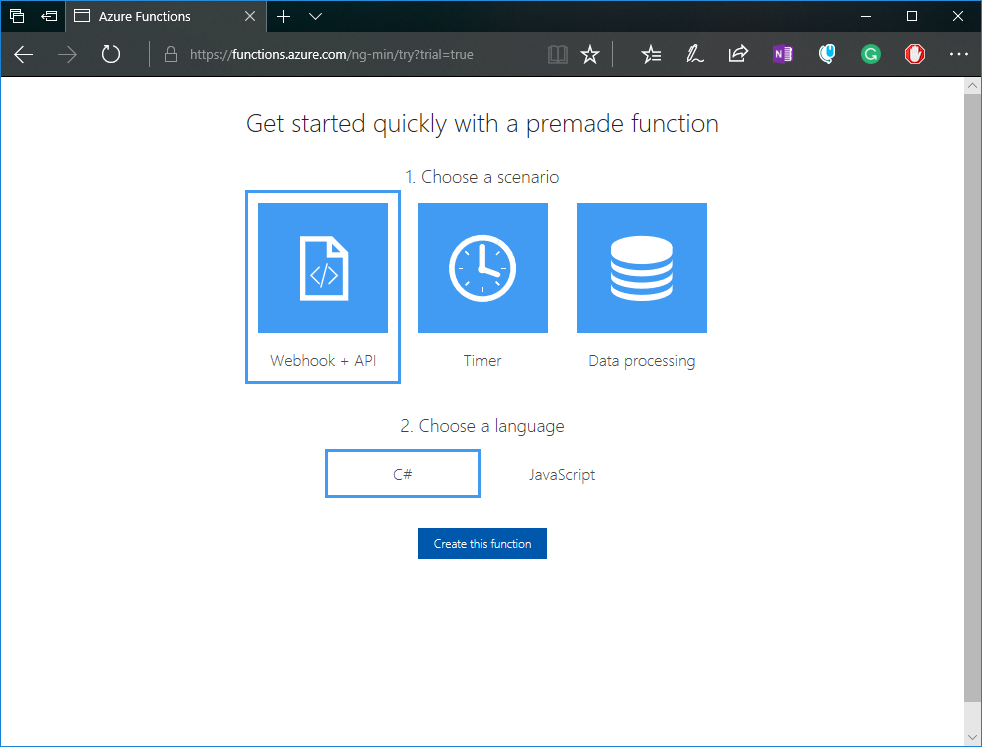
    Microsoft has setup a free sandbox environment for trying out Azure Functions for free. Navigate to the free trial link and select the function you want to create:

    image

    After clicking on the Create this function button you will be asked to choose an auth provider. Any will do and it’s just needed to get some basic information for the trial. No credit card information is required:

    image

    After a few seconds you should see your new HttpTrigger C# function (based on the selection from the previous screen). Click on the Run button to see your function run. From this portal you can edit your function code and save the changes, run the function and view the logs from the, test your function with different input, and see the output and status.

    image

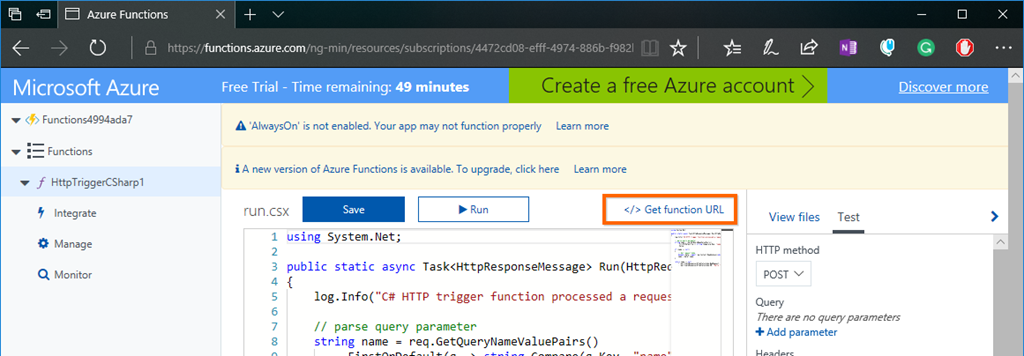
    Your function also has a URL you can use to run your function outside of this portal. Go to the top right corner and click on Get function URL:

    image

    You will then see the get function URL modal with the key and URL. Click on the copy link and then open up another browser tab or use it within Postman:

    image

    Paste your function link and then add the required query string parameter Name with a value. You should then see the output of your function like so:

    image

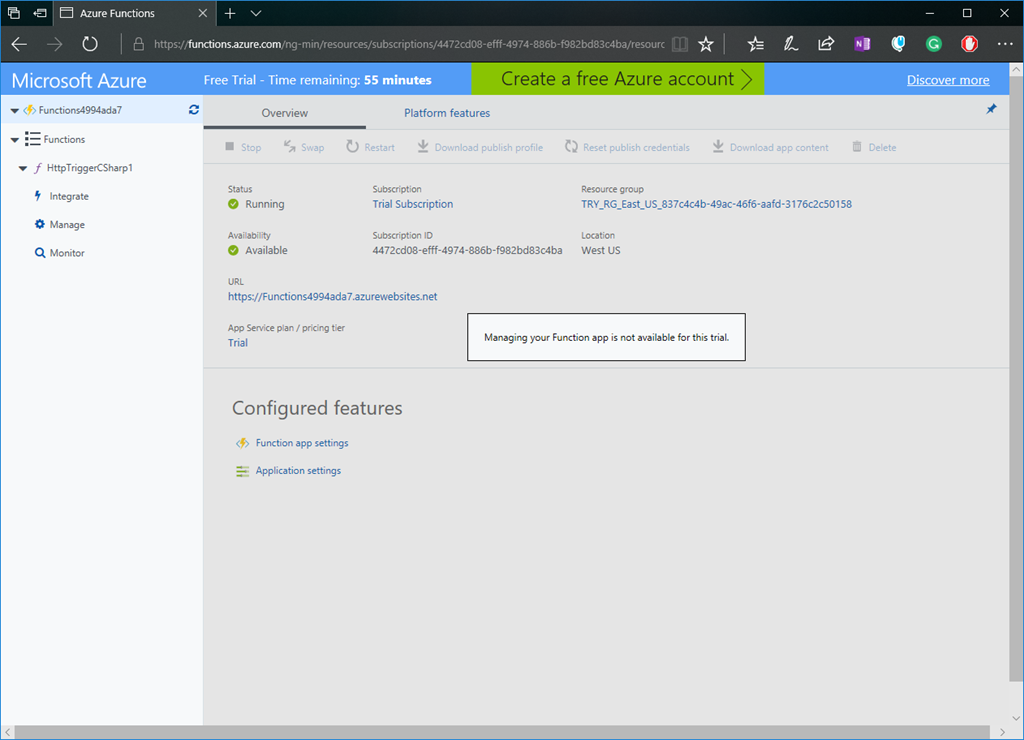
    This environment is limited in what you can do. So although you can change your function code and the integrations it works with, you are prevented from managing your function app. You also only have only 59 minutes to try it out.

    image

    As you can see you can quickly try out Azure Functions in a sandbox environment. If and when you’re ready you can move to an Azure subscription where you can fully manage your Azure Function and get access to a world of other resources to use with your function app. It’s worth mentioning that with your Azure subscription you get access to a number of Azure resources for free within certain limits…including Azure Functions. So take a look and give Azure Functions a try.

    Enjoy!

    Resources

    Try Azure Functions for Free

    Azure Functions

    Azure

    Introduction to Azure serverless with Azure Functions, Logic Apps and Azure Event Grid

    image

    In this blog post I’ll introduce you to what is serverless and then what services in Azure provide serverless capabilities. First let’s define what is serverless.

    What is the definition of Serverless

    • It’s an abstraction of servers. This doesn’t mean there are no servers, there are still servers behind the scenes but this means you don’t need to worry about optimizing which OS to run, about OS patching, etc. You also don’t need to worry about optimizing utilization and scaling up and down for demand. Think of it as less server more code.
    • It’s an event driven process. You simple tell Azure how or when to run your code. This could be based on a schedule or when a new customer is added to Salesforce, or when items are added to a queue, to a table storage, etc.
    • It’s micro-billing. This means you’re only charged for your usage.

    The benefits of serverless

    • Reduced DevOps – You can dynamically and elastically scale to meet demand.
    • Focus on Business Logic – Allows you as the developer to focus on your business logic and everything else is taken cared of for you. No need to provision resources and wait on ITOPS. In some cases you can design and develop your serverless code offline.
    • Faster Time to Market – By focusing on your business logic and features, you’re able to drastically increase time to market.

    Let’s now look at three Azure services that provide serverless capabilities.

    1. Azure Functions

    image

    Azure Functions is an event driven, compute-on-demand experience. You can easily and quickly build the apps you need using simple serverless functions that scale and meet demand and you only pay for your usage.

    You can use the programming language of your choice like C#, F#, JavaScript, PHP, Python, Java or using scripting tools like Bash or PowerShell. You can develop on Windows, Linux or Mac. You can deploy on Windows or Linux. You can choose from using either the full .NET Framework or the .NET Core runtimes.

    Azure Functions allows you to bind into services. This means you can integrate Azure Functions into Cosmos DB, Logic Apps, queues, table storage, on premise and so much more.

    With Azure Functions you simply provide your code and then let Azure take care of the rest…meaning that when an event happens, Azure will automatically take care of everything to run that code at scale.


    2. Logic App Service

    Azure Logic Apps are built around the idea of events, triggers and workflows. When you think about building microservices, there are a lot of moving parts to manage. Azure Logic Apps lets you stitch them all together much more easily and provides you with a central place to build and manage all of your event-driven services.

    Logic Apps are a fully managed iPaaS (integration Platform as a Service) that provide serverless workflows that allow developers to easily integrate data with their apps instead of writing complex glue code between disparate systems. This allows you to orchestrate and connect the serverless functions and APIs of your applications.

    Benefits of Logic Apps

    1. You can quickly tap into the power of the cloud and fire events from other services.

    image

    2. You can orchestrate almost anything:

    • Run mission-critical, complex integration scenarios with ease
    • Connect on-premises, hybrid and cloud applications
    • Position for future with API centric connectivity
    • Easily connect custom on-premises applications to the cloud

    image

    Connectors

    At the time of this post there are over 200 connectors available out of the box. Connectors reduce integration challenges and enable you to quickly and easily connect apps, data and devices anywhere.

    Creating a Logic App

    The following is a sample Logic App. As you can see you simply string together Connectors, Triggers, Conditions and Actions to form the basis of your Logic App. When your Logic App is running you can monitor and inspect each run iteration and see what data came in and the path it took through the Logic App.

    image

    In summary Logic Apps is the workflow engine built for the cloud with cloud scale, massive compute and high availability built in.

    3. Azure Event Grid

    Finally there is Azure Event Grid which is a messaging service built to easily build application with event-based architectures. You simply select the Azure resource you would like to subscribe to, and give the event handler or webhook endpoint to send the event to. Event Grid also has built-in support for events coming from other Azure services, like resource groups, subscriptions, storage blobs, and event hubs.

    functional-model

    Topics and Subscriptions

    Event Grid is similar to Azure Service Bus in that a Topic is an endpoint that receives messages, and a Subscription is used to receive messages through the Topic that will be handled by a message listener. These concepts are basically the same, but there are some differences in how they work. Event Grid it uses a concept of events instead of messages since it’s an event-based messaging system, and because Event Grid is based on events, it lends itself nicely to microservice architectures using serverless compute options like Azure Functions and Logic Apps in addition to other implementations.

    There are also more differences between Azure Event Grid and other message queue services. The capabilities of Azure Event Grid are centered around speed, scale, breadth, and low cost. Rather than being a general / generic messaging service, Azure Event Grid is built specifically for Serverless architectures.

    Event Publishers

    Currently Azure Event Grid has built in support for the following event publishers:

    • Event Hubs
    • IoT Hubs
    • Storage
    • Blog Storage
    • Custom Topics
    • Azure Subscriptions (management operations)
    • Resource Groups (management operations)

    Event Handlers

    Currently the following Azure services have built-in handler support for Event Grid:

    • Azure Functions
    • Logic Apps
    • Event Hubs
    • Webhooks
    • Azure Automation
    • Microsoft Flow

    If using Azure Functions as your handler, use the Event Grid trigger over the generic HTTP trigger as it automatically validates Event Grid Function triggers.

    Azure Event Grid is built specifically for Serverless architectures.

    Event Grid Architectures

    Azure Event Grid is designed to be used in microservices and event based architectures. It can be used in a serverless application to connect data sources and event handlers. In an ops automation scenario you can notify Azure Automation when virtual machines are created, or when a SQL database is spun up. Finally you can use Event grid to connect your application with other services. The possibilities are really limited by your imagination.

    EventGridArchitecture1

    Summary

    As you can see all three services provide a different component to the serverless story and each of them integrate nicely with each other. They each allow you to think less about the server and more about your code and you only pay for your usage. The best way to learn about these Azure serverless offerings is to create a free Azure account and try it out yourself.

    Enjoy!

    References

    Azure Functions

    Docs: An introduction to Azure Functions

    Logic App Service

    Docs: An introduction to Logic App

    Azure Event Grid

    Docs: An introduction to Azure Event Grid

    Webinar: Go serverless. Build apps faster and stop worrying about infrastructure.

    Report: Economics of Serverless Cloud Computing

    Attribution: This post uses one or more graphics from the official Azure Event Grid documentation, such as diagrams.

    ArchitectureAzure

    Planning Azure Services by Location

    Roy Kim (MVP)'s avatarRoy Kim on Azure and AI

    When planning and designing a cloud solution, the location of the service and its data is of great consideration in terms of data sovereignty
    .PlanningAzure Services by Location 1

    In my experiences when discussing cloud design, I may bring up an Azure service for consideration that is beyond the standard VM, storage account, app service but something complements or supplements the solution like azure app insights, power bi premium/embedded, backups, CDN, logging or an azure ad tenant. Now, can we simply assume they will be available in the desired region? No necessarily. To check we can go to an online tool Products available by region

    An example looks as follows:
    PlanningAzure Services by Location 2

    One thing to point out and be aware are services that are located in Non-regional.
    Non-regional is defined as “where there is no dependency on a specific Azure region”

    PlanningAzure Services by Location 3

    Some examples are CDN, Azure AD, Azure MFA, Traffic manager, Power BI Embedded…

    View original post 326 more words