Category: Development

CloudDevelopment

Getting Started with Azure Functions

The first article of this series, Introduced what Azure Functions are and the capabilities they offer when used by themselves or combined with other Azure resources. This article will focus on getting started with just one of the types of Azure Functions available…the HttpTrigger function.

Creating the Azure Function

You can quickly get started with creating an Azure Function by going to the Azure Functions Get Started Portal. After logging in you will be taken to the Azure Functions getting started portal as shown below.

Portal1

Using the above Getting Started portal, enter the name and location of your Azure Function app, in my case I’m using a name of  GettingStartedAzureFunction and a location of East US.

Then then click on Create + get started button. This will then take you to the Azure portal inside your Azure Function app. From here you can get started quickly with a premade function, in my case I went with Webhook + API, and C# for the language. Finally click on the Create the function button to create this function.

AzureFunctionAppBlade-01

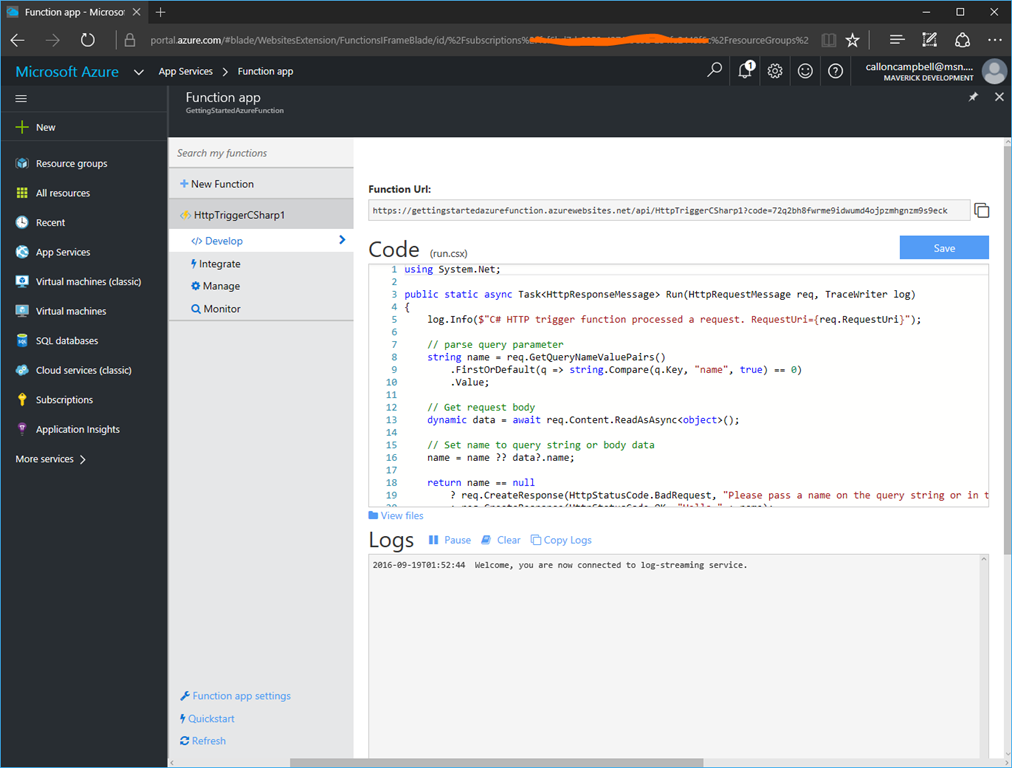
A new function named HttpTriggerCSharp1 will be generated for you, which will be based on C# and this function will be run whenever it receives an HTTP request.
HttpTriggerFunction-Code

At this point your function is ready to go. You can see the Function URL at the top and below is the generated code for the Http trigger.

Testing your Function

Since this function is generated from the quick starts, it already contains functional code which you can immediately run and test.

In this example you can quickly test the function by clicking on the Run button at the bottom of the page. It will pass a request body with the named parameter of “Azure” to the function, which will then show up in the Output pane to the right.

HttpTriggerFunction-Run

Alternatively you can also test the function by browsing to the URL to trigger the function. In this case I’ll navigate to the URL provided and the pass in the parameter name of “callon” to the query string like so.

HttpTriggerFunction-Test2

Monitoring your Function

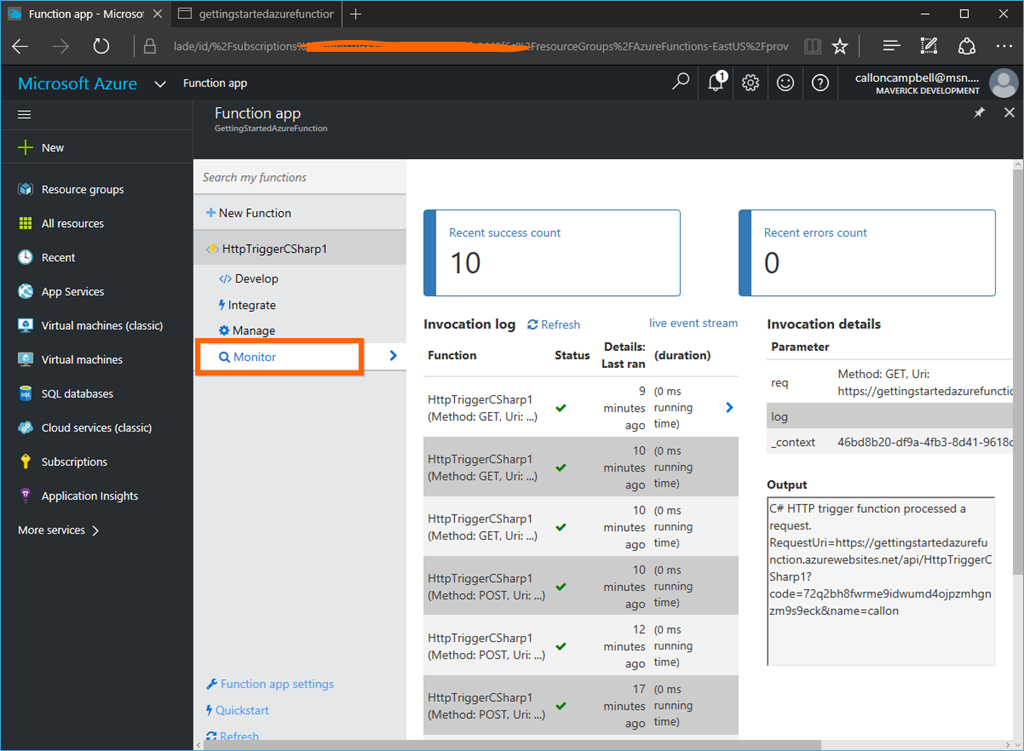
Now that your function is up and running you can easily monitor it by going to the Monitor tab of your function. From here you can see recent success and error counts and inspect the function requests.
HttpTriggerFunction-Monitor

Managing your Functions

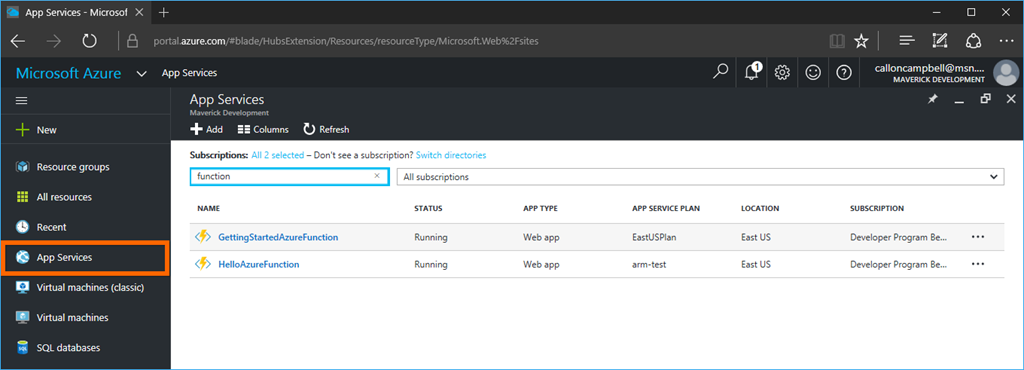
After creating your Azure Function app, you will be taken to your Azure Function app blade where you can create and manage your functions. If you need to get back to your Azure Function apps at a later time, you can navigate to the App Services blade and then filter by function as shown here.
AppServices-AzureFunctions

Next Steps

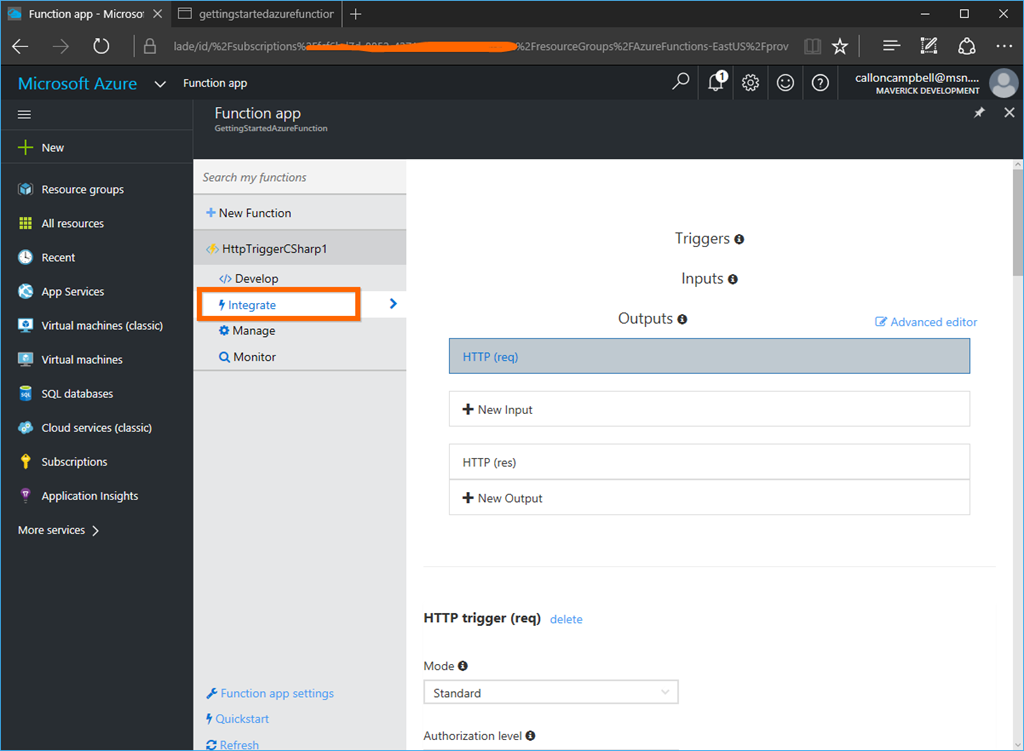
Now that you have your Azure Function you will most likely want to integrate it into other Azure resources or other apps. If you click on the Integrate tab of the function, you can quickly define an integration (triggers, inputs and outputs) and there is also an advanced editor available if needed.
HttpTriggerFunction-Integrate

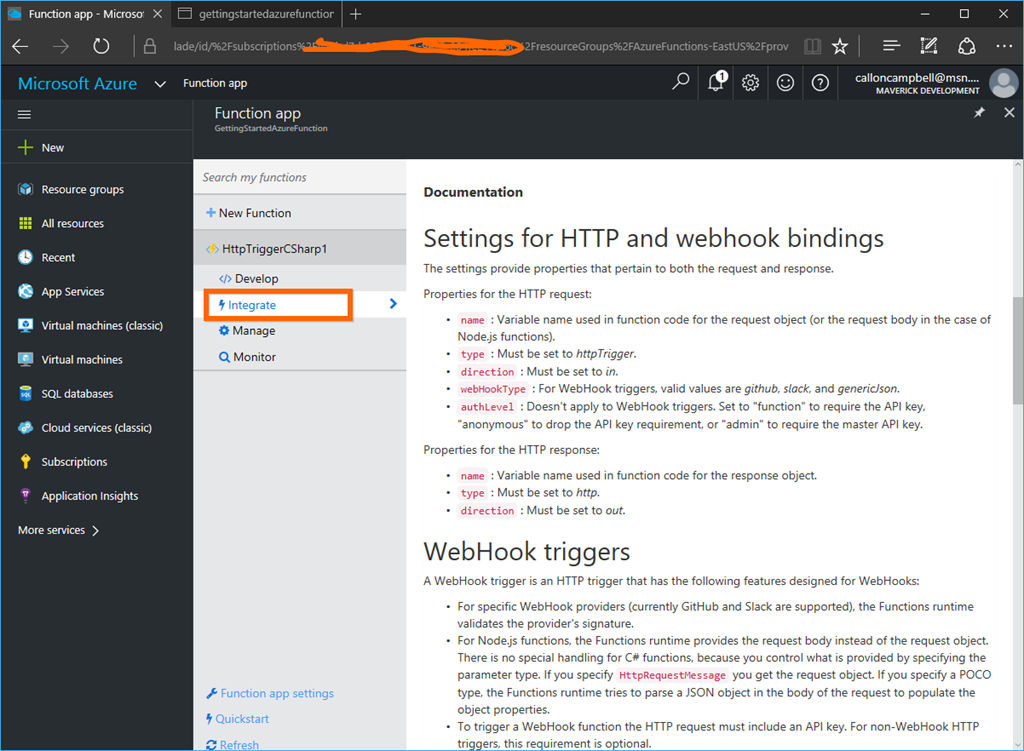
Lastly if you scroll down on the Integrate tab, you will come to some handy documentation.
HttpTriggerFunction-Integrate2

In a future post I will walk through integrating an Azure function with another Azure resource.

Enjoy!

References

Azure Functions
Azure Functions Documentation
Testing Azure Functions

CloudDevelopment

How to Upgrade an Azure Function App

After creating an Azure Function app, you may notice a notification in your Azure Function app tat there is a new version of Azure Functions. I’ll walk you through the current process for upgrading your Azure Function app.

Upgrading

To start the upgrade process, click on link “Function app settings”:

Function App Settings 1

Then click on “Update”:

Function App Settings 2

Within a second your Function app should be upgraded to the latest version:

Function App Settings 3

That’s all that is required when upgrading your Function apps.

Enjoy!

CloudDevelopment

Introduction to Azure Functions

What is Azure Functions2

Azure Functions are a serverless, event driven experience that extends the existing Azure App Service platform, by building “nanoservices” that can scale based on demand and you only pay for the resources you use.

functionsAzure Functions is a solution for easily running small pieces of code, or "functions," in the cloud. You can write just the code you need for the problem at hand, without worrying about a whole application or the infrastructure to run it.

Supported Languages and Tools

Azure Functions can be created in C#, Node/JavaScript, Python, F#, PHP and scripting languages like Bash, Batch and PowerShell. You can even run executables.

Common Scenarios

Azure Functions is a great solution for building nanoservices, simple API’s, processing data and integration with systems. Here are some common scenarios for Azure Functions:

  • Timer-based processing
  • Azure service event processing
  • SaaS event processing
  • Serverless web application architectures
  • Serverless mobile backends
  • Real-time stream processing
  • Real-time bot messaging
sshot-306
Integrations

Azure Functions can be triggered by virtually any event in Azure, any 3rd party services, or any on premise systems. The following service integrations are supported by Azure Functions:

  • Azure DocumentDB
  • Azure Event Hubs
  • Azure Mobile Apps (tables)
  • Azure Notification Hubs
  • Azure Service Bug (queues and topics)
  • Azure Storage (blob, queues and tables)
  • GitHub (webhooks)
  • On-premises (using Service Bug)
Getting Started

You can quickly get started with creating an Azure Function by going to the Azure Functions Get Started Portal. After logging in you will be taken to the Azure Functions getting started portal as shown below.

Portal1

Or create a function app from Azure Portal. This can be found under New –> Web + Mobile –> Function App:

FunctionApp-Portal2

Once you’ve created your Function App, you will be taken to the Function App blade in the Azure Portal. From this blade you can create new functions by clicking on the New Function button on the top left, which will bring us to pre-built templates. If you click on an existing function, which are listed along the left side, you can edit the function, look at logs and even test the function.

Portal2

Have fun and take a look at Azure Functions and how they might help you. In my next post I’ll dive deeper and walk you through creating, running and testing the function app.

Enjoy!

References

Azure Functions
Azure Functions Documentation
Build 2016 Video: Introducing Azure Functions
DatabaseDevelopment

SQL Server Management Studio 2016: Quick Overview

It’s been almost two months since SQL Server 2016 was released and today I’ll provide a quick overview of some of the benefits new with SQL Server Management Studio 2016 or also known as SSMS 2016.

New Installer

One of the first things I noticed when I installed SQL Server 2016 is that SSMS is no longer listed in the features for installation. This is because SQL Server Management Studio 2016 has become its own stand-alone installer that can easily be downloaded from the web. There is also a link in the SQL Server engine management tools which takes you to the web to download the separate installer for SSMS 2016.

By decoupling SSMS from the roughly two-year release cycle of the core product, the SSMS team is able to provide quicker releases for SSMS. In the two months since it’s released we’ve already seen two updates. From what I’ve read it looks like they’re on a monthly cadence – which is awesome!

sshot-301

Visual Studio Awesomeness

sshot-1

SSMS 2016 is now built upon the Visual Studio 2015 shell and unlike SSMS 2012 and SSMS 2014 that were based on Visual Studio 2010 this brings a number of improvements:

Performance

Now that SSMS 2016 is build upon the Visual Studio 2015 shell, it gets all the performance optimizations that came in versions of Visual Studio since Visual Studio  2010. This is something you’ll notice immediately when running SSMS 2016.

I don’t know why SSMS 2012 and SSMS 2014 weren’t updated to be based on the latest Visual Studio at the time. I guess timing was a factor and priority was probably put on the database engine and not the editor. Hopefully now that SSMS is decoupled from the database engine release cycle we will see SSMS be updated and based on newer versions of Visual Studio as they become available. 

Support for High-Resolution Displays

Anyone that is using a Microsoft Surface Pro or Surface Book will know the DPI issues that plagued previous versions of SSMS. SSMS 2016 finally provides first-class support for high-resolution displays. 

Removed dependency on .NET Framework 3.5

It’s always good to let go of dependencies on older frameworks like .NET Framework 3.5.

Automatic Updates

SSMS 2016 now automatically checks for updates on start-up and also provides a toast notifications within SSMS when a new release becomes available.

You also have the chance to manually check for updates rom the Tools menu as shown here:

check-for-updates

check-for-updates-dialog

Support for Themes

SSMS 2016 now comes with an additional them called Light. Any developer of Visual Studio will already recognize this theme and it’s a welcome addition. From what I’ve read online, the SSMS team is working on bringing a Dark theme to SSMS. Not sure when a Dark theme will be released but lets hope sooner than later. Everything just seems to run and look better in the Dark them.

themes

New Quick Launch and Find Dialogs

Another feature that comes with the Visual Studio 2015 shell is the new quick find dialog located in the upper right corner of the editor. SSMS 2016 also has the Quick Launch which is in the upper right corner of the window and allows you to quickly search for options, etc.

sshot-3

SSMS Azure Integration

The Table Designer is enabled for supporting Azure for SQL Database v12. The Database and Properties dialogs also work with Azure SQL Database v12.

Import and Export wizards also support Azure Database service tiers.

Next Steps

Download SSMS 2016: https://msdn.microsoft.com/en-us/library/mt238290.aspx
Download SQL Server Data Tools (SSDT) https://msdn.microsoft.com/en-us/library/mt204009.aspx
Download new World-Wide Importers sample database

DevelopmentManagementSoftware

The Quiet Crisis unfolding in Software Development

Came across a great article today about the quiet crisis that is unfolding in software development. Being a software developer myself I almost 99% agree with this article and see it day in and day out. Hopefully things in our industry change.

Anyway enjoy the read!

https://medium.com/@billjordan1/the-quiet-crisis-unfolding-in-software-development-cffbdafbf450#.xhx8la62c

DevelopmentIoTTechnologyWindows

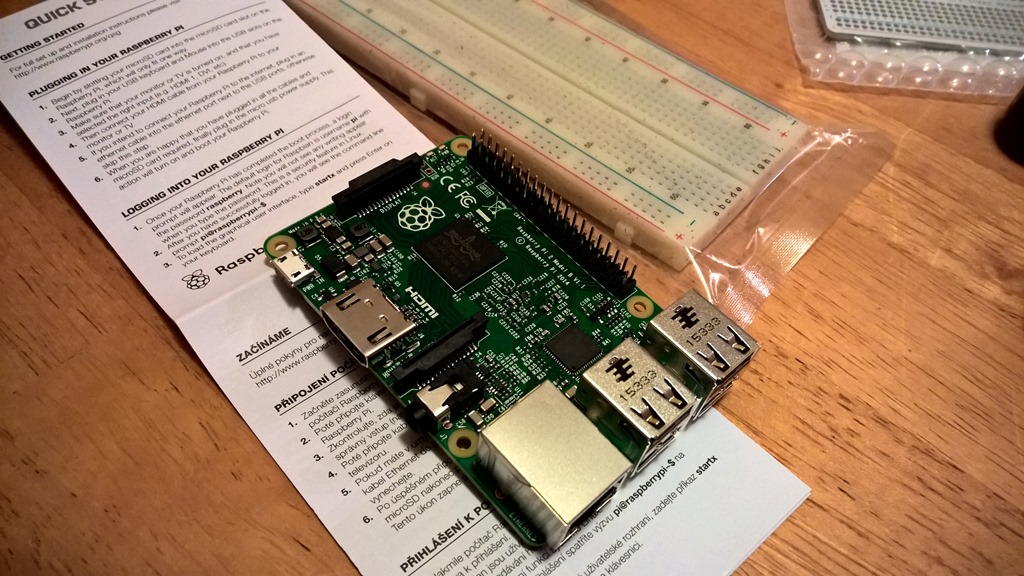
Unboxing Adafruit Starter Pack for Windows 10 IoT Core on Raspberry Pi 2

AdafruitDisplay

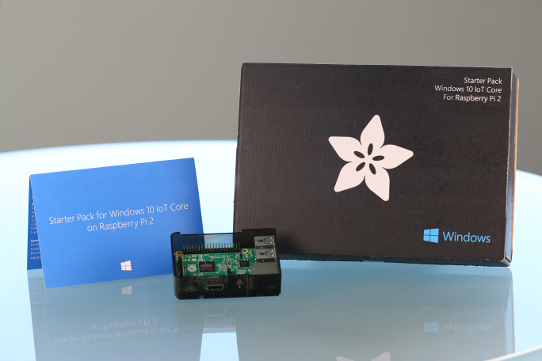
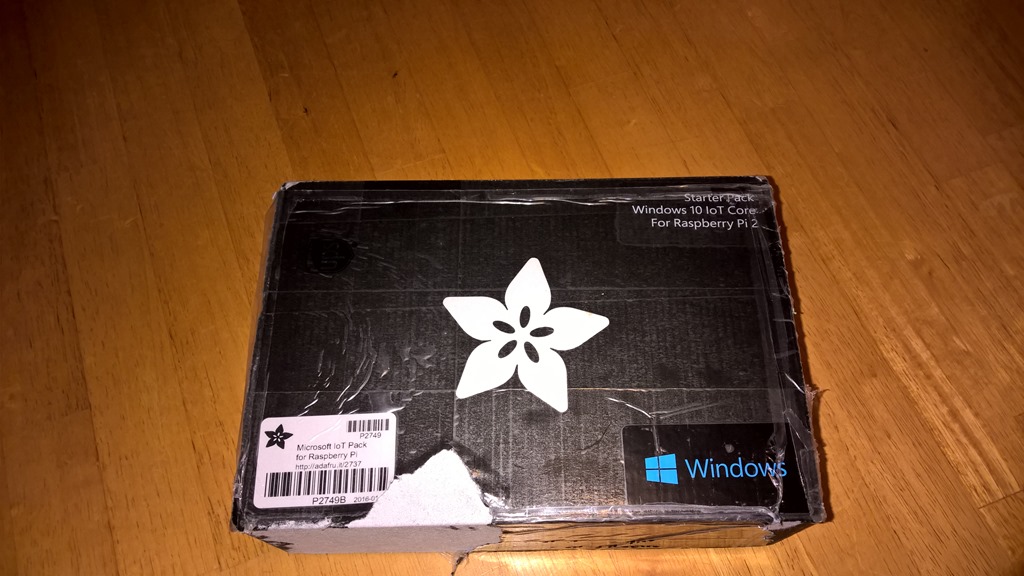
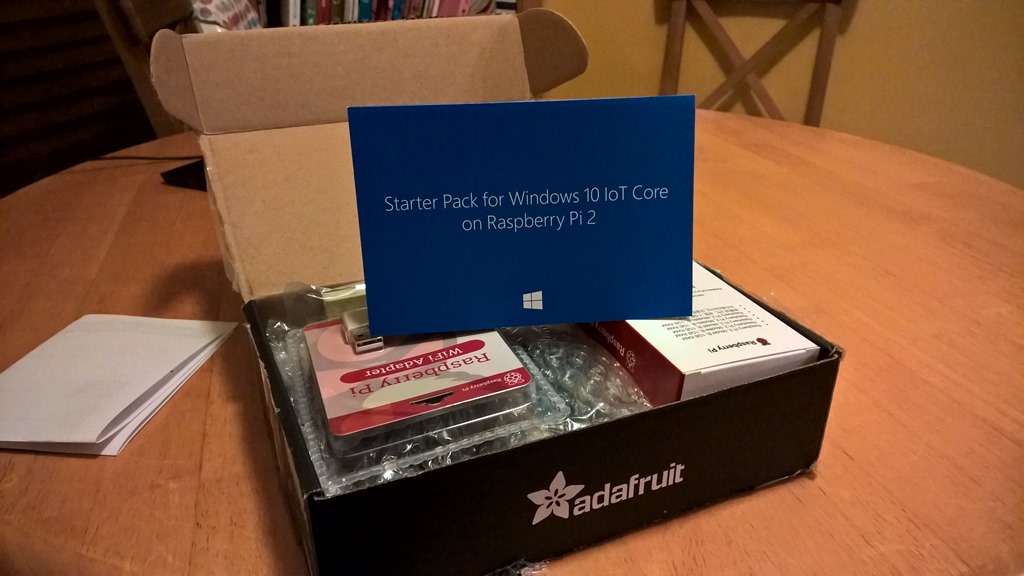
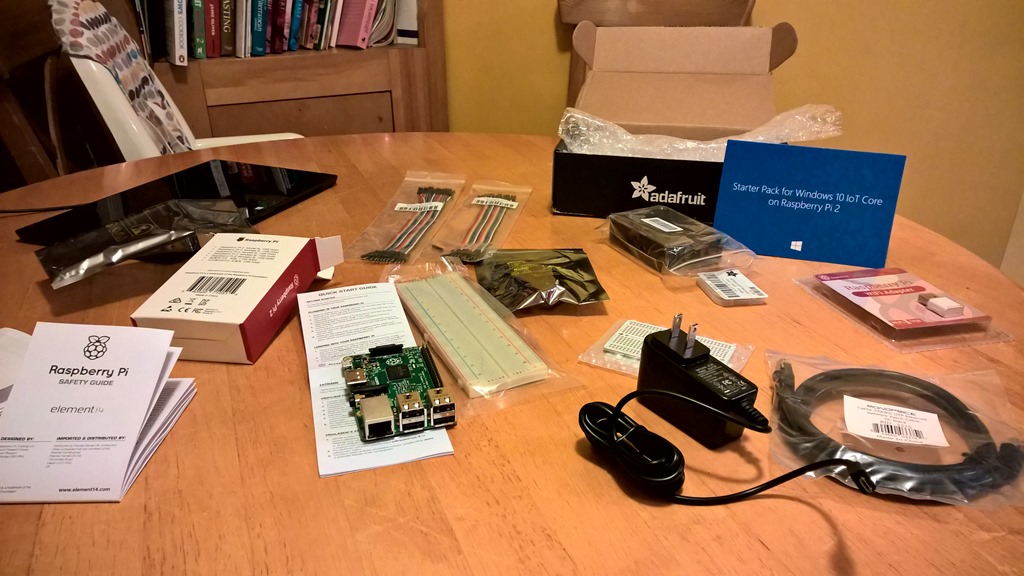
Today I received my Starter Pack for Windows 10 IoT Core on Raspberry Pi 2. I purchased it from Adafruit, which you can order from here.

“Windows 10 IoT Core is a new edition of Windows targeted towards small embedded devices and maker boards such as Raspberry Pi2. IoT core is designed to work with low-level bus interfaces such as I2C, SPI, USB. You can write a Universal Windows Application using a variety of programming languages in Visual Studio to rapidly create maker projects.

You can use Windows 10 IoT Core to read sensor data, control actuators, connect to the cloud, create IoT applications and much more. The Starter Pack from Adafruit includes parts to get you started.”

Let’s get started!

Unboxing

WP_20160114_22_59_17_Pro_LI

WP_20160114_23_00_00_Pro_LI

WP_20160114_23_13_57_Pro

WP_20160114_23_14_12_Pro_LI

The Parts

Essentials

Item Quantity
Raspberry Pi 2 Board (Included in some versions of the Adafruit Starter Kit) 1
Adafruit Raspberry Pi Case 1
8GB SD card with Windows IoT Core 1
5V 2A Power Supply with MicroUSB Cable 1
USB WiFi Module 1
Ethernet Cable 1
Full Size Breadboard 1

Components

Item Quantity
Premium Male/Male Jumper Wires 1
Premium Female/Male Jumper Wires 1
MCP3008 – 8-Channel 10-Bit ADC 1
Assorted LEDs 6
Potentiometers 2
Tactile Switches 3
Resistors 10
Capacitor 1

Sensors

Item Quantity
Photocell 1
Adafruit BMP280 Temperature + Barometric Sensor 1
Adafruit TCS34725 Color Sensor 1


Setup

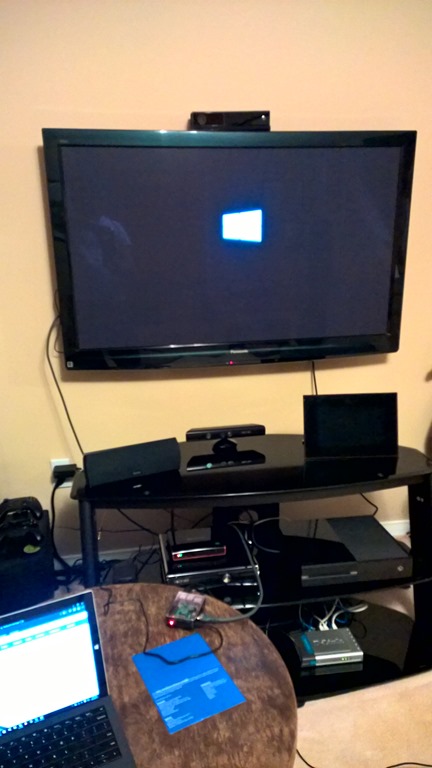
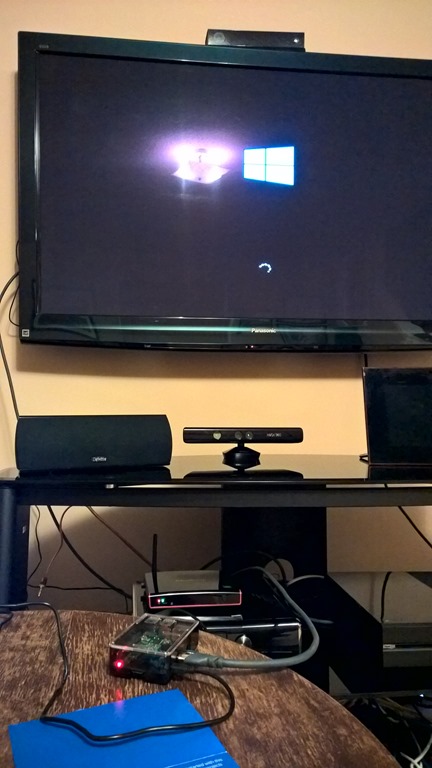
Plug in the HDMI and Ethernet cables and then plug in the power source. It was too late at night to setup the wifi, so I’ll leave that for another day.

WP_20160115_00_10_03_Pro_LI

It took about 5 minutes for the Raspberry Pi to boot up the first time.

WP_20160115_00_10_24_Pro_LI

Once it was booted up you see the following screen which allows you to interact with the device.

WP_20160115_00_17_25_Pro_LI

Next Steps

Now that you’ve connected your Raspberry Pi, you need to configure your PC and Raspberry Pi before your can start development.

  1. Setting up your PC
  2. Setting up your Raspberry Pi
  3. Start Coding!

Enjoy!

Development

Extended Strongly Typed Resource Generator for VS2013 and VS2015

Following up to a post I did in 2012 on ResXFileCodeGeneratorEx Update for VS2010, here are links to download this tool for Visual Studio 2015 and Visual Studio 2013:

Extension for Visual Studio 2015 can be found here:
https://visualstudiogallery.msdn.microsoft.com/f43d27fa-6bf7-4f3d-bf5e-3e716e63716b

Extension for Visual Studio 2013 can be found here:
https://visualstudiogallery.msdn.microsoft.com/16d24be3-6400-4a43-b946-766e41aca4bd

Enjoy!

CloudDevelopment

Elements for Visual Studio Online & TFS

Elements for Visual Studio Online & TFS.

Elements is a browser extension and does not require any server installation.It supports both Visual Studio Online and Team Foundation Server 2013.

elements-for-visual-studio-online-tfs

Reference

https://mohamedradwan.wordpress.com/2014/12/30/elements-for-visual-studio-online-tfs/

Development

Versioning Assembly during TFS Build 2013

Versioning Assembly during TFS Build 2013

via Versioning Assembly during TFS Build 2013.

AnalyticsDevelopment

Sad to hear that MarkedUp is Shutting Down

I just received an email that MarkedUp is Shutting Down. That is sad to hear, it was a great service.